
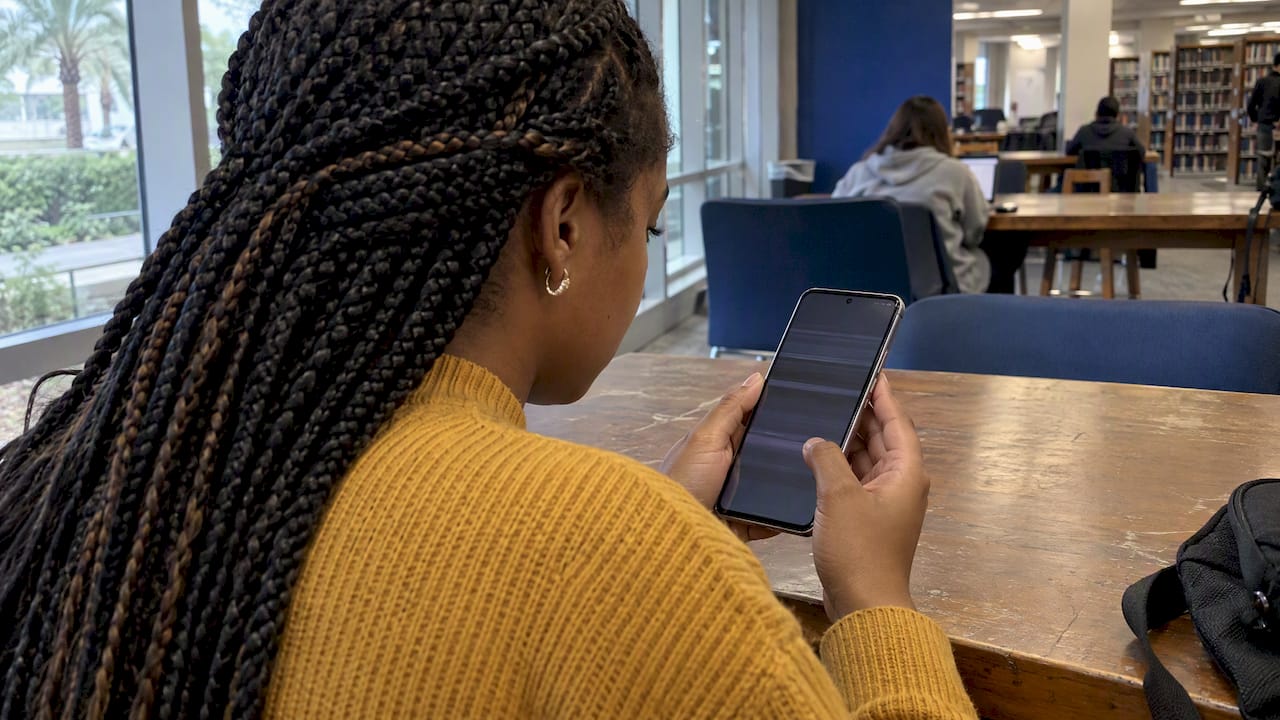
A flickering Galaxy screen is usually a software or settings problem you can test in about 15 minutes. It is a hardware problem when the flicker survives Safe Mode, follows a drop or water exposure, or comes with lines, dark patches or a cracked panel. This guide walks through the checks in the order that saves you the most time, then explains what a repair looks like if the display itself is failing.
TL;DR
- Start with the free checks: restart, update, then turn off Adaptive brightness and set Motion smoothness to Standard.
- Boot into Safe Mode. If the flicker stops there, an app you installed is the cause. If it continues, suspect hardware.
- Flicker that appears only in the camera viewfinder under indoor lights is usually a shutter-speed effect, not a broken screen.
- Physical damage, lines, spreading dark spots or flicker after a drop or liquid exposure needs a technician, not more settings tweaks.
- In Orlando and Winter Park, we come to you for the repair, so you don’t have to leave your phone at a shop.
Table of Contents
- What a flickering Galaxy screen is telling you
- Step 1: Rule out the quick software causes
- Step 2: Use Safe Mode to separate apps from hardware
- Step 3: Check the things people forget
- Step 4: Know the signs of real hardware failure
- What to do before you hand the phone to anyone
- Our perspective: flicker is easy to misdiagnose
- Getting a Galaxy screen repaired in Orlando and Winter Park
- Is it worth repairing a flickering screen?
- FAQ
- Sources
What a flickering Galaxy screen is telling you
Flicker is a symptom, not a diagnosis. Samsung’s own guidance says a flickering or glitching Galaxy screen can stem from screen damage, outdated software, app conflicts or underlying bugs. That range matters, because the fix for each is completely different: one costs nothing and takes a minute, another needs a new display assembly.
The most useful question to ask first is when it flickers. Pay attention to these patterns:
| Pattern | Most likely cause | First move |
|---|---|---|
| Flickers after a new app install or update | App conflict | Safe Mode, then uninstall the newest apps |
| Flickers as brightness changes | Adaptive brightness | Turn it off and set brightness manually |
| Flickers while scrolling or in games | Refresh rate setting | Set Motion smoothness to Standard |
| Flickers only while charging | Charging connection or accessory | Try another cable and charger |
| Flickers only in the camera viewfinder indoors | Shutter speed versus lighting | Add light or slow the shutter |
| Flickers constantly, with lines or dark patches | Display or cable damage | Professional inspection |
| Began right after a drop or liquid exposure | Physical damage | Stop troubleshooting and get it inspected |
Write down which row sounds like your phone before you touch anything. It will also help a technician if you do end up booking a visit.
Step 1: Rule out the quick software causes
Do these in order. Each takes under two minutes.
- Restart the phone. A plain restart clears temporary glitches that cause the display to misbehave.
- Install pending updates. Go to Settings, Software update, Download and install. Use Wi-Fi and keep the battery charged. Samsung lists outdated software as one of the common causes of flicker.
- Turn off Adaptive brightness. In Settings, Display, switch off Adaptive brightness and slide the brightness bar manually. Automatic brightness swings can read as flicker, especially in changing light.
- Set Motion smoothness to Standard. The higher refresh rate setting is another frequent trigger. Samsung’s Galaxy guidance recommends switching Motion smoothness to Standard. It adds one exception: if the screen flickers while charging, make sure the charging connection is secure and set Motion smoothness to Adaptive instead.
- Turn off Dark mode or Night mode temporarily. Samsung lists these among the display settings to test.
If the flicker is gone, use the phone normally for a day before you decide it is fixed. A flicker that returns every few hours points to something deeper, and it is worth moving on to Safe Mode.
Step 2: Use Safe Mode to separate apps from hardware
Safe Mode is the single most informative free test. It loads only the original software that came with the phone and disables downloaded apps, so the result is easy to read.
To enter it on most Galaxy phones: hold the power button, touch and hold Power off, then tap the Safe mode prompt. Use the phone for several minutes, scroll, open the settings menu, change the brightness.
- Flicker disappears in Safe Mode: a downloaded app is the cause. Restart normally, then uninstall the apps you added most recently, one at a time, testing after each. Screen filters, brightness changers, launchers and recently updated games are the usual suspects.
- Flicker continues in Safe Mode: apps are not the cause. Samsung treats this as the point where professional inspection is advisable, particularly if there is physical damage.
This test also saves money. Skipping it is one of the main reasons people pay for a service visit that turns out to be a software issue. If you want to see how we think about avoiding wasted repairs, our piece on why device repairs fail covers the most common mistakes.
Step 3: Check the things people forget
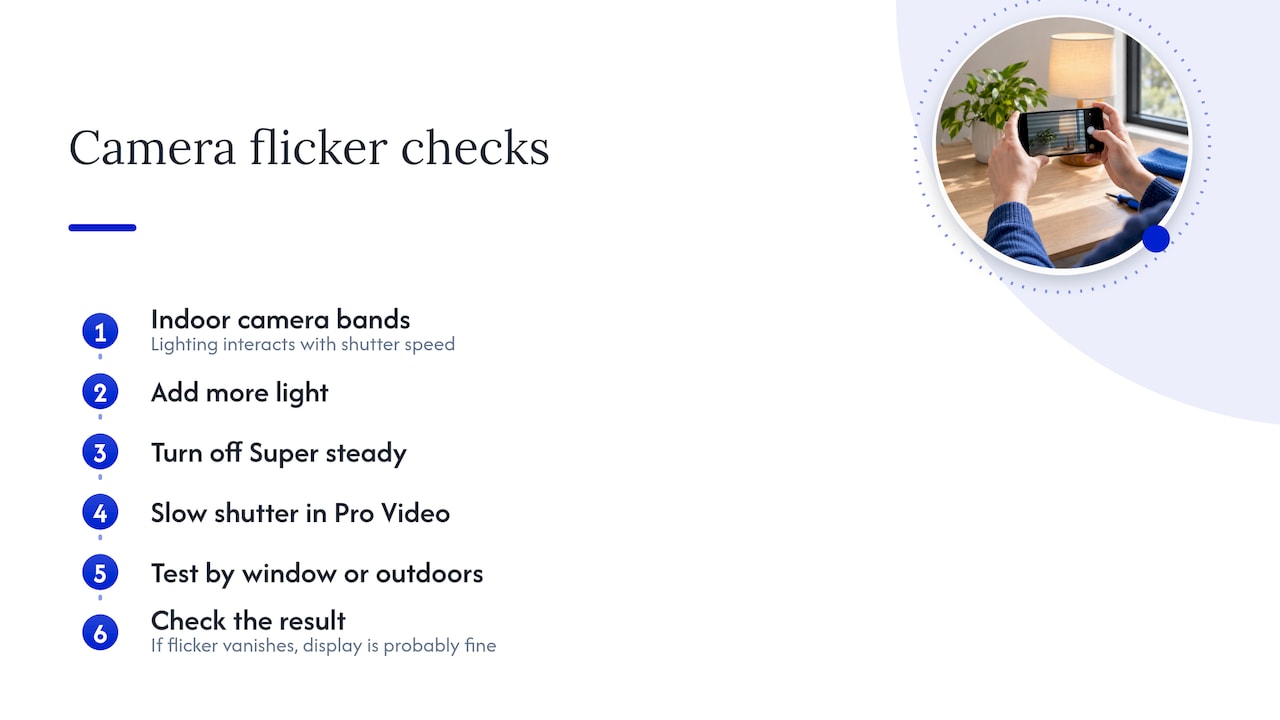
Camera flicker is often not a screen problem
If the screen only flickers or shows bands when you open the camera indoors, the display is probably fine. Samsung explains that this comes from the camera’s shutter speed interacting with the lighting, and suggests adding more light, turning off Super steady, or slowing the shutter in Pro Video mode. Test by pointing the camera at a window or outdoors. If the flicker vanishes, you are done. If the camera itself is misbehaving in other ways, our guide to Android camera repair and seven fixes to try first is the next stop.
Chargers and cables
Unstable power can make a display glitch. If the flicker shows up only while plugged in, swap the cable and charger for ones you trust, clean lint out of the port with a wooden or plastic toothpick (never metal), and test again. If the phone also charges slowly, drops out, or shows moisture warnings, read our guide to Android charging problems and liquid alerts before you keep plugging it in.
Heat
A phone that is hot from gaming, navigation in a car or direct Florida sun can behave erratically, and heat stresses the battery and display. Let it cool in the shade and see whether the flicker fades. Our Android overheating checklist covers cooling steps in more detail.
A known issue on a specific model
Some flicker is tied to particular models and tasks. Samsung has published a page saying that the Galaxy S26 and S26+ can show flicker under specific conditions, such as playing high-definition video, using Google Photos or editing photos at QHD+ resolution. If you own one of those models and the flicker appears only in those situations, read that page before assuming the screen is faulty.
Flicker on a Samsung monitor or TV is a different problem
People searching this topic sometimes mean a Samsung monitor. The causes there are different: Samsung points to a loose or damaged cable, a faulty power source, nearby high-current appliances, outdated drivers or the refresh rate setting. Plugging the monitor into a different circuit is a quick way to test for electrical interference. Everything else in this guide is about Galaxy phones and tablets.
Step 4: Know the signs of real hardware failure
When the settings are right, Safe Mode does not help and the phone is up to date, look for these signs:
- Visible damage. Cracks, even hairline ones, or pressure marks on the glass. Cracks can spread and let flicker become permanent.
- Lines or colored bars. Horizontal or vertical lines that stay on screen usually mean a failing display panel or connection.
- Dark or bright patches that grow. Spreading discoloration points to panel damage.
- Flicker that changes when you press or flex the phone. This suggests a loose internal display connection. Samsung notes that loose internal cables and screen damage remain a primary cause of flicker that survives software troubleshooting.
- Onset after a drop or liquid exposure. Even if the phone looked fine afterward, internal parts can be shifted or corroded. If you have dropped the phone, these warning signs of internal damage are worth reading, even though the article is written around iPhones, because the same physics applies to any phone.
- A swollen battery. A bulging battery can push against the display and cause flicker or lifting. Stop using and charging the phone and get it looked at promptly. Our article on swollen battery risks in tablets explains why this is a safety issue.
One caution before any factory reset: a reset will not cure a damaged display, and you can lose data you wanted. Back up first, or let a technician advise you. If photos and messages matter, see what you need to know about data recovery in Orlando.
What to do before you hand the phone to anyone
Whoever repairs it, take these steps first:
- Back up photos, contacts and app data to Samsung Cloud, Google or a computer.
- Note your Google and Samsung account passwords. Many phones require them after repair or reset.
- Record a short video of the flicker. Intermittent faults are hard to reproduce on demand, and a clip lets the technician see what you see.
- Note which tests you already ran: Safe Mode, settings changes, different charger.
- Ask for the price in writing before work starts, and ask what warranty covers both parts and labor.
That last point deserves emphasis. Our write-up on common smartphone repair red flags covers vague quotes, unexplained fees and parts of unknown quality.
Our perspective: flicker is easy to misdiagnose
We repair phones at customers’ homes and offices around Orlando and Winter Park, and flickering screens are a good example of a symptom that gets blamed on the wrong thing. People assume the screen is dying when a refresh setting or an app is at fault. Others spend weeks adjusting settings on a phone with a cracked panel or a loose display connector that no setting will ever fix.
Our approach is to test first, then quote. We check the simple causes with you, and if the problem is in the settings we will tell you so rather than sell you a repair. When it is hardware, we explain what we found, give you the price before any work begins, and do the repair where you are. We also treat your data as the first priority: we ask about backups before we open anything, because the screen can be replaced but your photos cannot.
The pattern we would flag for any Galaxy owner is this: a flicker that comes with a crack, a drop in the history, liquid exposure or a swollen battery should not be left to “see if it gets better.” Display faults tend to progress, and a small repair can become a larger one.
— Michael
Getting a Galaxy screen repaired in Orlando and Winter Park
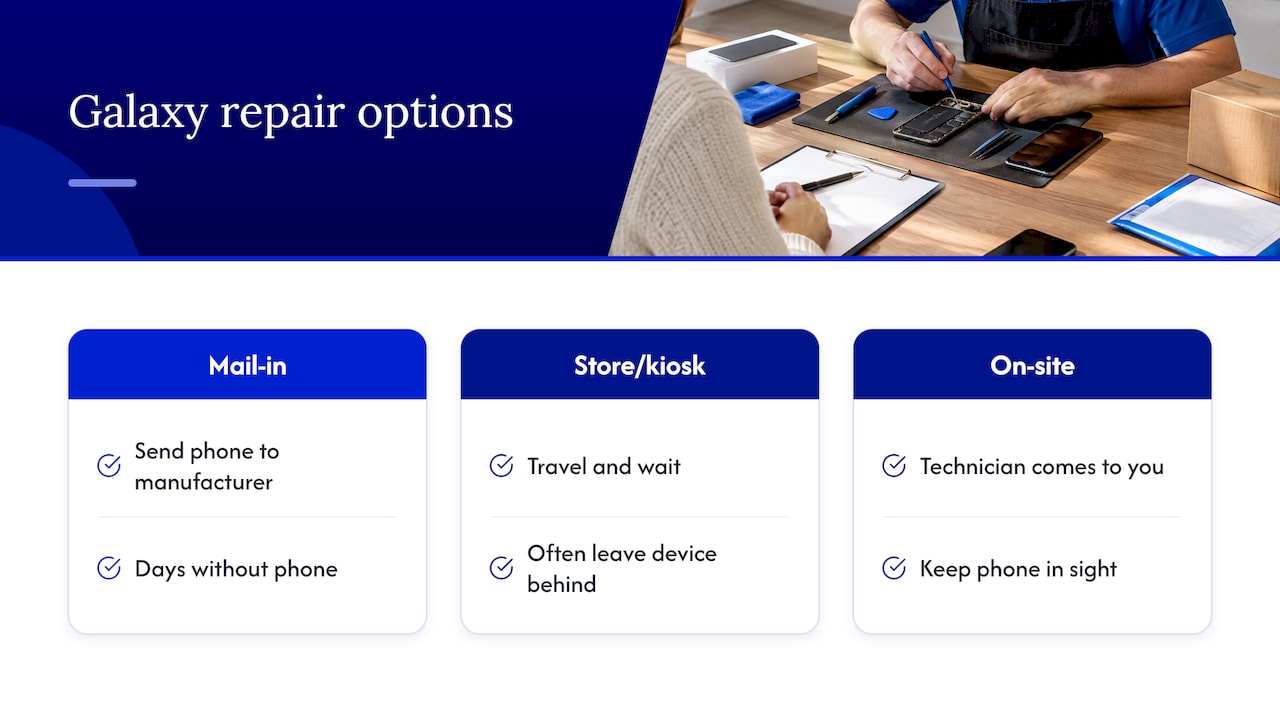
If Safe Mode did not help and the symptoms point to hardware, you have three broad options: mail the phone to the manufacturer, drop it at a store or kiosk, or have a technician come to you. Each has trade-offs. Mail-in service means days without your phone. A shop means travel and waiting, and often leaving the device behind. On-site service keeps the phone in your sight.
We offer the third. Our technicians come to your home, office or campus in Orlando and Winter Park, diagnose the display, quote the cost up front with no hidden fees, and repair on the spot in most cases with warranty-backed parts. You can see everything we offer on our Samsung and Android repair page. If you have a Galaxy tablet instead, look at our tablet repair service.
To avoid paying for a visit you do not need, do the Safe Mode test first. For context, Samsung’s own in-home service terms state a $155.00 fee when a technician arrives and no repair is authorized or the issue is caused by user damage. That is Samsung’s fee structure, not ours, but it shows why a few minutes of troubleshooting can matter before any on-site appointment.
Is it worth repairing a flickering screen?
For most Galaxy phones still receiving updates, replacing a display or fixing a connection costs far less than buying a new phone. Repair makes sense when the phone otherwise works well, the battery holds a charge and the frame is not bent. Replacement may be the smarter move when the phone is several years old, has multiple faults, or has suffered serious water damage. A good technician will tell you which situation you are in. Ask for a diagnosis before committing, and be wary of anyone who quotes a repair without looking at the device.
FAQ
Why does my Samsung screen flicker suddenly?
Sudden flicker most often follows a software update, a newly installed app, or a change in brightness or refresh rate settings. Booting into Safe Mode tells you whether an app is responsible. If it flickers there too, a hardware fault such as a damaged display or loose cable becomes more likely, especially after a drop.
Will a factory reset fix a flickering Galaxy screen?
It can fix flicker caused by deep software corruption, but it will not repair a damaged display. Try updates, display settings and Safe Mode first, since they are less disruptive. If you do reset, back up your data beforehand, because a reset erases it.
Can a flickering screen damage my phone further?
The flicker itself does not harm the phone, but its cause might. A cracked panel can spread, and a swollen battery is a safety risk. If you see cracks, bulging or heat, stop charging the phone and have it inspected.
Why does the screen flicker only in the camera app?
This is usually the camera shutter speed clashing with LED or fluorescent lighting, not a display fault. Samsung suggests adding light, turning off Super steady or slowing the shutter in Pro Video mode. If the screen looks normal everywhere else, you probably do not need a repair.
Can you fix a Galaxy screen at my home in Orlando?
Yes. We perform repairs at the location you choose in Orlando and Winter Park, including homes, offices and campuses. You get the quote before work begins, and our repairs come with a warranty on parts and labor.
Sources
- Screen flickering or glitching on your Samsung Galaxy device, Samsung US
- Screen flickering or glitching on Galaxy phone or tablet, Samsung US
- Galaxy S26 or S26+ screen flickering, Samsung US
- Image is distorted, ghosted, or flickering on my Samsung monitor, Samsung US
- In-home terms of service, Samsung US
Recommended
- Black Spot on iPhone Screen: Causes, Fixes and When to Repair
- Cracked Screen Repair Process: 2026 Complete Guide
- iPhone Screen Repair Orlando: Signs You Need Replacement or Cleaning










