
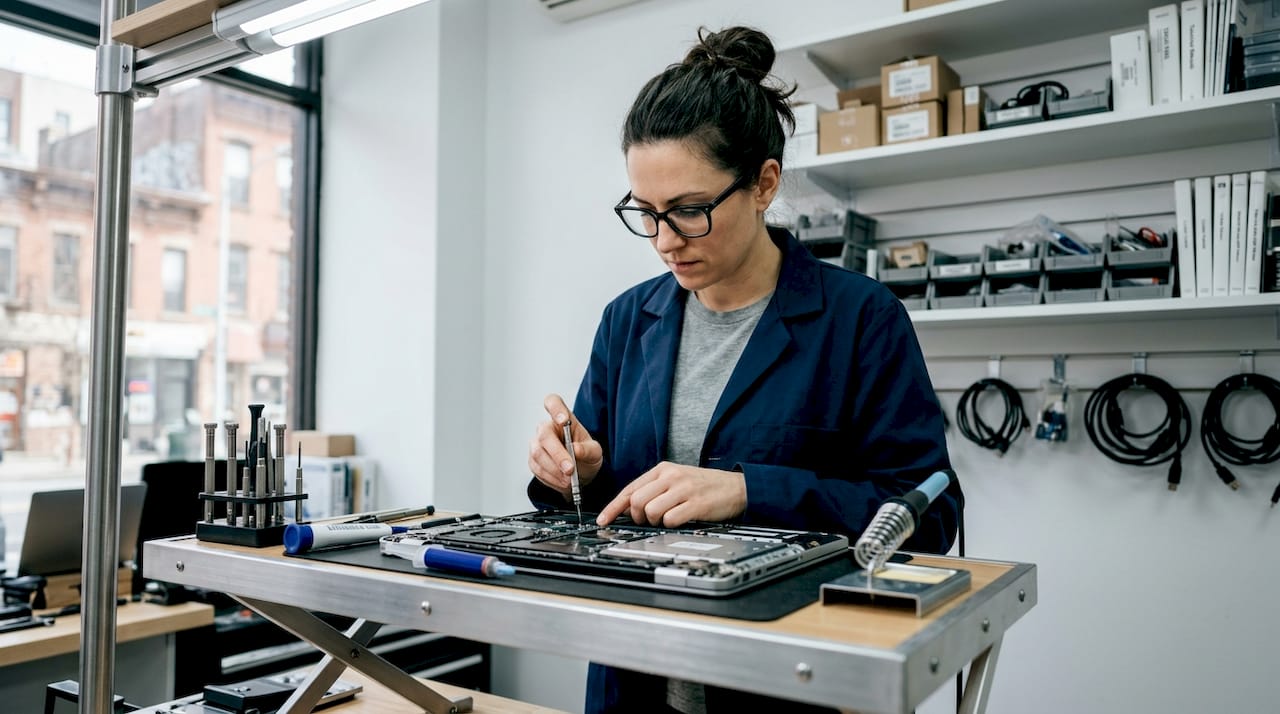
A laptop repair before replacement checklist is the structured process of evaluating repair cost, machine age, and hardware condition before committing to a new device. Most laptops that feel slow, broken, or outdated are actually candidates for targeted repairs or upgrades rather than full replacement. Tools like Windows Memory Diagnostic and CrystalDiskInfo can identify the real problem in under 15 minutes. Battery and screen replacements, the two most common laptop issues, typically cost far less than a new machine. This guide walks you through every decision point so you spend money only where it makes sense.
1. Apply the 50% rule first
The 50% rule is the most widely accepted financial benchmark in laptop repair: if repair cost exceeds 50% of what a comparable replacement would cost, replacement is the more economical choice. This single calculation eliminates most of the guesswork in the repair versus replace laptop decision.
Here is how the math plays out in practice:
| Repair scenario | Repair cost | Replacement cost | Verdict |
|---|---|---|---|
| Battery replacement | $80–$150 | $700–$1,200 | Repair |
| Screen replacement | $150–$300 | $700–$1,200 | Repair |
| SSD upgrade | $150–$300 | $700–$1,200 | Repair |
| Motherboard repair | $300–$800 | $700–$1,200 | Replace |
| Battery + screen + motherboard | $550–$1,250 | $700–$1,200 | Replace |
The table makes the pattern clear. Single-component repairs almost always pass the 50% test. Stacking three repairs at once often fails it. Use this as your first filter before calling any technician.
Pro Tip: Get a written repair cost estimate before authorizing any work. A reputable shop like Repair Genius provides transparent pricing upfront so you can run the 50% calculation yourself before committing.
2. Run a proper diagnosis before spending anything
Accurate diagnosis is the step most people skip, and it is the one that saves the most money. Software issues frequently masquerade as hardware failure, meaning a laptop that appears broken may only need an OS reinstall or a driver update.
Follow these six diagnostic steps before making any repair decision:
- Document every symptom. Write down when the problem started, what triggers it, and whether it is consistent or intermittent. Intermittent issues are almost always software or thermal problems.
- Run Windows Memory Diagnostic. Windows Memory Diagnostic checks RAM in roughly 10 minutes. A failed test points directly to a hardware fix. A clean result redirects your attention to software.
- Check drive health with CrystalDiskInfo. This free tool reads S.M.A.R.T. data from your drive and flags failing sectors instantly. A “Caution” or “Bad” status means your storage is failing, not your whole machine.
- Connect an external monitor. If your screen looks broken but an external display works perfectly, the problem is the laptop panel or its cable. That is a repair, not a replacement.
- Boot from a live Linux USB. A live USB environment rules out OS corruption by running the laptop entirely from external media. If performance is normal on the live USB, your hardware is fine and the operating system is the culprit.
- Discharge residual power before opening anything. Hold the power button for 10 to 30 seconds after unplugging to clear capacitor charge before any internal inspection. Skipping this step risks damaging components that were otherwise healthy.
Pro Tip: Clean the cooling vents with compressed air before running any benchmark. Overheating causes throttling that mimics hardware failure. A $5 can of compressed air has saved many laptops from unnecessary repairs.
3. Assess battery health as your first repair candidate
Battery replacement is the single most cost-effective repair on any laptop troubleshooting guide. Battery health below 70% of original capacity signals end-of-life, and a swollen battery is a safety hazard requiring immediate replacement regardless of cost. Battery replacement typically runs $70 to $150 depending on the model.

A degraded battery does more than shorten your runtime. It forces the laptop to run on AC power constantly, which accelerates wear on the charging port and the motherboard’s power circuitry. Replacing a battery on a laptop under five years old almost always passes the 50% rule and extends usable life by two to three years. On a machine over seven years old, check whether the battery is still available before committing to the repair.
4. Evaluate screen replacement viability
Screen damage is the second most common reason people consider replacing a laptop, and it is frequently the wrong reason to do so. A cracked or dead display does not mean the rest of the machine is compromised. Screen replacements for most consumer laptops fall between $150 and $300, well within the 50% threshold for any machine worth more than $600.
The key variable is laptop age. On a machine under four years old, a screen replacement is almost always worth it. On a machine over six years old, factor in whether the replacement panel is still available and whether the rest of the hardware is healthy. Replacing a screen on a laptop with a failing drive or degraded battery compounds your total repair cost quickly, which is where the multiple simultaneous faults problem becomes financially dangerous.
5. Consider SSD and RAM upgrades as performance repairs
Not every repair fixes something broken. Some repairs fix something slow, and those are often the highest-value interventions on this laptop upgrade checklist. SSD upgrades between $150 and $300 deliver the greatest day-to-day speed improvement of any single hardware change, replacing a mechanical hard drive with storage that is faster and more reliable.
RAM upgrades are the second most impactful change for multitasking performance. Moving from 4GB to 16GB on a machine running Windows 11 eliminates most of the lag that users mistake for age-related decline. Together, an SSD and RAM upgrade on a repair-first approach can extend perceived performance by up to 5x. That is not a minor improvement. That is a machine that feels new.
Pro Tip: Before buying a new laptop, check whether your current machine has an open RAM slot and an accessible drive bay. Many laptops under six years old do, and the upgrade cost is a fraction of replacement.
6. Know when motherboard repair is not worth it
Motherboard repair is the exception to the repair-first rule. Motherboard repairs cost $300 to $800 and are only worth pursuing on newer machines (under three years old) or high-end models where the replacement cost exceeds $1,500. On a mid-range laptop over four years old, a motherboard failure is almost always a replacement signal.
The reason is compounding risk. A repaired motherboard on an aging machine still carries all the other aging components. You pay $400 to fix one part while the battery, drive, and thermal system continue to degrade. The repair versus replace laptop calculation shifts decisively toward replacement when the motherboard is the failing component on any machine over five years old.
7. Factor in laptop age as a hard decision boundary
Laptop age is the most reliable single predictor of whether repair makes financial sense. The industry standard breaks down into three clear zones:
- Under 4 years old: Almost always worth repairing unless the motherboard has failed. Hardware is current enough to justify investment, and parts are readily available.
- 4 to 7 years old: Evaluate case by case. Single repairs that pass the 50% rule are worth doing. Multiple simultaneous failures are not.
- Over 7 years old: Replacement is generally advised unless the repair cost is very low. Machines this age often lack support for current security updates and modern software, which creates risk beyond just performance.
The age threshold also affects parts availability. A screen or battery for a seven-year-old laptop may simply not exist in the supply chain, making the repair decision moot regardless of cost.
8. Use strategic upgrades to extend laptop life
Targeted repairs combined with upgrades can revive an older laptop at a total cost that still passes the 50% rule. A $70 repair paired with a $50 SSD upgrade on a six-year-old machine can restore performance that rivals a budget new laptop at a fraction of the price.
The most effective upgrade combinations are:
- SSD replacement + RAM upgrade: Addresses the two biggest performance bottlenecks simultaneously. Total cost typically runs $200 to $400.
- Battery replacement + thermal cleaning: Restores runtime and prevents throttling. Total cost typically runs $80 to $180.
- Screen replacement + SSD upgrade: Fixes the visible damage and the underlying slowness in one service visit. Total cost typically runs $250 to $500.
Laptops perceived as obsolete often just need one or two of these targeted interventions. Business-class machines like ThinkPads and Dell Latitudes are especially strong candidates because they are built for serviceability and parts remain available for years after purchase. Repair Genius technicians regularly see machines that owners assumed were dead come back to full productivity after a single upgrade visit.
9. Account for data safety and environmental factors
Before any repair or replacement decision, back up your data. This is not optional. A failing drive can become an unreadable drive between your diagnostic appointment and your repair appointment, and no repair service can recover data from a drive that has fully failed.
Repairing over replacing also carries real environmental value. Manufacturing a new laptop generates significantly more carbon than repairing an existing one. For users who factor sustainability into purchasing decisions, repair is the lower-impact choice in almost every scenario where it is financially viable. Repair Genius prioritizes data safety throughout every service, keeping your files secure while the hardware is being worked on. You can compare on-site repair versus shop repair to understand which service model better protects your data during the process.
Key takeaways
The most reliable way to decide between repair and replacement is to apply the 50% cost rule, run a proper diagnosis with tools like Windows Memory Diagnostic and CrystalDiskInfo, and factor in laptop age before authorizing any work.
| Point | Details |
|---|---|
| Apply the 50% rule | Repair cost above 50% of replacement cost means replacement is the smarter financial choice. |
| Diagnose before spending | Use Windows Memory Diagnostic, CrystalDiskInfo, and a live USB to identify the real problem. |
| Battery and SSD repairs win | These two repairs deliver the highest value and almost always pass the 50% threshold. |
| Age determines repair ceiling | Laptops under 4 years old are nearly always worth repairing; over 7 years old, replacement is usually better. |
| Upgrades extend repair value | Combining a repair with an SSD or RAM upgrade often makes the total cost far more worthwhile. |
What I’ve learned from watching people make this decision wrong
I have seen the same mistake made dozens of times. Someone brings in a laptop that runs slowly, assumes it is dying, and buys a $900 replacement before anyone has run a single diagnostic. Two weeks later, they mention the old machine is still sitting on their desk. Nine times out of ten, that machine needed a $150 SSD and a thermal cleaning.
The other mistake goes the opposite direction. Someone spends $400 repairing a seven-year-old laptop with a failing motherboard, a degraded battery, and a cracked hinge. They pass the 50% test on the motherboard alone but ignore the compounding cost of the other issues. Six months later, the battery dies and they are back for another repair.
The checklist in this article exists to prevent both errors. Accurate diagnosis first. Cost calculation second. Age and upgrade potential third. The repair-first philosophy is not about sentiment for old hardware. It is about not spending $900 when $200 solves the problem. Back up your data before any service, document every symptom you can observe, and get a written estimate before authorizing anything. Those three habits alone will save most people from a bad decision.
— Michael
Get expert repair advice from Repair Genius
If you have run through this checklist and still are not sure whether your laptop is worth repairing, Repair Genius makes the next step easy. Their technicians come directly to your location in Orlando and Winter Park, Florida, so you do not have to pack up a fragile machine and drive it somewhere.

Repair Genius offers same-day laptop repairs for battery replacements, screen repairs, SSD upgrades, and more, all with transparent pricing and no hidden fees. Their no-fix-no-fee policy means a diagnostic visit carries zero financial risk. With over 10 years of experience and a track record of reviving machines that owners had written off, Repair Genius is the practical first call before you commit to a replacement.
FAQ
What is the 50% rule for laptop repair?
The 50% rule states that repair is economically sound only when the total repair cost is less than 50% of what a comparable replacement laptop would cost. If repair exceeds that threshold, replacement delivers better long-term value.
How do I know if my laptop issue is software or hardware?
Boot from a live Linux USB drive to test the hardware independently of your operating system. If the laptop runs normally from the USB, the problem is software-based and does not require hardware repair.
Is a battery replacement worth it on an older laptop?
Battery replacement costs $70 to $150 and is worth it on most laptops under six years old, provided no other major components are failing. A battery under 70% of original capacity is considered end-of-life and should be replaced.
When should I replace instead of repair my laptop?
Replace your laptop when it is over seven years old, when repair costs exceed 50% of replacement cost, or when multiple components are failing simultaneously. Machines this age also frequently lack support for current security updates.
Can upgrading an SSD really make an old laptop feel new?
An SSD upgrade can extend perceived performance by up to 5x compared to a mechanical hard drive, making it one of the highest-value single repairs available. Combined with a RAM upgrade, the improvement is often dramatic enough to delay replacement by several years.
Recommended
- On-Site Computer Repair vs Repair Shop
- On-Site Repair for Office Electronics: 2026 Guide
- iPhone Screen Repair Orlando: Signs You Need Replacement or Cleaning
- iPhone Battery Replacement vs Buying New | Repair Guide











6 thoughts on “Laptop Repair Before Replacement Checklist 2026”
Comments are closed.