
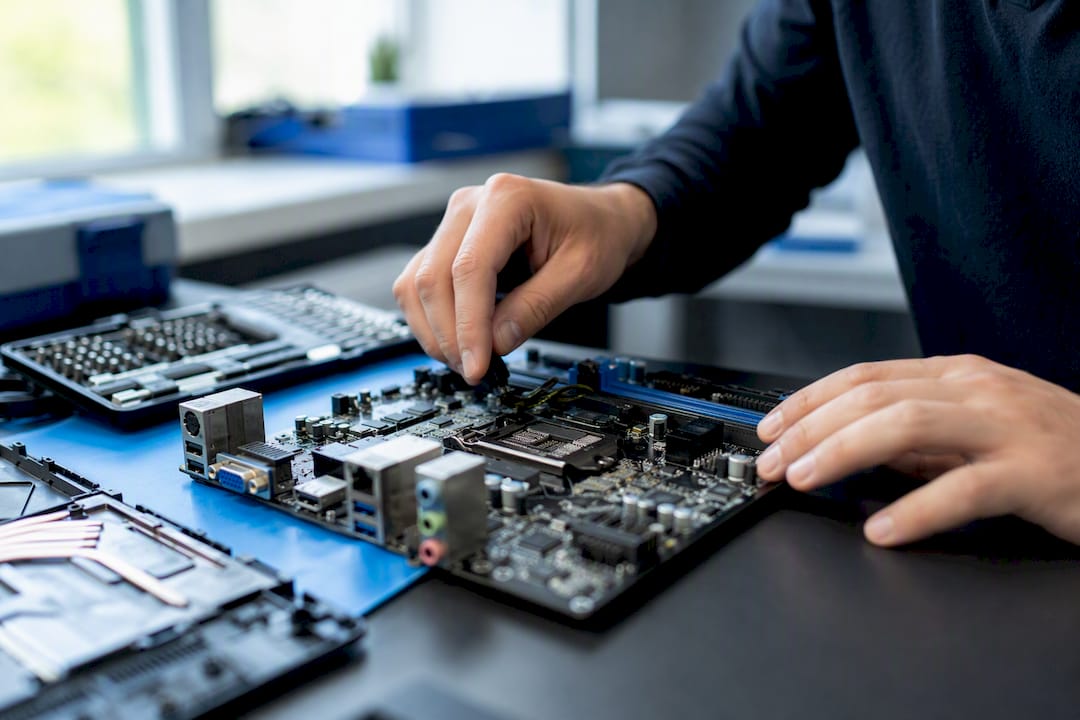
A Windows blue screen means the operating system hit an error it can’t recover from safely, so it stopped everything to protect your data. The stop code and driver name printed on that screen tell you what failed. Write both down, then try a normal restart before doing anything else.
If the crashes keep repeating, stop and think before you keep clicking. Disconnect any USB drive, dock, or peripheral you plugged in recently. If Windows won’t boot at all, hold the power button for 10 seconds to force a shutdown, then power back on. Microsoft’s own troubleshooting guidance walks through these same first moves, and running the Windows Memory Diagnostic tool is one of the fastest ways to rule out bad RAM.
- Note the exact stop code (example:
IRQL_NOT_LESS_OR_EQUAL) and the driver file name if one is listed. - Unplug any new hardware or accessories before restarting.
- If the PC won’t start normally, force a hard shutdown, then try again.
Pro Tip: Take a photo of the blue screen with your phone before it reboots. Windows often clears the screen in seconds, and that photo is the fastest way to search for the exact fix later, or hand off to a technician like Repair Genius if the crashes don’t stop.
Key Takeaways
Fixing a Windows blue screen reliably means working in order: note the stop code, run first aid, escalate through drivers and system checks, then call a professional if hardware is the culprit.
| Point | Details |
|---|---|
| Drivers cause most crashes | Roughly 70% of reported stop errors trace to third-party drivers, so check them before hardware. |
| Safe Mode isolates the cause | If crashes stop in Safe Mode, a driver or startup app is responsible, not hardware. |
| Run checks in order | Use SFC, then DISM, then CHKDSK, then Windows Memory Diagnostic to narrow down the fault. |
| Back up before risky steps | Copy files off the drive before running CHKDSK’s repair mode or Reset this PC. |
| Call a pro for hardware signs | Repair Genius offers same-day, on-site diagnostics and repair in Orlando and Winter Park when crashes point to failing components. |
Table of Contents
- What Causes a Windows Blue Screen?
- What Should You Do First When a Blue Screen Appears?
- How Do You Troubleshoot a Blue Screen Step by Step?
- How Do You Analyze a Blue Screen Dump File?
- When Should You Call a Professional Instead of Troubleshooting Further?
- What Do Blue Screen Statistics Say About Where to Look First?
- How Do You Avoid Losing Data While Troubleshooting?
- Is the Problem Hardware or Software?
- How Do You Prevent Future Blue Screens?
- How Do You Read Event Viewer Logs for Blue Screen Clues?
- What Are Your Recovery Options When Nothing Else Works?
- A Realistic Take on Fixing Blue Screens
- Get On-Site Help When a Blue Screen Won’t Quit
- Sources
What Causes a Windows Blue Screen?
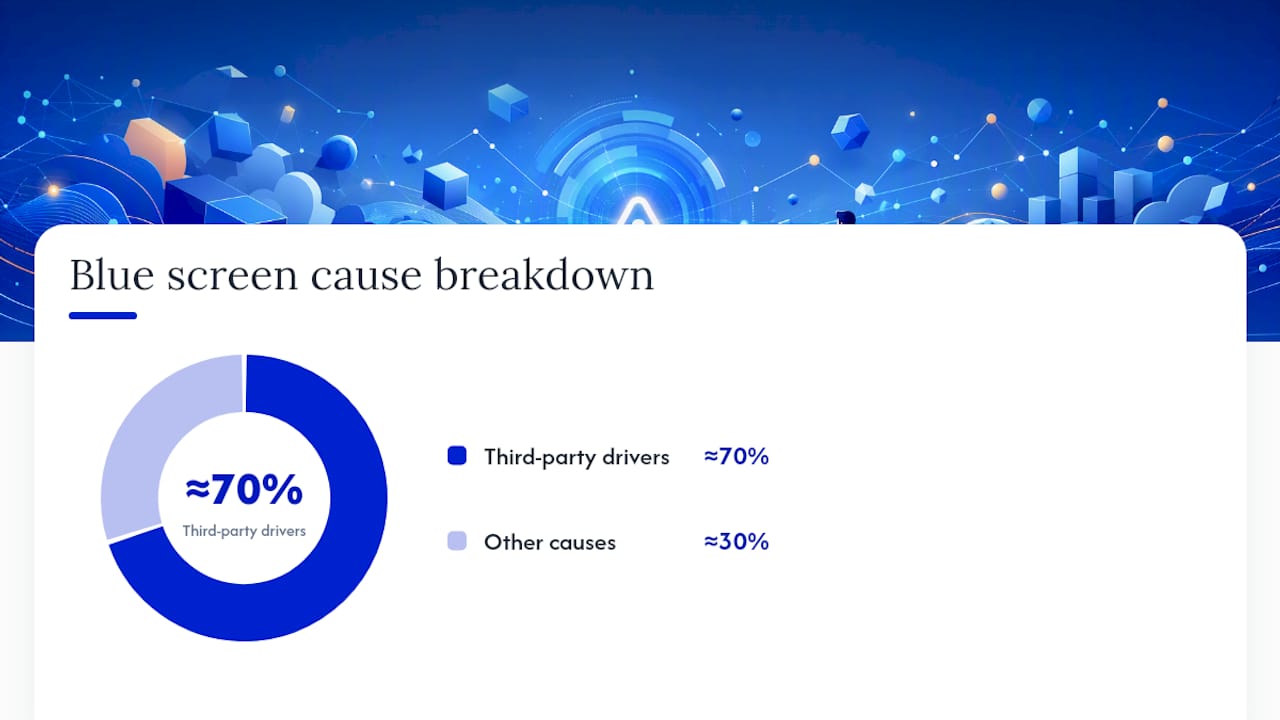
Most blue screens trace back to software sitting close to the hardware, not the operating system itself. A widely cited breakdown from Malwarebytes puts third-party drivers behind roughly 70% of reported stop errors, with unknown causes, hardware faults, and Microsoft’s own code splitting the remaining share. That ordering matters: it tells you where to start looking before you assume your motherboard is dying.
Different stop codes point to different territory. A DRIVER_IRQL_NOT_LESS_OR_EQUAL error almost always means a driver touched memory it shouldn’t have. A PAGE_FAULT_IN_NONPAGED_AREA error usually points to bad RAM or a corrupted driver. Boot-related codes like INACCESSIBLE_BOOT_DEVICE suggest storage or disk controller trouble.
Here’s a detail most users miss: the app you were using when the crash happened is rarely the actual cause. Microsoft’s own documentation notes that user-mode programs almost never trigger a kernel-level stop on their own. They just happen to be running when a driver or piece of hardware underneath them fails.
- Third-party drivers: the largest single category by far.
- Hardware faults: failing RAM, drives, or overheating components.
- Corrupt system files: incomplete updates or storage errors.
- Microsoft code: the smallest slice, though it does happen.
What Should You Do First When a Blue Screen Appears?
Work through these steps in order. Each one takes a few minutes and rules out an entire category of problems before you move to the next.
- Photograph the screen. Capture the stop code and any driver file name listed before Windows restarts automatically.
- Disable automatic restart (if the PC boots normally) so you can actually read the next crash. Go to System Properties, Advanced, Startup and Recovery, and uncheck “Automatically restart.”
- Disconnect new hardware. Unplug external drives, docks, printers, or anything added in the last few days.
- Boot into Safe Mode. Hold Shift while clicking Restart, then choose Troubleshoot, Advanced Options, Startup Settings. Safe Mode loads only core drivers, so if crashes stop here, a third-party driver or startup app is the likely culprit.
- Force a hard reset if the PC won’t boot at all. Hold the power button for 10 seconds, release, then power on again.
While you’re at it, copy any minidump files you can access (usually in C:WindowsMinidump) to a USB drive. Note what you installed or updated in the days before the first crash. This log becomes valuable evidence whether you troubleshoot further yourself or hand the machine to a technician.
How Do You Troubleshoot a Blue Screen Step by Step?
Once first aid is done, work through this sequence. Each step verifies something specific, and running them in order avoids wasted effort chasing the wrong fix.
- Install pending Windows updates. Many stop errors get patched quietly through Windows Update, so check for and install anything outstanding before doing deeper work.
- Check Device Manager for driver errors. Look for yellow warning icons. If a device shows a conflict, right-click it, choose “Update driver,” and if the crashes started right after an update, choose “Roll Back Driver” instead.
- Run SFC and DISM. Open Command Prompt as administrator and run
sfc /scannowto repair corrupted system files. If SFC reports it can’t fix something, follow withDISM /Online /Cleanup-Image /RestoreHealth, which repairs the underlying image SFC pulls from. - Run CHKDSK. Type
chkdsk C: /f /rand restart when prompted. This scans the drive for bad sectors and file system errors, and it’s the right move when you see boot-device or file-system stop codes. - Confirm free disk space. Microsoft recommends keeping 10% to 15% of your drive free for system stability. A nearly full drive causes crashes that look hardware-related but aren’t.
- Run Windows Memory Diagnostic. Search for it in the Start menu, restart, and let it test your RAM. This isolates whether bad memory is behind the crashes.
If the stop code or minidump names a specific driver file, that’s your fastest lead. Search the file name plus “driver update” to find the manufacturer’s latest version. A driver that’s a version or two behind is a common trigger, and manufacturers patch these bugs constantly.
- Roll back a driver when crashes started right after an update.
- Update a driver when it hasn’t been touched in months and shows errors in Device Manager.
- Disable a device entirely as a last resort if no updated driver exists and the hardware isn’t essential.
Pro Tip: If crashes happen randomly with no obvious trigger, try a clean boot. Open MSConfig, disable all non-Microsoft services and startup programs, then use the PC normally. If the crashes stop, re-enable items one at a time until you find the one causing trouble.
How Do You Analyze a Blue Screen Dump File?
Windows saves crash details to a memory dump file, and reading it directly gets you past guesswork straight to the failing component. First, confirm dumps are being saved: search “View advanced system settings,” click Settings under Startup and Recovery, and check that a dump type is selected. Minidumps typically land in C:WindowsMinidump.
WinDbg, Microsoft’s debugging tool, opens these files directly. Set your symbol path to Microsoft’s public symbol server, load the dump, then run !analyze -v. The output includes a STACK_TEXT section that usually names the driver or module involved in the crash.
| Step | What it does |
|---|---|
| Open dump in WinDbg | Loads the crash record for inspection |
| Set symbol path | Lets WinDbg translate memory addresses into readable names |
Run !analyze -v |
Generates an automated summary of the likely cause |
| Read STACK_TEXT | Shows the driver or module active at the moment of failure |
Reading a stack trace accurately takes practice, and a misread often sends people chasing the wrong component.
- Bug check code and parameters shown on the blue screen.
- The minidump file itself, copied to external storage.
- A list of recent driver, app, or Windows updates.
Pro Tip: If !analyze points to a driver you don’t recognize, search the exact file name rather than the general description. Generic names like “system driver” can belong to a dozen different manufacturers.
When Should You Call a Professional Instead of Troubleshooting Further?
Some symptoms mean it’s time to stop and get help rather than keep clicking through menus. Repeated WHEA_UNCORRECTABLE_ERROR codes, a machine that feels hot to the touch, unusual buzzing from the drive, or components failing vendor diagnostics all point toward failing hardware that software fixes won’t touch. Dell’s support documentation recommends running vendor diagnostics and checking for firmware updates once you suspect a hardware fault.
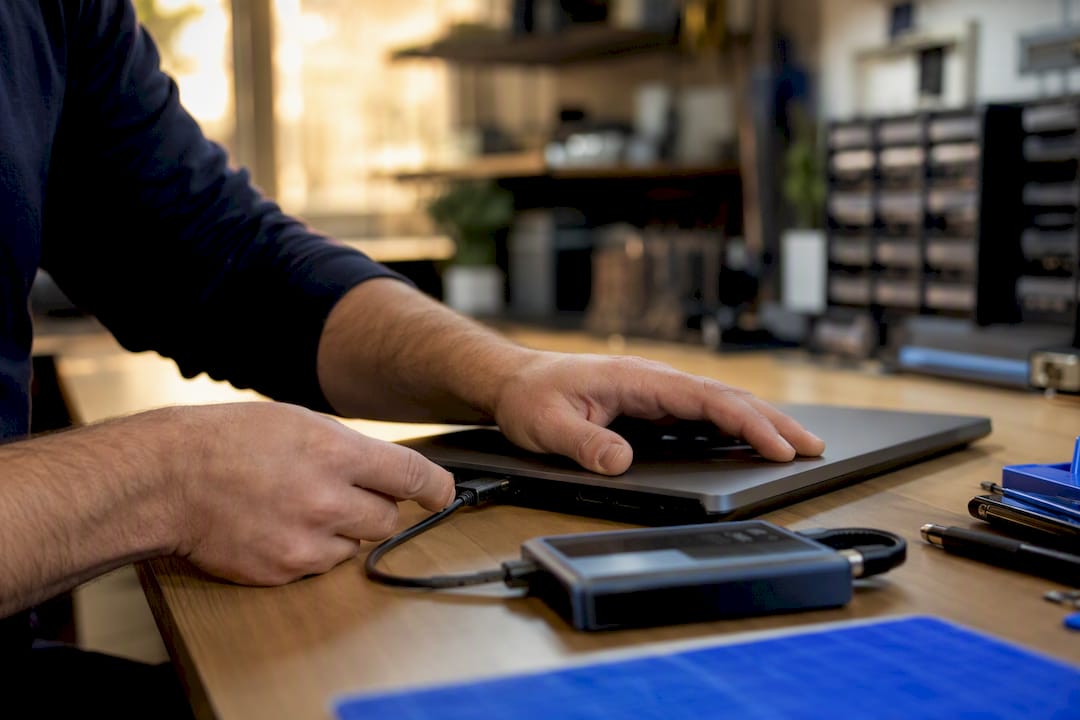
If Windows won’t boot, throws INACCESSIBLE_BOOT_DEVICE, or your drive shows early signs of failure, back up whatever data you can reach immediately, before attempting further repairs.
An on-site visit from a technician typically means diagnostics performed in front of you, an upfront cost estimate, and parts replaced the same day when possible. That’s the core appeal of on-site computer repair over dropping a machine off somewhere for days: your data never leaves your sight.
Pro Tip: If you’re not sure whether it’s hardware or software, signs your laptop needs immediate repair walks through the physical symptoms worth watching for.
What Do Blue Screen Statistics Say About Where to Look First?
Third-party drivers account for roughly 70% of reported stop error root causes, according to a widely cited security industry breakdown, with hardware and Microsoft’s own code making up much smaller shares. That single number changes how you should spend your first hour of troubleshooting.
It means checking Device Manager and rolling back recent driver updates should happen before you order replacement RAM or a new hard drive. Jumping straight to hardware replacement is the single most common way people waste money on a fix that was never needed.
How Do You Avoid Losing Data While Troubleshooting?
Every troubleshooting step carries some risk, and a few precautions cut that risk dramatically. Back up anything irreplaceable before you touch CHKDSK, System Restore, or a factory reset. CHKDSK’s repair mode can occasionally make an already-damaged drive worse, and a reset erases installed programs by design.
If the PC still boots, even into Safe Mode, copy your important files to an external drive or cloud storage first. This single step matters more than any other on this list, because once a drive fails completely, recovery gets expensive and isn’t always possible.
Avoid running multiple repair tools back to back without restarting and confirming results in between. Running SFC, then DISM, then CHKDSK all in one sitting without checking whether the crash still happens muddies your evidence. You won’t know which fix actually worked, and if something goes wrong, you won’t know where it happened.
If your PC won’t boot at all, don’t panic and start reinstalling Windows immediately. A clean install destroys anything not backed up. Boot from Windows installation media and attempt basic diagnostics or Startup Repair first. That preserves your files while you assess whether the drive is even damaged. If the drive already shows signs of failure, clicking, extreme slowness, or “S.M.A.R.T. failure” warnings, stop working on it entirely and get the data off through a technician who specializes in data recovery before attempting any further repair.
Is the Problem Hardware or Software?
The fastest way to tell hardware and software apart is elimination, one variable at a time. Start with Safe Mode. If crashes stop completely in Safe Mode, the problem lives in a driver, startup app, or service, since Safe Mode only loads core Windows components.
If crashes continue even in Safe Mode, hardware becomes far more likely. At that point, run Windows Memory Diagnostic to test RAM, and run CHKDSK to test the drive. A machine that crashes identically regardless of what’s loaded is telling you something physical is failing.
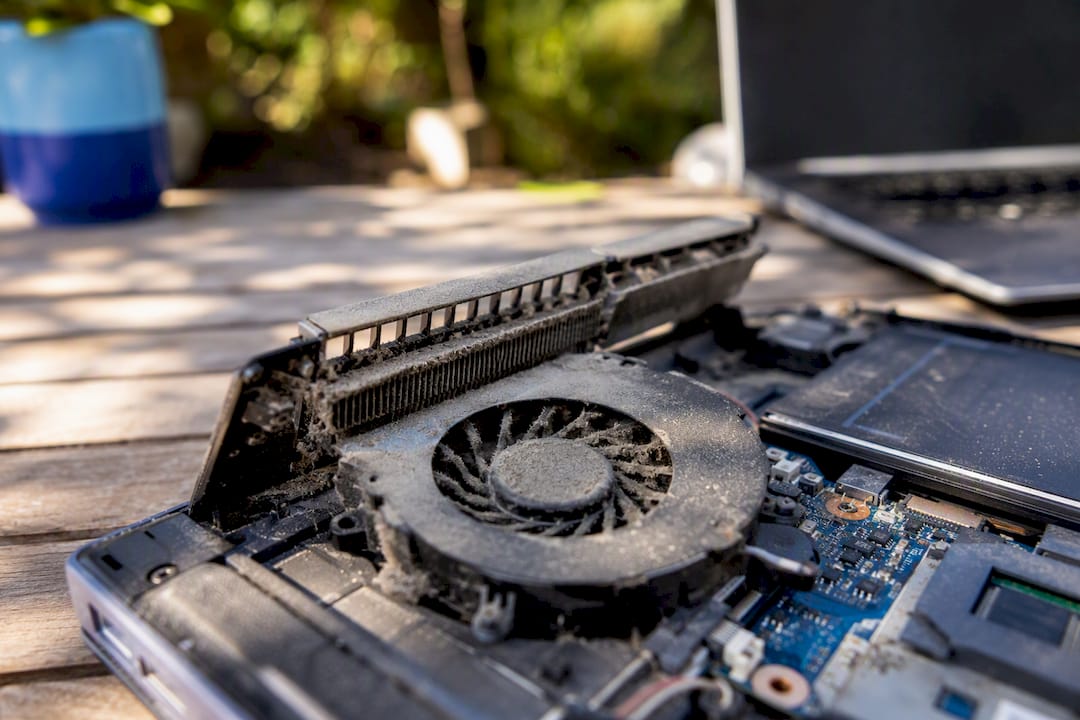
Overheating deserves its own check. A laptop that crashes only under load (gaming, video editing, heavy multitasking) but runs fine for light browsing often has a cooling problem: dust-clogged fans, dried thermal paste, or a failing fan. That pattern almost never shows up as a driver issue.
One more clue: consistency. The exact same stop code appearing every single time points toward hardware or a specific driver. Different stop codes each time, with no obvious pattern, more often point to memory corruption or a flaky component under intermittent stress. If you’ve swapped RAM sticks, reseated connections, and updated every driver you can find and the crashes persist unchanged, that consistency itself is diagnostic information worth handing to a technician rather than data to ignore.
How Do You Prevent Future Blue Screens?
A little routine maintenance prevents far more crashes than any single fix. Keep Windows Update current rather than deferring updates for weeks, since many stop-error patches ship quietly through routine updates. Update device drivers, especially graphics and chipset drivers, every few months rather than waiting for a crash to prompt it.
A drive that’s constantly near capacity causes performance problems that eventually manifest as crashes. Run a quick SFC scan every couple of months even without symptoms; catching corrupted system files early is far easier than diagnosing a crash after the fact.
Watch your PC’s temperatures if you do demanding work. Dust buildup inside laptops and desktops is the single most preventable cause of heat-related instability, and a $10 can of compressed air every six months solves most of it.
Finally, be selective about what you install. Free driver-update utilities, registry cleaners, and bundled software from questionable download sites are a disproportionate source of the exact driver conflicts that cause blue screens in the first place. Stick to manufacturer websites for driver downloads.
How Do You Read Event Viewer Logs for Blue Screen Clues?
Event Viewer keeps a record of what Windows was doing right before a crash, and it’s free, built-in, and often overlooked. Open it by searching “Event Viewer” in the Start menu, then navigate to Windows Logs, System.
Look for entries marked with a red error icon around the timestamp of your last crash. An event source called “BugCheck” confirms the exact time and stop code of the crash. Entries from “Disk,” “volsnap,” or driver-specific sources near that same timestamp often point toward the actual trigger.
Filter the log to make this faster: click “Filter Current Log” on the right side, and check only “Critical” and “Error” levels. This strips out the routine noise and leaves you with the entries that actually matter.
Cross-reference what you find against the driver name from your minidump analysis, if you ran one. When Event Viewer and the dump file both point at the same driver or device, that’s about as confident as you can get without opening the machine. That agreement is worth more than either piece of evidence alone.
What Are Your Recovery Options When Nothing Else Works?
When individual fixes don’t resolve repeated crashes, Windows’ built-in recovery tools are the next line of defense before you consider a repair shop. System Restore rolls Windows back to an earlier point in time, undoing recent driver installs, updates, and app changes without touching your personal files. Access it by searching “Create a restore point,” then clicking “System Restore.”
If System Restore doesn’t help, or no restore point exists, “Reset this PC” is the next escalation, found in Settings, System, Recovery. It reinstalls Windows while giving you the option to keep personal files, though it removes installed programs either way. Microsoft’s official guidance lists this among the standard recovery paths once basic troubleshooting is exhausted.
If the PC won’t boot far enough to reach these tools normally, boot from Windows installation media, choose “Repair your computer,” and access the same recovery options from there. This is exactly the scenario where having rescue media prepared in advance, as PCWorld’s troubleshooting guide points out, saves you from being locked out of repair tools entirely. Back up what you can reach before running Reset, since a failed reset partway through is much harder to recover from than a normal one.
A Realistic Take on Fixing Blue Screens
Most blue screens are solvable with patience and the right order of operations. Some aren’t, and no amount of driver rolling back fixes a dying drive. Back up your data early, troubleshoot conservatively, and know that on-site diagnostics from a technician can save a machine that DIY steps can’t.
Get On-Site Help When a Blue Screen Won’t Quit
Repair Genius is the alternative to shipping your laptop off and waiting a week wondering what happened to your files. A certified technician comes to your home or office in Orlando or Winter Park, runs the same diagnostics covered above, and works on the machine with you in the room, so your data never leaves your sight.

That matters most when a blue screen points to a failing drive or memory module you can’t safely test yourself. On-site visits mean same-day service in most cases, transparent pricing with no surprise charges added after the fact, and a technician who can replace a failed component on the spot rather than ordering it and rescheduling. If you’ve run through Safe Mode, driver rollbacks, and SFC scans without luck, or you’re seeing hardware warning signs like overheating or repeated WHEA_UNCORRECTABLE_ERROR codes, that’s the point to stop troubleshooting alone. Book a same-day laptop repair visit and get a technician looking at the actual hardware instead of guessing from another troubleshooting article. Start at Repair Genius to check availability in your area.
Sources
- Troubleshooting Windows unexpected restarts and stop code errors | Microsoft Support
- Blue Screen of Death (BSOD): What causes the Windows blue screen? | Malwarebytes
- How to troubleshoot a Windows ‘blue screen of death’ | PCWorld
- Blue Screen (BSOD) Errors and Stop Code Issues in Windows | Dell US
Recommended
- Signs Your Laptop Needs Immediate Repair: 2026
- Computer Running Slow? Causes & Quick Fixes
- MacBook Not Turning On? Get Same Day Repair in Orlando
- Why Your Android Phone Keeps Freezing: Causes & Fixes





