
Set devices up before you hand them to staff: enable encryption, enroll them in mobile device management, mandate multi-factor authentication, and cut support tickets and breach risk at the same time. The right approach is cloud-first: business accounts in Microsoft 365 or Google Workspace, devices enrolled in MDM before first use, and local admin rights stripped once setup finishes. The checklist below walks through the exact order that works.
TL;DR:
- Enrolling devices in automated MDM and applying baseline security policies before handing them to staff minimizes support and breach risks.
- Using cloud services for email, file storage, and backups, along with role-based device groups, simplifies management and enhances security.
- Applying controls such as MFA, full-disk encryption, and disabling remote services during setup significantly reduces vulnerability to malware and ransomware.
- Network security requires WPA2 or WPA3 encryption, network segmentation, and backup connections to prevent breaches and downtime.
- Supporting a small fleet involves standardizing device configurations, planning replacement cycles, and documenting each device’s setup for audits and lifecycle management.
Table of Contents
- What a manageable, secure device setup looks like
- Enroll devices and pick the right MDM workflow
- Security hardening: prioritized controls to apply during setup
- Network and connectivity essentials that support secure device management
- Choosing devices and configurations that minimize support overhead
- Initial setup checklist: exact order and step-by-step actions
- Practical, on-site considerations from Repair Genius
- Integration with existing business systems
- Training and support resources for employees
- Device lifecycle management and replacement planning
- Expert perspective: pragmatic trade-offs for small-business device policies
- How Repair Genius can help with on-site prep and emergency device support
- FAQ
- Sources
What a manageable, secure device setup looks like
A small business device setup has five moving parts: an identity provider for business accounts, a mobile device management tool, cloud apps for email and file storage, a backup system, and a network that keeps business traffic away from guests. Each piece depends on the one before it, which is why order matters more than most owners assume.
Cloud-first makes sense for almost every small team. Running your own mail server or file server means patching, backups, and physical security become your problem around the clock. CISA recommends small businesses migrate on-premises email and file storage to cloud services specifically because it removes that burden. On-prem infrastructure still makes sense for specialized line-of-business software or regulatory requirements that mandate local control, but that is the exception, not the default.
The order of operations looks like this for most teams:
- Set up the identity provider and create a single admin account first.
- Enroll every device in MDM before a staff member logs in.
- Push security policies and apps automatically through that MDM.
- Connect cloud apps and backups once devices are compliant.
A solo operator with two laptops can run this in an afternoon using Microsoft 365 Business Premium’s built-in Intune. A ten-person team growing toward thirty needs the same sequence applied with device groups by role, which the next section covers.
Enroll devices and pick the right MDM workflow
Mobile device management gives you one console to push security policies, install required apps, wipe a lost device remotely, and keep a live inventory of what hardware your business owns. Without it, every laptop and phone is a one-off project, and a departing employee’s device becomes a liability instead of a quick remote wipe.
Automated enrollment beats manual setup because it ties security policy to the device from the first boot, before anyone can skip a step. Windows devices enroll through Windows Autopilot, Apple devices through Apple Business Manager, and Android phones through Android Enterprise. Each lets you ship a device straight to an employee’s home or desk, where it pulls down company policy automatically on first connection to Wi-Fi.
- Buy devices from vendors who support zero-touch enrollment, and register their serial numbers with Autopilot, Apple Business Manager, or Android Enterprise before shipping.
- Create device groups by role (sales, finance, field staff) so policies and app sets match what each group actually needs.
- Push baseline policy (encryption, password rules, update settings) to the group before assigning it to individual users.
- Pilot the configuration on two to five devices first to catch policy conflicts or app installation failures.
- Roll out to the remaining fleet only after the pilot group runs cleanly for a few days.
Platform quirks trip people up. Windows Autopilot fails silently if a device was previously enrolled in a different tenant, so wipe and reset before re-registering. Apple Business Manager requires the device to be purchased through a participating reseller or Apple directly for automated enrollment to work. Android Enterprise needs a factory reset if the phone was ever signed in to a personal Google account first.
Pro Tip: Pilot-enroll a small group of devices before a full rollout. It surfaces policy conflicts and app issues while the fix only affects a handful of people.
Grouping by role rather than by device type keeps policy pushes sane: a field technician’s tablet and a bookkeeper’s laptop need different app sets even if they run the same operating system.
Security hardening: prioritized controls to apply during setup
Apply these controls in order, during setup, not after a device is already in someone’s hands.
- Mandate multi-factor authentication on every business account, and prefer an authenticator app or a hardware security key over SMS codes, which are easier to intercept.
- Turn on full-disk encryption (BitLocker on Windows, FileVault on Mac) as part of the provisioning image, not as an optional add-on later.
- Remove local admin rights from the standard user account and keep one break-glass admin account locked behind hardware-backed MFA for emergencies.
- Enable automatic OS and app updates, and watch for critical patches flagged on CISA’s Known Exploited Vulnerabilities catalog.
- Set up backups immediately and actually test a restore, not just confirm the backup job ran.
- Disable Remote Desktop Protocol and other exposed remote services unless a specific job requires them, and require SMBv3 where file sharing is in use.
In many small-business environments, removing local admin privileges prevents the majority of malware installations, which makes it one of the highest-value, lowest-cost controls available during setup.
MFA deserves extra attention because the quality of the method matters. CISA’s guidance lists MFA verification through technical controls as a primary mitigation for small businesses, and the strongest versions use phishing-resistant methods like FIDO security keys or device-based biometrics rather than a text message code that can be socially engineered away from an employee.
Backups fail more often from untested restores than from missing backups. CISA’s StopRansomware guide calls for backups that are air-gapped and regularly tested, because ransomware actors specifically target connected backup systems, and a backup you have never restored from is a guess, not a safety net. Running a full restore test once a quarter, even on a single file, tells you whether the system actually works when you need it. For teams handling sensitive client files, our guide to backup integrity and recovery covers what to check before you trust a backup.
The StopRansomware guide also flags exposed remote services like RDP as one of the most common entry points attackers use, alongside outdated SMB protocol versions. Locking both down during setup, rather than after an incident, closes a door that is otherwise left wide open by default on many Windows installs.
Network and connectivity essentials that support secure device management
Device security depends on the network it connects to. A hardened laptop on an open, poorly configured router is still exposed.
- Use WPA2 or WPA3 encryption on business Wi-Fi and change the router’s default administrator credentials immediately, since factory passwords are public knowledge.
- The FTC’s small-business guidance recommends separating guest and customer Wi-Fi from the network your business devices use, ideally on its own SSID or VLAN.
- Keep BYOD devices like personal phones on the guest network rather than the corporate one, even for trusted staff.
- Consider cloud-managed networking gear, which pushes firmware updates and lets you monitor connected devices from a browser instead of logging into each router by hand.
- Plan a backup connection, whether a second ISP line or a mobile hotspot, for any role where an internet outage stops revenue.
A small office with one router and one flat network is an easy setup, but it means a compromised guest device sits on the same segment as your point-of-sale system or accounting laptop. Separating traffic at setup time costs an hour of configuration and avoids a much harder cleanup later.
Choosing devices and configurations that minimize support overhead
The device you buy determines how much support it will need later. Chromebooks and iPads carry a smaller attack surface and update automatically with less user intervention, which suits roles that mostly use browser-based apps and cloud tools. Windows and Mac laptops cost more to manage but run the full range of business software, from accounting packages to industry-specific tools that have no mobile equivalent.
- Choose business-tier SKUs rather than consumer models; they include a Trusted Platform Module and firmware protections that consumer lines often skip.
- Standardize on one or two configurations per role instead of letting each new hire pick their own hardware.
- Set a minimum spec (RAM, storage, and TPM version) by role so MDM policies and app performance stay predictable across the fleet.
- Favor devices with at least three years of vendor security update commitments, since a device that stops receiving patches becomes a liability long before it physically breaks.
Standardizing cuts support time because your IT contact, whether that is you or an outside technician, troubleshoots the same handful of configurations instead of a different laptop model for every employee.
Initial setup checklist: exact order and step-by-step actions
Follow this sequence for every new device before it reaches an employee’s desk.
- Log the device in your inventory with serial number, model, and assigned role.
- Create or sign in with the dedicated admin account used only for provisioning.
- Enable full-disk encryption before installing any business software.
- Install pending OS updates and security patches.
- Enroll the device in MDM (Autopilot, Apple Business Manager, or Android Enterprise).
- Apply baseline security policy: password rules, encryption verification, update schedule.
- Install required apps and connect business cloud accounts (email, file sync).
- Configure MFA on every account the device will access.
- Remove local admin rights from the standard user profile.
- Verify backups are running and confirm monitoring picks up the new device.
Practitioner experience across small IT teams backs this order specifically: performing encryption and MDM enrollment before handing a device to its user avoids retrofitting security onto a device someone is already relying on for daily work, which is where steps get skipped.
Pro Tip: Keep a standard checklist in a shared document and have whoever provisions devices initial each completed step. It turns a mental checklist into an audit trail.
Before sign-off, log in as the end user (not the admin account) and confirm MFA prompts correctly, encryption shows as active in system settings, and the device appears in your MDM console as compliant. If anything fails, it is faster to wipe and re-image than to chase down a partial configuration later. Your inventory record should capture the device’s assigned user, enrollment date, OS version at handoff, and any exceptions to standard policy, since that record is what you will reference during an audit or an offboarding.
Practical, on-site considerations from Repair Genius
Some setup problems are physical, not digital: a cracked screen on a device waiting to be imaged, a laptop that will not boot far enough to reach the encryption step, or a batch of new hardware that needs diagnostics before it ever touches your network. An on-site technician can resolve these faster than remote troubleshooting because the hardware issue is visible and fixable in person. While a device is being repaired or imaged, keep data handling consistent with your own policy: encrypted drives stay encrypted, and any technician handling the device should confirm data safety practices before transferring files. A device repair technician checklist like the one we use for setup work keeps that process consistent across a growing fleet.
Integration with existing business systems
New devices rarely exist in isolation. Most small businesses already run accounting software, a point-of-sale system, or an industry-specific tool that predates the current device rollout, and the setup process needs to account for how new hardware connects to those systems without breaking them.
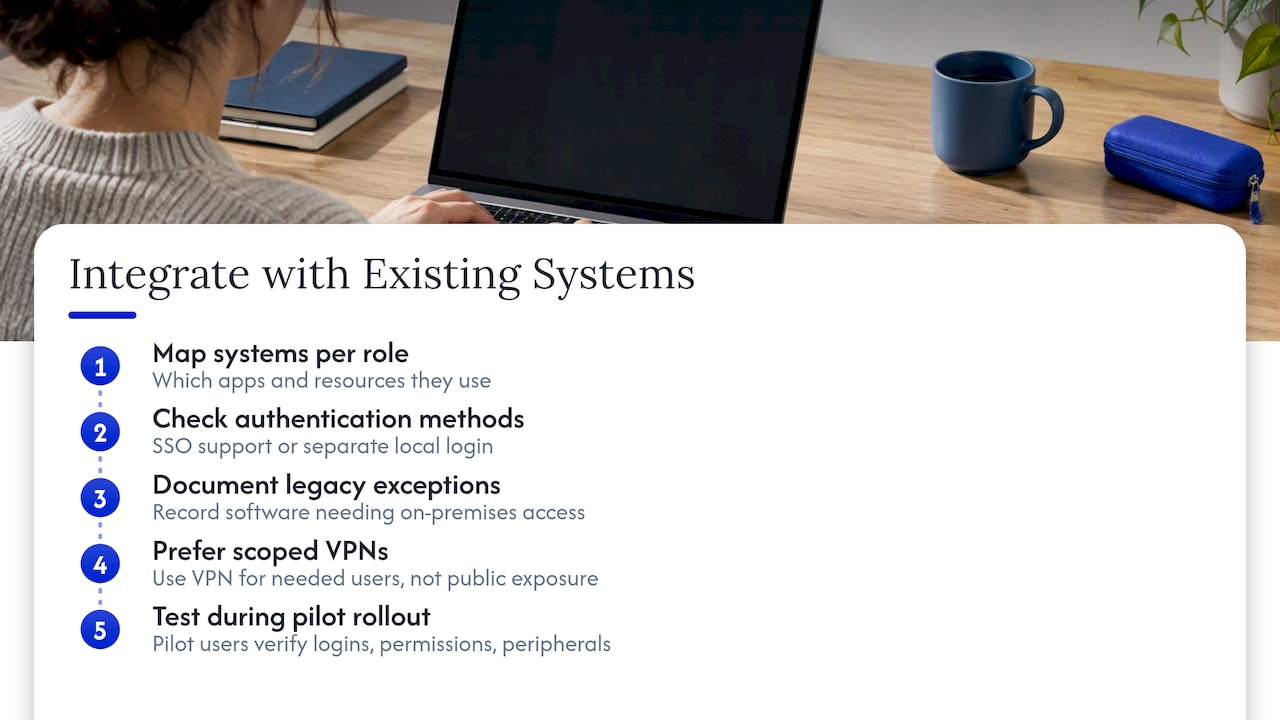
Start by mapping which existing systems each role actually touches. A bookkeeper’s laptop needs access to accounting software and a shared drive; a field technician’s tablet might only need a scheduling app and a camera. Enrolling a device in MDM does not automatically grant access to legacy systems, so check authentication methods on each one: does it support single sign-on through your identity provider, or does it still require a separate local login?
Older line-of-business software sometimes resists cloud-first setups because it expects a local network drive or an on-premises server. When that happens, document the exception rather than forcing a workaround that breaks on the next update. A VPN connection back to a legacy server, scoped to only the users who need it, is usually safer than exposing that server directly to the internet.
Test the integration during your pilot rollout, not after full deployment. Have the pilot group log into every system they use daily, confirm file permissions carried over correctly, and check that printers, scanners, and any specialized peripherals still connect. Catching a broken integration with two pilot users costs an afternoon; catching it after rolling out to twenty people costs a week.
Training and support resources for employees
A secure device setup only holds up if employees understand why the extra steps exist. An MFA prompt that nobody explained reads as an annoying obstacle, which is exactly when people start looking for ways around it.
Keep training short and specific rather than a long policy document nobody reads. A fifteen-minute walkthrough covering how to approve an MFA prompt, where to report a lost or stolen device, and who to contact for a password reset covers most of what a new hire actually needs. Put the same information in a one-page reference document they can find again later, since training delivered once during onboarding gets forgotten by month three.
Designate a clear support path before problems start. For a very small team, that might be the owner checking a shared inbox. For a growing team, it is worth naming one person as the first point of contact for device issues, even if that person also wears three other hats. Ambiguity about who to call is what turns a small issue, like a forgotten password or a failed update, into a half-day of lost productivity.
Document common fixes as they come up: a reset procedure for a frozen app, steps to reconnect to Wi-Fi after a router change, or how to request access to a new shared folder. A running list, even an informal one, saves repeat questions and gives new hires something to check before interrupting whoever handles IT.
Device lifecycle management and replacement planning
Every device you buy has a predictable arc: purchase, active use, declining performance, and retirement. Planning for that arc at setup time, rather than reacting when a laptop finally dies, keeps both budget and security risk manageable.
Set a replacement cycle by device type rather than waiting for failure. Laptops used for daily business work typically justify replacement every three to four years, tied to how long the manufacturer commits to security updates for that model. Phones and tablets, especially ones running business apps that require current OS versions, often need a shorter cycle.
Track age and condition in the same inventory you use for enrollment records. When a device falls out of its update window, that is the trigger to replace it, regardless of whether it still physically works, since an unpatched device is a security gap even if nothing looks wrong on the outside.
Build a retirement process that includes a full data wipe verified through your MDM console, removal from all enrollment and license records, and secure disposal or resale. A device that leaves your business without a confirmed wipe is a data breach waiting to surface later. For hardware that is failing rather than simply aging out, a repair can sometimes extend useful life at a fraction of replacement cost, which is worth weighing before defaulting to a new purchase.
Expert perspective: pragmatic trade-offs for small-business device policies
A team of one to ten people needs the baseline: MFA, encryption, MDM enrollment, tested backups. Nothing fancier pays off yet. Past ten to fifty users, the math changes: hire a managed service provider or dedicate internal ownership, because ad hoc device management starts costing more in lost time than it would cost to outsource. The biggest failure mode I see is not weak security, it is no single owner for device lifecycle, so policies exist on paper but nobody enforces them in practice.
— Michael
How Repair Genius can help with on-site prep and emergency device support
Setting up a fleet of new laptops or recovering a damaged one mid-rollout both eat time you do not have. We handle on-site repair for phones, tablets, laptops, and desktops with same-day service and transparent pricing so a hardware problem does not stall your setup schedule.

Book us when a device fails diagnostics before enrollment, when water damage or a cracked screen hits mid-rollout, or when you need an urgent replacement imaged quickly. Check our on-site computer repair services to see what we cover and get a quote for your next device issue.
FAQ
How do I set up a network for my small business?
Start with business-grade Wi-Fi using WPA2 or WPA3 encryption, change the router’s default admin password, and separate guest traffic from the network your business devices use. The FTC’s small-business guidance recommends this separation specifically to limit what a compromised guest device can reach.
What is the best computer for starting a small business?
The right choice depends on the software your team needs daily: Chromebooks suit browser-based, cloud-first work with lower management overhead, while Windows or Mac laptops suit teams running desktop accounting, design, or industry-specific software. Business-tier models with a Trusted Platform Module support stronger device management policies than consumer SKUs.
What is the best simple phone system for a small business?
Most small teams now run voice through a cloud-hosted VoIP or unified communications platform bundled with their existing business software rather than a separate phone system, since it avoids on-premises hardware entirely. The right fit depends on call volume and whether the team needs features like call routing or voicemail transcription.
How much does it cost to set up a small business network?
Cost depends heavily on team size, the number of access points needed, and whether you choose cloud-managed networking gear versus basic consumer routers, so there is no single figure that applies across setups. Budgeting for business-grade routers, access points, and any cabling work, plus ongoing subscription costs for cloud management, gives a more accurate estimate than a flat number.
Sources
Recommended
- How to Protect Student Data During Device Repair
- Why Employee Devices Need Quick Repair: 2026 Guide
- Device Repair Checklist for Employees: On-Site Prep Guide
- Minimize Device Repair Disruption: A Pro’s Guide





