
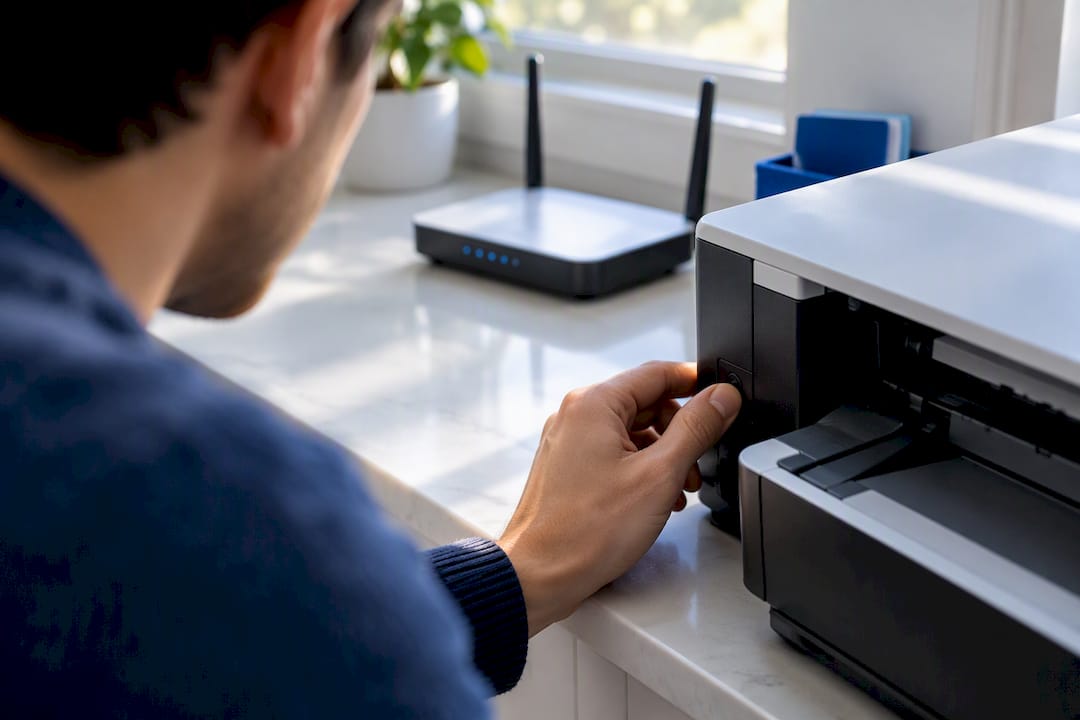
Unplug your router for 10 seconds, plug it back in, then power your printer off and on. Confirm both devices show the same network name, and run a test print. This resets the router’s connection tables and forces a fresh DHCP handshake, which clears the most common cause of a printer dropping off Wi-Fi. If the test print still fails, the checklist and diagnostics below cover every other likely cause.
TL;DR:
- Connecting the printer to the 2.4GHz band rather than the 5GHz network often resolves connectivity issues, as many printers only support 2.4GHz.
- Moving the printer within a few feet of the router and ensuring the wireless indicator light is solid can significantly improve signal strength and stability.
- Disabling guest networks or client isolation mode on the router can restore communication if the printer’s Wi-Fi light appears solid but cannot print or respond.
- Printing a network configuration report from the printer helps verify if it joined the correct network with a valid IP address and strong signal strength.
- When all quick fixes fail, it is usually a router or hardware problem that requires professional on-site diagnostics, especially if the wireless radio inside the printer has failed.
Table of Contents
- Quick checklist: six fast fixes to try right now
- Diagnose the network and router settings
- Get the printer back on the network
- Fix printer problems on your computer
- Advanced fixes for stubborn connection problems
- Confirm the fix and keep it stable
- When a printer problem needs a technician
- Book on-site help from Repair Genius
- Sources
- FAQ
Quick checklist: six fast fixes to try right now
Most printer connection problems trace back to a handful of causes, and you can test all of them in under 10 minutes before touching any settings menu.
- Power-cycle in order: unplug the router, wait briefly, plug it back in, then restart the printer, following the sequence HP support recommends for a full network reset.
- Check the network name: connect the printer to your home or office SSID, never to a temporary “DIRECT-xx” network the printer may broadcast for setup.
- Move the printer closer: shift it within a few feet of the router and confirm the wireless indicator light is solid, not blinking.
- Disable the firewall briefly: turn it off or add a printer exception to see if it was blocking the connection, per Canon’s firewall guidance.
- Clear the print queue: cancel any stuck jobs and restart the printer.
- Print a network report: most printers can print a wireless configuration page directly from the control panel to show what network the printer thinks it’s on.
Pro Tip: Write down the SSID and signal strength shown on the network report before you change anything. It gives you a baseline to compare after each fix.
Diagnose the network and router settings
Once the quick fixes fail, the problem usually sits somewhere between the printer and the router rather than in the printer itself. Start by confirming both your printer and your computer or phone are joined to the exact same network name and password. This matters more than it sounds: many home routers broadcast separate networks for 2.4GHz and 5GHz bands, and plenty of printers only support 2.4GHz.
- Check whether your router splits bands into two SSIDs and connect the printer specifically to the 2.4GHz one, since Epson’s setup guidance notes many printers work only on that band.
- Look for a guest network setting on your router and make sure the printer is not accidentally joined to it.
- Check for AP or client isolation mode in the router’s wireless settings, since it blocks two-way traffic between devices even when both show a connection.
- Scan for IP conflicts by checking whether another device on the network shares the printer’s assigned address.
- Review MAC filtering rules if your router restricts which devices can join.
Wi-Fi hardware inside printers is often noticeably weaker than what’s in a laptop or phone, which is why PCMag’s troubleshooting guide points to signal strength as a frequent culprit even when other devices connect fine from the same spot. A metal shelf, a thick wall, or simple distance can be enough to drop a printer’s connection while your phone stays connected without issue.
Guest networks and client isolation deserve special attention because they create a confusing symptom: the printer’s wireless light glows solid, suggesting a good connection, but nothing can actually reach it. This happens because isolation mode is designed to stop devices on the same network from talking to each other, which is useful for guest Wi-Fi security but breaks printing entirely. If you find isolation enabled, you’ll need router admin access to disable it or add an exception for the printer’s IP or MAC address. For printers that keep losing their address, assigning a static IP through the router’s DHCP reservation settings prevents the printer from silently changing addresses after every reboot.
Get the printer back on the network
When the router checks out, the next step is working directly from the printer’s control panel. Most wireless printers have a network setup mode with a limited window, so timing matters here.
- Open the printer’s wireless or network menu and select the option to reconnect or restore Wi-Fi setup, then start the process within the time limit shown on screen.
- When the printer lists nearby networks, choose your actual home or office SSID rather than the printer’s own “DIRECT-xx” broadcast, which exists only for initial pairing with a phone or computer.
- Re-enter the Wi-Fi password carefully from the printer’s keypad or touchscreen, since a single mistyped character will silently fail the connection.
- Once connected, print the wireless network test or configuration report, which lists the SSID, IP address, and signal strength the printer is actually using.
That report is the most useful diagnostic tool you have. HP’s own troubleshooting documentation treats it as the starting point for figuring out exactly where a connection is failing, since it shows whether the printer joined the right network, received a valid IP, and how strong its signal reading is. If the SSID on the report doesn’t match what you expect, or the signal strength reads weak, you’ve found your problem without guessing.
Pro Tip: If setup mode keeps timing out before you finish entering the password, move the printer closer to the router just for the setup process, then relocate it back afterward.
Fix printer problems on your computer
Sometimes the printer is connected fine and the problem lives entirely on your computer or laptop. Windows and macOS both cache printer information that can go stale, especially after a network change or driver update.
- On Windows, check whether “Use Printer Offline” is enabled in the printer’s queue settings and turn it off if so, then restart the Print Spooler service, a fix Microsoft Support lists as a common resolution even when the printer is powered on and connected.
- Remove the printer entirely from your list of devices on Windows or macOS, then add it back, since Google’s own support documentation notes this clears stale driver instances that persist after other fixes.
- Update the printer’s driver from the manufacturer’s site rather than relying only on what Windows installs automatically, particularly after a printer firmware update.
- Try AirPrint on a Mac or iOS device, or a generic IPP connection, if the vendor driver keeps causing conflicts.
- Print from a second device on the same network; if that succeeds, the issue is specific to your original computer, not the printer or router.
If you manage printers alongside other networked office equipment, the same diagnostic order applies. For network issues affecting point-of-sale systems, start with the router before assuming a device fault.
Advanced fixes for stubborn connection problems
If you’ve worked through the network and OS checks and the printer still won’t hold a connection, a few deeper issues are worth ruling out. Network printing relies on specific ports and protocols, commonly IPP, LPD, and JetDirect, and a firewall or security suite can quietly block them even after you’ve added what you thought was a full exception.
- Confirm your firewall exception covers the actual ports the printer uses, not just the printer’s name or IP address.
- Check for a pending firmware update on the printer, since manufacturers regularly patch Wi-Fi connectivity bugs.
- Try a network-only reset first, which clears saved Wi-Fi settings without touching print history or other configurations.
- Reserve a full factory reset for cases where a network-only reset doesn’t resolve the problem, since it erases all settings.
- Watch for a wireless indicator that never turns solid even after a successful setup attempt, which often points to failing Wi-Fi hardware rather than a settings issue.
If disabling your firewall restores the connection, the fix is to open the specific ports the printer needs permanently, rather than leaving the firewall off, according to Canon’s guidance on network printing issues. A printer that connects briefly after every reset but drops again within minutes, despite a strong signal reading on the network report, is showing a pattern consistent with a hardware fault in its wireless radio rather than a router or software problem.
Confirm the fix and keep it stable
Once the printer reconnects, confirm it properly rather than assuming the job is done.
- Print a test page and the wireless network configuration report together, checking that the SSID and IP address match what you expect.
- Send a print job from a second device on the same network to confirm the fix holds beyond your original computer.
- Watch for repeated drops over the next day or two, since an intermittent problem can look fixed immediately after a reset and reappear later.
- Check your router’s connected-devices list occasionally to confirm the printer keeps the same IP address over time.
Keep the printer’s firmware and driver current, and avoid placing it behind metal cabinets or near cordless phones and microwaves, which can interfere with the 2.4GHz band it likely depends on.
When a printer problem needs a technician
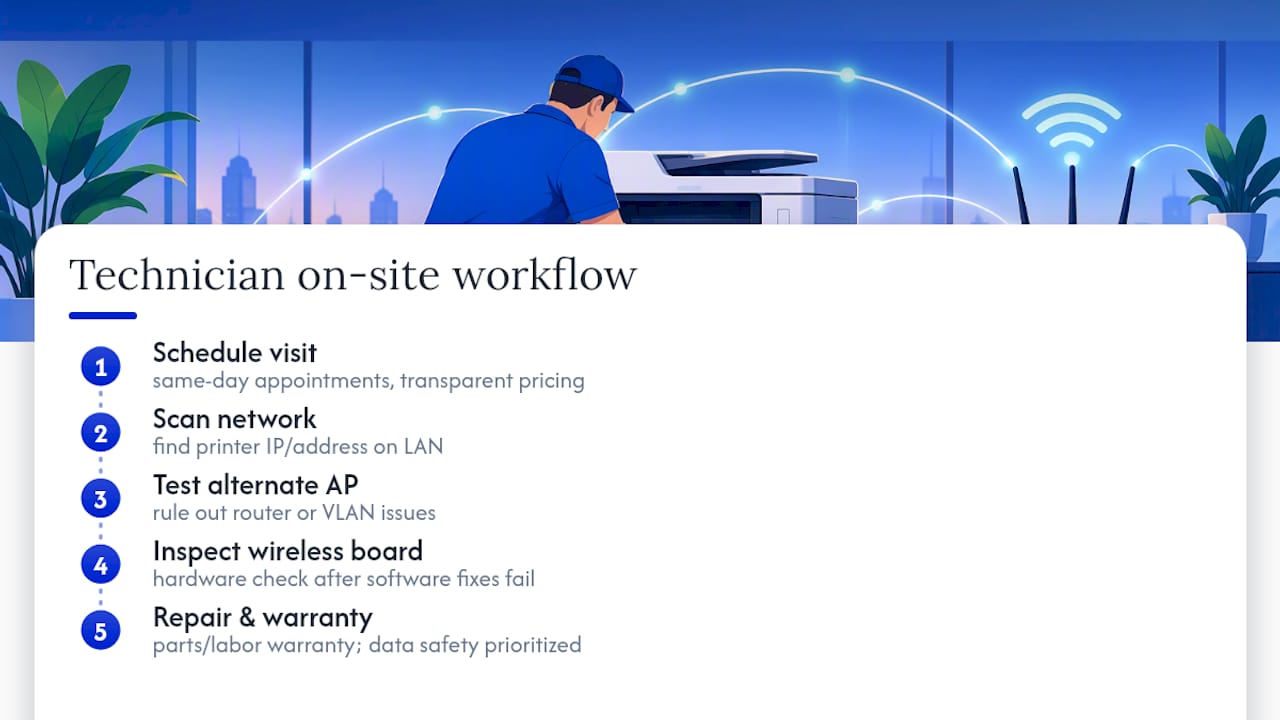
Some situations call for hands-on diagnostics rather than more menu-clicking. If you suspect the printer’s Wi-Fi radio itself has failed, if your router has business-grade restrictions like VLANs or MAC filtering you can’t safely change yourself, or if a printer outage is stalling a business day, an on-site visit saves time. A technician’s workflow typically includes scanning the network for the printer’s address, testing with an alternate access point to rule out the router, and checking the printer’s internal wireless board when software fixes have already failed.
Technicians bring that process directly to homes and offices locally, with same-day appointments and transparent pricing quoted before any work starts. Data safety stays a priority throughout the visit, and repairs carry a warranty on parts and labor, so a printer or network fix that fails again shortly after isn’t a dead end.
— Michael
Book on-site help from Repair Genius
A printer that won’t reconnect after every fix above usually means the problem is at the router configuration level or inside the printer’s hardware, and that’s exactly where an on-site visit pays off. Instead of spending another evening guessing at settings, a Repair Genius technician comes to your home or office in Orlando or Winter Park, diagnoses the network and printer together, and quotes the fix before starting any work.

A typical visit for a connectivity issue includes:
- A full network scan to confirm what’s blocking the printer and whether the router or the printer is at fault.
- Testing with an alternate access point when router restrictions are suspected.
- Board-level checks on the printer’s wireless hardware if a radio failure looks likely.
- A same-day fix in most cases, with pricing confirmed upfront and no hidden fees.
Repair Genius also handles the broader on-site computer and networking repairs that come up around a printer problem, from router configuration to driver conflicts on the connected computer itself. Reach out to schedule a visit and get your printer back on the network the same day.
Sources
The manufacturer support pages from HP, Canon, and Epson each cover model-specific setup steps, firewall exceptions, and band compatibility in more depth than a general guide can. Microsoft’s support documentation addresses Windows-specific offline errors and spooler fixes, while PCMag’s troubleshooting guide offers a broader look at signal and placement issues across brands. Check the page matching your printer’s manufacturer first, since exact menu names and setup timing vary by model.
- HP Printer Offline Issues – How to Fix | HP® Support
- Epson support — wireless band and setup guidance
- Canon support — firewall and printing issues
- Fix printer connection and printing problems in Windows | Microsoft Support
- PCMag — how to fix printers that won’t connect to Wi‑Fi
FAQ
Why won’t my printer hook up to my Wi-Fi?
The most common causes are a mismatched network name or password, a printer sitting too far from the router, or a router setting like guest network mode or client isolation blocking the connection. Power-cycling the router and printer, then confirming both are on the same SSID, resolves most cases according to HP’s troubleshooting guidance.
Why is my printer not picking up the Wi-Fi signal?
Printer Wi-Fi radios are often weaker than those in laptops or phones, so distance, walls, or nearby metal shelving can block a signal that other devices pick up fine, as PCMag notes. Moving the printer a few feet closer to the router often resolves this without any settings changes.
How do I get my printer to reconnect to Wi-Fi?
Restore the printer’s Wi-Fi setup mode from its control panel, select your actual network name rather than any temporary “DIRECT-xx” network, and re-enter the password carefully. Print the wireless network configuration report afterward to confirm it joined the correct network with a valid IP address.
Why can’t my Wi-Fi find my printer?
This usually means the printer and your computer are on different networks, such as separate 2.4GHz and 5GHz bands, or that the router has client isolation enabled, which HP’s connection guidance identifies as a setting that blocks two-way communication even with a solid Wi-Fi light. Checking the router’s band settings and isolation mode usually reveals the cause.
Recommended
- Fix POS Network Issues in Under 10 Minutes for Shift Managers
- Computer Running Slow? Causes & Quick Fixes
- 6 Manufacturer Backed Checks When Your Laptop Won’t Boot





