
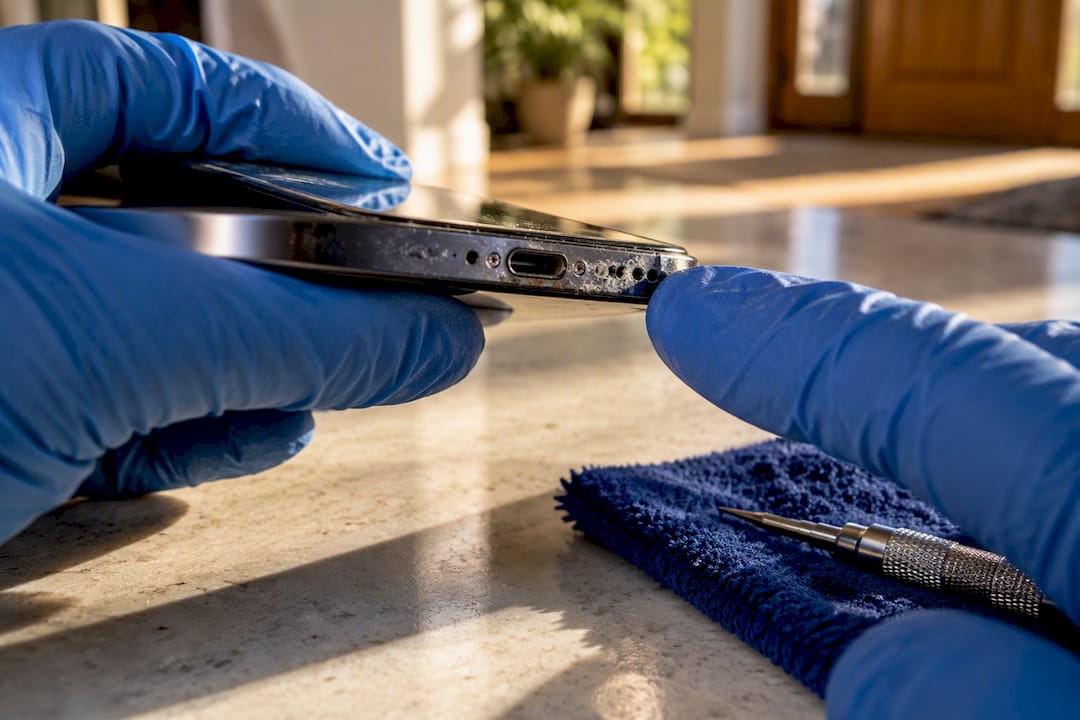
A red liquid contact indicator, a moisture alert on the charging screen, or a sudden cluster of glitches right after a splash are the clearest signs your phone has taken on water. If any of these show up, power the phone down, skip the charger, and run the checks below before you decide whether it needs a repair shop or just time to dry.
TL;DR:
- A red liquid contact indicator may appear in ports or trays, but absence of visible signs does not guarantee the phone is dry.
- Multiple functional issues after water exposure, such as camera fogging or audio distortion, suggest deeper internal damage that requires professional diagnosis.
- Moisture alerts during charging must be taken seriously, as forcing a charge risks permanent internal damage; waiting times vary from 1 to 24 hours depending on the device.
- Do not attempt to accelerate drying with heat or insert objects into ports, and keep the device off, dry, and unplugged during the initial drying period.
- A professional repair is recommended if multiple symptoms persist, corrosion becomes visible, or the device fails to boot after the recommended drying time.
Table of Contents
- Quick checklist: visible and functional signs you can check now
- What each common symptom usually indicates
- How to check LCIs/LDIs and built-in moisture alerts safely
- Immediate do’s and don’ts in the first minutes and hours
- Drying timeline and realistic expectations for recovery
- When to seek professional repair and what technicians check
- What experienced on-site technicians see and recommend
- How Repair Genius can help with water-damaged phones
- Sources
- FAQ
Quick checklist: visible and functional signs you can check now
Before you touch a charger or a screwdriver, run through a short sequence that starts with your eyes and ends with careful, no-charge testing.
Visual checks first:
- Look at the SIM tray and port openings with a flashlight for a red or pink liquid contact indicator (LCI or LDI).
- Check for cloudiness under the screen, water beading near the speaker grilles, or corrosion colored green or white around metal contacts.
Then move to function, without plugging in anything:
- Wake the screen and check for touch response in every corner, not just the center.
- Try the camera app and look for fog or condensation behind the lens.
- Play a sound clip or voice memo to check speaker and microphone clarity.
- Watch for a moisture or liquid detection alert if you attempt to plug in a cable.
If the phone shows a red indicator, a moisture warning, or two or more functional problems together, stop testing and let it rest before attempting to charge. A single odd glitch with a dry-looking port is often unrelated to liquid at all, but a cluster right after exposure usually is not.
What each common symptom usually indicates
Not every symptom carries the same weight, and reading them correctly saves you from either panicking over nothing or ignoring something serious.
A red LCI means liquid reached that specific contact point, according to the color-change behavior documented in iFixit’s liquid damage repair guide. A neutral, silver, or white indicator suggests that spot stayed dry, though liquid can reach other areas without tripping every sensor. Some newer eSIM-only phones have no externally visible indicator at all, so a clean-looking tray does not rule out exposure.
Moisture and charging alerts are protective, not just annoying. When a phone blocks charging after detecting liquid, it is trying to stop corrosion before it starts. Overriding that warning by forcing a charge, drying with heat, or repeatedly reconnecting the same cable risks turning a fixable connector issue into permanent damage.
Certain symptoms point toward deeper trouble:
- Camera fogging usually means condensation reached the lens assembly, which often clears with time but can leave mineral residue.
- Audio distortion or silence suggests liquid sitting in the speaker or microphone mesh.
- Random restarts or shutdowns point to a short somewhere on the board, which is more serious than a wet speaker.
- Overheating without heavy use can mean a short is drawing current somewhere it shouldn’t.
- Rapid battery drain often follows once corrosion starts interfering with the battery connector.
Pro Tip: A phone that boots fine but shows one isolated glitch, like a sticky button, is more likely a coincidence than water damage. A phone with three or more symptoms clustered right after exposure almost never is.
How to check LCIs/LDIs and built-in moisture alerts safely
Checking for a liquid contact indicator takes a couple of minutes and no tools beyond a flashlight, but the process differs slightly by brand and model.
- Power the phone off if it is still on and responsive.
- Eject the SIM tray using the included tool or a straightened paperclip, never a metal object with sharp edges.
- Shine a flashlight or use a lighted magnifier to inspect the tray slot and the visible indicator dot, following the inspection method described in iFixit’s repair guide.
- Check the charging port opening itself for discoloration or debris, without inserting anything into it.
- If a charging or moisture alert appears on screen, unplug the cable immediately and set the phone somewhere dry.
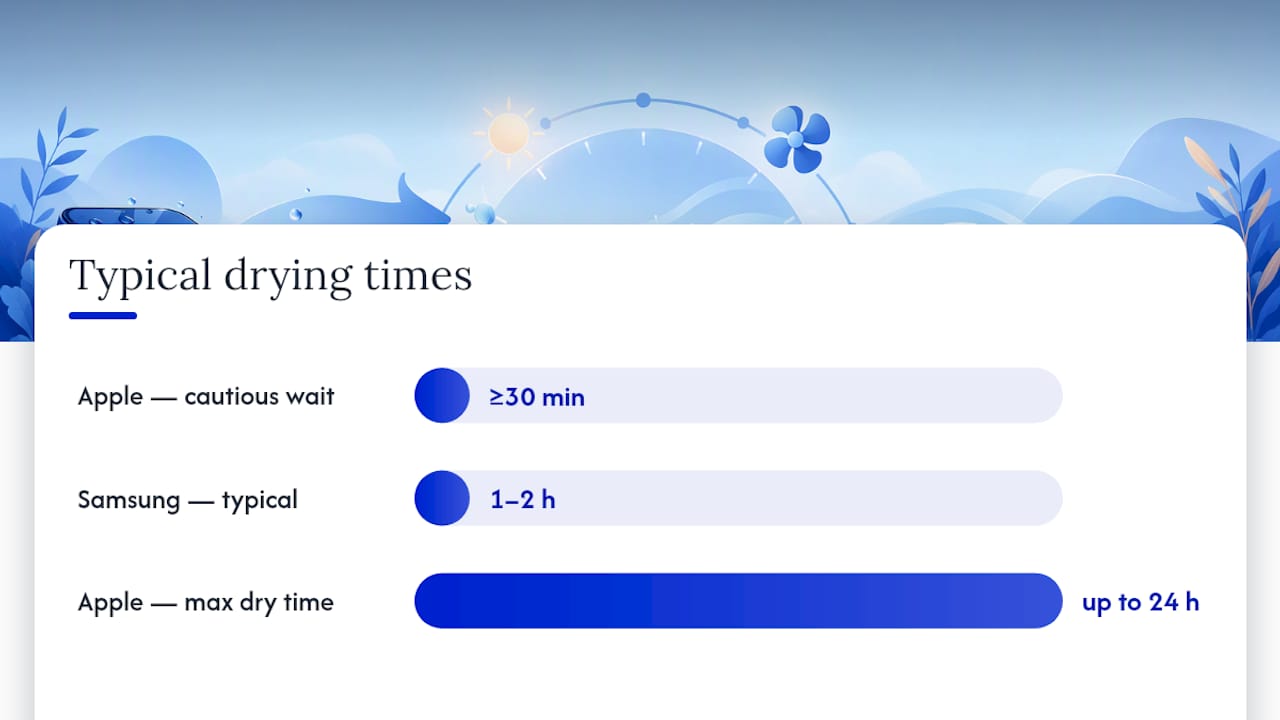
Common alert wording varies. Apple devices show a liquid detection alert that disables charging until the port reads dry, and Apple’s own support guidance recommends waiting at least 30 minutes before a cautious retry, with drying sometimes taking up to 24 hours. Samsung devices display a similar water drop warning, and according to Samsung’s support page, moisture in the charging port often evaporates naturally within 1 to 2 hours on many models, though persistent warnings call for service.
Do not insert cotton swabs, compressed air, or any object into the port to speed things along. If the alert keeps appearing, try a different cable first: a damaged or dirty cable can trigger a false warning that has nothing to do with the phone itself.
Immediate do’s and don’ts in the first minutes and hours
What you do in the first few minutes matters more than almost anything that follows.
Do this right away:
- Power the phone off completely, even if it still seems to work.
- Remove the case and the SIM tray to let trapped water escape.
- Gently pat the phone dry and tap it lightly, port facing down, to help liquid drain out.
- Set it on a towel near airflow, such as in front of a fan, screen and ports facing down.
Skip these, even if they seem helpful:
- Skip the rice trick. Grains and starch dust can work their way into ports and cause more harm than good.
- Skip hair dryers or any heat source, which can push moisture deeper or warp internal components.
- Skip charging until the phone has had real time to dry and shows no alert.
Pro Tip: If the phone was submerged for more than a few minutes or exposed to anything other than fresh water, treat drying as a first step, not a fix. Corrosive liquids keep working long after the phone feels dry to the touch.
Drying timeline and realistic expectations for recovery
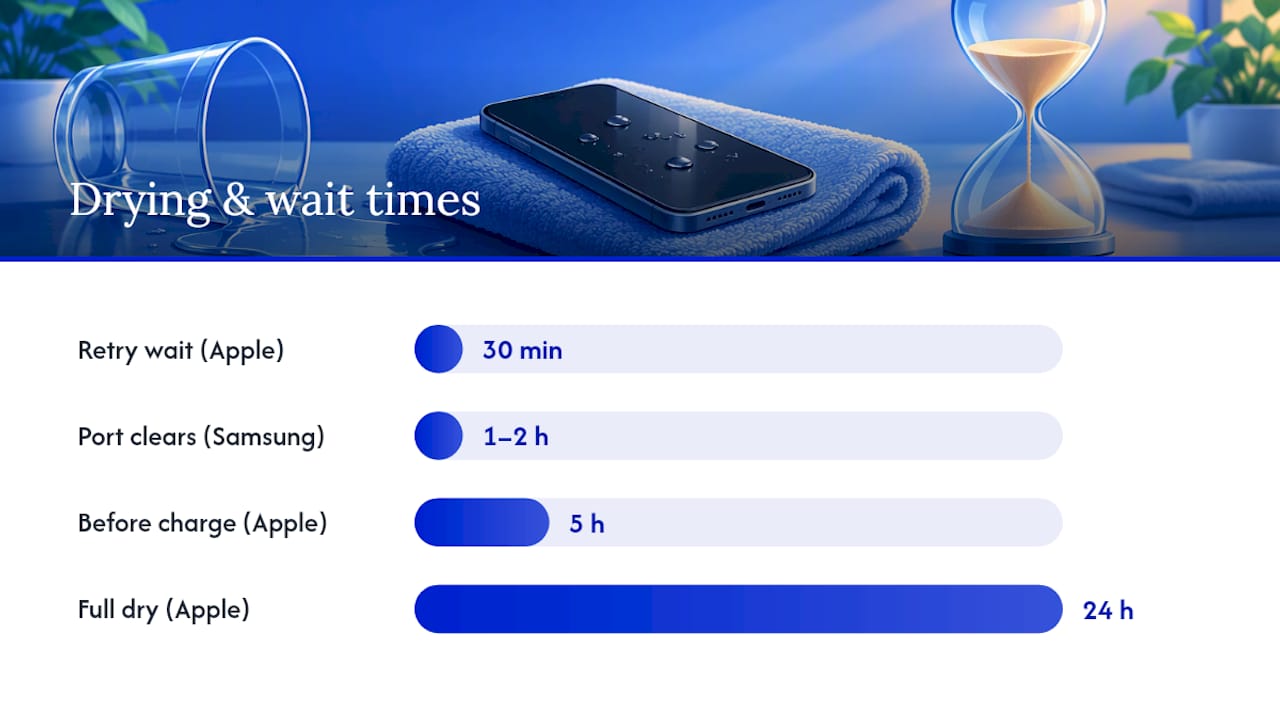
Manufacturer guidance points to a wide window, not a single number. Apple recommends waiting at least 30 minutes before a cautious retry and notes that drying out fully can take up to 24 hours, with at least 5 hours advised before charging once the phone appears dry, according to Apple’s liquid detection alert guidance. Samsung’s own troubleshooting page states that water in the charging port often clears in 1 to 2 hours on many devices, per Samsung’s support documentation.
The liquid itself changes the outlook:
- Fresh water is the least corrosive and most likely to evaporate cleanly.
- Saltwater, coffee, soda, and juice carry minerals or sugar that keep corroding metal contacts long after the phone feels dry.
- A phone can power on normally right after drying and still fail days or weeks later once residue finishes its damage, a pattern confirmed in iFixit’s guide to diagnosing water damage severity.
Watch the phone over the following week. New symptoms after a clean start are a signal to get it checked rather than wait longer.
When to seek professional repair and what technicians check
Some situations call for a technician instead of more waiting. Book a diagnostic if you see a red LCI along with any functional fault, if charging still fails after the manufacturer’s recommended drying window, if visible corrosion appears anywhere near the ports, or if the phone won’t boot at all once dry.
A typical diagnostic visit covers:
- Confirming the LCI status and inspecting the port and connector for corrosion or debris.
- Opening the case to check the board for shorts, water trails, or damaged components.
- Cleaning affected areas with high-concentration isopropyl alcohol, a standard step for removing corrosive residue that drying alone cannot touch, as described in iFixit’s severity guide.
- Replacing parts like the charging port, battery, or camera module when corrosion has gone past cleaning.
Expect a diagnostic fee that often applies toward the repair if you proceed, a separate quote for parts versus labor, and a straightforward explanation of what was found before any work begins. For readers weighing a drop instead of a spill, internal damage after a fall can produce overlapping symptoms worth ruling out too.
What experienced on-site technicians see and recommend
The mistake I see most often is someone charging the phone the moment it powers back on, treating a working screen as proof the danger has passed. Corrosion from anything but plain water keeps spreading quietly, and a phone that seems fine on day one can fail on day ten.
The safe DIY steps end at drying and basic checks. Once you’re looking at a persistent alert, visible corrosion, or a phone that won’t boot, an on-site diagnostic beats mailing a device away because you keep your data local the entire time and get an answer the same day instead of waiting on shipping both directions.
— Michael
How Repair Genius can help with water-damaged phones
If the checks above turn up a red indicator, a stuck moisture alert, or symptoms that haven’t cleared, Repair Genius sends a technician to wherever you are in Orlando or Winter Park instead of asking you to ship the phone anywhere.

Our on-site visits cover the parts of water damage that matter most:
- Diagnostics that confirm LCI status, port condition, and board health before any work starts.
- Charging port repair and board cleaning for corrosion that drying alone won’t remove.
- Data-safety practices that keep your information on your device throughout the repair.
- Transparent pricing with no hidden fees, quoted before work begins.
Before booking, note when the exposure happened, what liquid was involved, and any alerts you’ve seen. Then head to our cellphone repair page to check availability and get a same-day quote.
Sources
- Repairing iPhone Liquid Damage – iFixit Repair Guide
- If you see a liquid-detection alert on your iPhone – Apple Support
- Moisture in water-resistant Samsung phone or tablet’s charging port
FAQ
How long will it take for a phone to dry out?
Drying times vary by device and exposure. Apple’s guidance suggests waiting at least 30 minutes before a cautious charging retry, with full drying sometimes taking up to 24 hours, while Samsung notes that charging port moisture often clears in 1 to 2 hours on many models.
Can a phone recover from water damage?
A phone exposed to plain water and dried quickly often recovers fully, especially if no functional symptoms appeared. Phones exposed to saltwater, coffee, or other impure liquids are more likely to develop corrosion that shows up later, even after an initial recovery, so professional cleaning may still be needed.
How long does water damage take to show a phone?
Some signs, like a red LCI or a moisture alert, show up immediately. Others, like corrosion-driven battery drain or random restarts, can take days or weeks to appear as residue keeps affecting components after the phone feels dry.
Will water damage go away on its own?
Surface moisture can evaporate on its own within the timeframes manufacturers describe, but corrosion from impure liquids does not resolve without cleaning. If alerts, restarts, or connectivity issues persist past the expected drying window, the underlying damage needs attention rather than more waiting.
Recommended
- How to Fix a Water Damaged Phone
- Water Damaged iPhone Repair Tips | Save Your Device
- Water Damage Repair in Orlando: Same-Day On-Site Service





