

Toggle Wi-Fi off and back on, restart both your laptop and your router, then check whether another device connects fine. That single sequence resolves most connection failures. If only your laptop struggles while everything else gets online, run the Windows network troubleshooter or macOS Wireless Diagnostics next. When those steps don’t fix it, work through the ordered checks below.
TL;DR:
- Most connection failures are resolved by toggling Wi-Fi, power cycling the modem and router, and restarting the laptop, often within a few minutes.
- When only the laptop experiences issues, the problem likely stems from local device settings or hardware, not the network or ISP.
- Updating, rolling back, or reinstalling the wireless driver through Device Manager can fix persistent software-related connection problems.
- Router firmware updates, changing Wi-Fi channels, and splitting bands improve stability, especially in congested or densely populated areas.
- Hardware faults like a failed wireless card or antenna require professional diagnosis and on-site repair, with most issues solvable quickly once identified.
Table of Contents
- Quick checks to rule out simple problems
- Windows troubleshooting from automatic tools to a network reset
- macOS wireless diagnostics and system-level fixes
- Router, modem, and ISP-side problems to check first
- Running ping, traceroute, and Ethernet diagnostics
- Power settings and driver issues that cause random drops
- When it’s time to call a repair technician
- A technician’s take on fixing this in the right order
- Get your laptop’s Wi-Fi fixed the same day
- Sources
- FAQ
Quick checks to rule out simple problems
Before touching settings or commands, eliminate the obvious causes. These take five minutes and clear up a surprising number of cases.
- Confirm Wi-Fi is actually on. On Windows, click the network icon in the taskbar and make sure Wi-Fi is toggled on and Airplane Mode is off. On a Mac, check the Wi-Fi icon in the menu bar. Some laptops also have a physical Wi-Fi switch or a function-key combo (often paired with F2 or F12) that can disable the radio without you noticing.
- Power cycle the modem and router in order. Unplug the modem first, wait 60 to 90 seconds, plug it back in and let it fully reconnect, then unplug the router and repeat. Power the router back on last so it reestablishes a connection to a modem that’s already online.
- Restart the laptop itself. A fresh boot clears out whatever process or memory glitch might be blocking the network adapter.
- Test another device on the same network. Try a phone, tablet, or second laptop. If it connects fine, the fault lives in your laptop. If nothing connects, the problem is upstream in your router, modem, or with your internet provider.
- Try phone tethering as a temporary bridge. If your laptop won’t join your home network but does connect to a phone’s hotspot, that narrows the issue to your router or its settings rather than the laptop’s wireless hardware.
Give each reboot a full 60 seconds before assuming it failed. If you’re still stuck after these five checks, move to the operating-system-specific steps next.
Windows troubleshooting from automatic tools to a network reset
Windows has a built-in escalation path: start with automated fixes, then work down into commands and drivers.
- Run the Windows Network troubleshooter. Go to Settings, then Network & Internet, then Network troubleshooter, or search “Get Help” and let it scan for problems automatically.
- Forget the network and reconnect. Click the Wi-Fi network, select Forget, then rejoin and re-enter the password. This clears a corrupted saved profile, which is a common and overlooked cause of “connected but no internet” symptoms.
- Run the network reset command sequence. Open Command Prompt as an administrator and enter, in order:
netsh winsock reset,netsh int ip reset,ipconfig /release,ipconfig /renew, andipconfig /flushdns. This sequence resets the TCP/IP stack and clears the DNS resolver cache, which Microsoft documents as a standard fix for stalled connections. Restart the laptop after running it. - Update or roll back the wireless adapter driver. Open Device Manager, expand Network adapters, right-click your Wi-Fi adapter, and choose Update driver. If the problem started right after a driver update, choose Roll Back Driver instead under the Driver tab.
- Uninstall and reinstall the adapter. In Device Manager, right-click the adapter and select Uninstall device, then restart. Windows will reinstall a default driver automatically, which can clear corruption that an update alone won’t fix.
- Use Network Reset as a last resort. Found under Settings, Network & Internet, Advanced network settings, this removes and reinstalls all network adapters and clears every saved Wi-Fi profile. You’ll need to re-enter passwords for every network afterward, so save them somewhere first.
Whether the fault sits on your device or the network matters more than any single command. Microsoft’s own troubleshooting guidance notes that when multiple devices lose internet at once, the issue is typically the ISP, modem, or router. When only one laptop is affected, the fault is usually local to that machine, which is exactly why testing a second device early saves time.
macOS wireless diagnostics and system-level fixes
Mac troubleshooting follows a similar logic, just with Apple’s own tools.
- Run Wireless Diagnostics. Hold Option and click the Wi-Fi icon in the menu bar, or launch it from Applications, then Utilities. It analyzes your wireless environment and can save a diagnostic archive to /var/tmp that a technician can review later.
- Check Wi-Fi Recommendations. Option-click the Wi-Fi icon and select Open Wireless Diagnostics, then look at the Info tab for suggestions about channel congestion or signal strength.
- Remove and re-add the network. In System Settings under Wi-Fi, click the info icon next to the network, choose Forget This Network, then rejoin and re-enter the password.
- Test with VPN, proxy, and firewall temporarily off. A VPN client or an overly strict firewall rule can create a connection that shows as active but blocks actual traffic. Disable each one briefly to see if internet access returns.
- Check for pending macOS updates. Apple periodically ships networking fixes in system updates, and an outdated build can carry a bug that a current one has already patched.
If your Mac shows repeated drops even after these steps, our guide on Mac troubleshooting and repair timing covers related symptoms worth ruling out.
Router, modem, and ISP-side problems to check first
Before you spend more time on the laptop itself, confirm the network side isn’t the actual cause.
- Test multiple devices. If your phone, tablet, and laptop are all offline, the problem is almost certainly the modem, router, or your provider rather than any single device.
- Power cycle in the correct order. Unplug the modem, wait, plug it in, then repeat with the router once the modem is fully back online.
- Run a wired Ethernet test. Connect the laptop directly to the modem with a cable. If internet works over Ethernet but not Wi-Fi, the fault is in the router’s wireless radio or the laptop’s Wi-Fi adapter, not your internet service.
- Check cables and LED status lights. A loose coax or Ethernet cable, or a modem showing a red or blinking light instead of solid green, points to a connection problem outside the router itself.
- Update router firmware. Outdated firmware causes both instability and security gaps. The FTC recommends keeping firmware current and understanding features like WPS and remote management that ship enabled by default.
- Split your 2.4 GHz and 5 GHz bands into separate network names. This lets you manually choose the more stable band at range instead of letting the laptop guess.
- Change the Wi-Fi channel. Overlapping channels from neighboring networks are a common cause of intermittent drops in apartments and dense housing.
Pro Tip: Before calling your ISP, have your account number, the exact error message, and the results of a wired Ethernet test ready. It cuts the call time roughly in half.
Running ping, traceroute, and Ethernet diagnostics
These commands tell you exactly where a connection breaks down, which is useful information whether you fix it yourself or hand it to a technician.
- Ping the router’s gateway address. Open Command Prompt or Terminal and run
ping 192.168.1.1(or your router’s actual gateway IP). Consistent replies mean your laptop reaches the router fine. - Ping a public address, like 8.8.8.8. If the gateway responds but this doesn’t, the problem is between your router and the wider internet, not your laptop.
- Run tracert (Windows) or traceroute (Mac). Typing
tracert 8.8.8.8shows every hop your connection takes and reveals exactly where it stalls. - Test with a wired connection or a USB Wi-Fi adapter. Plugging in an Ethernet cable or a spare USB adapter separates a hardware fault in the internal wireless card from a router or driver issue.
| Test | What it checks | Healthy result |
|---|---|---|
| Ping to gateway | Laptop-to-router link | Steady replies, no loss |
| Ping to 8.8.8.8 | Router-to-internet link | Steady replies, no loss |
| Tracert/traceroute | Which hop fails | Completes without timing out |
| Wired Ethernet test | Router vs. laptop hardware | Internet works over cable |
Record the timestamps and exact output of each test. If you end up escalating to your ISP or a technician, that log saves a repeat round of diagnostics. Readers running Linux alongside Windows or macOS can find a similarly layered troubleshooting approach useful for isolating the same kind of fault.
Power settings and driver issues that cause random drops
Some of the most persistent Wi-Fi problems trace back to settings most people never touch.
- Disable power-saving on the wireless adapter. In Device Manager, open the adapter’s properties, go to Power Management, and uncheck “Allow the computer to turn off this device to save power.” This setting is a documented cause of intermittent drops, since Windows periodically powers the radio down to save battery.
- Set the Wireless Adapter Settings to Maximum Performance. Found in your active power plan’s advanced settings, this stops the same power-saving behavior from a second angle.
- Adjust Roaming Aggressiveness and Preferred Band. Under the adapter’s Advanced tab in Device Manager, lowering roaming aggressiveness can stop a laptop from constantly hunting for a marginally stronger signal and dropping the current one in the process.
- Roll back a driver only if problems started right after an update. Otherwise, update to the latest version first.
- Test with a USB Wi-Fi adapter. If a USB adapter connects reliably while the internal card doesn’t, that points to a hardware fault rather than a software setting.
Pro Tip: If disabling power management fixes the drops immediately, don’t skip re-checking it after any future Windows update, since updates sometimes reset that setting.
When it’s time to call a repair technician
Some signs point to hardware rather than settings: the wireless adapter disappears from Device Manager entirely, drops persist across every network you try, or the laptop has visible damage near the antenna or hinge. At that point, further software troubleshooting wastes time.
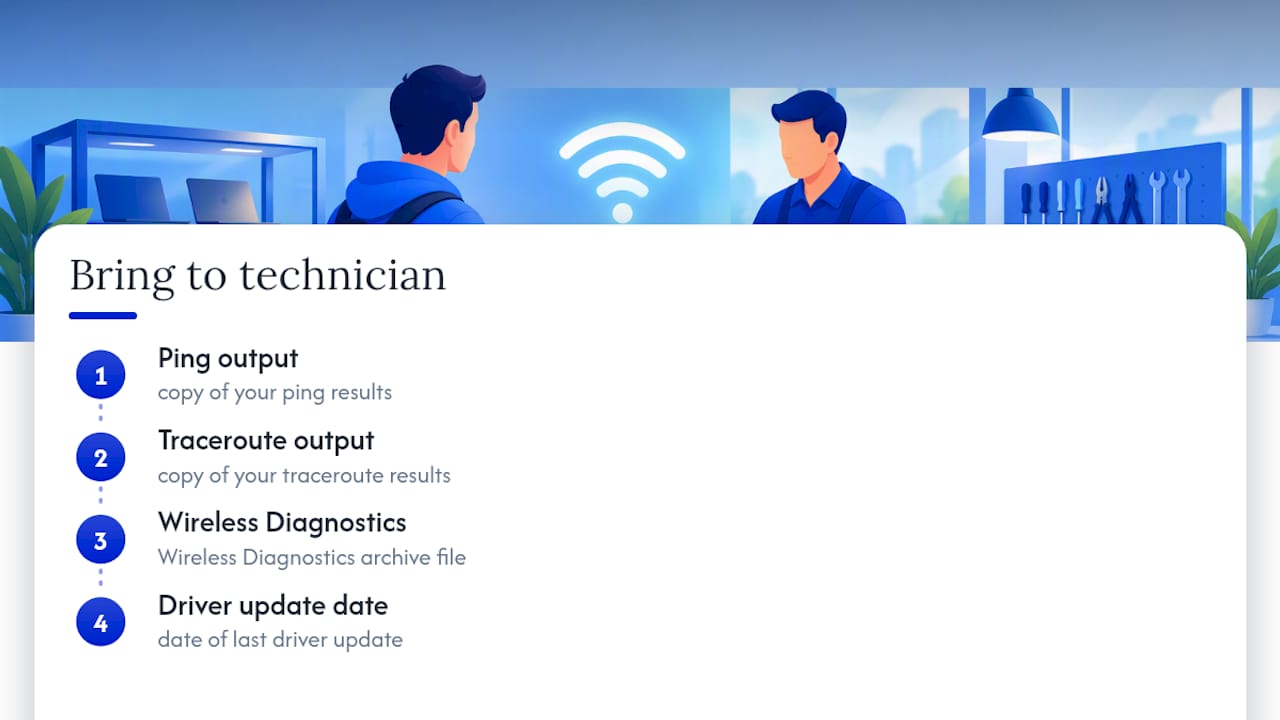
Before a service visit, gather your ping and traceroute outputs, any Wireless Diagnostics archive, and the date of your last driver update. This lets a technician skip repeating tests you’ve already run.
On-site repair can replace a failed wireless card or antenna, perform board-level diagnosis when a laptop won’t recognize any adapter, and handle everything without your device leaving your sight, which matters if you’re worried about your data. You can request a diagnostic through the Computer & Laptop Repair page. If the underlying issue turns out to be a boot failure rather than networking, our laptop won’t boot checklist covers that separately.
A technician’s take on fixing this in the right order
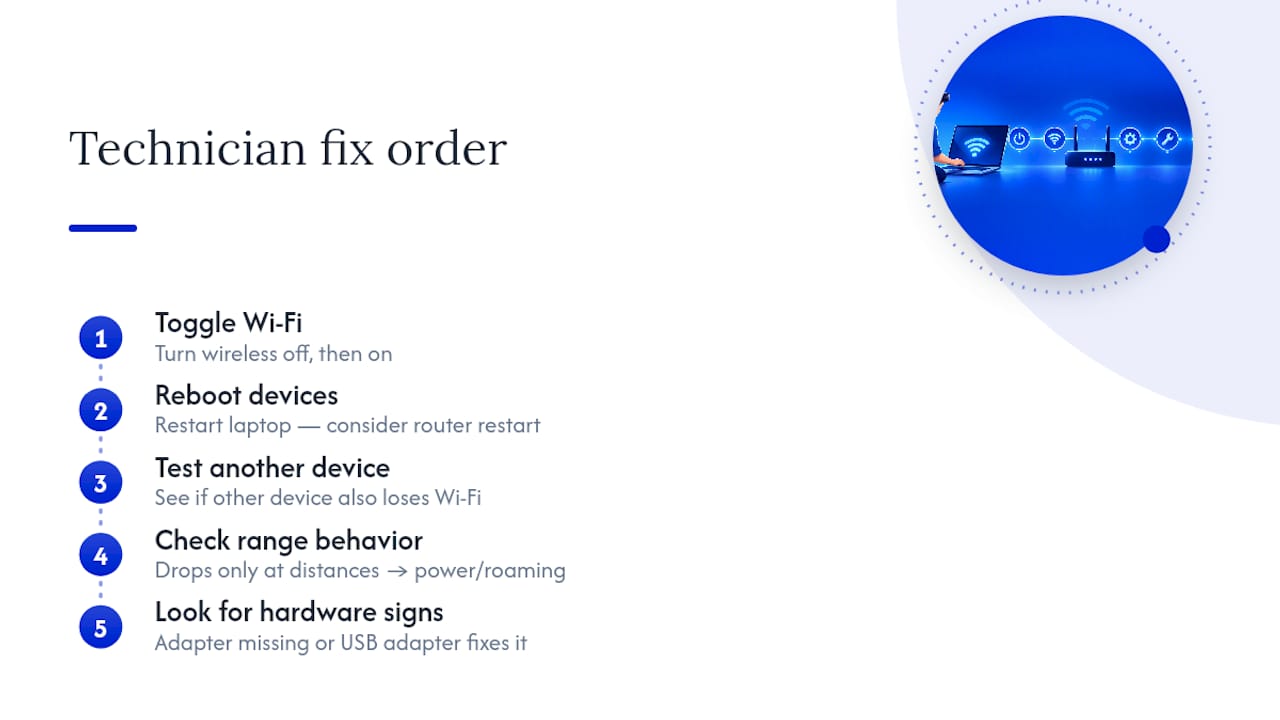
Most laptop Wi-Fi complaints get solved in the first three steps: toggle, reboot, test another device. Skipping straight to driver reinstalls or command-line resets wastes time on cases that a router restart would have fixed in two minutes.
The pattern I see most often is a laptop that drops Wi-Fi only at certain distances from the router, which almost always traces back to power management or roaming settings rather than a failing card. Genuine hardware failure is rarer than people assume. When an adapter vanishes from Device Manager or a USB adapter fixes what the internal one won’t, that’s the point where on-site diagnosis becomes the faster path forward.
— Michael
Get your laptop’s Wi-Fi fixed the same day
If you’ve run through the checks above and your laptop still won’t hold a connection, the fault is likely hardware, and that’s where we come in. A technician can be sent to your location to diagnose and fix the problem on the spot, whether that means replacing a failing wireless antenna, reseating a loose card, or resolving a deeper board-level issue that software fixes can’t touch.

What that looks like in practice:
- On-site visits help avoid shipping your laptop or waiting days for a bench slot.
- Pricing is provided upfront without hidden fees added after the work starts.
- Data is handled securely throughout the repair process, as work happens at your location.
- There is warranty coverage on parts and labor after the repair is complete.
Request a diagnostic through our Computer & Laptop Repair page and get a technician looking at the actual cause instead of guessing at another driver update.
Sources
- Fix Wi‑Fi connection issues in Windows — Microsoft Support
- How to secure your home Wi‑Fi network — FTC
- How to understand Wireless Diagnostics on Mac — 9to5Mac
- Wireless adapter power management settings can affect WiFi connections — ITSSC RPI
FAQ
Why is Wi-Fi not connecting to my laptop?
The most common causes are a saved network profile with an outdated password, a wireless adapter driver that needs updating, or power-management settings turning the adapter off to save battery. Basic checks like toggling Wi-Fi, restarting the router, and forgetting and rejoining the network resolve most cases quickly.
Why is my laptop not connecting to Wi-Fi but my phone is?
When one device fails while others connect fine, the fault is almost always local to that laptop rather than the router or ISP. Try updating or reinstalling the wireless adapter driver, running the Windows network troubleshooter or macOS Wireless Diagnostics, and checking that power-saving settings aren’t disabling the adapter.
Why isn’t my laptop connecting to any Wi-Fi networks?
If the laptop can’t find or join any network at all, check that Wi-Fi and Airplane Mode are set correctly and that no physical switch has disabled the radio. If the adapter still fails to connect, a driver reinstall or a check in Device Manager to confirm the adapter is listed and enabled is the next step.
How do I force my laptop to connect to Wi-Fi?
Forget the saved network, restart the laptop, and rejoin by manually entering the network name and password rather than selecting it from a cached list. If that fails, running the netsh winsock reset and ipconfig /flushdns command sequence, followed by a restart, often restores the connection.
Recommended
- 6 Manufacturer Backed Checks When Your Laptop Won’t Boot
- Laptop Repair Before Replacement Checklist 2026
- Types of Business Laptop Repairs: 2026 Guide
- Signs Your Laptop Needs Immediate Repair: 2026





