
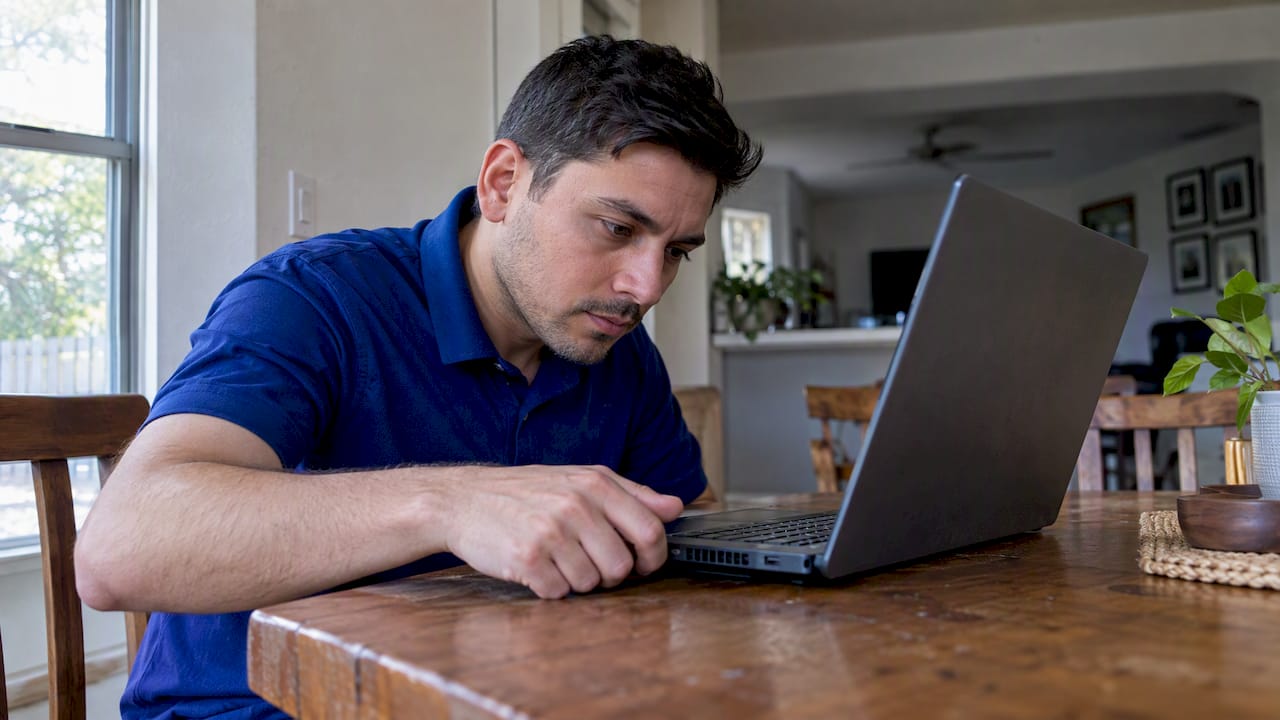
A warm laptop is normal. A laptop that is hot to the touch, shuts itself off, freezes, or sounds like a small jet is telling you something. Most of the time the cause is simple: blocked airflow, a heavy workload, or a software process that never stops. When those are ruled out, it is usually a fan, dust inside the case, dried thermal paste, or a battery problem, and that is a repair job.
This guide walks through how to tell normal heat from a problem, what to try in the first ten minutes, what the symptoms usually mean, and when to stop troubleshooting. It covers Windows laptops and MacBooks, with a short note on Pixel and other Android phones at the end.
TL;DR
- Warmth during gaming, video editing, or charging can be normal. Worry when heat comes with slowdowns, freezes, restarts, shutdowns, or odd fan behavior.
- First response: stop heavy work, move the laptop to a hard, flat surface with clear vents, and let it cool. Never run it on a bed, couch, or lap with vents underneath.
- A loud fan alone is not a failure. Grinding, rattling, a fan that never spins, or heat that returns after the basic checks points to a hardware fault.
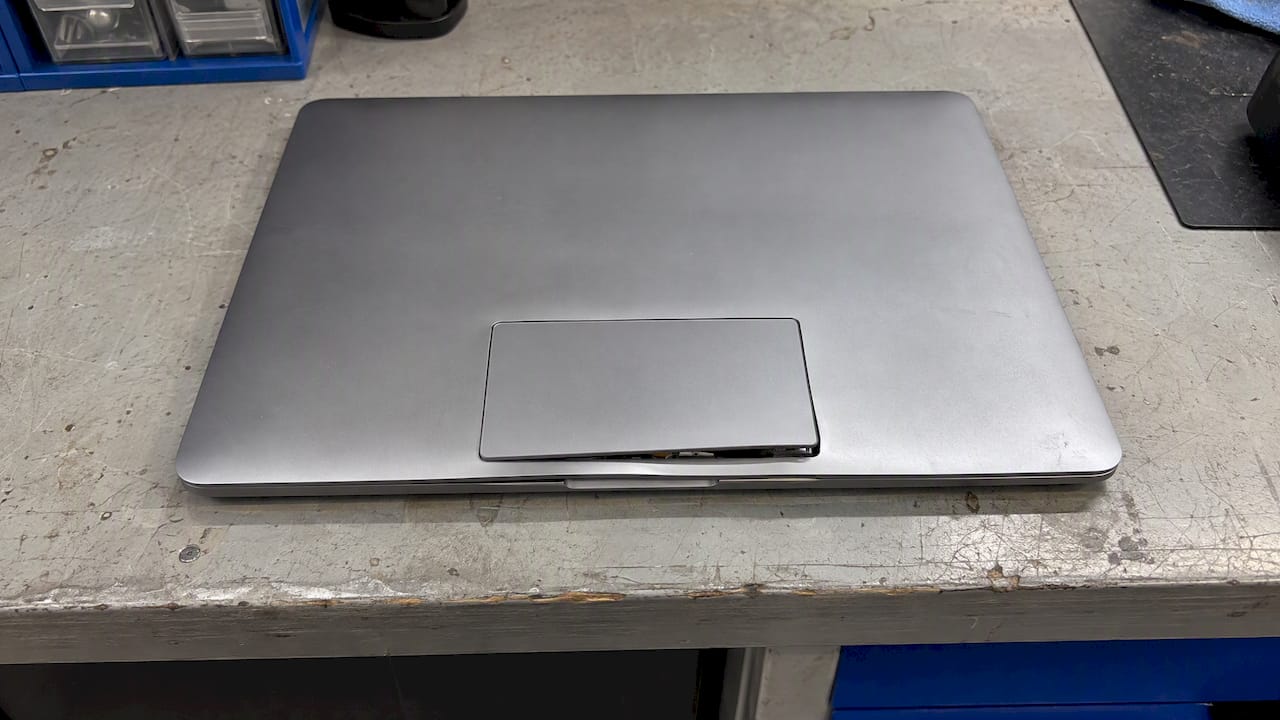
- If the case bulges, the trackpad lifts, or the battery looks swollen, stop using and charging it and get qualified service. Do not pry at it.
- If overheating keeps coming back, we can diagnose and repair it on-site in Orlando and Winter Park.
Table of Contents
- Is your laptop actually overheating?
- Why laptops get hot: the common causes
- What to do right now when it is too hot
- Is the loud fan the problem?
- MacBook running hot or loud
- When overheating means repair
- Perspective: what we see on the job
- How to prevent laptop overheating
- What about Pixel and other Android phones?
- When on-site repair makes sense
- FAQ
- Sources
Is your laptop actually overheating?
Laptops make heat. That is how they work. HP’s support guidance notes that a laptop running gaming, video editing, charging, or other intensive work can be warm and still be operating normally. Ubuntu’s help pages say the same: most computers get warm, and some get quite hot, as part of how they cool themselves.
The question is not how hot it feels. It is what the laptop does while it is hot.
Overheating symptoms worth acting on
- The laptop slows down sharply during simple tasks. This is often thermal throttling, where the processor cuts its speed to control temperature.
- Freezing, stuttering, or a keyboard and mouse that stop responding for a few seconds.
- Unexpected restarts or shutdowns, especially under load or while charging.
- A fan that runs at high speed all the time, even when you are only browsing.
- A fan that makes grinding, rattling, or ticking sounds, or one that never seems to spin.
- The base or keyboard deck is too hot to rest your hand on, and it is that hot at idle.
One symptom on its own, like a fan spinning up during a video call, is usually fine. Two or three together, or any shutdown, deserve attention.
Why laptops get hot: the common causes
A laptop packs a processor, graphics chip, battery, and cooling system into a thin case. Heat builds when any of the following goes wrong.
Blocked airflow outside the laptop
Vents on the bottom or sides pull in cool air and push warm air out. Soft surfaces such as beds, couches, pillows, and blankets seal them off. Even a hard surface can be a problem if the laptop sits flat with its vents pressed against it. HP advises leaving at least 6 inches (15.25 cm) of clearance around each vent.
Dust inside the vents and fan
Dust is the most common culprit in older machines. Dell’s guidance lists loud fans and fans running at high speed continuously as the symptoms its fan troubleshooting covers. A clogged heat sink forces the fan to work harder for less cooling, so you get noise and heat together.
Heavy workloads and runaway software
MSI names games, video editing, and heavy data processing as workloads that raise CPU and GPU temperature. The less obvious version is a background process stuck at high CPU: a browser with dozens of tabs, a failed update, a sync tool looping, or malware. In that case the laptop is hot while you are doing almost nothing.
Worn thermal paste and heat-sink contact
Thermal interface material sits between the processor and the heat sink, carrying heat away from the chip. Over the years it can degrade. Dell’s service documentation for its XPS 13 warns technicians not to touch the heat transfer areas on the heat sink, because skin oils can reduce the heat transfer of the thermal grease. That tells you how sensitive this part is, and why it is not a casual DIY job.
A failing fan
Fans wear out. Bearings dry up, blades get coated in dust, and connectors loosen. A fan that is dead or obstructed leaves the system unable to shed heat, so the laptop throttles and then shuts down to protect itself.
Battery trouble
Heat and batteries feed each other. High temperature can accelerate lithium-ion aging, and an aging battery can run warmer. Microsoft explains that Surface Smart Charging may limit charging to 80% under prolonged plugged-in or elevated-temperature conditions. If you suspect the battery, our guide on how long laptop batteries last covers what normal wear looks like.
Hot surroundings
A laptop left in a parked car, on a sunny windowsill, or on a patio in an Orlando summer starts with less margin. Manufacturers publish ambient operating ranges, and these are limits for the air around the machine, not for the chip inside it. Move the laptop somewhere cooler before blaming the hardware.
What to do right now when it is too hot
Work through these in order. They take about ten minutes and fix a surprising share of cases.
- Stop demanding work. Close games, editors, and big browser sessions. Save your files.
- Shut down if it is extremely hot or unstable. Microsoft says a Surface that exceeds its maximum operating temperature shuts down and should cool for at least five minutes before you use it again. Treat that as a sensible minimum for any laptop.
- Move it somewhere cooler and put it on a hard, level surface. A desk or table, with the vents clear. Lifting the back edge slightly can help air reach the intake.
- Unplug accessories and the charger if the heat is concentrated near the charging area, then see whether it cools faster.
- Check what is using the processor. On Windows, open Task Manager and sort by CPU and memory. On a Mac, open Activity Monitor. Quit anything unusually busy that you do not recognize.
- Close unneeded programs and browser tabs.
- Update. Install operating system, driver, and BIOS updates. Manufacturers often adjust fan and power behavior in these.
- Choose a balanced power mode instead of maximum performance when heat is your priority. Microsoft notes that Surface’s Recommended mode limits fan speed compared with Better performance or Best performance.
- Gently clear the outside of the vents with a soft brush or short bursts of compressed air held at a distance. Do not open the case unless you are comfortable doing so.
If the laptop is cool and stable after this, you were dealing with airflow or workload. If the heat returns within a day or two, keep reading.
Is the loud fan the problem?
Usually it is the messenger. ASUS explains that fan speed adjusts to CPU and GPU temperature, rising when you run resource-intensive programs like games and video work. Apple says the same for Macs: fans run faster when the processor is busy with tasks such as compressing HD video, running a graphics-heavy game, or indexing the drive after migrating data.
So a loud fan during heavy work is the cooling system doing its job. The warning pattern is different:
- Noise at idle, with nothing demanding running.
- Grinding, rattling, or ticking.
- A fan that never spins up even when the case is hot.
- Heat and noise that continue after you have checked airflow and workload.
One trap: do not try to silence the fan by capping it with software while the heat source remains. The fan responds to temperature. Muffling it without fixing the cause makes the underlying problem worse.
MacBook running hot or loud
MacBooks follow the same physics, with a few quirks.
- After a macOS update, a restore, or a big data migration, the Mac indexes files in the background. It can run warm and loud for a while, then settle. Give it a few hours plugged in before worrying.
- Fanless models rely on the chassis to dissipate heat and will throttle instead of getting loud. If an Air feels hot and sluggish, check Activity Monitor first.
- Pressing on the bottom case with a thick cover, a blanket, or a pillow underneath blocks heat dissipation. Use a hard surface.
- Persistent heat with a rattling or grinding fan, or heat even with nothing running, is a service issue.
If your MacBook is in that last group, our MacBook and iMac repair page explains how on-site service works.
When overheating means repair
Official manufacturer guidance generally agrees on the point: if overheating returns after ventilation, workload, updates, and external vent cleaning, the cause is likely inside the machine. The usual suspects are:
| Likely cause | What you notice | Who should handle it |
|---|---|---|
| Failed or obstructed fan | Loud grinding, or no fan noise at all with a hot case | Technician |
| Internal dust blockage | Fan loud, warm exhaust air weak, slow performance | Technician, or careful cleaning if you are experienced |
| Dried thermal paste or poor heat-sink contact | Fast temperature spikes, throttling under light load | Technician |
| Battery fault | Heat near the battery, fast drain, swelling | Qualified service only |
| Runaway software or malware | Hot and busy at idle, sluggish | Software cleanup, possibly a technician |
Continued shutdowns should be treated as a repair issue, not something to live with. Our list of signs your laptop needs immediate repair goes deeper on which symptoms should not wait.
Stop-use warning: a swollen battery
If the laptop is unusually hot and the case is bulging, the keyboard or trackpad is lifting, or the battery appears swollen, stop using it and stop charging it. Manufacturer service guidance, including Dell’s service manual, warns against pressing, puncturing, bending, or prying a swollen lithium-ion battery. Do not try to remove it yourself. Power the machine down, keep it on a hard non-flammable surface away from anything combustible, and contact qualified service. A repair technician who handles batteries is the right person to call; you can read more about swollen battery risks on tablets, which apply to laptops as well.
Perspective: what we see on the job
We repair devices at customers’ homes and offices around Orlando and Winter Park, and overheating laptops come up often. The pattern is consistent. People wait until the machine shuts down in the middle of a deadline, then ask whether it is worth fixing.
Our advice is to treat heat as an early warning. A fan or a cooling problem is far cheaper to deal with than a board that has been cooked for six months. Decisions about cost depend on the model, how hard it is to get inside, what parts are needed, and whether data recovery or board-level work is involved, so we quote after diagnosis, up front, before any work starts. Many of these repairs cost a fraction of replacing the laptop. Our repair-before-replacement checklist shows how we think about that call.
The second thing we see is data worry. People hesitate to hand over a laptop because everything is on it. That is one reason we work on-site: you stay with your device, and data safety is part of every job. If your laptop will not even stay on long enough to back up, tell us when you book so we can plan for it.
— Michael
How to prevent laptop overheating
None of this is complicated. It is habit.
- Use a hard, flat surface. A desk beats a lap every time. A raised stand or even a small riser improves airflow.
- Keep vents clear. Check the bottom and sides, and keep cases and sleeves off while it runs.
- Clean the outside vents every few months. Soft brush, short bursts of air. If you are in a dusty home or have pets, do it more often.
- Watch what runs at startup. Fewer background apps means a cooler idle.
- Keep software current. Updates to the OS, drivers, and BIOS can fix fan and power behavior.
- Use a balanced power mode for everyday work and save maximum performance for when you need it.
- Do not leave it in a hot car or in direct sun.
- Mind the battery. If it is aging, heat makes it worse. Check our battery lifespan guide for what to expect.
- Back up regularly. Overheating can end in a sudden failure. If it does, a recent backup is the difference between an annoyance and a crisis. If you are in Orlando and already lost files, see our notes on data recovery.
What about Pixel and other Android phones?
Phones overheat for related reasons: heavy apps, charging in the sun, a failing battery, or a runaway background process. A Pixel that gets hot while gaming or charging in a warm car is often reacting to workload and environment. If it stays hot at idle, drains fast, or the screen lifts, that points to the battery or hardware.
We have separate guides for this: 5 cooling steps before you call a pro for Android and a general overheating phone guide. If those do not settle it, our cellphone repair service covers Samsung, Pixel, and other Android devices.
When on-site repair makes sense
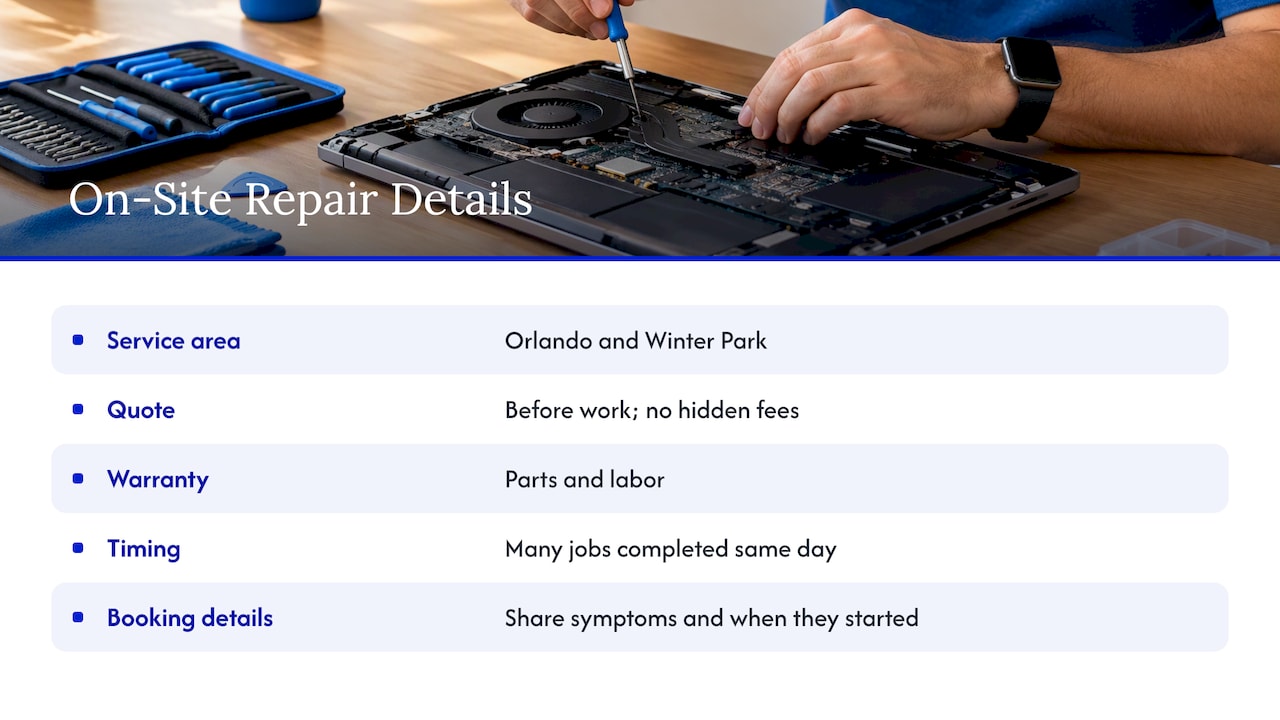
If you have worked through the steps above and your laptop still runs hot, throttles, or shuts down, we can come to you. Our technicians diagnose and repair laptops at your home, office, or another spot you choose in Orlando and Winter Park. That covers fan and cooling work, hardware repairs and upgrades, battery replacement, malware removal, software troubleshooting, and data recovery.
You get a quote before work starts, with transparent pricing and no hidden fees. Parts and labor carry a warranty. Many jobs can be completed the same day.
Book through our on-site computer repair page, or start from repairgeniuses.com and tell us what the laptop is doing. The more detail you give about the symptoms and when they started, the faster we can get to the cause.
If the machine will not start at all after a hot shutdown, these manufacturer-backed boot checks are a good first step before booking.
FAQ
Is it bad if my laptop gets hot?
Not necessarily. Warmth during gaming, video editing, or charging is often normal. It becomes a concern when the heat comes with slowdowns, freezing, restarts, shutdowns, or fan behavior that is persistently abnormal. If that happens, work through the airflow and software checks, then get it looked at.
Why is my laptop fan so loud?
Most often the cooling system is responding to a heavy workload, a hot room, or blocked vents. Dust buildup also forces the fan to work harder. See a technician if you hear grinding, rattling, or ticking, or if the fan stays loud at idle after you have checked airflow and background processes.
How long should I let a hot laptop cool down?
Shut it down and give it at least five minutes, which is the minimum Microsoft gives for a Surface that has hit its temperature limit. If it is still very hot, or it shuts down again soon after restarting, stop using it and get it diagnosed.
Can overheating damage my laptop?
Yes. HP notes that as internal temperatures rise, so does the risk of damage to important components. Heat also speeds up lithium-ion battery aging. Repeated shutdowns are a sign to repair the cause rather than keep working through it.
Should I open my laptop and replace the thermal paste myself?
We would not suggest it unless you have done it before. The heat sink contact area is sensitive, and a laptop battery that is swollen or damaged can be dangerous to disturb. A technician can do it safely and check the fan and battery at the same time.
Sources
- HP Support: Reduce heat inside the laptop to prevent overheating
- Microsoft Support: What to try if your Surface feels too warm
- Microsoft Support: Fan behavior and fan noise in a Surface device
- Microsoft Support: Caring for your Surface battery
- MSI Support: How to troubleshoot overheating issues
- ASUS Support: Troubleshooting overheating and fan issues
- Apple Support: About fans and fan noise in your Apple product
- Dell Support: How to troubleshoot fan issues
- Dell XPS 13 9310 Service Manual
- Ubuntu Help: My computer gets really hot
Recommended
- Signs Your Laptop Needs Immediate Repair: 2026
- 6 Manufacturer Backed Checks When Your Laptop Won’t Boot
- Laptop Repair Before Replacement Checklist 2026
- Spilled Water on Your Laptop? Cut Power Before You Blot










