
Most laptop batteries last multiple years and several hundred full charge cycles before capacity drops enough to notice, depending on how they’re used. If you’re not sure where your battery stands, check the built-in battery health tools in Windows or macOS before assuming you need a replacement.
TL;DR:
- Heavy usage, such as gaming and video editing, accelerates battery degradation to the point where replacement is often needed within 18 to 24 months.
- Keeping the battery near full charge and exposing it to high temperatures significantly speeds up capacity loss over time.
- Using built-in charge limiting features and avoiding prolonged high-temperature storage can extend battery lifespan by months or even years.
- Signs indicating the need for a replacement include runtime dropping below 80%, unexpected shutdowns, or physical swelling of the battery.
- Professional on-site replacement services offer faster, safer, and more convenient options for battery repair, especially for swollen or warranty-covered devices.
Table of Contents
- Typical lifespan, cycle counts, and what “end of life” means in practice
- What causes laptop batteries to age: cycle vs. calendar aging and the main stressors
- Practical habits to extend battery lifespan (daily and situational checklist)
- How to check battery health and decide when to replace
- Storage and long-term care: how to store a laptop and maintain battery health between uses
- Repair Genius perspective: when professional replacement is the sensible next step
- Repair Genius on-site battery replacement and how to book service
- Sources
- FAQ
Typical lifespan, cycle counts, and what “end of life” means in practice
Manufacturers use this unit to rate how long a battery should perform before it noticeably weakens. Apple’s guidance on battery and performance explains how its optimized charging features are built around managing this cycle count over time rather than letting the battery sit at full charge unnecessarily.
Most manufacturers define “end of life” as the point where a battery holds about 80% of its original capacity. That threshold doesn’t mean the battery is dead. It means runtime has shrunk enough that many users start noticing the difference and consider a swap.
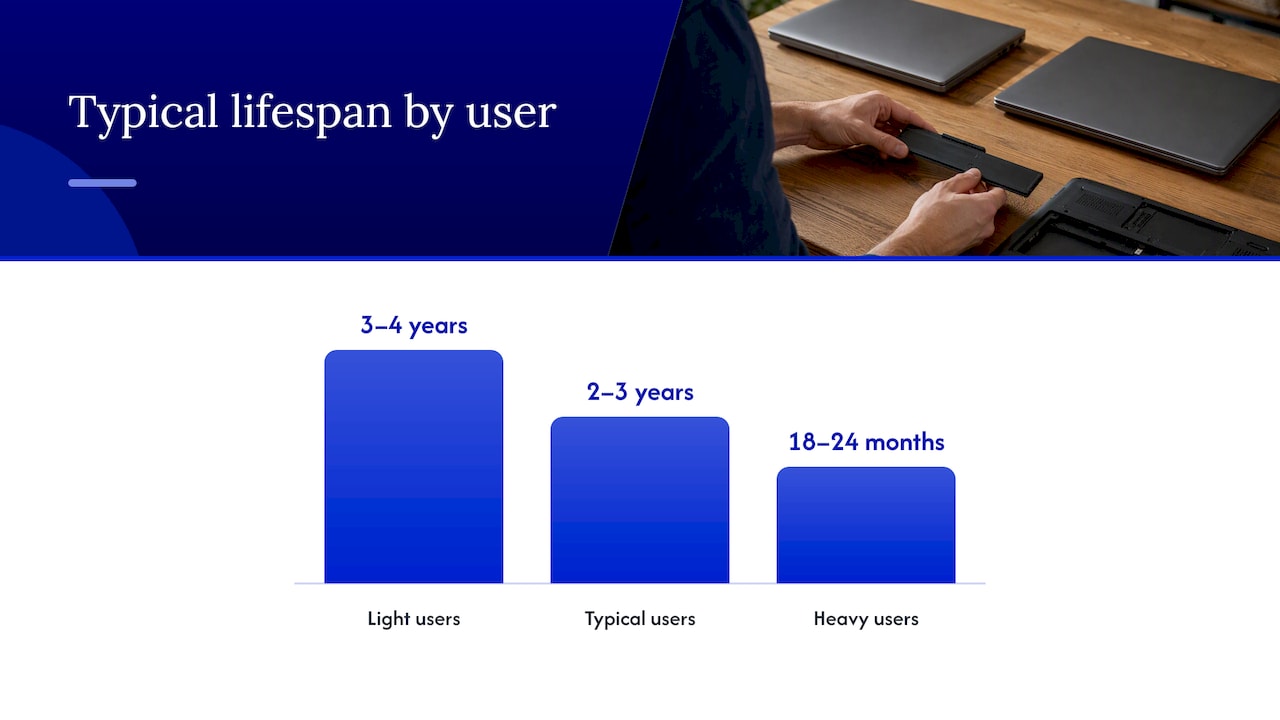
Real-world lifespan depends heavily on how a laptop gets used:
- Light users (email, browsing, document work) often see 3 to 4 years before capacity drops to the 80% mark.
- Typical users (mixed productivity, some streaming, moderate multitasking) tend to land in the 2 to 3 year range.
- Heavy users (gaming, video editing, constant high brightness and heat) can see meaningful capacity loss within 18 to 24 months.
Rated cycle counts vary widely by device, but degradation timelines follow a consistent pattern. Dell’s laptop battery FAQ notes that many heavier users end up replacing batteries around the 18 to 24 month mark once runtime and diagnostics point to real decline, which lines up with what happens to cells worked hard and charged frequently to full.
What causes laptop batteries to age: cycle vs. calendar aging and the main stressors
Batteries age in two separate ways, and understanding the difference explains why two identical laptops can wear out at very different rates.
Cycle aging comes from use. Every charge and discharge cycle causes tiny physical changes inside the cell, and those changes accumulate the more you charge and drain the battery.
Calendar aging happens regardless of use, just from time passing. A battery sitting in a drawer for a year still loses capacity, and how much it loses depends heavily on temperature and how full it was left.
A peer-reviewed analysis using P2D degradation modeling found that temperature and state-of-charge interact to accelerate capacity loss during storage, with cells held at high temperature and high state-of-charge for months showing significantly greater growth of the solid electrolyte interphase layer and faster conductivity loss than cells stored cooler or at a partial charge. In plain terms, a hot laptop sitting at 100% charge for long periods is one of the worst combinations for battery health.
Several everyday factors feed into this:
- Heat is the dominant accelerant. Batteries degrade faster at higher operating temperatures than they do from normal charge cycling alone.
- Sustained high state-of-charge adds stress. Keeping a battery near 100% for extended periods speeds up the same chemical reactions that heat accelerates.
- Fast charging and high discharge rates generate more heat. Rapid current flow in either direction raises internal temperature during the process.
- Thermal throttling is a symptom of the same problem. When a laptop runs hot under heavy workloads like rendering or gaming, the battery sitting next to those components heats up too, compounding wear.
None of this means fast charging or gaming will ruin a battery overnight. It means the conditions that come with intensive use (heat, high charge states, rapid current) are the same conditions that shorten a battery’s working life over months and years.
Practical habits to extend battery lifespan (daily and situational checklist)
Small habits add up more than any single trick. Here’s what actually moves the needle, in rough order of impact:
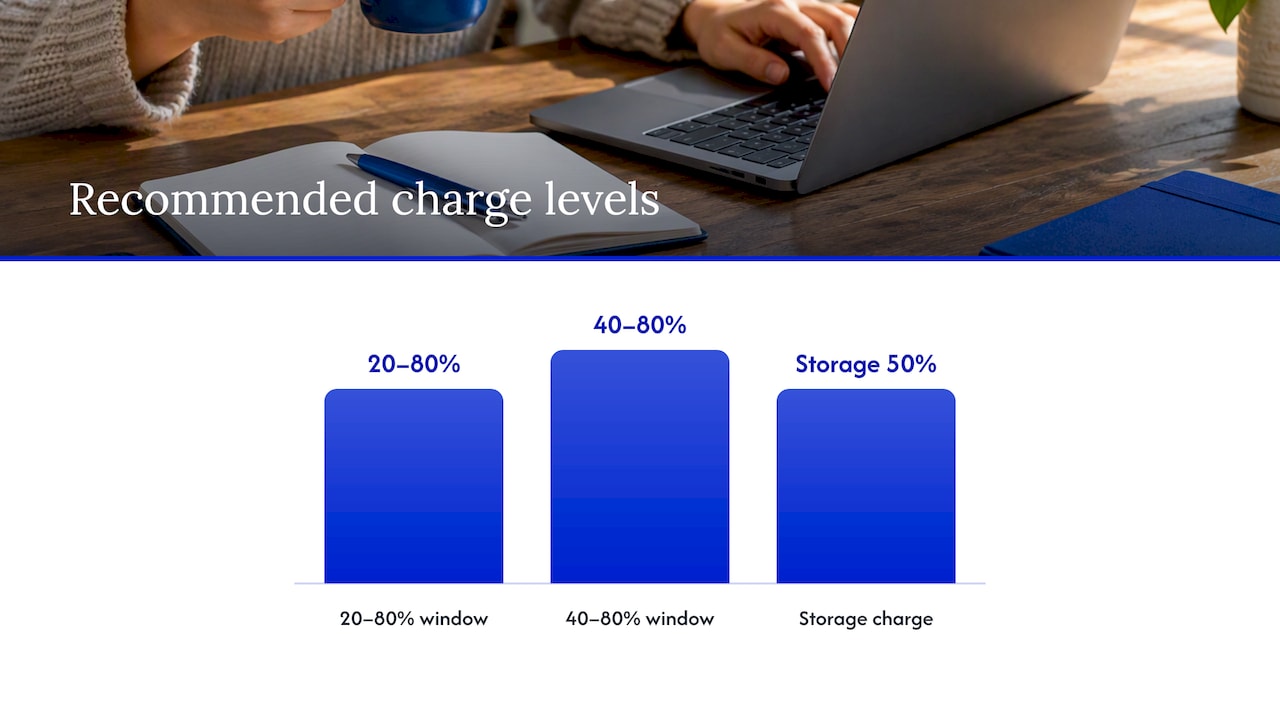
- Use your laptop’s built in charge limiting features. Both Windows and macOS offer smart or optimized charging that keeps the battery in a healthier range, often described as a 20 to 80% or 40 to 80% window, instead of pushing to 100% every time. Microsoft’s guidance on caring for your battery recommends staying roughly within that window and avoiding prolonged time at full charge or empty.
- Keep the laptop cool. Use it on hard, flat surfaces that allow airflow rather than on beds, couches, or laps where vents get blocked.
- Never leave it in a hot car or direct sunlight. Cabin temperatures on a warm day climb fast and put the battery under exactly the stress that accelerates aging.
- Plug in during heavy workloads. Gaming, video rendering, and other sustained high-power tasks drain the battery quickly and generate heat, so running on AC power reduces both cycle count and temperature at once.
- Lower screen brightness and reduce refresh rate when you can. Both draw significant power, and cutting them back reduces how hard the battery works.
- Close background apps and enable power-saving mode. Fewer processes running means less continuous drain and less heat.
- Keep firmware and OS updated. Manufacturers periodically refine battery management algorithms, and installing updates keeps those improvements active on your machine.
Practical, consumer-focused testing backs up most of these habits directly. PCWorld’s roundup of battery-preserving fixes found that limiting charge to around 80%, avoiding full discharges, managing heat, and using power-saving modes made a measurable difference in usable battery life, and that simple steps like cleaning vents and keeping the laptop on a hard surface are some of the easiest ways to cut operating temperature.
Pro Tip: If you’re traveling with a laptop you won’t use for a few days, or storing one short-term, charge it to around 50% rather than 100% before packing it away. It puts far less stress on the cell than leaving it full.
How to check battery health and decide when to replace
Both major operating systems make it easy to see real numbers instead of guessing. On Windows, generating a battery report through the command line shows design capacity versus full charge capacity, along with cycle count. On macOS, the battery health section under System Settings shows a simple “Normal” or “Service Recommended” status along with cycle count.
A few signs point clearly toward replacement rather than continued use:
- Runtime cut roughly in half compared to when the laptop was new.
- Unexpected shutdowns even when the reported battery percentage isn’t at zero.
- Physical swelling, visible as a case that no longer sits flat or a trackpad that feels raised.
Swelling is the one sign that calls for immediate action rather than patience. A swollen cell means internal gas has built up from failure, and the safe response is to stop using the laptop, avoid pressing on or puncturing the battery, and get it replaced by someone qualified rather than attempting it yourself.
Whether replacement makes sense over buying a new laptop usually comes down to age and cost. A two or three year old laptop that’s otherwise fast and functional is often a strong candidate for a battery swap rather than a full replacement.
Storage and long-term care: how to store a laptop and maintain battery health between uses
If you’re putting a laptop away for weeks or months, the battery needs a bit of attention to avoid unnecessary calendar aging.
- Charge to around 50% before storage. This keeps the cell in a stable middle range rather than the higher-stress extremes of full or empty.
- Store in a cool, dry place, ideally somewhere well below room temperature extremes and away from direct sun or heat sources.
- Power the laptop on every few months and let it charge back to around 50% if it has drained, rather than letting it sit fully depleted for long stretches.
- Before shipping or long-term storage, power the device down completely rather than leaving it in sleep mode, which keeps some components lightly active and drawing power.
Repair Genius perspective: when professional replacement is the sensible next step
DIY battery kits exist, but a swollen cell, a laptop still under warranty, or a device holding sensitive files change the math. Prying open a case with a compromised battery risks a fire hazard, and cheap third-party cells often degrade faster than they should.
Professional replacement matters most when safety, data, or warranty terms are on the line. On-site service in particular skips the days a shipped repair usually takes and keeps your files on your own machine the whole time, which matters if you’re a student or professional who can’t afford a week without a laptop. For a closer look at deciding between repair and buying new, our checklist for repair versus replacement walks through the tradeoffs in more depth.
— Michael
Repair Genius on-site battery replacement and how to book service
A tired battery doesn’t have to mean a trip to a shop or days without your laptop. Some repair services send technicians to your location to handle battery replacement, often offering same-day service and transparent pricing set before any work starts.

Because the repair happens on-site, your files never leave your hands the way they would if you shipped the laptop off or dropped it at a counter for days. This approach matters as much for a swollen battery that needs careful handling as it does for routine wear.
| What’s included | Detail |
|---|---|
| Service location | Your home, office, or chosen spot |
| Timeline | Same-day or fast service |
| Pricing | Quoted upfront with transparent pricing |
| Data handling | Repairs performed on-site, device stays with you |
| Coverage | Warranty on parts and labor |
If your battery is showing the signs covered above, from reduced runtime to swelling, our on-site computer repair services page has the details on booking a technician for battery replacement and related laptop repairs.
Sources
For deeper reading, Microsoft, Apple, and Dell each publish direct guidance on charging habits and replacement diagnostics, while peer-reviewed work on temperature and thermal management in lithium-ion batteries and storage degradation adds the science behind those recommendations. PCWorld’s practical battery guide rounds out the everyday habits worth adopting.
- Caring for your battery in Windows – Microsoft Support
- Impact of temperature and state-of-charge on long-term storage degradation in lithium-ion batteries: an integrated P2D-based degradation analysis – PMC
- Stop killing your laptop battery: 9 fixes that actually make it last longer | PCWorld
- Dell laptop battery frequently asked questions
FAQ
How do I tell if my laptop battery needs replacing?
Check your battery health report in Windows or the battery status in macOS settings for a clear reading on capacity and cycle count. If runtime has dropped roughly in half, the laptop shuts down unexpectedly, or the case looks swollen, those are the clearest signs it’s time for a replacement.
Is it worth replacing a laptop battery?
For a laptop that’s still fast enough for your needs, a battery replacement is usually far cheaper than buying a new machine and restores most of the original runtime. It’s less worth it if the laptop is already several years old and struggling in other ways, in which case a full repair versus replace comparison is worth doing first.
What is the 40-80 rule for laptop batteries?
Microsoft recommends a similar charge window to slow the chemical degradation that happens at the extremes of a full charge or a deep discharge.
What kills a laptop battery the most?
Heat combined with sitting at a high state of charge for long periods is the most damaging combination, according to peer-reviewed storage degradation research.
Recommended
- Signs Your Laptop Needs Immediate Repair: 2026
- Laptop Motherboard Failure: Symptoms, Causes, and Fixes
- Repair vs Replace Student Laptop: 2026 Guide





