
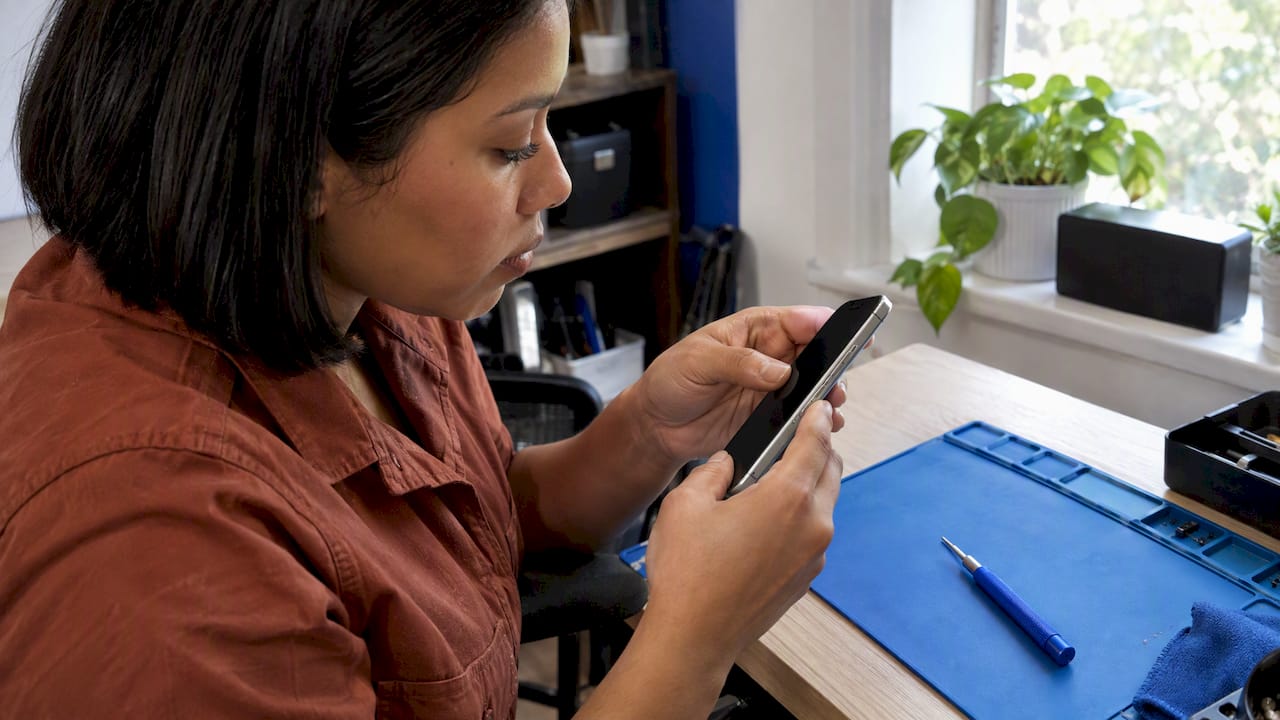
If your iPhone’s power button (Apple calls it the side button) is stuck, mushy or dead, start with the free fixes: clean around it, remove the case, and use AssistiveTouch and Settings to lock, restart and shut down without touching it. If the button still does nothing after that, it’s a hardware problem, and it needs a technician. In Orlando and Winter Park, we come to you and repair it on site.
This guide walks through what to check first, how to keep using your phone in the meantime, what to do if the phone won’t turn on at all, and how to tell a worn button from a deeper fault.
TL;DR
- Clean around the button and take the case off first. Dirt and a tight case cause more “dead” buttons than you’d expect.
- You can lock, shut down and restart an iPhone without the button using AssistiveTouch and Settings > General > Shut Down. Plugging the phone into power turns it back on.
- These workarounds don’t repair anything. If the button is still unresponsive after cleaning, book a repair before the workaround stops being enough.
- Back up before any repair, and avoid prying at the button yourself. Board-level damage turns a small job into a big one.
- Pricing depends on the model and the fault, so we quote it up front, before work starts.
Table of Contents
- Why an iPhone power button stops working
- What to check first, in order
- How to use your iPhone without the power button
- If your iPhone won’t turn on at all
- When the button needs professional repair
- What does it cost to fix an iPhone power button?
- Our perspective: fix it before it fails completely
- Get it repaired where you are
- What to do before the technician arrives
- FAQ
- Sources
Why an iPhone power button stops working
The side button does more than most people realize. It powers the phone on and off, locks the screen and wakes the display, calls Siri, and takes part in screenshots, Emergency SOS and force restarts. When it fails, the phone feels half broken even though everything else works.
In our experience, the causes fall into a few groups:
- Debris and grime. Pocket lint, sunscreen, sand and skin oils build up around the button and keep it from travelling. It feels sticky or gives no click.
- A case that presses on it. A tight or warped case can hold the button slightly down, so presses never register.
- Physical wear or impact. Years of daily presses, or a drop on the edge of the phone, can damage the switch or its flex cable inside.
- Liquid exposure. Moisture can corrode the contacts under the button. The button may work intermittently at first, then stop.
- Software glitches. Less common, but a frozen interface can make a working button look dead.
The first two are free to fix. The last three are why professional repair exists.
What to check first, in order
Work through these steps before you spend a dollar. They take about ten minutes in total.
- Remove the case and any screen accessories. Try the button bare. If it works, replace the case with one that fits properly.
- Look at the button under good light. Check for lint, dried residue, or a button sitting visibly flush or crooked in the frame. A crooked button after a drop points to internal damage.
- Clean around it. You can use a cotton swab or a soft toothbrush to clear dirt that has collected under the button. Keep the phone powered off if you can, and use a barely damp swab with isopropyl alcohol only on the metal frame edge. Never soak the area, and never push a pin or blade into the gap.
- Test the click speed setting. If double and triple presses aren’t registering, the problem may be timing rather than hardware. You can adjust the click speed in Settings > Accessibility > Side Button.
- Update iOS. If the phone is working otherwise, install pending updates in Settings > General > Software Update. A software glitch is rare, but it’s the one cause an update can fix.
- Try the other things the button does. Does a force restart work (see below)? Does the phone wake when you plug it in? The answers help a technician narrow down the fault.
If you’ve done all of this and the button is still unresponsive, you’re looking at a hardware issue. Technobezz advises arranging professional service at that point, and we agree.
How to use your iPhone without the power button
A dead button doesn’t have to mean a dead week. These workarounds keep you running while you arrange a repair.
Lock the screen and wake the phone
Turn on AssistiveTouch under Settings > Accessibility > Touch > AssistiveTouch. A small floating button appears on screen. Tap it, then choose Device > Lock Screen. To wake the phone, you can raise it, tap the screen (if Tap to Wake is available on your model), or plug in a charger.
Restart or shut down
You can restart an iPhone using AssistiveTouch. Another route needs no extra setup: go to Settings > General > Shut Down, slide to power off, then plug the phone into a power source to turn it back on.
That last part matters. iPhones are designed to boot automatically when they receive power, so the charging cable is your reliable fallback when the physical switch is dead. Keep a cable at your desk and in your bag.
Force restart when the screen is frozen
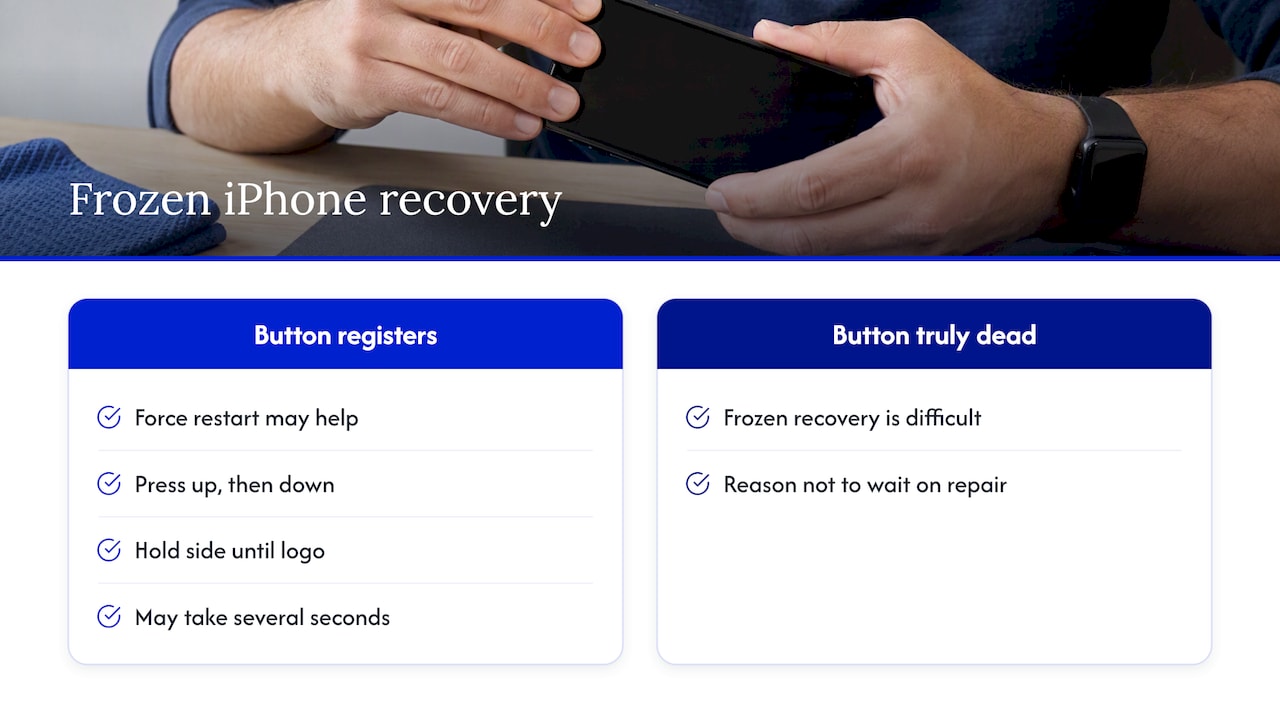
A force restart uses the side button, so it only helps if the button still registers some presses. The sequence, as Apple’s support steps are summarized: press and quickly release volume up, press and quickly release volume down, then hold the side button until the Apple logo appears. The last step can take several seconds, so keep holding.
If the button is truly dead, a frozen phone can be hard to recover on your own. That’s one of the strongest reasons not to wait on this repair.
What the workarounds can’t do
AssistiveTouch can stand in for locking or restarting, but it does not repair a broken switch. It also doesn’t help with Emergency SOS shortcuts, Apple Pay double-clicks, or Siri by button, unless you set up alternatives. Treat it as a bridge, not a solution.
If your iPhone won’t turn on at all
Many people searching about the power button actually have a phone that won’t power on. These are two different problems, and it’s worth separating them before blaming the button.
- Charge it properly. Use a different Apple-certified or high-quality cable and adapter, let it charge, and force restart it. A deeply drained battery can need 15 to 20 minutes on the charger before it shows any sign of life.
- Inspect the port and cable. Lint packed into the Lightning or USB-C port is common. Check whether the charging port or cable is dirty, and try a different outlet.
- Look for physical damage. Bent frames, swollen batteries (a screen lifting off the body) and signs of liquid are all reasons to stop and get it looked at, not to keep charging.
- Check whether it’s stuck, not off. If you see an Apple logo that never goes away, that’s a different fault. Our guide on an iPhone stuck on the logo covers updating first and waiting before any reset.
- Rule out charging problems. If the phone only charges with one cable or at odd angles, read our safe checks for an iPhone that isn’t charging.
If the phone shows a charging screen but the button won’t do anything, the power button is a likely suspect. If the phone shows nothing on any charger, the battery, charging port or logic board may be the cause, and a technician needs to diagnose it.
When the button needs professional repair
Book a repair when any of these is true:
- The button is unresponsive after cleaning and removing the case.
- It’s stuck inward, or sits crooked in the frame.
- It works only sometimes, or only with heavy pressure.
- The problem started after a drop or liquid exposure.
- The phone won’t turn on or restart, and a charger doesn’t revive it.
- You rely on the button for work, such as Apple Pay, two-factor prompts or quick locking in public.
If the research here is clear on one thing, it’s this: once removing obstructions, cleaning and software checks fail, the physical button needs service. Waiting rarely helps. A partly working button can fail completely at the worst moment, and a corroded contact can spread.
What a technician actually does
The side button on most iPhones sits on a small flex cable connected to the logic board. Depending on the model, a repair means:
- Diagnosing whether the fault is the button, its flex cable, the connector, or something on the board.
- Opening the phone carefully, which means releasing screen adhesive and disconnecting the battery first.
- Replacing the button assembly or flex cable, and cleaning corrosion where liquid is involved.
- Resealing the phone and testing every function that depends on the button: wake, lock, Siri, screenshot, force restart and volume combinations.
In some cases, the screen has to come off to reach the part. That’s a reason to have a professional do it. Rushed screen removal can tear cables or damage the display, and our write-up of why device repairs fail covers the common mistakes.
DIY versus professional
| DIY kit | Professional on-site repair | |
|---|---|---|
| Tools | Pry tools and screwdrivers from a kit | Model-specific tools and adhesive replacement |
| Diagnosis | You guess the cause | The fault is confirmed before parts are ordered or changed |
| Risk | Torn flex cables, damaged screen, lost water resistance | Technician handles the risk |
| Water resistance | Seals usually not restored | Phone resealed and tested |
| Warranty | None | Warranty on parts and labor |
| Time | Hours, plus waiting for parts | Often the same day |
If you enjoy DIY work and the phone is old, it’s your call. For a phone you depend on every day, we think the professional route costs less in the end.
What does it cost to fix an iPhone power button?
Prices vary widely by model, by whether the screen has to come off, and by whether liquid damage is involved. Apple’s own service prices differ from independent repair prices, and parts costs for newer Pro models are higher than for older phones. We don’t publish a flat rate because a quote that ignores the actual fault isn’t worth much.
What we do commit to: you get a clear quote before any work starts, based on diagnostics, with no hidden fees. If the repair would cost more than it makes sense to spend on an old device, we’ll say so. Repairs often come in at a fraction of what replacing a phone costs, which is worth weighing before you upgrade just because one button failed.
Our perspective: fix it before it fails completely
We see the same pattern again and again. Someone’s side button gets gummy or stops clicking. They switch on AssistiveTouch, it works well enough, and they carry on for months. Then one day the phone freezes, or the battery drains to zero, and the button was the thing they needed.
Our advice is simple:
- Treat the workaround as a bridge. AssistiveTouch is a good tool. It isn’t a repair.
- Back up now, not later. If the phone ever stops responding, a recent backup protects your photos, messages and contacts. Our guide on backing up with iCloud and a computer explains the encrypted option.
- Don’t pry at the button. The most expensive power button jobs we see are the ones where someone has already forced a blade into the frame.
- Get the diagnosis first. A button that seems dead sometimes turns out to be a flex cable, a connector, or moisture damage, and each one needs a different fix.
- Protect the phone afterward. A properly fitting case with real edge protection, such as drop-protection phone cases, reduces the impacts that damage side buttons in the first place. Choose one that doesn’t press on the button.
Because we work on site, you don’t have to hand your phone to a counter and wait, and you can see what’s being done to your device. Data safety is part of how we work: we’re there to fix the button, not to go through your phone.
— Michael
Get it repaired where you are
We repair iPhone side and power buttons on site in Orlando and Winter Park: at your home, office, campus or a coffee shop. Our technicians are certified, repairs carry a warranty on parts and labor, and you get a quote before we start. See our iPhone repair services and book a visit. If a cracked screen came with the drop that broke the button, we can often handle both in one visit; our iPhone screen repair process explains what to expect.
Not an iPhone? Android phones have their own version of this problem, covered in our Android power button repair guide.
What to do before the technician arrives
A little preparation makes the visit faster and safer.
- Back up your data. Use iCloud or a computer backup. If the button is dead, you may need to plug in power to wake the phone first.
- Note when the problem began. A drop, a spill, an update or a gradual decline each suggest a different fault.
- Write down what works. Does the phone charge? Does it respond to a force restart? Does it wake on plug-in?
- Know your passcode and Apple Account details. The technician will need to test the phone after repair, and Activation Lock protects you if a phone is ever lost.
- Pick a clean, well-lit spot. A table near an outlet is all we need.
- Keep the case off. It lets us see the edge of the phone and check for frame damage straight away.
For power problems that look more like a boot issue than a button issue, our DFU versus recovery mode guide is for advanced users. If you’re not comfortable with it, skip it and call us instead.
FAQ
How do I power down an iPhone when the buttons aren’t working?
Go to Settings > General > Shut Down and slide to power off. To turn it back on, plug the phone into a charger and it will start automatically. AssistiveTouch can also restart it from the on-screen menu.
Can I fix an iPhone power button myself?
Cleaning around the button and removing the case are safe to try. Anything beyond that means opening the phone, which risks cables, the display and water resistance. If the button stays dead after cleaning, have a technician diagnose it.
Why won’t my iPhone turn on even though the button seems fine?
Usually it’s the battery, cable or charging port rather than the button. Try a different certified cable and adapter, charge for 15 to 20 minutes, and clean any lint from the port. If there’s still no response, the phone needs a hardware diagnosis.
Is it worth repairing the power button on an older iPhone?
Often yes, because a button repair usually costs far less than a replacement phone. The exception is a very old model with other problems, such as a weak battery or a cracked frame. We’ll give you an honest view during the quote.
Will a repair erase my data?
A button repair doesn’t require wiping the phone. We still recommend a backup beforehand, because any hardware work carries a small risk and a backup removes it.
Sources
- What to Do When iPhone Power Button Is Not Working, iPhone Life
- How to Restart a Phone Without the Power Button, How-To Geek
- How to Fix an iPhone Power Button Not Working, Technobezz
- Troubleshooting why my phone won’t turn on, AT&T Device Support
- iPhone is Charging but Won’t Turn On, iFixit
- How to Force Restart an iPhone, Daring Fireball
Recommended
- Diagnose iPhone Battery Drain in 10 Minutes Using Settings > Battery
- Save Your Data: Fix iPhone Stuck on Logo, Update First and Wait 1 Hour
- iPhone Screen Repair Process Explained for 2026










