
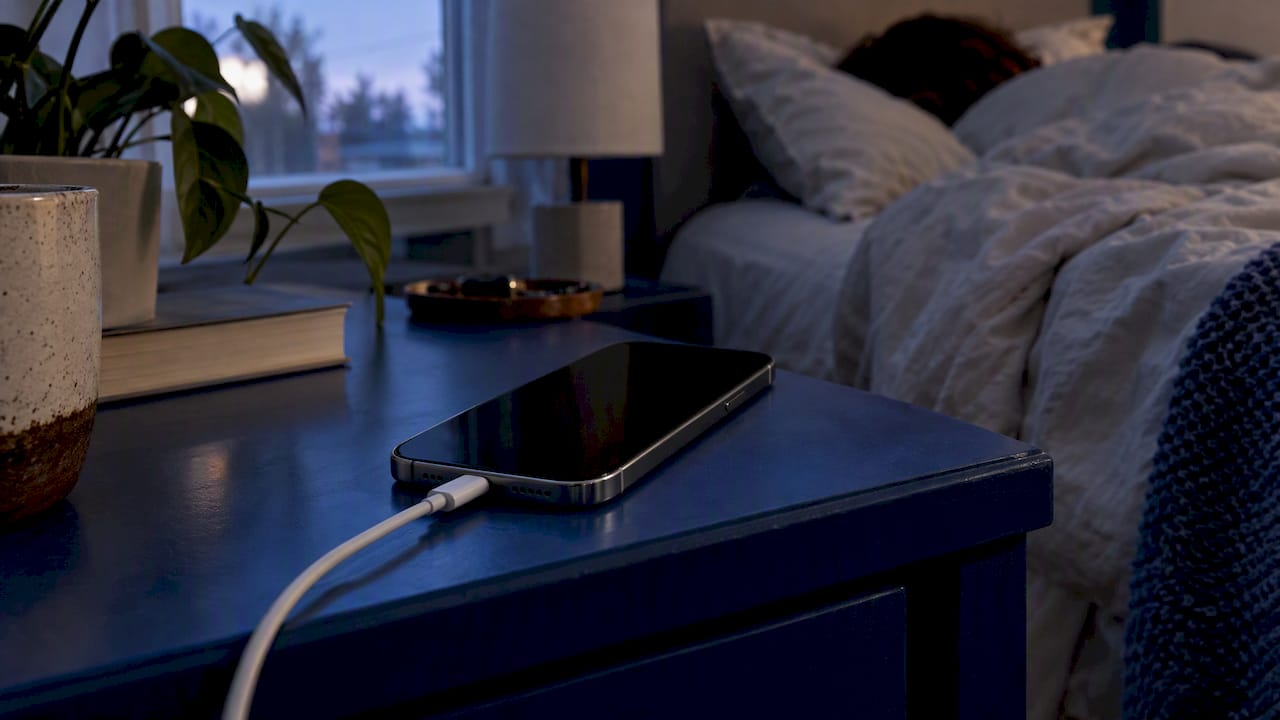
Optimized Battery Charging is a built-in iPhone setting that slows down the last stretch of charging so your battery spends less time sitting at 100%. To use it, open Settings > Battery and look under Battery Health & Charging (iPhone 14 and earlier) or Charging (iPhone 15 and later). It is on by default, so most people only need to check that it is still on, give it a couple of weeks to learn their routine, and know what to do when it doesn’t kick in.
This guide covers how the feature works, how to switch it on or off, the reasons it sometimes stays idle, and what to do when your battery is already worn out.
TL;DR
- Optimized Battery Charging reduces the time your iPhone sits fully charged, which is meant to slow battery wear. It holds charging at 80% and finishes closer to the time you usually unplug.
- Find it at Settings > Battery > Battery Health & Charging (iPhone 14 and earlier) or Settings > Battery > Charging (iPhone 15 and later).
- It needs at least 14 days of routine and nine charges of five hours or more in one place before it engages there.
- If you need 100% right now, use Charge Now or Resume Charging instead of turning the feature off for good.
- If your battery drains fast or the phone shuts down even with good charging habits, settings won’t fix a worn battery. A replacement will.
Table of Contents
- What Optimized Battery Charging does
- How it learns your routine
- How to turn it on
- Why it sometimes doesn’t activate
- When you should turn it off, or override it
- Charging habits that matter more than the setting
- When settings can’t help: a worn battery
- Our perspective
- When it’s time for a battery replacement in Orlando
- A simple routine you can start tonight
- FAQ
- Sources
What Optimized Battery Charging does
Apple describes the feature as a way to reduce battery wear and improve battery lifespan by reducing the time your iPhone spends fully charged. In certain situations, it delays charging past 80%.
The reasoning comes from how lithium-ion batteries age. Apple explains that battery lifespan depends on chemical age, temperature history, and charging pattern, and that capacity and peak performance decline as the battery ages chemically. You can’t stop chemical aging. You can influence how much heat and time at full charge the battery sees, and this feature targets the second one.
Here is a plain example. You plug in at 11 p.m. and unplug at 7 a.m. Without the feature, the phone reaches 100% in an hour or two and then sits there for six hours or more. With it, the phone charges to 80%, pauses, and finishes the last 20% so it reaches full near your usual unplug time. Apple’s User Guide gives the same kind of example: charging pauses at 80% and completes closer to when you normally unplug, for instance finishing near 7 a.m.
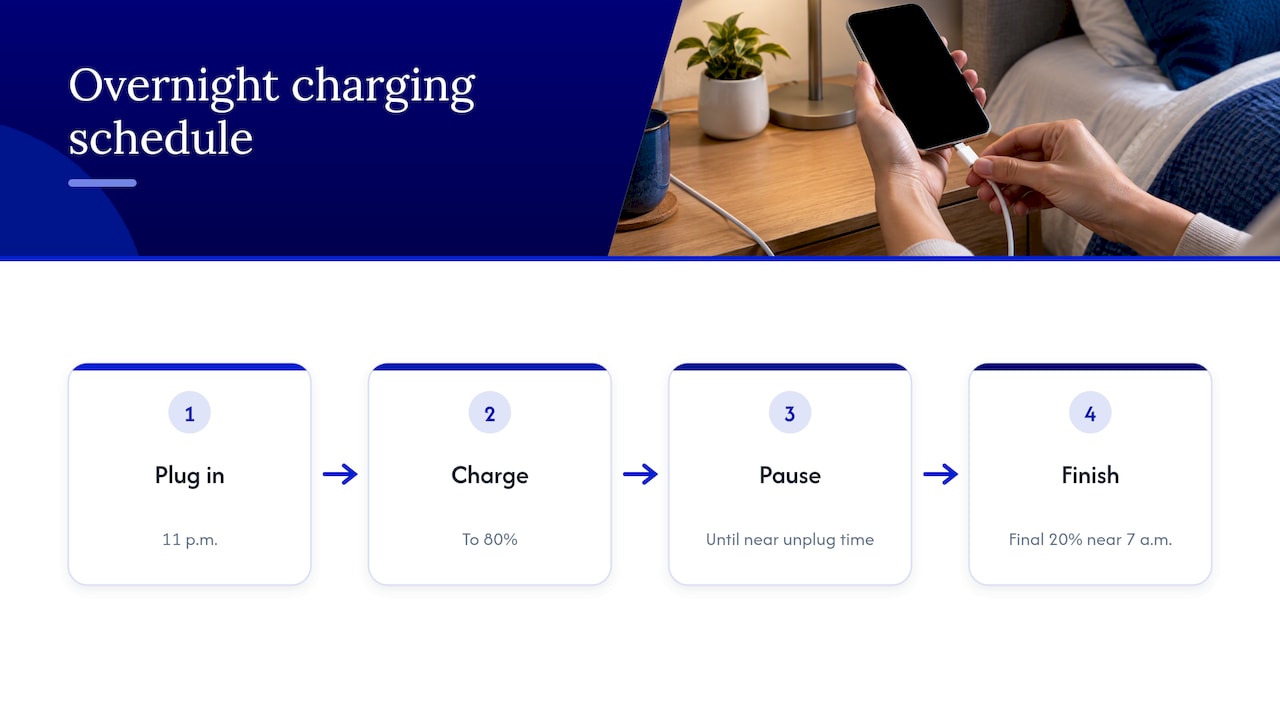
You don’t give up anything in the morning. The goal is a full battery when you pick up the phone, with less time spent at the top of the charge curve.
How it learns your routine
The feature isn’t a fixed timer. Apple says on-device machine learning learns your daily charging routine, and it activates only when your iPhone predicts it will be connected to a charger for an extended period. The aim is that the phone is fully charged when you unplug it.
Two details are worth knowing:
- It works location by location. Apple’s User Guide says the feature works most consistently in places where you spend a lot of time, such as home and work.
- It needs history. Apple says it takes at least 14 days and nine charges of five hours or more in a location before it engages there.
So a new phone, a restored phone, or a phone in a new city won’t behave like a phone you’ve charged on the same nightstand for months. That is normal, not a defect.
How to turn it on
It is on by default when you set up an iPhone, so you may already be using it. To confirm, follow the path for your model, as listed in Apple’s iPhone User Guide:
- iPhone 14 or earlier: open Settings > Battery > Battery Health & Charging, then turn on Optimized Battery Charging.
- iPhone 15 or later: open Settings > Battery > Charging, then turn on Optimized Battery Charging.
One more detail from Apple: Optimized Battery Charging is available when Charge Limit is set to 100%. If you have an iPhone with a Charge Limit setting and you set a lower cap, you are choosing a fixed ceiling instead of the learned routine. Pick one approach on purpose rather than mixing them by accident.
How to tell it’s working
While it is active, a Lock Screen notification shows when your iPhone is expected to be fully charged. Apple notes that you can touch and hold that notification and tap Charge Now to skip the wait. If you plug in at night and never see that notice, the feature probably isn’t engaging, and the next section is for you.
Why it sometimes doesn’t activate
This is the most common complaint, and it usually has a simple cause. Apple’s guidance on what to do if it doesn’t activate says the phone needs at least 14 days to learn your habits and at least nine charges lasting five hours or more in one location.
The common reasons:
| Situation | What happens | What to do |
|---|---|---|
| New phone or recent restore | No routine learned yet | Charge at the same time and place for about two weeks |
| Irregular charging times | The phone can’t predict when you’ll unplug | Keep a consistent overnight routine when you can |
| Travel or a new location | The place has no history, so the iPhone may charge straight to 100% | Expect full-speed charging until the new spot builds history |
| Short top-ups at a desk or in the car | Charges shorter than five hours don’t count toward learning | Do one long charge a day at home or work |
| Setting is off or Charge Limit is lowered | Feature unavailable or replaced | Recheck Settings > Battery |
None of these mean your phone is broken. If everything in the table checks out and the setting is on, give it the full two weeks before drawing conclusions.
When you should turn it off, or override it
For most people, leaving it on is the right call. But there are real reasons to override it.
You need a full battery now. Don’t disable the feature for this. Tap Charge Now on the Lock Screen notification, or use Settings > Battery > Resume Charging to temporarily override the schedule. The next time your routine kicks in, the feature goes back to normal.
Your schedule changes daily. Night-shift workers, travelers, and anyone who plugs in at random hours may find the feature misses its predictions. If you keep ending up at 80% when you need 100%, turning it off is reasonable. On iPhone 14 and earlier, go to Settings > Battery > Battery Health & Charging. On iPhone 15 and later, go to Settings > Battery > Charging. Switch it off there.
You depend on your phone for long days away from a charger. A courier, a field technician or a photographer shooting all day may want every percent. Use Resume Charging on those days instead of leaving the phone at 80%.
Does it actually extend battery life? Apple’s stated purpose is to reduce wear and improve lifespan, and the reasoning about time at full charge is sound. But Apple doesn’t publish a specific number of extra months or cycles. Treat it as a low-cost habit that tilts the odds in your favor, not a guarantee.
Charging habits that matter more than the setting
Optimized Battery Charging is one piece. Several other facts from Apple help you avoid common myths.
Overnight charging is fine
Apple says an iPhone stops charging when it’s full, charging overnight is safe, and charging resumes if the battery falls below 95%. You don’t need to wake up at 3 a.m. to unplug it.
Heat is the bigger enemy
Temperature history is one of the three factors Apple names for battery lifespan. Heat also changes charging behavior: if the battery becomes too warm, software may limit charging above 80%, and normal charging resumes after the temperature drops. Sun on a dashboard, a thick case on a wireless charger, and gaming while plugged in all push temperature up. For a closer look at how outdoor temperatures affect battery drain, see this piece on hot weather and phone batteries.
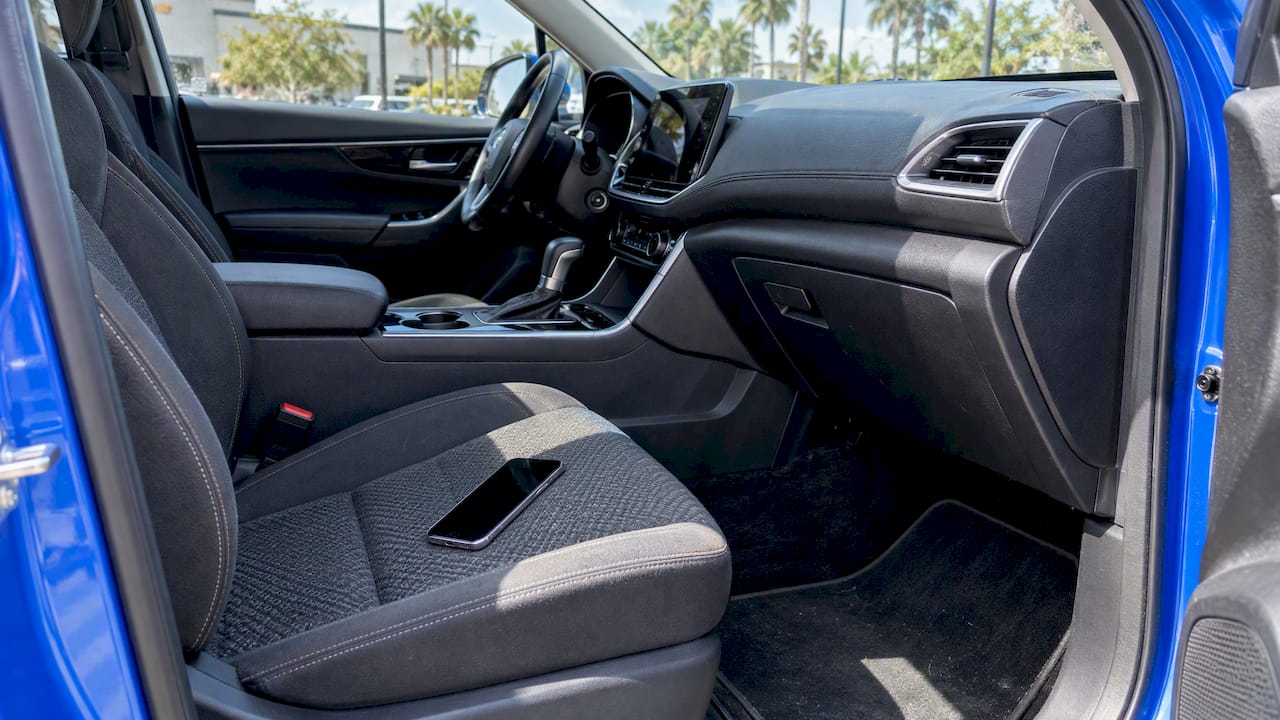
Florida readers have a particular reason to care. A phone left on a car seat in an Orlando summer can get hot fast. If your phone regularly feels hot, our guide to iPhone overheating fixes walks through the causes, and a persistent heat problem during charging can point to a failing battery or charging port.
Slow charging is a separate problem
Optimized Battery Charging deliberately slows the last 20%. That is different from a phone that crawls all the way up. If your phone charges slowly from 10% to 50%, the cause is usually the cable, the adapter, lint in the port or a hardware fault. Our guide on fixing slow phone charging covers the charger and a quick test. If the phone won’t charge at all, start with these safe checks for an iPhone that won’t charge.
When settings can’t help: a worn battery
No software feature reverses chemical aging. Apple says capacity and peak performance decline as lithium-ion batteries age. Optimized Battery Charging slows that curve a little. It doesn’t rebuild a battery that has already lost a large share of its capacity.
Signs the battery itself is the problem:
- The percentage drops quickly, or jumps from 30% to 5%.
- The phone shuts down in the cold or under load even with charge left.
- You charge twice a day for ordinary use.
- Battery Health shows a maximum capacity that has fallen well below where it began.
Before you blame the battery, rule out apps and settings. Our walkthrough to diagnose iPhone battery drain in 10 minutes uses the Battery screen to separate a software drain from a hardware one. For a sense of what’s normal over the years, see our overview of phone battery lifespan.
If the battery is the culprit, the next question is whether to repair or replace the phone. In most cases a new battery costs far less than a new phone, and we lay out the trade-offs in iPhone battery replacement vs buying new.
Our perspective
We repair phones on-site in Orlando and Winter Park, and battery questions are among the most common we hear. Here is how we think about this feature.
First, turn it on and leave it alone. The people who get the most from it are the ones who charge on the same nightstand every night and never think about it. The people who fight it, toggling it on and off every week, tend to confuse themselves and the phone’s predictions.
Second, don’t expect it to rescue an old battery. When someone shows us a phone that dies at 30%, the setting was almost never the issue. Age, heat and a few hundred cycles had done the work. A diagnostic will tell you whether the battery is worn, whether the charging port is the problem, or whether a software fault is draining power. We’d rather you pay for the right fix than for a part you didn’t need, which is why we quote up front and explain what we find.
Third, protect your data before any repair. Whether you come to us or go elsewhere, back up first. Our guide on encrypting local backups and using iCloud explains how to do it properly.
Finally, heat is worth more attention than most people give it. Keep the phone out of hot cars, take a bulky case off when it feels warm on the charger, and don’t gamble on cheap, uncertified chargers.
— Michael
When it’s time for a battery replacement in Orlando
If your iPhone is losing charge fast, shutting down, or running hot on the charger, we can come to you. Repair Genius provides on-site iPhone repair services in Orlando and Winter Park, including battery replacement and charging port repair, at your home, office or campus. Our technicians diagnose the problem first, quote the price before any work starts, and back parts and labor with a warranty. We don’t publish flat battery prices on the site, so the quote you get is for your specific model and problem.
If your phone is an Android, our cellphone repair page covers Samsung, Pixel and other models.
A simple routine you can start tonight
You don’t have to optimize every habit. This short routine covers most of the benefit:
- Check that Optimized Battery Charging is on for your model.
- Charge at the same place each night, ideally for five hours or more.
- Use a decent cable and adapter, and keep the port clear of lint.
- Keep the phone cool while it charges.
- Use Charge Now or Resume Charging on days you need a full battery early.
- Look at Battery Health every few months and plan a replacement before the phone becomes unreliable.
Give the routine two weeks before you judge it. If the notification still doesn’t appear, review the table above. If battery life is poor despite all this, it’s a hardware question, not a settings question.
FAQ
Is Optimized Battery Charging worth using?
For most people, yes. It costs nothing and is on by default. Apple says it is designed to reduce battery wear by limiting time at full charge. The benefit is gradual, so you won’t notice a change in a week.
Why does my iPhone stop at 80%?
That is the feature doing its job. It pauses at 80% and completes the charge nearer to when you usually unplug. If you need a full charge sooner, tap Charge Now on the Lock Screen notification or use Resume Charging in Battery settings. A very warm battery can also cause the phone to hold at 80% until it cools.
Why isn’t Optimized Battery Charging working on my iPhone?
Usually it hasn’t learned your routine yet. It needs at least 14 days and nine charges of five hours or more in one location. Travel, a new place, or inconsistent charging times can also keep it from engaging.
Is it bad to charge my iPhone overnight?
No. Apple says the phone stops charging when it is full and that overnight charging is safe. It tops up again if the level falls below 95%. Heat is the thing to avoid, so don’t charge it under a pillow or in direct sun.
Should I turn it off if my battery drains fast?
Not as a fix. The setting affects how the phone charges, not how quickly the battery drains. If the battery empties quickly, check which apps use the most power, then have a technician test the battery if the drain continues.
Sources
- About Charge Limit and Optimized Battery Charging on iPhone, Apple Support
- Optimize iPhone battery charging, Apple iPhone User Guide
- If Optimized Battery Charging doesn’t activate, Apple Support
- Charge and maintain your iPhone battery, Apple Support
- If your iPhone or iPod touch won’t charge, Apple Support
Recommended
- Fix Slow Phone Charging Fast: 30W+ Charger, 15 Minute Test, When to Repair
- Diagnose iPhone Battery Drain in 10 Minutes Using Settings > Battery
- iPhone Not Charging? 8 Safe Checks Before Calling a Pro
- iPhone Battery Replacement vs Buying New










