
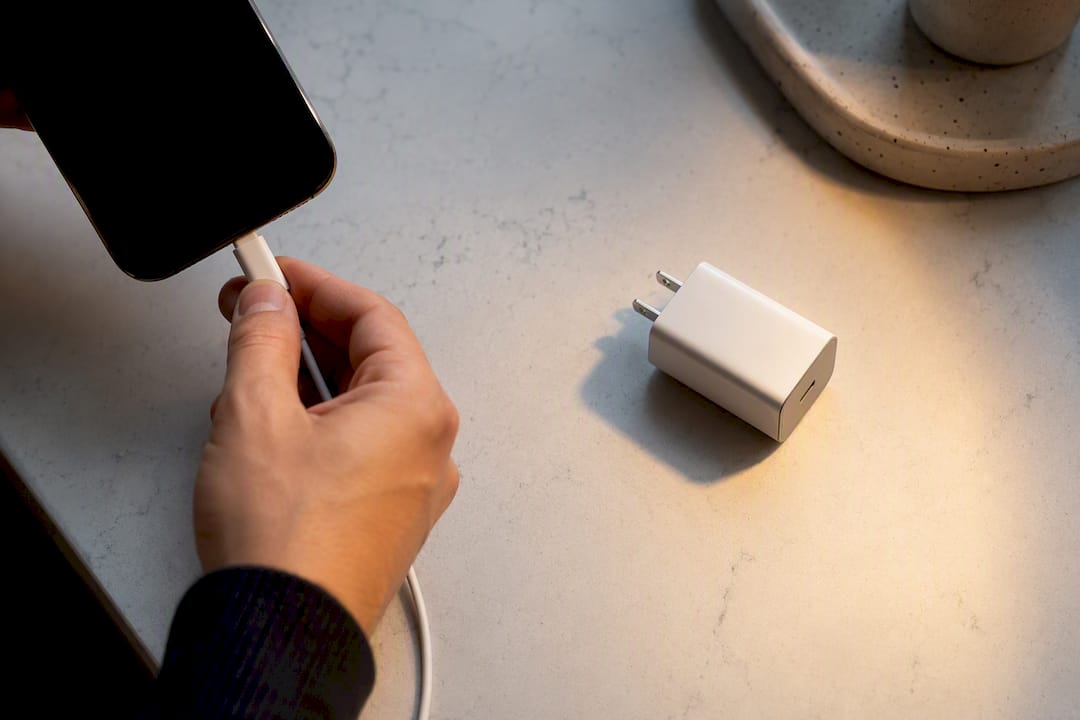
Most cases of phone charging slow trace back to three things: a weak charger or cable, a device that’s overheating, or a charging port full of lint or moisture. Swap in a certified 30W+ wall charger with a known-good cable, then let the phone sit idle while it charges. That single move solves the problem for a large share of users. If it doesn’t, the checklist below walks through the rest in the order that actually matters.
TL;DR:
- Most slow charging issues are caused by faulty cables, chargers under 30W, or debris and moisture in the port, not the device itself.
- Using a certified 30W+ wall charger and a known-good cable, plugged directly into a wall outlet, often resolves the problem quickly.
- Battery management features like optimized or adaptive charging can limit speed intentionally, especially if the battery health drops below 80%.
- Excessive heat from heavy use, thick cases, or hot environments reduces charging speed by triggering safety throttling.
- Persistent slow charging despite troubleshooting usually indicates hardware problems such as a damaged port or worn-out battery, requiring professional repair.
Table of Contents
- Phone Charging Slow? Try This Order of Quick Fixes First
- The Charger and Cable Problem Nobody Checks First
- Battery Health, Optimized Charging, and Why Your Phone Might Be Charging Itself on Purpose
- Why Your Phone Slows Down When It Gets Hot
- Does Wireless Charging Explain Why Charging Feels Slow?
- Cleaning a Dirty or Wet Charging Port Without Damaging It
- Check Your Outlet and Power Source Before Blaming the Phone
- How to Actually Test Whether Your Phone Is Charging Slow
- When Slow Charging Means You Need a Repair, Not Just a New Cable
- Does Using Your Phone While Charging Actually Slow It Down?
- Can a Software Update Cause Your Phone to Charge Slower?
- A Repair Genius Perspective on When to Stop Troubleshooting
- When It’s Time to Call In a Professional for Your Charging Port or Battery
- Sources
- FAQ
Phone Charging Slow? Try This Order of Quick Fixes First
Before you assume your battery is dying or your port needs repair, run through these steps in order. Each one takes under five minutes, and together they resolve the majority of slow-charging complaints without opening a single settings menu you don’t already understand.
- Swap the cable and charger. Grab a different, known-good USB-C or Lightning cable and a certified wall adapter rated 30W or higher. A worn or damaged cable is one of the most frequent causes of slow charging on Android devices, and the fix is often as simple as replacing a $10 cable.
- Plug into a wall outlet, not a laptop or public USB port. Restart the phone, then leave it alone. Don’t scroll, don’t stream, don’t answer calls. Enabling airplane mode or low-power mode during the charge removes background power draw entirely.
- Check the port for lint, pocket debris, or moisture. A flashlight and a close look are enough to spot the problem. If moisture is present, let the port air dry fully before trying again.
- Turn off optimized or adaptive charging temporarily. If the phone speeds up once this is disabled, the “problem” was never a problem. It was the phone managing battery longevity on purpose.
- If none of that changes anything, move to diagnostics. That means checking battery health stats, running a manufacturer diagnostic tool, or considering that the port or battery itself may need professional attention.
Pro Tip: Keep the phone’s screen off and airplane mode on during your test charge. Even light background activity, like a weather widget refreshing or a mail app syncing, can shave several percentage points off a 15 minute charge window.
The Charger and Cable Problem Nobody Checks First
Charging speed is a negotiation between three parties: the wall adapter, the cable, and the phone’s own charging controller. If any one of them can’t keep up, the whole chain slows to the weakest link’s pace, and most people never suspect the $8 cable they’ve had for three years is the culprit.
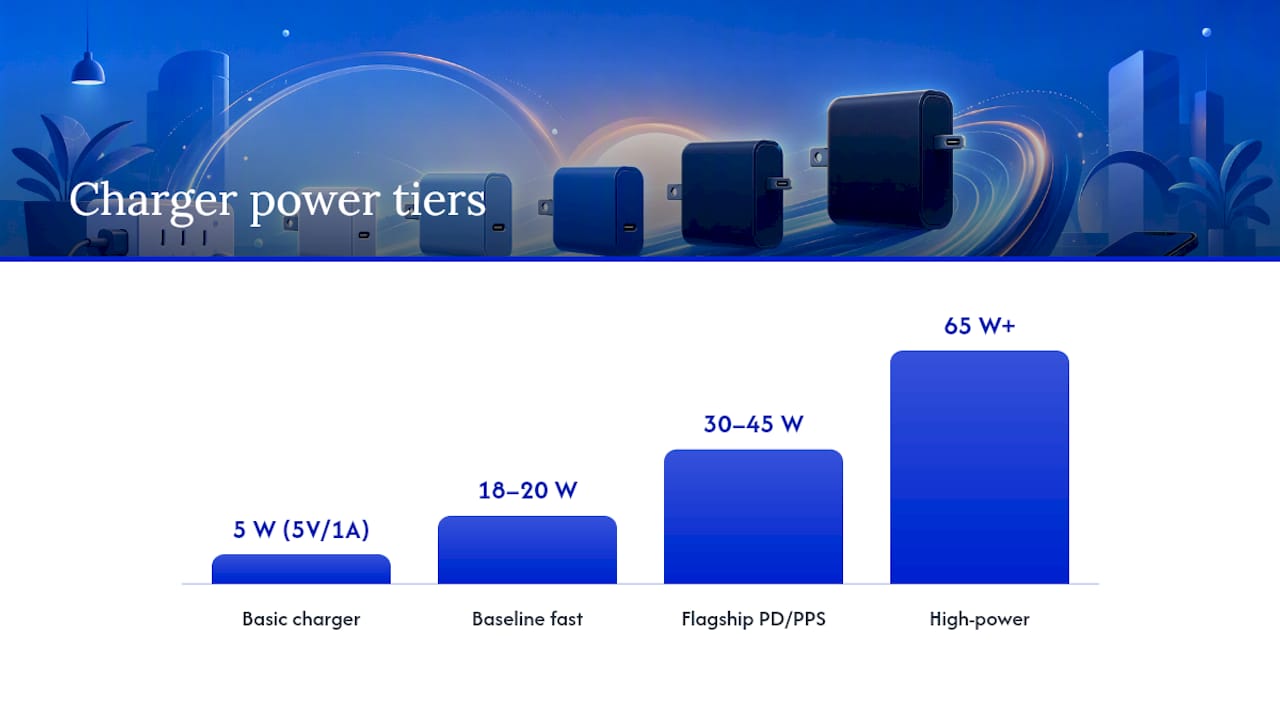
USB Power Delivery (USB PD) is the modern standard behind most fast charging today, letting a charger and phone negotiate voltage and current dynamically instead of using one fixed output. Many Android flagships add Programmable Power Supply (PPS), a PD extension that fine-tunes voltage in smaller steps for cooler, more efficient charging. Apple and Samsung both lean on PD-based charging for their higher-wattage phones, while older or budget chargers often max out at a flat 5V/1A, which is barely faster than nothing.
Reading a charger label tells you almost everything you need to know:
- 5W (5V/1A): basic, slow, meant for older devices or accessories, not modern phones.
- 18W to 20W: a reasonable baseline fast charge for most iPhones and mid-range Android phones.
- 30W to 45W: the range where PD and PPS chargers hit their stride with flagship phones.
- 65W+: common on gaming phones and some Android flagships with proprietary fast-charge protocols.
Older USB-A chargers frequently fall back to a low-power default because they can’t negotiate the higher-wattage protocols a modern phone expects. Cable quality matters just as much. A cheap or frayed cable adds resistance, which caps the current it can safely carry, even if the charger itself is capable of much more. If your iPhone displays a “Slow Charger” warning, that message means the adapter or cable isn’t delivering enough power, and the fix is almost always a 30W+ USB-C charger paired with a compatible cable.
The safest way to verify an accessory is to use the cable and charger that came in the box, or a certified replacement carrying the USB-IF logo for USB-C or the MFi label for Lightning accessories. If you’re not sure whether the charger or the cable is the problem, isolate each one by testing with a charger and cable you know work on another device.
Battery Health, Optimized Charging, and Why Your Phone Might Be Charging Itself on Purpose
Sometimes slow charging isn’t a malfunction. It’s a feature working exactly as designed. Both iOS and Android build in battery-preserving software that deliberately caps how fast, and how full, your phone charges, and most people mistake this for a hardware problem.
On iPhone, Apple calls this Optimized Battery Charging, found under Settings > Battery > Battery Health & Charging. It learns your daily routine and slows the final charge percentage overnight so the battery spends less time sitting at 100%. Android phones use similar systems under names like Adaptive Charging (Google Pixel) or Battery Protection (Samsung), usually tucked into Settings > Battery > More Battery Settings.
Checking actual battery health matters here too:
- On iPhone: go to Settings > Battery > Battery Health & Charging and look at Maximum Capacity. Anything below 80% is a strong candidate for replacement.
- On Android: battery health metrics vary by manufacturer, but Samsung’s Members app and most Android skins now surface a battery status or diagnostic screen under battery settings.
- A phone that charges fine to 80% then crawls to 100% is very likely running optimized charging, not failing hardware.
- A phone that charges slowly at every percentage, even from empty, points toward a cable, charger, or port issue instead.
If you want a clean test, turn off optimized charging and adaptive charging temporarily, then run a fresh charge cycle. If the phone suddenly charges at a normal pace, you’ve found your answer, and you can decide whether the trade-off of faster charging versus long-term battery wear is worth it for your habits. If disabling those settings changes nothing and the phone still crawls, and your battery health percentage has been dropping steadily over months, that’s a sign of genuine wear rather than software throttling.
Why Your Phone Slows Down When It Gets Hot
Heat is the enemy of fast charging, and it’s not a flaw. It’s a deliberate safety limit. Lithium-ion batteries degrade faster and become less safe at higher temperatures, so phone makers intentionally throttle charging speed as the device warms up, particularly as the battery approaches full capacity, when the chemistry is already under more stress.
You’ll notice this most on hot days, inside a thick case, or after gaming with the phone plugged in. The fix doesn’t require extreme measures. A phone that’s merely warm just needs a few minutes to cool before charging speeds recover, and there’s no benefit to sticking it in the freezer or on ice packs.
A few practical moves make a real difference:
- Close power-hungry apps before plugging in, especially games, video editors, or navigation apps running GPS.
- Remove thick cases while charging, since they trap heat against the back of the phone.
- Move to a cooler room or near airflow, particularly in summer or in a hot car.
- Power the phone off entirely for a quick top-up if you need maximum speed in a short window.
Pro Tip: Wireless charging generates more heat than wired charging because energy transfer through induction is inherently less efficient. If you need a fast top-up before heading out, plug in a cable instead of tossing the phone on a pad.
Does Wireless Charging Explain Why Charging Feels Slow?
Wireless charging is convenient, but it’s rarely the fastest option, and comparing its speed to wired charging is where a lot of confusion starts. Qi and the newer Qi2 standard both cap wireless power lower than most wired fast-charge protocols, and older Qi pads often deliver under 10 watts, even when the phone itself supports much more over a cable.
MagSafe and Qi2-certified accessories close some of that gap, supporting up to roughly 25W on compatible iPhones thanks to magnetic alignment that keeps the coils lined up precisely. Misalignment on a standard pad, even by a few millimeters, can quietly cut charging speed in half.
A few things worth checking before blaming the charger itself:
- Remove thick cases or anything with metal components, since both interfere with the magnetic and inductive connection.
- Center the phone exactly on the pad, especially with non-MagSafe accessories that lack alignment magnets.
- Use wired charging for anything urgent, and save wireless pads for overnight or convenience top-ups.
Cleaning a Dirty or Wet Charging Port Without Damaging It
Pocket lint, sand, and dust build up in charging ports over months of daily use, and enough of it can physically block the connector pins from making full contact. If the phone shows an intermittent connection, charges only when you jiggle the cable a certain way, or occasionally throws a liquid-detection warning, the port is the first place to look.
- Power off the phone completely before you touch the port with anything.
- Use a can of compressed air in short bursts, or a plastic pick (never metal) to gently clear visible debris.
- If moisture is present, let the port air dry fully, ideally for several hours, before attempting to charge again. Charging a wet port risks corrosion and short circuits.
- Retest with a known-good cable once the port is dry and clear.
- Stop and get it inspected if you see visible corrosion, a bent or loose connector, or the liquid-detection warning keeps reappearing after drying. That’s a sign of hardware damage a cotton swab won’t fix, and Samsung’s own moisture-detection guidance makes the same call: dry thoroughly, and if the warning persists, get it looked at.
Check Your Outlet and Power Source Before Blaming the Phone
Not every slow charge is the phone’s fault. The wall outlet, power strip, or USB port you’re plugged into matters more than most people assume.
- Dedicated wall outlets deliver more consistent current than laptop USB ports or USB hubs, which often throttle output to protect themselves.
- Test the outlet by plugging in a lamp or another device you know works, or by trying a different outlet entirely.
- Avoid low-voltage sources like older car USB ports or public charging kiosks, which frequently cap well below your phone’s fast-charge capability.
- Watch for damaged power strips or loose wall plugs, which are both a safety risk and a charging-speed problem at the same time.
How to Actually Test Whether Your Phone Is Charging Slow
“Slow” is subjective until you put a number on it. Here’s a simple test that takes 15 to 30 minutes and gives you something concrete to compare against, or to hand a technician if you end up needing one.
- Note your current battery percentage before plugging in.
- Put the phone in airplane mode, turn the screen off, and leave it completely idle.
- Plug in using a charger and cable you know are good, ideally the ones that came with the phone or certified equivalents.
- Wait 15 to 30 minutes, then check the new percentage.
- Repeat with different accessories or locations if the first result looks off, to rule out a bad outlet or cable.
Many modern phones with compatible fast-charge gear add somewhere in the range of 20% to 30% battery in 15 minutes, though the exact figure depends heavily on the phone model and how depleted the battery already was when you started. A phone at 10% will typically charge faster in absolute percentage terms than the same phone starting at 60%, since charging speed tapers as the battery fills.
For a second opinion, use built-in diagnostics. Samsung Members includes a battery and charging test that can flag whether the issue is the cable, the wireless charger, or the battery itself, and Samsung specifically recommends running this alongside checking the port, charger, cable, and device temperature before assuming hardware failure. iPhone users can check a rough battery report through the Battery Health screen for context on capacity, though it won’t run a live charging test the way Samsung’s tool does.
When Slow Charging Means You Need a Repair, Not Just a New Cable
Some symptoms point past software and accessories straight to hardware, and no amount of cable-swapping will fix them.
- A swollen or visibly warped battery is a safety issue, not a charging issue. Stop using the phone and get it looked at.
- Charging that stops working entirely after a factory reset rules out software as the cause and points to the port or battery.
- Visible corrosion or a loose-feeling connector inside the port means physical damage has already occurred.
- Persistent intermittent contact that survives cleaning, a cable swap, and a settings check usually means the port itself is worn or damaged internally.
A professional repair for these issues typically starts with diagnostics to confirm whether the port, the battery, or the charging IC is at fault, followed by replacing just the failed part rather than the whole device. Back up your data before any repair appointment, and bring along notes from your own charging-speed test. It gives a technician a real starting point instead of guessing from scratch. If you’re weighing whether a battery replacement makes more sense than buying a new phone, a failing charge rate paired with a battery health reading below 80% is usually the deciding factor.
Does Using Your Phone While Charging Actually Slow It Down?
Yes, and the effect is bigger than most people expect. Every app running in the background pulls power from the battery at the same time the charger is trying to push power in, and that tug-of-war directly cuts into your net charging speed.
Navigation apps burning GPS, video calls, game sessions, or even a podcast streaming over a weak Wi-Fi connection can all draw enough current to noticeably slow a charge, sometimes by a significant margin during heavy use. Screen-on time matters too. A bright display left on while scrolling social media draws continuous power, competing directly with the incoming charge.
This is also part of why airplane mode helps so much during a charge. It shuts off the radios constantly hunting for cell signal, Wi-Fi, and Bluetooth connections, all of which draw small but steady amounts of power even when you’re not actively using the phone. Combine that with the screen staying off, and you remove almost all competing power draw, letting the charger’s full output go toward the battery instead of toward keeping the phone running.
If you need to keep using the phone while it charges, expect a slower fill regardless of how good your charger and cable are. That’s simple physics, not a defect. For the fastest possible charge, the best move is still the boring one: plug in, lock the screen, and walk away for twenty minutes.
Can a Software Update Cause Your Phone to Charge Slower?
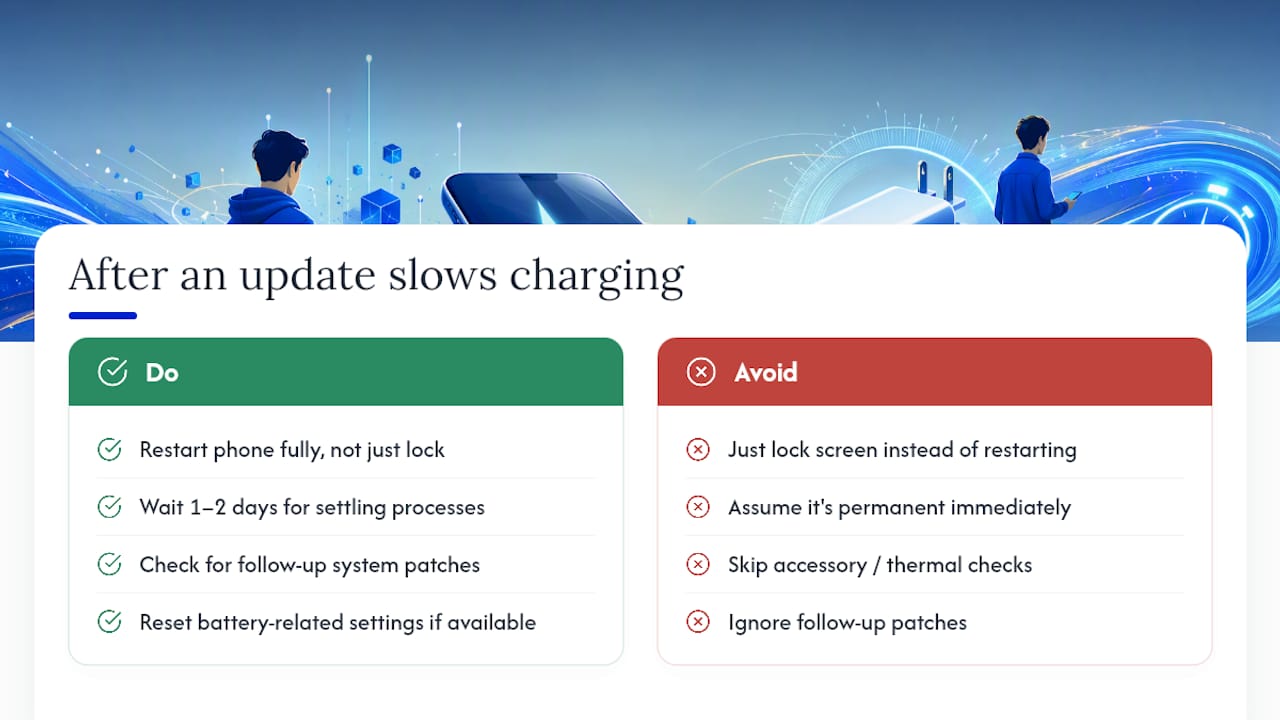
Sometimes, yes. Software bugs introduced in a major iOS or Android update occasionally interfere with charging behavior, either by mismanaging background processes, misreading battery temperature sensors, or glitching the battery-optimization features covered earlier.
These issues tend to surface right after a major version update, when a phone is re-indexing apps, reinstalling widgets, and running extra background maintenance tasks that eat into charging speed for a day or two. That’s usually temporary and resolves on its own once the phone finishes settling into the new software.
Persistent charging bugs tied to a specific update are less common but do happen, and manufacturers typically patch them within a few weeks once enough users report the problem. If your phone charged fine before an update and now consistently underperforms afterward, a few things are worth trying: restart the phone fully rather than just locking the screen, check for a follow-up patch in your update settings, and reset battery-related settings if your device offers that option. If the slowdown started immediately after an update and none of the usual accessory or thermal fixes help, that’s a real signal the software itself is the variable that changed, and waiting for the next patch, or rolling back if your device allows it, is often the most reliable path forward.
A Repair Genius Perspective on When to Stop Troubleshooting
Most slow-charging calls we’d expect to see resolve with something simple: a better cable, a cleaned-out port, a charger that actually matches the phone’s fast-charge protocol. That’s the honest reality, and it’s why the checklist above starts with the cheapest, fastest fixes first.
But a subset of cases aren’t software or accessory problems at all. A swollen battery, a port with visible corrosion, or a phone that stopped charging entirely right after a reset are hardware signals, not settings to toggle. Those need diagnostics, not another cable from a drawer.
Some repair services build their approach around exactly that split: on-site diagnostics that identify the actual cause before any part gets replaced, transparent pricing with no surprise line items, and a warranty on both parts and labor so a repair doesn’t just become a temporary patch. Data safety stays part of the process throughout, since a charging repair should never put your photos or accounts at risk. If your phone shows any of the hardware red flags above, that’s the point where booking a diagnostic makes more sense than buying a fourth cable.
— Michael
When It’s Time to Call In a Professional for Your Charging Port or Battery
If you’ve swapped the cable, cleaned the port, cooled the phone down, and checked your settings, and the phone still charges at a crawl, the problem is almost certainly hardware. That covers a worn-out battery that’s lost real capacity, a charging port with damaged internal contacts, or corrosion from an old spill that never fully cleared out.
Repair Genius handles all three on-site in Orlando and Winter Park, including battery replacement, charging-port repair, and water-damage diagnostics for phones that took a splash months ago and have been acting up ever since. A technician comes to your location, runs diagnostics to confirm the actual cause, and quotes the repair with transparent pricing before touching anything, backed by a warranty on parts and labor.
Same-day service means you’re not stuck without a phone for a week while it sits at a shop counter, and data-safety practices stay in place throughout so your accounts and photos aren’t at risk during the repair. If you’re already noticing the warning signs covered above, a swollen battery, a port that only connects at certain angles, or corrosion you can see, back up your data first, then book a diagnostic through the main Repair Genius page to get a clear quote before the problem gets worse.
Sources
- iPhone says Slow Charger: what does it mean and how to fix it – 9to5Mac
- 10 reasons why your Android battery is charging slowly and how to fix them – Android Authority
- Why phone makers secretly slow your charging, and how to fight back – How-To Geek
- Why your Samsung Galaxy device may appear to be charging slowly or not charging at all | Samsung
FAQ
Why is my phone suddenly so slow to charge?
The most common causes are a worn cable, an underpowered charger, a hot device throttling its own charge rate, or a charging port with debris or moisture blocking full contact.
Why is my phone taking so long to fully charge?
Charging naturally slows as the battery approaches 100%, and features like Optimized Battery Charging on iPhone or Battery Protection on Android intentionally hold the last stretch back to reduce long-term battery wear.
Why is my phone suddenly not charging well after working fine before?
A recent software update, a new case blocking wireless alignment, or gradual battery wear can all cause a sudden change; testing with a known-good cable and charger is the fastest way to narrow it down.
How do I get my phone to stop slow charging?
Use a certified 30W+ charger and cable, keep the phone cool and idle while it charges, clean the port if needed, and disable optimized charging temporarily to see if speed returns. If none of that helps and you see signs like a swollen battery or port corrosion, a repair service like Repair Genius can diagnose and fix the underlying hardware issue.
Recommended
- Top 4 iPhone Charging Port Repair Providers 2026
- How to Fix an Overheating Phone | Causes & Solutions
- Fix iPad Not Charging: Fast Troubleshooting Guide










