
If your Android fingerprint sensor stopped working, the cause is usually something small: a dirty or scratched screen area, a screen protector, a pending update, or an app getting in the way. Work through the fixes below in order, from the free two-minute checks to Safe Mode, and keep the factory reset as the very last step. If the sensor still fails after all of that, the problem is likely hardware, and that is the point where a technician should look at it.
TL;DR
- Clean the sensor area and your finger, remove any screen protector that covers the sensor, and unplug any wireless charger before you test again.
- Restart, install pending updates, then delete your fingerprints and register them again. Register the same finger more than once.
- Boot into Safe Mode. If the sensor works there, a third-party app is the culprit. If not, suspect hardware.
- Do not factory reset until you have backed up your data. A wipe will not fix a damaged sensor.
- A sensor that fails after a drop, a cracked screen or water exposure usually needs a repair, and we can do that at your door in Orlando and Winter Park.
Table of Contents
- Why a fingerprint sensor stops working
- Quick checks before you change any settings
- Software fixes, in order
- Samsung, Pixel and other brands: what differs
- How to tell software from hardware
- Our perspective: what we see on the job
- When to call a technician
- Protect the sensor going forward
- FAQ
- Sources
Why a fingerprint sensor stops working
A fingerprint sensor is not one part acting alone. It is a reader, a driver in the operating system, and a security layer that decides whether to trust the result. A failure can start in any of the three, which is why the fix can be as simple as wiping the screen or as involved as replacing a component.
The common causes fall into four groups:
- Surface problems. Dirt, oil, moisture, scratches or a screen protector between your finger and the sensor. Samsung’s support page points to third-party protectors that are too thick, textured or not certified as a frequent reason for poor recognition.
- Environment and finger condition. Samsung also lists wireless charging interference, extreme temperatures and very dry skin as reasons a print is not read.
- Software. An outdated system, a corrupted fingerprint template after an update, or an app that interferes with biometric authentication.
- Hardware. A damaged sensor, a loose or torn flex cable, or a cracked or water-damaged display on phones with an under-display reader.
The first three are free to fix. Only the fourth costs money, so test in that order.
Quick checks before you change any settings
These take a couple of minutes and solve more cases than people expect.
Clean the sensor and your finger
Wipe the sensor area, whether it sits under the screen, on the power button or on the back, with a clean, dry microfiber cloth. Google’s guidance for Pixel phones is to keep the display clean and free of smudges and to press and hold your finger firmly until the phone unlocks. Wash and dry your hands too. Lotion, sweat and wet fingers all cause misreads.
Dry skin is a quiet culprit in winter and in air-conditioned offices. Samsung suggests moisturizing or pressing a little more firmly when dry skin causes recognition errors.
Check the screen protector
If you recently added a protector and the trouble started afterward, that is your first suspect. Samsung advises removing or replacing uncertified protectors if problems persist. Also look for scratches or cracks directly over the sensor area. A damaged protector or a scratched screen can block a reading even when the sensor underneath is perfect.
On under-display readers, protectors that trap air bubbles over the sensor are a classic cause. Peel it off, test, and only then decide whether to replace it.
Unplug the wireless charger and cool or warm the phone
If the sensor fails mostly while the phone sits on a charging pad, that is not a defect. Wireless charging can temporarily disable the reader, and extreme heat or cold can do the same. Move the phone to a room-temperature spot, take it off the pad, wait a minute and try again.
A phone that runs hot all the time deserves its own look. Our guide to cooling steps for an overheating Android covers that.
Remember that a PIN prompt is not a fault
Android deliberately asks for your PIN, pattern or password after a restart, after a period of inactivity, or after too many failed attempts. Google explains that when fingerprint use is not allowed, the system falls back to your backup screen lock. If your phone asks for the PIN right after a reboot, that is the security design working, not a dead sensor.
Software fixes, in order
If the quick checks did not help, move to software. Do these in sequence and test the sensor after each step so you know what worked.
1. Restart the phone
A plain restart clears stuck drivers and background processes. It sounds too simple, yet it is the step Samsung’s own unlock troubleshooting begins with: rebooting or entering Safe Mode when a phone does not recognize your fingerprint or other unlock method.
2. Install system updates
Manufacturers patch driver-level bugs that make a sensor unresponsive. Go to Settings, then System, then System update, and install whatever is waiting. Google’s Pixel help recommends checking that your software is current when fingerprint unlock misbehaves. Menu names vary by brand, so on a Samsung look under Software update instead.
3. Delete and re-register your fingerprints
Saved fingerprint data can become unreliable, especially after an update. Open Settings, Security (or Biometrics and security), Fingerprint, enter your PIN, delete the existing prints and add them again. Do this with clean, dry hands, in a normal room, and take your time.
While you are there, use a trick that raises accuracy. Registering the same finger more than once, from different angles and with different pressure, gives the phone more data to compare against. Use two or three slots for the finger you use most, and one more for the edge of your thumb if you unlock one-handed.
4. Test in Safe Mode
Safe Mode starts Android with only the apps that came with the phone. If the sensor works there but not in normal mode, the problem is software, not a broken component. Samsung describes this as the way to isolate a background app, and Fairphone’s guidance agrees that apps can interfere with the fingerprint sensor.
The usual suspects are app lockers, RAM cleaners, battery savers and screen-filter overlays. The exact way into Safe Mode differs by model, so check your maker’s instructions. On many phones you press and hold the power button, then press and hold Power off until the Safe Mode prompt appears.
What the result tells you:
| Result in Safe Mode | What it means | Next step |
|---|---|---|
| Sensor works | A third-party app is interfering | Uninstall recently added lockers, cleaners and overlays one by one |
| Sensor still fails | Not an app conflict | Rule out the surface and environment, then consider hardware |
| Sensor works only sometimes | Possible loose connection or a damaged screen area | Have a technician test it |
If an unfamiliar app turns out to be the cause and you did not install it, read our guide on safely removing spyware from Android. Hidden apps that hook into authentication are a reason to take it seriously.
5. Factory reset, last and only after a backup
A reset wipes the phone. It carries real data-loss risk, so only consider it once every step above has failed, and back up photos, messages and app data first. Be honest with yourself about what it can do: if the sensor works after a reset, you had a software fault. If it does not, you have a hardware fault and you have lost an afternoon. Samsung’s own guidance puts non-destructive checks first for exactly this reason.
Also be careful if you have forgotten your backup PIN. As Google notes for the Pixel Tablet, a button-based factory reset may be the only way back in, and it erases the device.
If the phone also loops on startup or freezes during these steps, those are separate faults worth reading about. See our boot loop guide and why Android phones freeze.
Samsung, Pixel and other brands: what differs
The logic is the same everywhere, but sensor type changes where you look.
- Samsung Galaxy. Many current models use an under-display reader, so the screen surface and protector matter a great deal. Samsung publishes a list of common causes that includes protectors, wireless charging and finger condition.
- Google Pixel. Pixel 6 and later use an under-display sensor, and Google’s Pixel fingerprint help covers firm pressing, clean displays and re-enrolling.
- Side-mounted or rear sensors. On a power-button reader, check for dirt in the seam and whether the button itself feels loose or sticky.
If your phone was dropped before the trouble began, treat the sensor as suspect from the start. Impact can loosen the small ribbon cable that links the reader to the board, and no setting fixes a loose cable.
How to tell software from hardware
Use this as a rough guide, not a diagnosis.
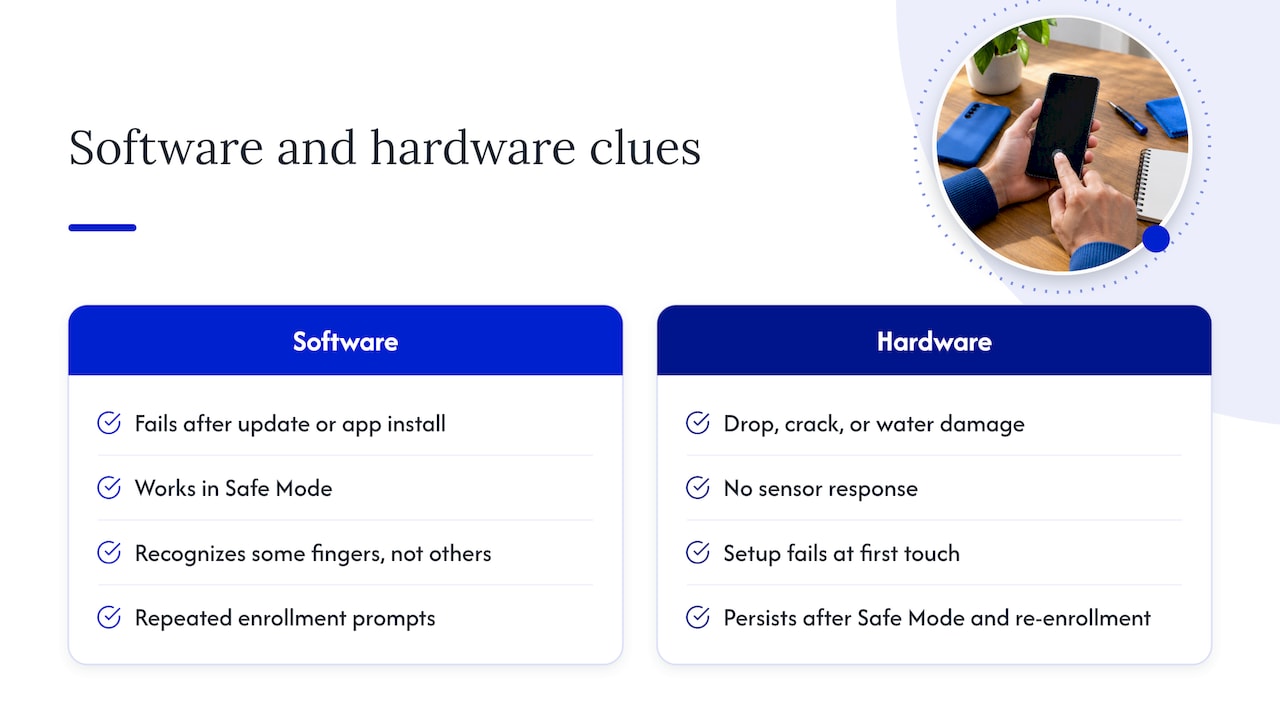
Likely software: the sensor stopped after an update or an app install, it works in Safe Mode, it recognizes some fingers but not others, or it asks you to re-enroll repeatedly.
Likely hardware: the phone was dropped, cracked or got wet; the sensor does not respond at all, with no vibration or on-screen reaction; the fingerprint setup screen fails at the very first touch; the failure survives Safe Mode and a re-enrollment; or the touch response near the sensor is dead or erratic.
Moisture deserves special mention. A phone that has been wet can develop corrosion that shows up weeks later as flaky sensors or charging trouble. If that applies, stop charging it and read our note on liquid alerts before you charge an Android.
Our perspective: what we see on the job
We repair phones at customers’ homes and offices across Orlando and Winter Park, and fingerprint complaints reach us in two very different forms. The first is a phone that is fine and a person who has been locked into a loop of failed attempts: a new screen protector, a wireless charger, a freshly updated system. We would rather tell you that on the phone than sell you a repair, and the steps above are what we would walk you through.
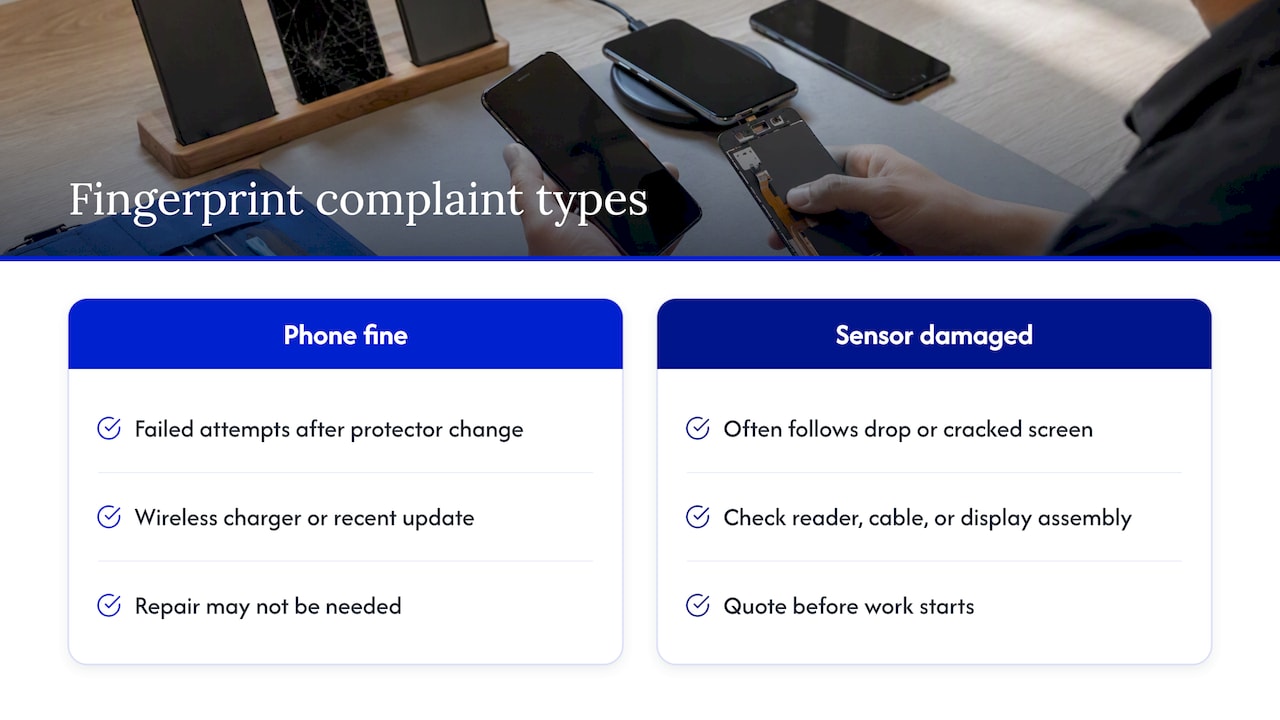
The second form is a sensor that is truly damaged, often after a drop or a cracked screen. There, the useful thing is a straight diagnosis: is it the reader, the cable, or the display assembly? On many phones those parts are connected, so the answer decides what the repair involves and what you are quoted. We give the quote before any work starts, with no hidden fees, and we explain what we found in plain words.
Two habits save people the most trouble. Back up before you let anyone open or reset your phone, and do not rely on a fingerprint alone to get into your backups. And do not run a factory reset as a guess. It is a final step, not a diagnostic.
— Michael
When to call a technician
Book a repair when any of these is true:
- The sensor fails in Safe Mode and after re-enrolling your prints.
- The phone was dropped, cracked or exposed to liquid before the problem began.
- The screen or button around the sensor is cracked, lifting or unresponsive.
- You need the phone working today and cannot afford hours without it.
- You are worried about your data and do not want to hand your phone to a stranger or mail it away.
Our on-site service exists for that last case. A technician comes to the location you choose in Orlando or Winter Park, checks the phone with you present, and quotes the work up front. Data security is part of how we work, so your personal information stays with you throughout. If you want to see how the visit works, read about the benefits of home visit repair in Orlando and Winter Park.
If you are ready to book, our Samsung and Android repair page lists what we fix, including cracked screens, battery replacements, charging ports and water damage recovery, and shows how to request a visit. We do not publish fixed prices for these services, so the amount is quoted for your specific phone after diagnosis.
Protect the sensor going forward
A few habits cut repeat problems:
- Choose a screen protector made for your model and designed to work with its fingerprint reader, and apply it without bubbles over the sensor.
- Re-register your main finger twice with different angles, as described earlier.
- Keep the phone off wireless chargers while you are unlocking it often, or at least take it off the pad first.
- Install updates when they arrive rather than putting them off for months.
- Skip apps that promise to clean memory or lock other apps unless you really need them, since those are the ones most likely to hook into authentication.
- Keep a current backup so that a reset, if you ever need one, costs you nothing.
FAQ
Why did my fingerprint sensor suddenly stop working on Android?
The most common triggers are a new screen protector, a dirty or scratched screen, wireless charging, a recent update or an interfering app. Clean the area, remove the protector, restart and re-register your prints. If it began right after a drop or water exposure, suspect hardware.
How do I reset the fingerprint sensor on my Android phone?
There is no separate reset button for the sensor. Open Settings, go to Security or Biometrics, then Fingerprint, delete your saved prints and add them again. This rebuilds the stored data and fixes many recognition problems without wiping the phone.
Why does my phone ask for a PIN instead of my fingerprint?
Android requires your PIN, pattern or password after a restart or after the phone has sat unused for a set time, and after repeated failed attempts. This is a security rule, not a broken sensor. Google describes this fallback in its Pixel Tablet help.
Is my fingerprint sensor broken if it works in Safe Mode?
No. If it works in Safe Mode but not normally, an app is blocking it. Remove recently installed apps, especially lockers, cleaners and screen overlays, and test after each removal.
Can a cracked screen cause fingerprint problems?
Yes, especially on phones with an under-display reader. A crack or damaged layer over the sensor can stop it reading prints even though the reader itself may be fine. That needs a repair rather than a settings change.
Sources
- Samsung: phone is not recognizing fingerprints
- Samsung: troubleshoot fingerprint recognition on your Galaxy device
- Samsung: unable to unlock Galaxy phone or tablet screen
- Google Pixel Help: fix issues with your fingerprint sensor
- Google Pixel Tablet Help: fingerprint or screen lock issues
- Fairphone Support: troubleshoot fingerprint sensor issues
- Android Police: how to improve fingerprint accuracy
Recommended
- Survivors: 5 Immediate Steps to Safely Remove Spyware from Android
- Save Your Data: Fix Android Boot Loops in Orlando Without a Reset
- Find the Browser, Notification, or App Causing Android Virus Pop Ups
- Why Your Android Phone Keeps Freezing: Causes & Fixes










