

A frozen Android phone is almost always caused by one of five things: a misbehaving third-party app, storage that’s nearly full, a pending OS or app update, a device with limited RAM struggling under modern software, or a hardware problem like an aging battery or overheating. The fastest first action is a force restart, which clears stuck background processes and resolves most transient freezes in under a minute.
The six most common causes of Android phone freezing:
- Problematic third-party apps running memory leaks or incompatible background services
- Low internal storage leaving the OS without scratch space for routine operations
- Outdated software with unpatched bugs in apps or the Android system itself
- Limited RAM on older or entry-level devices (typically 2–4GB) overwhelmed by current apps
- Overheating and thermal throttling, which cuts CPU speed to protect hardware
- Failing battery or touchscreen, where hardware degradation mimics software glitches
If your phone is completely unresponsive right now, hold the power button until it restarts (or use your device’s button combo for a force restart). That single step fixes a surprising number of freeze issues in Android devices before you need to dig any deeper.
Key Takeaways
Most Android freezes trace back to software causes (apps, storage, or updates) and resolve without a factory reset when you follow the right diagnostic order.
| Point | Details |
|---|---|
| Restart first, always | A force restart clears stuck background processes and resolves most transient freezes immediately. |
| Storage nearly full causes freezes | Free up space by clearing caches, deleting large files, and using cloud photo backup. |
| Safe Mode isolates app problems | If the phone runs normally in Safe Mode, a third-party app is the cause; uninstall recent apps one at a time. |
| Factory reset is a last resort | Back up to Google Drive, sync photos, and export contacts before erasing all data. |
| Repair Genius for hardware faults | When software steps fail, Repair Genius provides same-day on-site diagnostics in Orlando and Winter Park. |
Table of Contents
- What causes Android phone freezing and how to fix it fast
- How to use Safe Mode to find the app that’s freezing your phone
- Why low storage and limited RAM cause freezing
- How to check for Android system and app updates
- When to back up and perform a factory reset
- Hardware causes and when your phone needs a technician
- A repair technician’s take on what actually causes most freezes
- Repair Genius comes to you when software fixes aren’t enough
- Sources
What causes Android phone freezing and how to fix it fast
Most freeze issues in Android devices resolve with four quick actions you can run through in about five minutes. Work through them in order before trying anything more involved.
-
Force restart the phone. Hold the power button (or power + volume down on many Android models) for 10–30 seconds until the screen goes dark and the device reboots. If the phone is completely unresponsive and the battery is removable, pull it for 10 seconds. If it won’t restart at all, plug it into a charger first and wait two minutes before trying again. A restart clears stuck background processes and is the single highest-return action you can take.
-
Check free storage. Go to Settings > Storage. If your storage is nearly full, the OS is fighting for scratch space and freezes become likely. Delete large videos and photos you’ve already backed up, clear your Downloads folder, and move media to Google Photos or another cloud service. Even freeing a few gigabytes often produces an immediate improvement.
-
Close misbehaving apps. Swipe up to the recent apps view and close anything you don’t need open. If one app is visibly hanging, go to Settings > Apps > [App Name] > Force Stop. Then toggle airplane mode on for 30 seconds and back off. This resets all radio connections, which sometimes clears a freeze caused by a stuck network request.
-
Check for overheating. If the back of the phone feels hot, set it down in a cool spot and let it rest for five minutes before restarting. Thermal throttling reduces CPU speed to protect hardware, and what feels like a freeze is often the processor running at a fraction of its normal speed. Read more about overheating causes and cooling steps if heat is a recurring pattern.
Pro Tip: Restart your phone at least once a week. On devices with modest RAM, background processes accumulate over days and slow everything down. A weekly reboot takes 60 seconds and prevents a lot of sluggishness before it starts.
Before you try anything more drastic: do not factory reset yet. The steps above, plus Safe Mode and an app audit in the next section, resolve the majority of freezing complaints. A reset is a last resort, not a first response.
How to use Safe Mode to find the app that’s freezing your phone
Safe Mode loads only the original Android software and disables every third-party app you’ve installed. If your phone runs normally in Safe Mode, a downloaded app is causing the freeze. That’s the most common scenario by a wide margin.
Boot into Safe Mode:
- Press and hold the power button until the power menu appears.
- Long-press the “Power off” option until a “Reboot to Safe Mode” prompt appears, then tap OK. (On Samsung devices, hold power + volume down simultaneously during boot until you see “Safe Mode” in the corner.)
- Use the phone normally for 10–15 minutes. Browse, open the camera, check email.
- If it runs without freezing, a third-party app is your culprit.
- Restart normally to exit Safe Mode.
Once you’ve confirmed an app is the problem, work through these actions in order:
- Update the app via the Play Store. Many freezes come from bugs patched in newer versions.
- Force stop the app (Settings > Apps > [App Name] > Force Stop) and relaunch it.
- Clear the app’s cache (Settings > Apps > [App Name] > Storage > Clear Cache). This removes temporary files that can corrupt over time.
- Clear app data if clearing the cache didn’t help. Note: this resets the app to a fresh install state and deletes local settings.
- Uninstall and reinstall the app as a clean slate if the above steps fail.
Samsung’s official guidance adds one practical refinement: if you can’t identify the culprit immediately, uninstall recently installed or recently updated apps one at a time, testing after each removal. The app that stops the freezing when removed is your answer.
Prioritize apps to check in this order: anything installed or updated in the week before freezing started, apps with high battery usage (Settings > Battery), and apps that run background services like sync, location, or notifications.
Pro Tip: After removing a suspected app, stay in normal mode for a full day before reinstalling anything. Keep a quick note of which apps you removed so you can add them back selectively. Reinstalling everything at once defeats the purpose of the audit.
Malware and intrusive apps can also cause freezing, random ads, and excessive heat when the phone is idle. If you notice unknown apps in your app list or Play Protect flags something, treat that as a priority removal.
Why low storage and limited RAM cause freezing
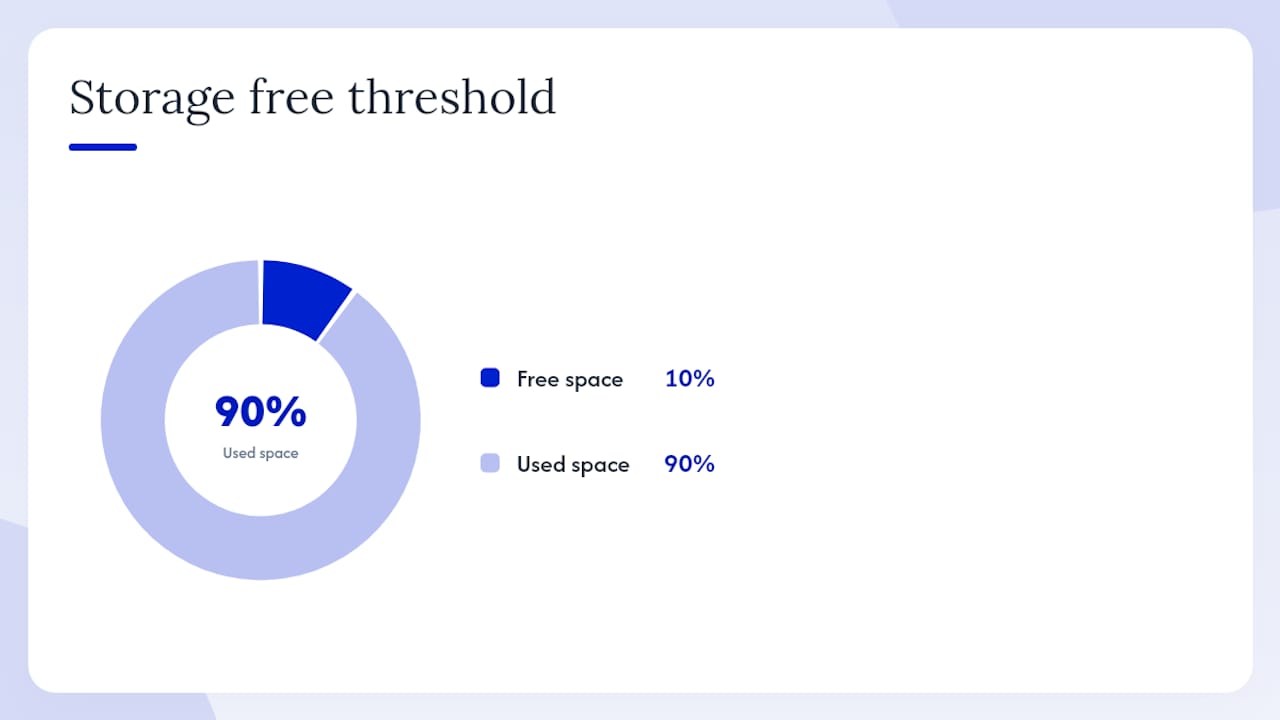
Android uses internal storage as scratch space for system caches and a form of virtual memory. When storage is mostly full, the OS runs out of workspace for routine operations and freezes become frequent. Performance drops noticeably as storage fills up; clearing significant space is often one of the most effective fixes available.
Google’s own guidance flags problems when less than 10% of storage is free. On a 64GB phone, that’s about 6GB.
Steps to reclaim storage:
- Go to Settings > Storage to see what’s consuming space.
- Tap “Free up space” (available on Pixel and many other Android devices) for automatic suggestions.
- Clear app caches selectively: Settings > Apps > See all apps > sort by size > clear cache on the largest offenders.
- Back up photos and videos to Google Photos, then delete local copies.
- Open the Files app and clear the Downloads folder, which accumulates forgotten files over time.
- Uninstall apps you haven’t opened in 30+ days.
- Move large media files to an SD card if your device supports one.
RAM is a separate constraint. Devices with 2–4GB of RAM struggle with current resource-heavy apps and some Android updates, because the system must constantly evict and reload background processes. If your phone is in that range, practical mitigations include switching to lite versions of heavy apps (YouTube Go, Facebook Lite, Gmail Go), reducing the number of apps set to sync in the background, and keeping fewer tabs open in Chrome.
Pro Tip: Set a monthly reminder to empty your Downloads folder and run a cloud photo backup. These two habits prevent the slow storage creep that causes most performance complaints on mid-range phones.
How to check for Android system and app updates
Outdated software is a straightforward cause of freezing. Both app bugs and Android OS bugs get patched in updates, and skipping them means running known problems.
Check for Android system updates:
- Go to Settings > System > System update (or Settings > Software update on Samsung).
- Tap “Check for update.”
- If an update is available, connect to Wi-Fi, plug in the charger, and install it.
Check for app updates:
- Open the Play Store.
- Tap your profile icon > Manage apps & device > Updates available.
- Tap “Update all” or update apps individually.
Google’s official troubleshooting flow lists updating apps and the OS as a core step before considering a factory reset. It’s low-risk and often resolves freezing that started after a recent app or system change.
When updates cause problems rather than fix them:
- If a new update introduced freezing, clear the system cache partition if your device supports it (varies by manufacturer; check your OEM’s support page).
- Let the device charge fully and restart before concluding an update failed.
- Check your device manufacturer’s support site for known issues with a specific update version.
A note on custom ROMs and rooted devices: if your phone runs unofficial firmware, standard OEM update steps don’t apply. Freezing on a rooted device often traces back to ROM incompatibility or a modified system partition. Follow the guidance of your ROM’s developer community, and understand that standard warranty and support options no longer apply.
When to back up and perform a factory reset
A factory reset wipes the phone to its out-of-box state and removes every app, setting, and file you’ve added. It fixes freezing caused by deep software corruption that app removal and updates can’t reach. Use it only after you’ve exhausted Safe Mode, app removal, storage cleanup, and updates.
Back up before you do anything else:
- Go to Settings > System > Backup > Back up to Google Drive. Confirm the last backup timestamp is recent.
- Open Google Photos and confirm your photos and videos are fully synced.
- Export contacts: Contacts app > Export > save to your Google account or as a .vcf file.
- Write down any account passwords stored only on the device.
- Note your Google account email, since you’ll need it to pass Factory Reset Protection after the reset.
Perform the factory reset:
- Remove your SD card first to avoid accidentally wiping it.
- Go to Settings > System > Reset options > Erase all data (factory reset).
- Enter your PIN and confirm. The process takes 5–15 minutes.
- If the phone won’t boot to settings, use the hardware button combo (typically power + volume down, or power + volume up, held during boot) to reach recovery mode, then select “Wipe data/factory reset.”
For a thorough walkthrough of the backup process before resetting, the Device Giant factory reset guide covers the full sequence in detail.
Data loss is permanent after a reset. Confirm your Google backup, photo sync, and contact export are complete before you tap “Erase all data.” The order of operations matters: backup first, then Safe Mode, then app removal, then reset only if nothing else worked.
Hardware causes and when your phone needs a technician
Software fixes have a ceiling. If you’ve restarted, cleared storage, booted Safe Mode, removed suspect apps, updated everything, and done a factory reset, and the phone still freezes, the problem is likely hardware.
Hardware symptoms that point beyond software:
- Touchscreen unresponsive even in Safe Mode, with no apps loaded
- Random shutdowns that happen regardless of what you’re doing
- Phone gets hot during light use or while idle and charging
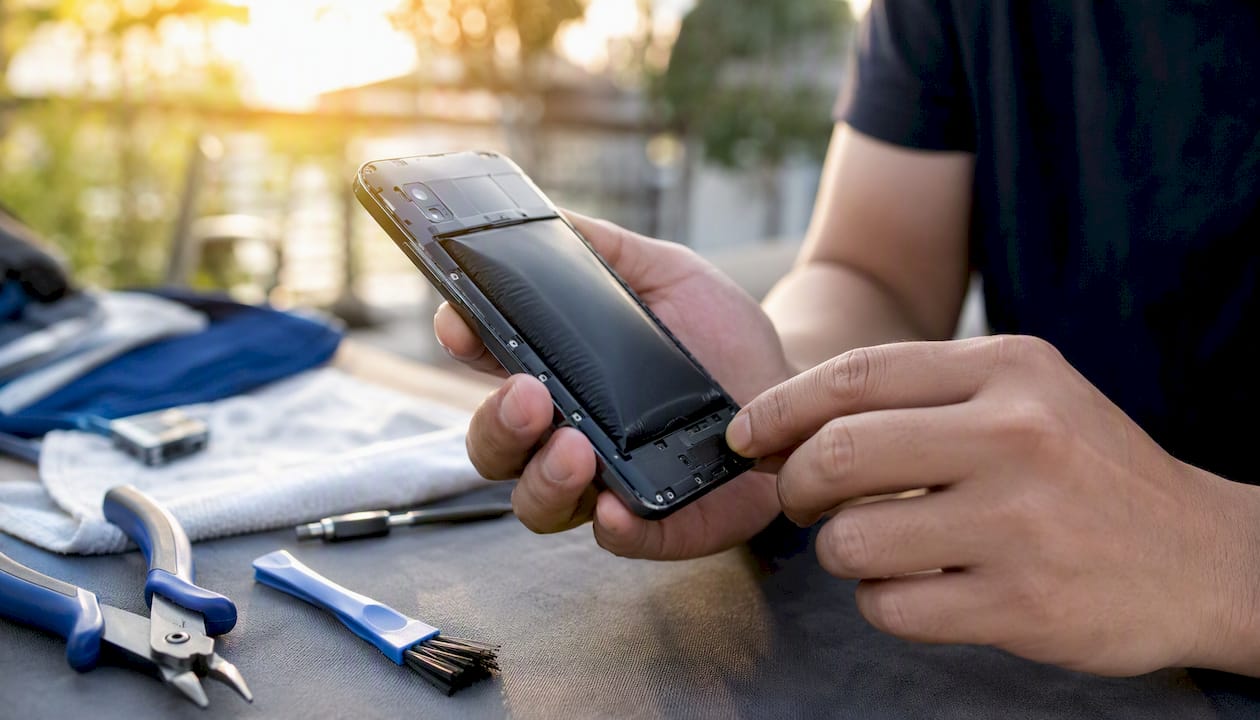
- Severe battery drain or a battery that swells, charges erratically, or won’t hold a charge
- Files disappearing or apps failing to install, which can indicate storage chip failure
- Freezing that’s reproducible under specific physical conditions (always when plugged in, always when warm)
To separate software from hardware, ask two questions: Does the phone behave normally in Safe Mode? Are freezes tied to a physical condition like heat or charging? If Safe Mode doesn’t help and freezes follow a physical pattern, hardware is the likely cause.
An aging battery can lead the OS to cap CPU performance to prevent unexpected shutdowns, which users experience as sluggishness or intermittent freezing under load. A failing touchscreen digitizer can cause phantom taps or complete unresponsiveness that looks like a freeze. Neither of these is diagnosable through software alone.
If your screen stops responding even after a restart and Safe Mode, a same-day screen repair may be the right next step rather than more software troubleshooting.
When software diagnostics fail, professional on-site diagnostics can quickly confirm failing components like a touchscreen digitizer, storage chip, or battery that regular user troubleshooting can’t reliably detect.
Pro Tip: Before handing your phone to any technician, back up your data and write down the last three software changes you made (app installs, updates, settings changes). That context cuts diagnostic time significantly.
A repair technician’s take on what actually causes most freezes
From the bench, the pattern is consistent: the majority of Android freezes that come through for diagnosis trace back to either a single misbehaving app or storage that’s been neglected for months. The diagnostic order that works in practice is exactly the order in this guide. Start with a restart, check storage, boot Safe Mode, and audit apps before touching anything else.
The cases that turn into hardware repairs share a tell: software steps produce no improvement at all, or the phone freezes under the same physical condition every time. One recent example involved a phone that froze reliably whenever it was plugged in to charge. Safe Mode made no difference. A factory reset made no difference. The culprit was a failing battery causing voltage irregularities that the OS couldn’t handle. No amount of app management was going to fix that.
That’s the decision point. When the phone’s behavior doesn’t change after a full software diagnostic, stop troubleshooting software and get the hardware checked.
Repair Genius comes to you when software fixes aren’t enough
If you’ve worked through every step in this guide and your Android phone still freezes, the problem is almost certainly hardware, and that’s where Repair Genius is built for exactly this situation. Instead of driving to a shop and leaving your phone for days, a certified technician comes to your location in Orlando or Winter Park for a same-day diagnostic.

Here’s what on-site repair with Repair Genius looks like in practice:
- Same-day diagnostics at your home, office, or wherever you are
- Data-first approach: your personal information stays protected throughout the repair
- Certified technicians with over 10 years of experience diagnosing battery, storage, and touchscreen faults
- Transparent, upfront pricing with no hidden fees and a warranty on parts and labor
- Fast turnaround: most repairs complete in one visit
If your phone freezes after a full software checklist, book a diagnostic with Repair Genius. Service covers Orlando and Winter Park, Florida.
Sources
The following sources informed the troubleshooting steps and diagnostic guidance in this guide:
- What to do when your Android phone is frozen? – Android Authority
- Why is my Android slow? 8 ways to troubleshoot your phone – Android Police
- Samsung phone or tablet freezes and crashes – Samsung Support
- Why Is My Android Phone So Slow? Complete Fix Guide (2026) – Droidrooter
Recommended
- How to Fix an Overheating Phone | Causes & Solutions
- Computer Running Slow? Causes & Quick Fixes
- Computer Running Slow? 7 Causes & Easy Fixes





