
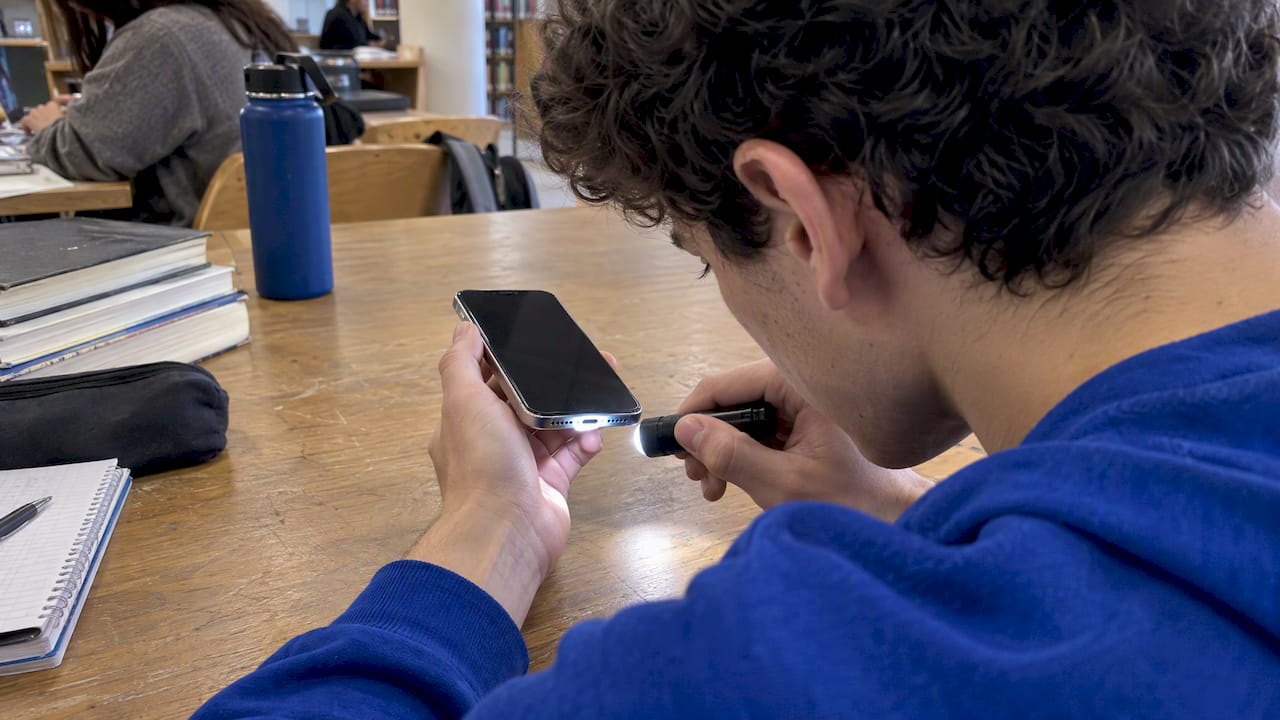
Most iPhones that appear not to charge are fixed by checking the cable, adapter, port cleanliness, or charging settings. Start by swapping accessories and clearing debris from the port, then check iOS charging settings like Optimized Battery Charging. If those quick checks fail, move on to deeper diagnostics or book a professional repair before the issue gets worse.
TL;DR:
- Test one variable at a time with a known good cable, adapter, and outlet, and wait 15 to 30 minutes after a deep discharge.
- On iPhone 15 and later, a Charge Limit or Optimized Battery Charging can pause charging near 80%, so check Settings > Battery > Charging before diagnosing damage.
- When a liquid alert appears, unplug the cable and let the port air dry for several hours, or up to 24 hours in severe cases, before charging.
- Seek professional diagnosis for persistent intermittent charging, corrosion, bent pins, swelling, or alerts after drying; back up your data and confirm parts and warranty terms before repair.
Table of Contents
- Quick checks you can run in 5 to 15 minutes
- Careful diagnostics: ports, settings, heat, and wireless charging
- When it’s time to call a professional
- What we see in the field
- What overthinking a charging problem costs you
- Get your iPhone charging again with on-site repair
- FAQ
- Sources
Quick checks you can run in 5 to 15 minutes
Before assuming your iPhone has a hardware problem, rule out the easy stuff. Most charging complaints trace back to a worn cable, a loose connection, or a setting that’s working exactly as designed.
- Try a known-good cable and a different wall adapter.
- Plug into another outlet or a different USB port on your computer.
- Test that same cable and adapter on another phone or device.
- Inspect the cable and adapter for frays, discoloration, or bent prongs.
- Remove the case and try both wired charging and wireless charging, if your model supports it.
- Check the screen for alerts like “Liquid detected” or “This accessory may not be supported.”
- Force restart your iPhone if the screen is frozen or unresponsive.
- If the battery is very low, wait 15 to 30 minutes before checking again. A completely drained iPhone can take several minutes plugged in before the low-battery image even appears, according to Apple.
Pro Tip: Change only one thing at a time. If you swap the cable and the adapter together, you won’t know which one actually fixed it.
Careful diagnostics: ports, settings, heat, and wireless charging
If the quick checks didn’t solve it, slow down and test each variable separately. This is where you separate a simple fix from a real hardware problem.
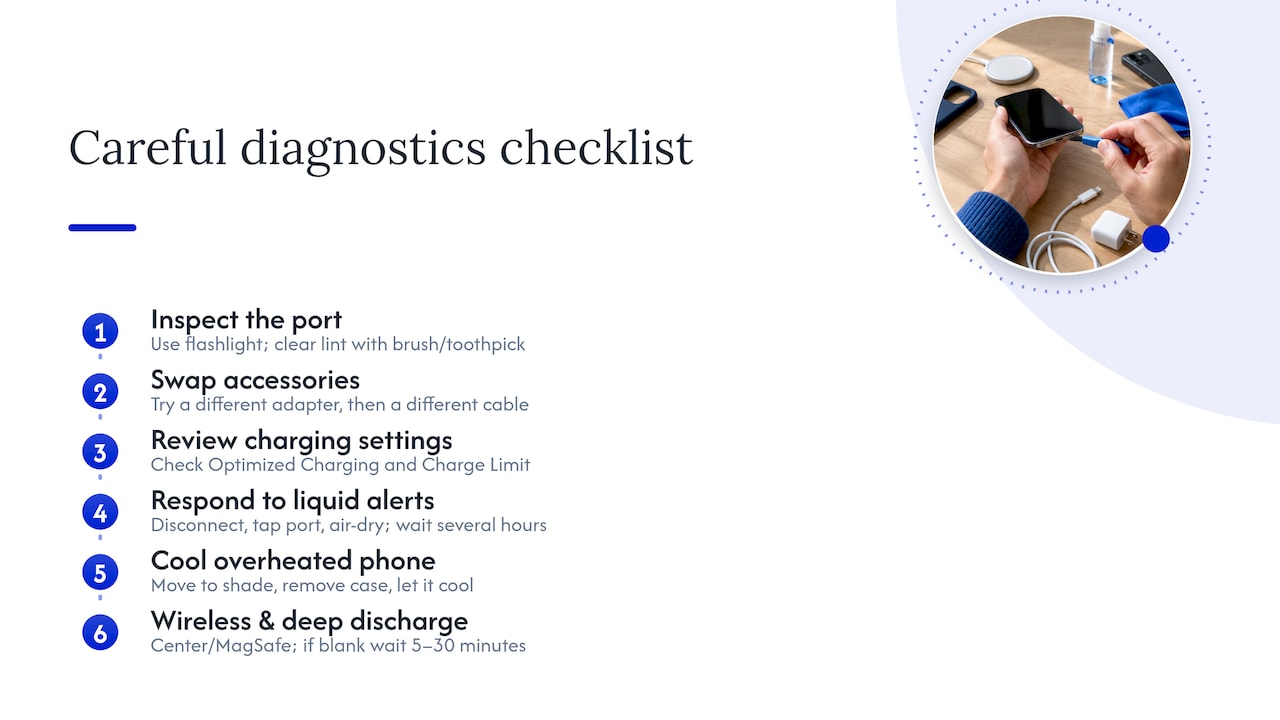
Inspect and clean the charging port safely. Use a flashlight to look inside for lint, sand, or debris. A soft-bristled brush, a wooden toothpick, or a plastic pick can dislodge buildup. Never use metal tools, pins, or liquids inside the port: metal can short the connector, and liquid can cause corrosion.
Swap one accessory at a time. Keep the same cable and try a different adapter first. Then keep that adapter and try a different cable. This isolates whether the cable, the adapter, or something else is the culprit.
Check your charging settings. Newer iPhones use Optimized Battery Charging, and iPhone 15 and later models let you set a Charge Limit, both of which are designed to pause charging around 80% to extend battery lifespan. This is a feature, not a fault, and you can review it under Settings > Battery > Charging, per Apple’s guidance.
Take liquid-detection alerts seriously. If you see a liquid-detection warning, disconnect the cable immediately, gently tap the port to help clear moisture, and let it air dry in a well-ventilated space. Apple recommends waiting several hours before trying to charge again; in more severe cases, waiting up to 24 hours is safer. Charging while the port is still wet can cause permanent corrosion, and liquid damage isn’t covered under Apple’s One-Year Limited Warranty.
Watch for heat warnings. iPhones are designed to operate between 32° and 95° Fahrenheit, and charging can pause automatically if the phone gets too hot. Move it to a cooler, shaded spot, remove the case, and let it cool down before trying again.
For wireless charging, confirm the charger outputs enough power, remove thick or metal cases, and center the phone on the pad. If you use MagSafe, make sure you feel the magnetic snap into place.
If the screen is completely blank, plug in the phone and wait 5 to 30 minutes before assuming it’s dead. A charging icon or Apple logo appearing later confirms the battery is simply registering current slowly after a deep discharge.
One in ten charging complaints that seem like hardware failures turn out to be environmental or accessory-related issues rather than a damaged board, which is why testing one variable at a time matters more than replacing parts outright. If your phone charges fine but slowly, our guide to slow charging fixes covers that separately.
When it’s time to call a professional
Some signs point to a hardware issue that DIY steps won’t solve. Watch for:
- Intermittent charging that continues after you’ve swapped cables, adapters, and outlets.
- Visible corrosion, bent pins, or debris you can’t safely remove from the port.
- A swollen battery or case that no longer sits flush.
- A liquid-detection alert that persists after a full drying period.
A professional diagnostic typically includes a physical port inspection, a battery health check, and in some cases board-level testing to confirm whether the charging IC itself is damaged. A good shop gives you a cost-transparent quote before doing any work. Before handing off your phone, back up your data through iCloud or a computer backup so nothing is lost if a repair requires opening the device.
Apple-authorized repair centers use Apple-sourced parts and keep Apple’s warranty intact, while independent repair shops often use quality third-party parts and offer their own warranty instead. Neither path is wrong, but it’s worth asking what parts and warranty terms apply before you commit. If you’re weighing a repair against replacing the phone outright, our battery replacement versus buying new comparison can help you decide.
Pro Tip: If a USB power meter shows current flowing into the phone but the battery percentage never moves, that points to an internal charging issue rather than a bad cable or adapter.
What we see in the field
Charging-port and battery issues are among the most common repair issues encountered, and most of them come down to debris, worn cables, or a battery that’s simply reached the end of its useful life; understanding battery health on a refurbished iPhone can help you decide on replacement options. A quick port inspection with the right tools often tells us in minutes whether we’re looking at a cleaning job or a part replacement.
Our process emphasizes same-day, on-site service with transparent pricing and no hidden fees, backed by extensive experience repairing phones, tablets, and laptops.
— Michael
What overthinking a charging problem costs you
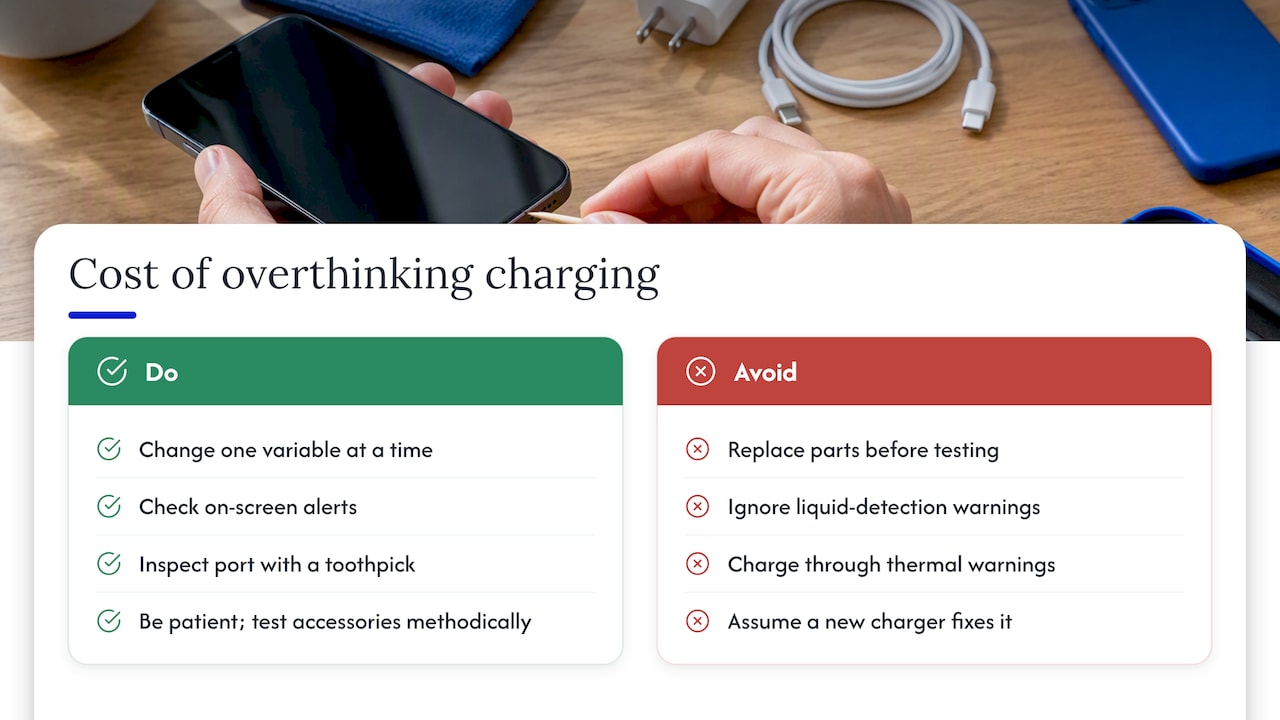
The biggest mistake people make with a “dead” charging port is replacing parts before testing properly. A worn $10 cable gets blamed for a settings feature doing exactly what it’s supposed to do, or a port gets written off as broken when a few seconds with a toothpick would have cleared it.
The conventional advice to “just try a new charger” isn’t wrong, but it stops too early. Real diagnosis means changing one variable at a time and paying attention to on-screen alerts instead of dismissing them. Liquid detection and thermal warnings in particular get ignored far too often, and both can turn a minor issue into a permanent one if you charge through them.
If you take one thing from this: patience with a dead battery and discipline in testing accessories will solve more charging problems than any replacement part will.
Get your iPhone charging again with on-site repair
When the quick fixes and deeper diagnostics don’t solve it, repair technicians can come to you. They handle charging port repair, battery replacement, and full diagnostics on-site, often arriving with the parts needed to finish the job the same day.

Here’s what booking with us typically looks like:
- You receive a transparent quote before any work starts, with no hidden fees.
- A technician comes to your location with the right tools and parts.
- Data safety precautions are taken to keep your personal information secure.
| What you get | Detail |
|---|---|
| Service location | On-site at your home, office, or preferred spot nearby |
| Pricing | Transparent quote upfront, no hidden fees |
| Experience | Extensive experience repairing phones, tablets, and laptops |
Ready to stop troubleshooting and get it fixed? Visit our iPhone repair services page to book a same-day diagnostic.
FAQ
How do I know my iPhone charging port is damaged?
Look for visible lint, corrosion, or bent pins inside the port, along with a loose cable connection or intermittent charging that continues after you’ve tested other cables and adapters. If cleaning doesn’t help and the phone still won’t hold a charge, the port itself likely needs professional inspection.
What is the secret button on the iPhone?
There isn’t an official “secret button,” but many people refer to the side button and volume buttons used together for a force restart, which can resolve a frozen screen that’s blocking charging from registering. Apple’s troubleshooting steps include this as an early diagnostic check.
Why did my iPhone charge to 100% when it’s set to 80?
If your Charge Limit is set to 80%, your iPhone shouldn’t exceed that threshold under normal conditions, so a jump to 100% usually means the limit was temporarily overridden or reset. Check Settings > Battery > Charging to confirm the limit is still active.
Why is my phone not charging when I plug it in?
Try a different cable and outlet first, then check for on-screen alerts before assuming it’s a hardware failure.
Recommended
- Fix iPad Not Charging: Fast Troubleshooting Guide
- Fix Slow Phone Charging Fast: 30W+ Charger, 15 Minute Test, When to Repair
- iPhone Battery Replacement vs Buying New | Repair Guide
- Top 4 iPhone Charging Port Repair Providers 2026










