

Try these quick fixes and use Settings > Battery to diagnose: most sudden drains are fixable without replacing the battery. Turn on Low Power Mode, lower your screen brightness, restart your phone, and check the Daily Usage chart before assuming the worst. Rapid drain usually comes from background activity, a recent update, or weak signal, not a failing battery. If Battery Health shows significant wear or you notice swelling or overheating, that is when a professional replacement makes sense.
TL;DR:
- Most sudden battery drains are caused by background activity, weak signal, or recent updates, not necessarily a failing battery.
- Checking the Daily Usage chart in Settings > Battery can reveal patterns linked to specific apps or times, indicating the cause.
- Battery health declining below 80% capacity, or signs like overheating, swelling, or unexpected shutdowns, signal the need for a replacement.
- Post-update battery drain is normal during background tasks like indexing, which usually subsides after several days.
- A professional replacement is recommended when troubleshooting fails and signs like swelling or persistent rapid drain appear.
Table of Contents
- Quick Checklist: Immediate Fixes to Try
- How to Use Settings > Battery to Find the Real Drain
- Why Drain Often Looks Sudden After an Update
- Reading Battery Health: What the Numbers Actually Mean
- Charging Habits and Heat: What Actually Protects Your Battery
- Advanced Troubleshooting and When It’s Time for Repair
- When a Local Repair Service Is the Practical Choice
- Same-Day Battery Replacement With Repair Genius
- FAQ
- Sources
Quick Checklist: Immediate Fixes to Try
Before digging into settings menus, run through this sequence. Most of it takes less than 10 minutes and resolves the drain on its own.
- Turn on Low Power Mode from Control Center or Settings > Battery, and lower your screen brightness.
- Enable Auto-Lock at a short interval and turn off Always On Display if your model has it.
- If you’re in a weak-signal area, toggle Airplane Mode on and off to force a fresh connection, or switch to Wi-Fi.
- Force-quit any app you know has been running constantly, then restart the iPhone.
- Install any pending iOS or app updates, since outdated software sometimes drains more aggressively than a current build.
- Open Settings > General > Background App Refresh and turn it off for apps you rarely use.
Pro Tip: Mute notifications for one or two chatty apps for a day. Every notification wakes the screen briefly, and that adds up faster than most people expect.
If you’re also running low on storage, that can trigger extra background syncing as photos try to upload or offload. Our 10 minute iPhone checklist for fixing “Storage Full” covers steps that double as battery relief.
How to Use Settings > Battery to Find the Real Drain
Open Settings > Battery and look at the Daily Usage chart. Compare today’s bar to your usage over the last seven days. Apple’s own battery troubleshooting guidance points to this screen first, including any “using more than usual” message that flags an app or process behaving outside its normal pattern.
Scroll down and tap “Show All Activity” or the app list to see where time and power actually went:
- Look for labels like background activity, low signal, or ongoing iOS update next to an app or at the top of the list.
- Check whether drain spikes align with specific times, since a pattern that worsens during your commute often points to low-signal cellular searching or a GPS-heavy app like maps or rideshare.
- Note any single app that’s consuming a disproportionate share of both screen and background time.
- If one app dominates, restrict its Background App Refresh and location permissions, then watch usage for a day to see if the drain drops.
One sudden-drain cause worth naming directly: when your iPhone has poor cellular reception, it burns extra power repeatedly searching for a signal, a detail Apple’s support documentation calls out as a reason Wi-Fi tends to be the more battery-friendly connection. This single factor is often the invisible drain people chase for days.
Why Drain Often Looks Sudden After an Update
Right after an iOS update, or when you first set up a new phone, your iPhone runs background tasks: indexing photos, rebuilding caches, syncing with iCloud, downloading app updates queued during setup. These tasks spike power use temporarily and can look like a sudden battery failure.
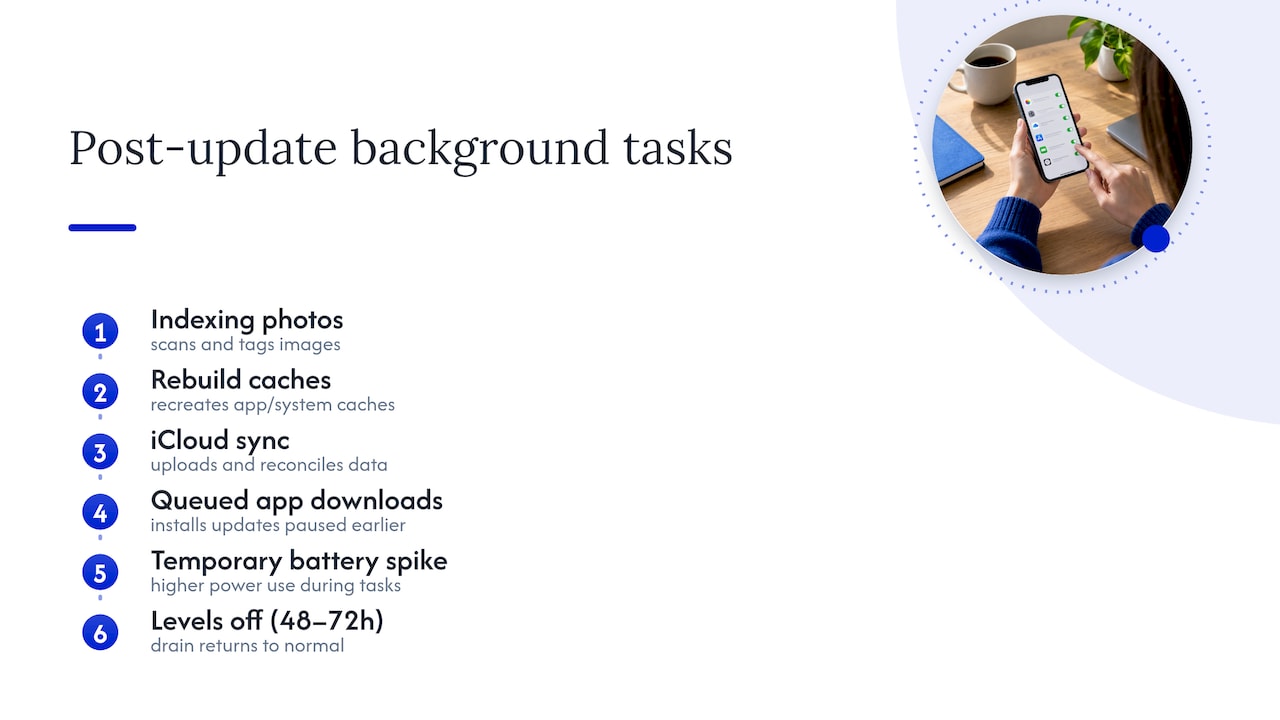
Apple’s guidance is to wait several days before judging battery life after one of these events, rather than jumping to conclusions about hardware problems. A practical way to monitor this: leave your phone on Wi-Fi and power overnight, then recheck the Daily Usage chart after 48 to 72 hours. If drain has already started leveling off, the update was the cause, not the battery.
Reading Battery Health: What the Numbers Actually Mean
Settings > Battery > Battery Health & Charging shows two figures worth understanding. Maximum Capacity is a percentage comparing your battery’s current full charge to when it was new. Peak Performance Capability tells you whether the battery can still deliver peak power during demanding tasks, or whether performance has been reduced to prevent unexpected shutdowns.
Apple treats batteries as a consumable part, noting that capacity naturally declines with charge cycles over time, and its own guidance points to considering replacement once a battery nears or drops below 80% maximum capacity. A “Service” or “Significantly degraded” message on this screen is a direct signal, not a guess.
Signals that point toward replacement now rather than more troubleshooting:
- Random shutdowns even when the percentage shown isn’t near zero.
- Rapid drops in percentage that continue despite the software fixes above.
- Visible swelling, a bulging screen, or heat during light, non-demanding use.
- A Battery Health screen already displaying a degradation warning.
It’s also worth knowing that battery health reporting itself can need recalibration on some older models, a process that can take weeks to settle after a software update. A battery that looks suddenly worse right after an update may just need time to report accurately again. If you’ve confirmed real degradation, our guide on battery replacement versus buying new walks through the value comparison.
Charging Habits and Heat: What Actually Protects Your Battery
Optimized Battery Charging, found in the same Battery Health & Charging screen, delays topping off past a typical mid-range level until closer to when you typically unplug, which reduces long-term wear. Apple notes the feature needs the iPhone to observe your charging pattern over several charges in a regular location before it works at full effectiveness, so give it time rather than turning it off.
- Keep Optimized Battery Charging and any Charge Limit setting turned on unless you have a specific reason to disable it.
- Remove thick cases while charging, since trapped heat is a common trigger for throttled charging.
- Prefer Wi-Fi over cellular when you have the choice, since cellular searching in weak-signal spots burns extra power.
Apple’s documentation on thermally limited charging explains that charging pauses or slows outside a safe range of roughly 32 to 95°F (0 to 35°C), then resumes automatically once the phone cools or warms back into range.
Pro Tip: If your phone feels hot while charging in a car during summer, unplug it and let it cool. Charging a hot phone repeatedly accelerates long-term wear far more than one skipped charging session ever will.
Advanced Troubleshooting and When It’s Time for Repair
If the basics haven’t fixed anything after a few days, move through these steps in order:
- Update or delete any app you suspect is misbehaving, since a buggy background app is a common and overlooked drain source.
- Reset network settings, then sign out of iCloud and back in to clear any stuck sync processes.
- Back up your phone fully, then perform a factory reset and restore from that backup.
- If problems persist after a clean restore, a DFU or recovery mode restore is the next diagnostic step, but only attempt it once you’re comfortable with the process and have a verified backup in hand.
If charging itself feels unreliable throughout this process, our guide to slow phone charging includes a quick test to separate a charging fault from a battery issue.
Certain signs mean you can stop troubleshooting: a swollen battery, visible charging port damage, a phone that stays hot constantly, or drain that hasn’t improved at all despite every step above. Those point to a hardware repair, not another reset.
When a Local Repair Service Is the Practical Choice
Run the diagnostic steps first. If drain persists after a few days of genuine troubleshooting, a professional battery replacement usually restores normal runtime at a fraction of what a new phone costs. A repair worth trusting protects your data throughout the process, prices the job transparently before starting, and backs the parts and labor with a warranty.
— Michael
Same-Day Battery Replacement With Repair Genius
When troubleshooting rules out software and the signs point to a worn or damaged battery, we offer same-day, on-site iPhone battery replacement so you’re not stuck shipping your phone off or waiting days for an appointment slot. We come to your location in Orlando or Winter Park, quote the repair upfront with no hidden fees, and handle your device with data-safety practices throughout.

Choose on-site repair when you’re seeing:
- Visible swelling, a lifted screen, or a battery that’s clearly damaged.
- Persistent rapid drain that hasn’t improved after working through the software steps above.
- A battery health reading at or below the range where Apple recommends replacement.
Visit our iPhone repair services page to see battery replacement details and get a quote, or reach out directly to schedule same-day service.
FAQ
Why is my iPhone draining battery so fast all of a sudden?
Sudden drain is most often caused by a recent iOS update’s background indexing, a weak cellular signal forcing extra power use, or a single app misbehaving in the background. Check Settings > Battery for a “using more than usual” flag before assuming the battery itself has failed.
How do I figure out what is draining my iPhone battery?
Open Settings > Battery and review the Daily Usage chart, then tap into the app list to see labels like background activity, low signal, or ongoing update. If one app dominates the list, restrict its Background App Refresh and location permissions and watch whether usage drops.
Why is my battery draining so fast even after 100%?
This usually means the drop happens shortly after unplugging rather than actually at full charge, often tied to background tasks resuming once the phone is off the charger. It can also reflect Optimized Battery Charging adjusting its schedule, which needs a few charge cycles in a consistent location to calibrate properly.
How can I fix my iPhone battery draining fast?
Start with Low Power Mode, lower brightness, a restart, and installing pending updates, then move to disabling Background App Refresh for heavy apps. If drain continues after several days and Battery Health shows real degradation, a professional battery replacement is the next step rather than continued troubleshooting.
Sources
Recommended
- iPhone Battery Replacement vs Buying New
- Expect 80% at 1,000 Cycles: Phone Battery Lifespan for U.S. Owners
- Fix Slow Phone Charging Fast: 30W+ Charger, 15 Minute Test, When to Repair





