
Most “virus” pop-ups on Android are fake scareware, not an actual infection, and they rely on panic to get you to tap, call, or pay. Do not click anything in the alert. Close the browser tab or force-stop the app that triggered it, then revoke that site’s notification permission before it reappears.
TL;DR:
- Fake scareware pop-ups are usually browser tabs with flashing warnings or countdown timers designed to trick users into calling or paying scammers.
- Persistent notifications or ads over the home screen typically come from previously granted site permissions or installed adware apps, not a real virus.
- Quickly closing browser tabs, revoking notification permissions, and removing recent or suspicious apps in Safe Mode can often eliminate these pop-ups.
- If you click, call, or pay in response to a pop-up, immediately disconnect from the internet, change passwords, and report the incident to your bank and FTC.
- For persistent or severe cases, a factory reset with prior data backup is recommended, but professional malware removal may be necessary if symptoms continue.
Table of Contents
- Where Android pop-ups come from and how to spot a fake alert
- Fixing pop-ups by source: browser, notifications, or an app
- What to do right away if you already clicked, called, or paid
- When to back up, scan deeper, or factory reset
- When a technician makes more sense than another reset
- A practical note on staying calm through the fix
- Get on-site help when pop-ups won’t quit
- FAQ
- Sources
Where Android pop-ups come from and how to spot a fake alert
The fastest way to fix a pop-up problem is to figure out which of three channels is producing it, because each has a different fix.
A single browser tab showing a flashing warning with a countdown timer is scareware. It is an advertisement designed to look like a system alert, and closing the tab usually ends it immediately. A push notification that keeps appearing even after you close your browser means a website tricked you into granting notification permission weeks or months ago, and it will keep firing until you revoke that permission. An installed app causing ads on your home screen or on top of other apps is adware that got onto your phone outside the Play Store, or through a Play Store listing that later turned malicious.
Scam pop-ups share recognizable traits: they ask you to call a phone number, pay with gift cards or wire transfer, grant remote access to your screen, or act before a countdown hits zero. FTC guidance on tech support scams is direct about this: legitimate security warnings never ask you to call a number displayed in the warning itself. Scammers use fake virus alerts specifically to get remote access, payment, or login credentials, and the agency recommends reaching support only through numbers or sites you look up independently.
A real Android security notice looks different. It comes from Google Play Protect inside the Play Store app, or from a security app you installed yourself, not from a browser tab. ESET’s guidance on fake virus alerts makes the underlying point plainly: a web page has no ability to scan your device, so any pop-up claiming to have already found a virus on your phone is lying by design.
- A browser tab with a countdown or flashing warning is almost always scareware.
- A notification that persists after closing the browser points to a site notification permission you granted earlier.
- Ads appearing over your home screen or other apps point to an installed app, not the browser.
Fixing pop-ups by source: browser, notifications, or an app
Once you know the channel, the fix usually takes a few minutes.
For a browser tab scareware pop-up:
- Close the offending tab without tapping anything inside it.
- Force-stop the browser from Android settings (Settings, Apps, select your browser, Force Stop).
- Clear the browser’s cache and site data, then reopen it.
- In Chrome, go to site settings and make sure pop-ups and redirects are blocked, and turn on Safe Browsing protection. Chrome’s support page walks through blocking pop-ups, clearing data, and enabling Play Protect scanning from inside the app.
For persistent site notifications:
- Open your browser’s site settings menu and find notifications.
- Locate the site sending the alerts and set its permission to blocked, not just “ask.”
- Repeat this in every browser installed on the phone, since each one tracks permissions separately.
- Confirm the pop-ups stop by reopening the phone without launching the site again.
For an app causing ads or overlays:
- Restart your phone into Safe Mode, which temporarily disables third-party apps so you can see if the problem disappears.
- In Safe Mode, uninstall any app you installed or that updated right before the pop-ups started. Samsung’s support guidance recommends exactly this sequence for Galaxy devices dealing with persistent ad pop-ups.
- Check Settings, Apps, for any app with “display over other apps” permission that you do not recognize or no longer use, and revoke it.
- Reboot normally and watch for a few hours to confirm the pop-ups are gone.
Pro Tip: If pop-ups stop completely in Safe Mode, the problem is almost certainly a specific app rather than your browser or your Android version.
What to do right away if you already clicked, called, or paid
If you tapped the alert, dialed the number, or let someone remotely connect to your phone, speed matters more than perfection.
- Put the phone in airplane mode or power it off to cut any active remote connection before doing anything else.
- From a different, trusted device, change passwords for your email, banking, and any account you logged into recently, and turn on multi-factor authentication where it is not already active.
- If you paid money or shared a card number, contact your bank or card issuer immediately and report the incident to the FTC, which tracks and acts on tech support scam reports.
- Uninstall any app you do not recognize or that was installed around the time the pop-ups began.
- Run Google Play Protect and a reputable mobile scanner, then watch your financial accounts closely for a few weeks for unfamiliar charges.
Acting within the first hour limits how much a scammer can do with whatever access you accidentally gave them.
When to back up, scan deeper, or factory reset
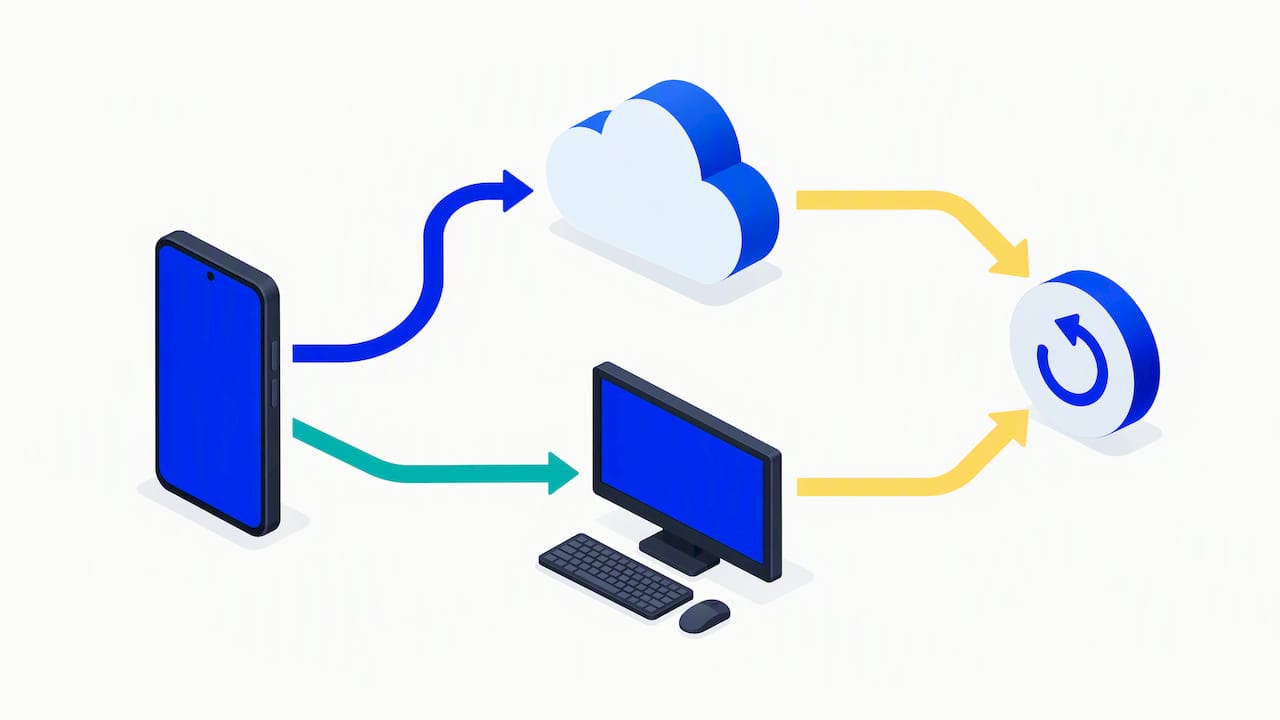
Most pop-up problems resolve with the steps above, but a few cases call for a more thorough cleanup. Back up your photos, contacts, and documents before you escalate to anything destructive, since a factory reset erases everything on the device. Cloud backup through your Google account, or a manual copy to a computer, both work for this.
Once your data is safe, run Play Protect again alongside a second reputable scanner for a cross-check. Google’s Play Protect documentation confirms it checks apps before and after installation and can notify you or remove an app it flags as harmful, and running it is part of a normal cleanup rather than a last resort.
If pop-ups continue after uninstalling suspect apps and clearing browser data, a factory reset is the next step, and vendor guidance on Play Protect protections treats reset as something to do only after the lighter steps fail, with backup done first. After a reset, reinstall apps only from the Play Store one at a time, checking each one’s permissions before you grant them.
- Back up photos, contacts, and documents to Google or a computer before resetting.
- Sign out of accounts on the device ahead of the reset so sessions cannot be hijacked mid-process.
- Reinstall apps individually from the Play Store, checking permissions each time.
A notification-abusing form of Android ransomware has been documented using system-level APIs to create full-screen screens that resist dismissal, according to Microsoft’s security research. If a reset does not clear the symptoms, or if a screen locks you out entirely, that is a sign to stop troubleshooting and call a technician.
When a technician makes more sense than another reset
A few situations justify skipping further DIY steps: pop-ups that survive a factory reset, a screen that will not close and blocks the rest of the phone, or any sign your accounts or payment information were already compromised. Bitdefender’s research on Play Store ad fraud found malicious apps with a very large number of downloads delivering full-screen ads and redirecting users to phishing pages, which shows how convincingly adware can imitate a deeper infection.
We provide same-day, on-site Android malware and virus removal, with technicians working at your location so you keep an eye on your device and your data throughout the visit. Pricing is quoted upfront with no hidden fees.
Before a visit, it helps to:
- Back up anything irreplaceable if you have not already.
- Write down roughly when the pop-ups started and what you installed around that time.
- Have proof of device ownership ready, since that protects you as much as us.
A practical note on staying calm through the fix
Fear is the entire business model behind these pop-ups, and reacting fast without diagnosing first is how people end up wiping a phone that only needed one app removed. Pause, skip the phone number in the alert, back up what matters, and work through the browser, notification, and app checks in order. Most of these cases are adware, and adware clears up without losing a single photo when you handle it methodically.
— Michael
Get on-site help when pop-ups won’t quit
When uninstalling apps and clearing notifications still leave pop-ups coming back, bringing in someone who can check for deeper adware or compromised settings saves a lot of guesswork. We come to you the same day, work on the device in front of you so nothing leaves your sight, and quote the repair cost before starting.

This makes sense once you have been through a reset that did not fix anything, or once you suspect an account or payment method was exposed before you caught the problem. If either applies, our cellphone repair and Android device service page has details on booking a same-day visit.
FAQ
How do I get rid of fake virus pop-ups on Android?
Close the browser tab or force-stop the app causing it, then revoke that site’s notification permission in your browser settings so it cannot return. If an app is the source, boot into Safe Mode and uninstall anything installed around when the pop-ups started, following the removal steps Chrome support and Samsung support outline for their respective platforms.
Is the virus warning on my Android phone real?
Almost certainly not if it appeared in a browser tab or asked you to call a number, since a web page cannot actually scan your device and legitimate warnings never request a phone call. A genuine alert comes from Google Play Protect inside the Play Store, not from a pop-up ad.
My Samsung phone keeps getting pop-up ads. Is this a virus?
It is more likely adware from a recently installed app than a true virus, and Samsung’s own support guidance recommends entering Safe Mode to confirm which app is responsible before uninstalling it. If the ads stop in Safe Mode, that confirms an app, not the operating system, is at fault.
Why am I suddenly getting pop-up ads on my Android phone?
The most common causes are a site you visited that got you to approve notification permissions, or an app you installed recently that carries adware. Reviewing your browser’s notification settings and your list of recently installed apps usually identifies the source quickly.
When should I consider professional malware removal?
Consider it if pop-ups persist after a factory reset, if a full-screen alert will not close, or if you suspect your accounts or payment details were already exposed. For readers in Orlando or Winter Park, our on-site computer and device repair services include malware and virus removal with data safety as a priority, and a partner resource on professional virus removal covers what to expect from in-person support elsewhere.
Sources
- Fake virus alerts: how to recognise and remove them | ESET
- Remove unwanted ads, pop-ups & malware – Android – Google Chrome Help
- Manage pop-up ads on your Galaxy phone – Samsung Support
- How to spot, avoid, and report tech support scams | FTC
Recommended
- Survivors: 5 Immediate Steps to Safely Remove Spyware from Android
- Why Your Android Phone Keeps Freezing: Causes & Fixes
- Save Your Data: Fix Android Boot Loops in Orlando Without a Reset





