
A RAM upgrade helps when memory, not your processor or storage, is what’s slowing you down. The tell is simple: open Task Manager under real workload and if memory usage sits above 80%, you’re memory-bound. For 2026, 16GB is the baseline most people need; more memory suits heavy multitasking, gaming, or creative work. If Task Manager shows you’re fine, Repair Genius can confirm the real bottleneck before you spend a dollar.
TL;DR:
- Memory usage above 80% under typical workload indicates a memory bottleneck, justifying a RAM upgrade for noticeable performance improvements.
- Upgrading from 8GB to 16GB provides substantial benefits for everyday multitasking, gaming, and creative tasks, especially with modern software demands.
- Compatibility checks are essential, confirming DDR4 or DDR5 support, maximum capacity, and whether the system’s RAM is soldered before purchasing and installing new modules.
- For most users, adding or replacing RAM offers a cost-effective boost, but platform age and current capacity should be considered to avoid unnecessary expenses.
- In cases of soldered RAM or warranty restrictions, professional on-site diagnostics and installation can prevent damage and ensure the correct upgrade choice.
Table of Contents
- Practical RAM Upgrade Benefits You’ll Actually Notice
- How to Tell if RAM Is Your Bottleneck
- How Much RAM Do You Actually Need?
- Compatibility Checks Before You Buy
- RAM vs. SSD vs. GPU: Where Should Your Money Go?
- Buying and Installing RAM: The Short Version
- Should You Upgrade RAM or Just Replace the Machine?
- Not Sure What’s Slowing Your Machine Down? Get It Checked On-Site
- Where to Verify These Numbers Yourself
- Sources
Practical RAM Upgrade Benefits You’ll Actually Notice
The gains from more memory show up in specific, everyday moments, not abstract benchmark numbers. Here’s what changes once you’ve solved a real memory shortage:
- Less swapping, smoother multitasking. When RAM runs out, Windows and macOS dump data to your slower disk. More memory means fewer freezes when you jump between a dozen browser tabs, a spreadsheet, and Slack.
- Steadier gaming, with a caveat. Extra RAM reduces stutter and hitching, especially on laptops with integrated graphics that share memory with the CPU. If your graphics card is the actual limit, though, don’t expect a big frame-rate jump from RAM alone.
- Bigger, safer creative projects. Video editors, RAW photo batches, and multi-layered design files stop crashing mid-export once your system has headroom instead of scraping by.
- Snappier everyday feel. Apps reopen faster, background updates don’t choke your active window, and switching tasks stops feeling like a negotiation with your machine.
These are the practical benefits of a RAM upgrade in order of how often people actually notice them.
How to Tell if RAM Is Your Bottleneck
Don’t guess. Run this quick diagnostic before buying anything:
- Open Task Manager, click the Performance tab, and select Memory.
- Use your computer normally, running the apps or games that feel slow, and watch the percentage for several minutes.
- If memory usage regularly climbs above roughly 80% while CPU and disk usage stay well below their own limits, memory is likely the limiting factor.
- Look for secondary evidence: heavy page-file activity, a grinding hard drive, or outright “out of memory” errors.
- Flag special cases that eat RAM fast: virtual machines, local AI models, huge datasets, or integrated graphics borrowing system memory.
Pro Tip: Let Task Manager run in the background for a full work session instead of glancing at it for ten seconds. Memory pressure often spikes only when you’ve got a game, a browser, and an editing tool open at once.
How Much RAM Do You Actually Need?
Capacity needs to depend entirely on what you do with the machine, not on chasing the highest number available. HP’s guidance for 2026 breaks down cleanly by workload:
- 8GB: Fine for basic browsing and email, but this ceiling is starting to feel tight even for light use, especially on older devices.
- 16GB: The practical baseline for most users in 2026, covering mainstream gaming, everyday multitasking, and general productivity. ZDNet’s 2026 guidance calls this the new operational minimum for modern Windows workflows, since browsers and background processes eat more memory than they used to.
- 32GB: Suited to heavy content creation, running virtual machines, working with large datasets, or experimenting with local AI tools.
- 64GB+: A niche tier for large simulations, heavy 3D and visual-effects work. Most people see diminishing returns past 32GB.
Compatibility Checks Before You Buy
Buying the wrong stick is a common RAM upgrade mistake, and it’s entirely avoidable with a few checks.
- DDR4 and DDR5 are not interchangeable. Different notch designs and electrical standards mean mixing generations simply won’t work, so confirm what your motherboard and CPU support first.
- Check your maximum supported capacity. Your motherboard manual or the manufacturer’s support page will list the ceiling and how many slots you have to work with.
- Many thin laptops have soldered RAM. If yours does, an upgrade isn’t physically possible, and a maintenance guide check will tell you before you buy anything.
- Buy a matched kit. Two identical sticks running in dual-channel mode perform more reliably than mismatched modules, even when the mismatched pair technically fits.
Pro Tip: If your laptop’s specs sheet doesn’t mention “user-upgradeable memory,” assume it’s soldered until you confirm otherwise.
If your motherboard turns out to be the real limiter, that’s often a sign of deeper issues worth checking through a guide on common causes of a slow computer.
RAM vs. SSD vs. GPU: Where Should Your Money Go?
Not every slowdown is a memory problem, and spending on the wrong component wastes money without fixing anything.
- If your disk is grinding and load times are painful, an NVMe SSD usually delivers the biggest perceived speed boost of any single upgrade.
- If you’re chasing frame rates, a GPU upgrade almost always outperforms adding RAM for gaming performance.
- If your CPU or integrated graphics are maxed out while RAM sits comfortably under load, RAM won’t fix that ceiling.
- Sometimes the smartest move is combining an SSD and a RAM upgrade together, since storage speed and memory headroom compound each other.
Timing matters too. PCMag’s 2026 coverage notes that RAM pricing has grown volatile due to AI-driven demand for memory chips, so buying during a price spike for a non-urgent upgrade rarely pays off. If your bottleneck is confirmed and severe, buy anyway; if it’s borderline, waiting for prices to settle can save real money.
Buying and Installing RAM: The Short Version
Once you’ve confirmed memory is genuinely the problem, the process is straightforward:
- Confirm your platform. Check your motherboard or laptop documentation for DDR generation, maximum supported capacity, and open slots.
- Decide add or replace. If you have a free slot, add a matching module. If not, replace both sticks with a matched kit.
- Buy the right spec. Match speed, timing, and capacity to your motherboard’s supported range, and stick with reputable brands.
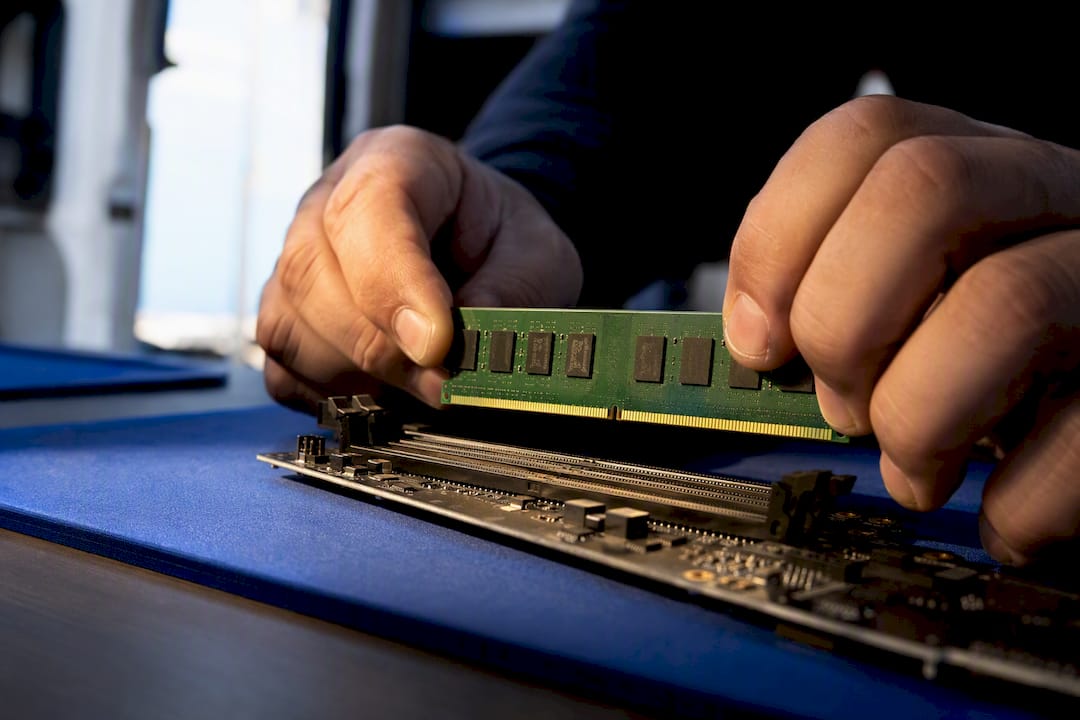
- Install carefully. Desktop installs are usually a five-minute job: power down, ground yourself, seat the module until the clips click. Laptops with soldered chips, or any system still under warranty, are better left to a technician who won’t void your coverage.
If your board turns out to have failed or damaged slots, that’s a different repair path entirely, one worth understanding through a motherboard failure guide before you assume a simple RAM swap will fix it.
Should You Upgrade RAM or Just Replace the Machine?
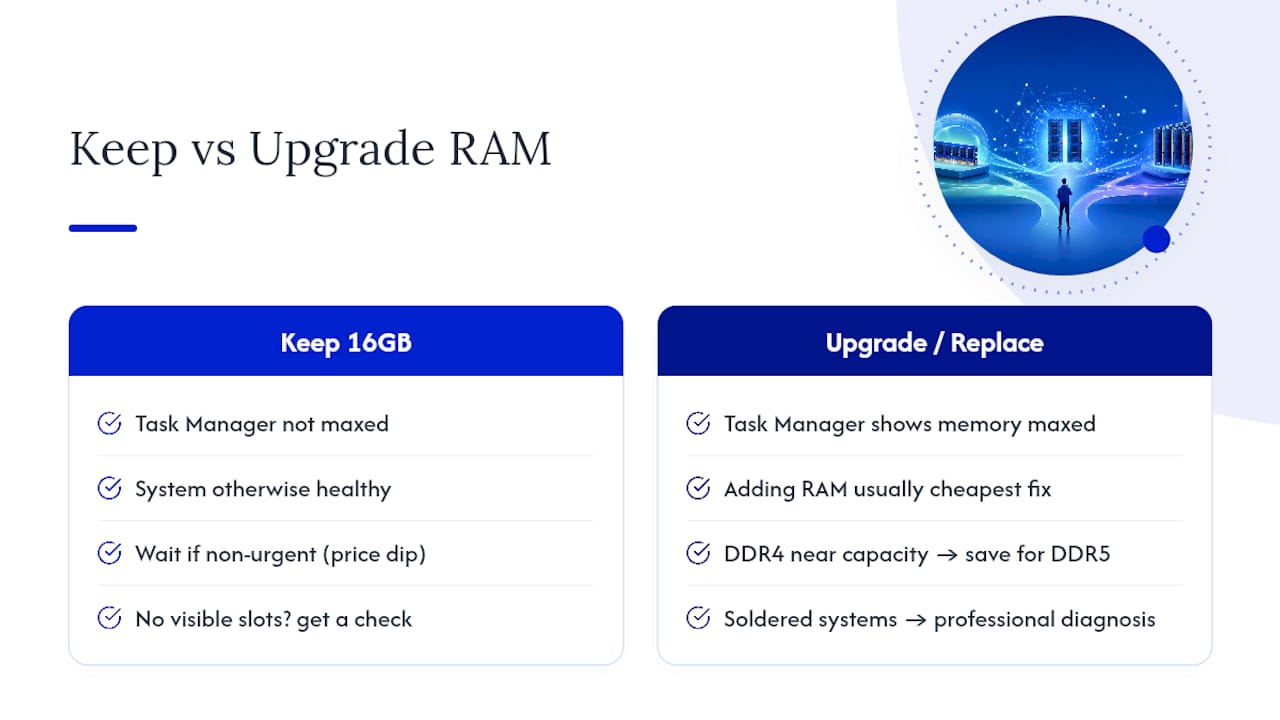
Diagnosis first, always. If Task Manager shows memory maxed out while everything else looks healthy, adding RAM is usually the cheapest fix available, cheaper than a new SSD, cheaper than a new GPU, and dramatically cheaper than a new machine. Where it gets more complicated is platform age: if your system still runs DDR4 and you’re already near its capacity ceiling, you’re sometimes better off saving toward a DDR5 platform rather than squeezing a few more years out of aging hardware.
Price sensitivity matters here too. With RAM pricing swinging as it has, I’d rather see someone wait two weeks for a price dip on a non-urgent upgrade than overpay during a shortage. And if you’re staring at a thin laptop with no visible RAM slots, don’t guess. A professional diagnosis, particularly for soldered systems, protects both your warranty and your data far better than a DIY gamble.
— Michael
Not Sure What’s Slowing Your Machine Down? Get It Checked On-Site
Diagnosing memory bottlenecks accurately takes more than a quick glance at a percentage bar, and installing RAM on a laptop with tight tolerances or a voided-warranty risk isn’t something to guess at. Certified technicians can be sent directly to your home or office to run the same Task Manager style diagnostics covered above before recommending anything, then handling installation the same day when it’s the right fix.

That’s especially useful if your laptop turns out to have soldered memory or a warranty that a shop visit would complicate. Rather than mailing a machine off or sitting in a repair shop lobby, you can get a technician at your location, transparent pricing, and careful handling of your data throughout. If you’re weighing a repair against buying new, our laptop repair before replacement checklist is worth a look first. When you’re ready for a straight answer on your specific machine, book a diagnosis with Repair Genius and find out exactly what upgrade, if any, actually makes sense.
Where to Verify These Numbers Yourself
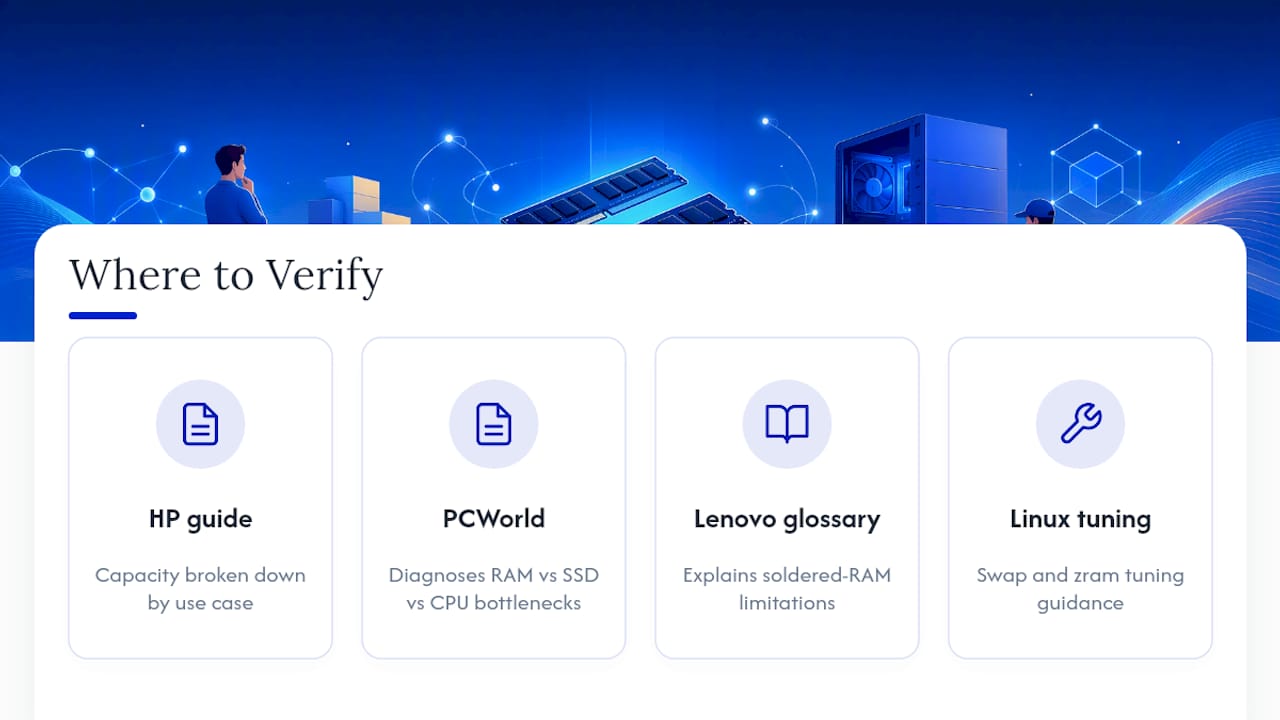
For deeper specs and platform-specific guidance, HP’s RAM buying guide breaks down capacity by use case, while PCWorld’s upgrade comparison walks through diagnosing RAM versus SSD versus CPU bottlenecks. Lenovo’s laptop memory glossary covers soldered-RAM limitations in detail. Linux users tuning memory behavior directly may also find value in swap and zram tuning guidance.
Sources
- How much RAM do I need for every use | HP
- RAM, SSD, or a new CPU — which upgrade makes a difference? | PCWorld
- How much RAM do you need in 2026? | ZDNet
Recommended
- Laptop Repair Before Replacement Checklist 2026
- When Your Computer Dies: The Repair Rule That Saves Your Data
- Laptop Charging Port Repair Steps: DIY Guide
- Windows Blue Screen: What It Means and How to Fix It










