A MacBook fan that roars during a video export is doing its job. A fan that screams while you read email, grinds, rattles or never settles down is telling you something else is wrong. The first kind needs a cooler desk. The second needs a technician. If you live or work in Orlando or Winter Park, we come to your home, office or campus and repair it on site, so you do not have to hand over your laptop and your data for a few days.
This guide helps you sort out which kind of noise you have, what to try in the next ten minutes, and what a repair actually involves.
TL;DR
- Fan noise during heavy work (video, games, big exports) is normal. Fan noise during light work, or any grinding, rattling or ticking, is not.
- Move the Mac to a hard, flat surface in a room between 50° and 95°F, keep the vents clear, then restart. These steps cost nothing and fix a surprising number of cases.
- Run Apple Diagnostics. Any fan or SMC reference code (PPF or PFM) is a clear sign the hardware needs attention.
- Do not force the fans to spin slower with a third-party app. That hides the symptom and lets the Mac run hotter.
- If the fan is still loud after the basic steps, we repair MacBooks on site in Orlando and Winter Park, with same-day service and a warranty on parts and labor.
Table of Contents
- Is your MacBook fan noise normal?
- Safe fixes to try first
- Run Apple Diagnostics to get a clear answer
- Signs the problem is hardware
- What a professional fan repair involves
- Fix it now or keep living with it?
- Who this helps most
- Book an on-site MacBook repair
- FAQ
- Sources
Is your MacBook fan noise normal?
Fans exist to move heat out of the case. Apple explains that fans run faster during intensive tasks such as compressing HD video, playing graphics-heavy games or running Spotlight indexing, and that the sound of rushing air is a normal part of cooling. Heat in the room matters too: in a warm space the fans turn on sooner and run faster.
So start with a simple question: what was the Mac doing when it got loud?
| What you hear | What you were doing | Likely meaning |
|---|---|---|
| Steady rush of air | Exporting video, gaming, video calls with many tabs open | Normal cooling |
| Rush of air that fades after a few minutes | Just finished a heavy task | Normal cooling |
| Rush of air at full speed | Email, a document, a few browser tabs | A runaway process, blocked airflow or a sensor problem |
| Grinding, rattling, buzzing or ticking | Anything | A worn or obstructed fan, which is a hardware problem |
| Fan loud and the case is uncomfortably hot | Anything | Overheating, see below |
The worrying combination, as Macworld puts it, is a MacBook that feels uncomfortably warm with fans spinning up for no apparent reason. Loud fans under a heavy workload are only doing their job.
A quick check on what you are actually hearing
Before you blame the fan, make sure the sound is the fan. Hold the Mac still on a table and listen near the vents on the hinge side or the bottom edge. A tapping sound that follows your hands is usually your keyboard, not the machine; if you type all day, what makes keyboards loud or quiet explains why some sound far louder than others. A sound that rises and falls with how hard the Mac is working is the fan.
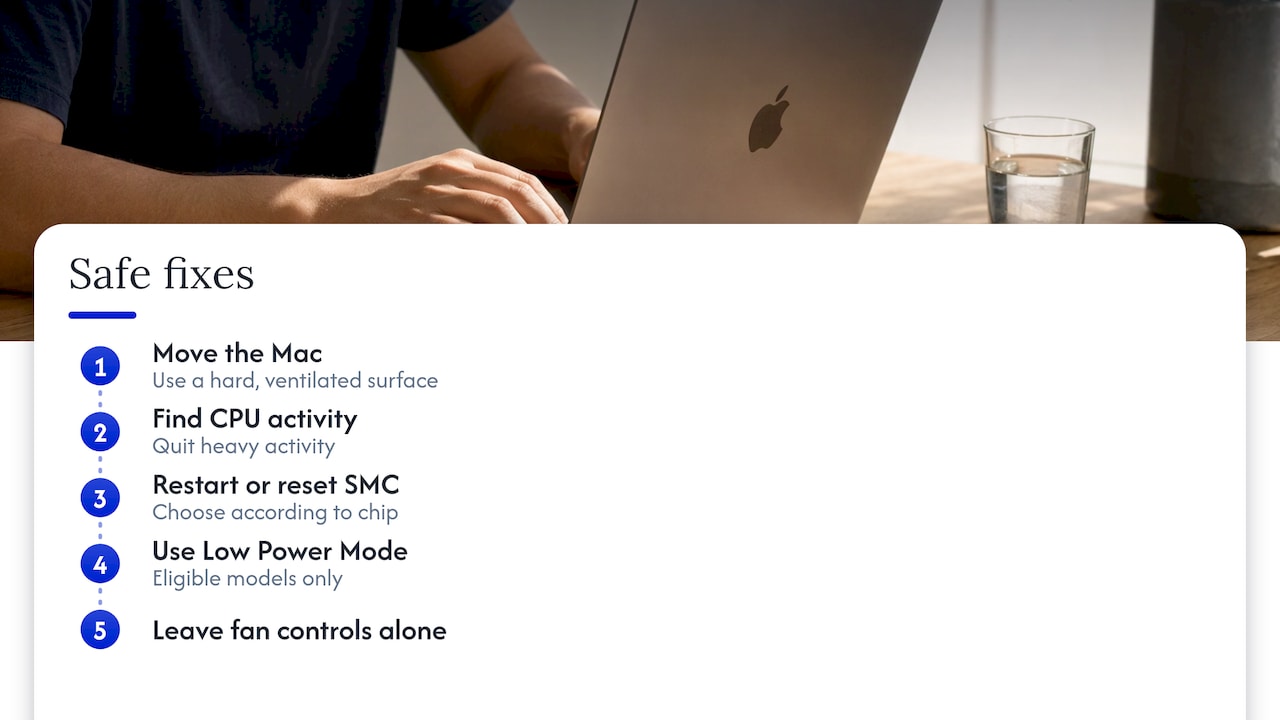
Safe fixes to try first
These steps come from the manufacturer’s own guidance and carry no risk to your data. Do them in order.
1. Change where the Mac sits
Apple says that using a Mac on a soft surface such as a couch, pillow, bed or lap can make fans run more and change the character of the noise. Put the laptop on a hard, flat surface with the vents clear. Apple’s operating guidance states that Mac laptops should be used where the ambient temperature is between 50° and 95°F, on a stable, ventilated surface, with only Apple-authorized power adapters.
If you work in a car, on a patio in an Orlando summer afternoon or in a room without air conditioning, this alone can explain the noise. Macworld makes the same point: a hot room makes it much harder for the fans to compensate.
2. Find what is using the processor
Open Activity Monitor (search for it with Spotlight) and click the CPU tab. Sort by the CPU column. If one app or process sits near the top while you are doing nothing, quit it. Apple’s guidance is to check CPU activity if the Mac runs warm or the fans run for a long time without intensive tasks, then close and reopen the lid or restart.
A browser tab stuck in a loop, a video call left running in the background or a cloud sync after a large photo import are the usual causes. Fixing the workload is the safest way to quiet the fans.
3. Restart, and reset the SMC on an Intel Mac
Apple lists different recovery steps depending on the chip. On an Apple silicon Mac, close and open the lid or restart when the fans run fast without heavy usage. On an Intel-based Mac, reset the System Management Controller (SMC), the chip that handles fans, power and thermal sensors.
The reset is safe. iGeeksBlog’s guide notes that it does not erase data, and that on 2018 and later Intel MacBooks with the T2 chip you first hold the power button for 10 seconds after shutting down before trying the full key combination. The key combination differs by model, so follow the steps for your exact machine.
4. Try a power mode, if your Mac has one
On macOS Sequoia 15.1 or later, Low Power Mode also reduces fan noise on models with active cooling, including MacBook Pro 2024 or later and MacBook Pro 2021 to 2023 with the Max chip. High Power Mode does the opposite: it lets the fans run faster and can add noise. If you are in a quiet meeting or a library, switch to Low Power Mode and the fans stay calmer.
5. Leave the fan speed alone
Third-party fan-control utilities promise silence. The trouble is that lowering fan speed to hide the noise lets temperatures climb, and the Mac responds by throttling the processor, which means a slower machine. The better approach is the one above: reduce the heat-producing workload, not the cooling.
Run Apple Diagnostics to get a clear answer
If the quick steps do not help, Apple Diagnostics tests the hardware and gives you a reference code. It takes a few minutes and tells a technician where to look.
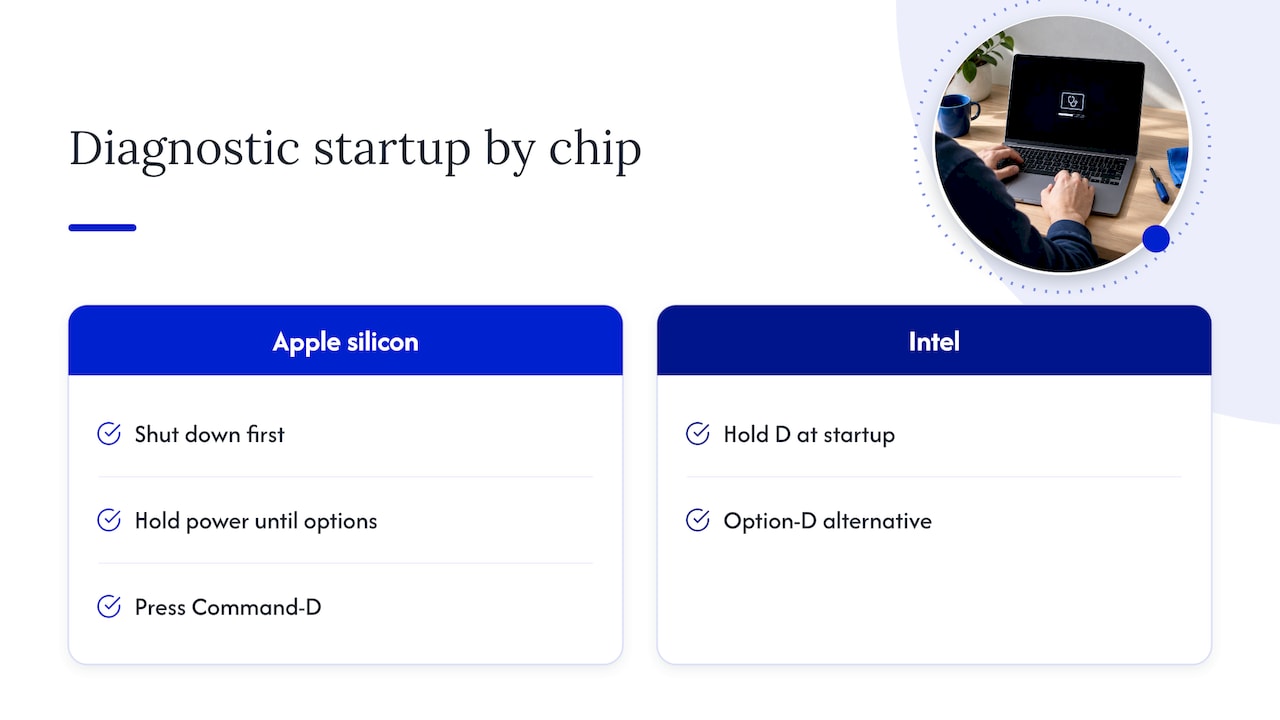
On an Apple silicon Mac, shut down, then press and hold the power button until startup options appear, and press Command-D. On an Intel Mac, press and hold D (or Option-D) at startup. Apple’s page for using Apple Diagnostics has the full steps and says to note any reference code.
Write the code down. Apple’s reference list shows that PPF001, PPF003 and PPF004 point to possible fan issues, and PFM001 to PFM007 point to possible System Management Controller issues. When you book with us, give the technician the code. It saves diagnosis time and means we arrive with the right parts in mind.
Signs the problem is hardware
Software and airflow explain many loud fans. These patterns usually do not:
- Grinding, rattling, rumbling or buzzing. Worn bearings or debris in the fan produce sounds that never come from normal airflow.
- All-or-nothing behavior. The fan is at full blast constantly, or it does not spin at all, even when the Mac is cool or hot.
- Fan speed stuck high with the Mac idle. Often a sensor or cable is reporting bad data, so the Mac runs the fans at maximum to protect itself. A battery or trackpad problem can be behind this.
- Shutdowns or severe slowdowns. The Mac cuts power or throttles to protect itself from heat.
- A diagnostics code for the fan or the SMC. See above.
Our laptop overheating guide goes deeper on heat-related causes, and the list of signs your laptop needs immediate repair helps you judge how urgent your case is.
Why you should not open it yourself
You will find videos that show a MacBook opened with a pentalobe screwdriver and cleaned with compressed air. Macworld’s own description of this carries warnings: do not catch wires, do not touch circuitry because of static damage, and opening the Mac could void a warranty. On newer MacBook Pro models, reaching the fan can mean removing the logic board, and the battery must be handled with care because a charged battery can catch fire if damaged. For a laptop you rely on for work or school, this is a job for a technician.
What a professional fan repair involves
A proper repair is more than blowing out dust. The technician confirms the cause, then fixes it. Here is how we approach it.
- Diagnosis. We look at what the Mac reports, including any diagnostic code, and how the fan behaves under load and at idle. The quote you get is based on what we find, with the price given up front and no hidden fees.
- Airflow and cleaning. If dust or debris is the cause, the fan and vents are cleaned.
- Fan or sensor repair. If the fan itself is worn or a sensor or cable is feeding bad data, we repair or replace the failing part using quality parts. Our technicians are certified and we do advanced board-level repairs when the fault goes deeper than a part swap.
- Testing. We check the Mac under load to confirm temperatures and fan behavior are back to normal.
- Warranty. The repair is backed by a warranty on parts and labor.
Because the work happens at your location, your Mac stays with you. We prioritize data safety, which matters when the laptop holds client files, coursework or family photos. Before any hardware work, it is smart to have a current backup. Our guides on encrypting local backups before a repair and fixing a failed Time Machine backup show how.
Fix it now or keep living with it?
A loud fan is not just an annoyance. A fan that cannot keep up pushes the processor to throttle, so your Mac feels slow exactly when you need it, during a presentation, an exam upload or a client call. A failed fan, or a Mac that keeps shutting down from heat, can leave you stuck without a working laptop at the worst moment.
That is why the repair is usually the cheaper choice next to replacing the whole computer. Our repair before replacement checklist walks you through the questions to ask before buying a new one.
Who this helps most
- Busy professionals: a repair at your office or home means no days without your laptop.
- Students: a laptop that throttles or shuts down mid-assignment is urgent, and same-day service is built for it.
- Small business owners: if several machines run loud and hot, we can look at them in one visit.
- Parents: the family laptop gets fixed at the kitchen table, with your data staying in your home.
Our approach to fan noise
Most people come to us after trying everything they found online. By then the fan has usually been loud for weeks, and the Mac has been quietly throttling the whole time. What we want you to take away is simple: normal noise under load is fine, but noise at idle, grinding or heat is a hardware signal, and the sooner someone looks at it with the right tools, the less it tends to turn into.
We built our service around bringing the technician to you because a laptop is where your work, your photos and your school life live. You should not have to give it up for days to get a fan fixed. We quote the price up front, we explain what we found in plain language, and we stand behind the repair with a warranty on parts and labor. That is how we would want our own laptop treated.
Michael
Book an on-site MacBook repair
If your fan is loud at idle, grinding, or paired with heat and slowdowns, our technicians can diagnose and repair it where you are in Orlando or Winter Park, often the same day. See our MacBook and iMac repair page for what we handle, or read how on-site MacBook and iMac repair in Orlando works from booking to finish.

Have your Apple Diagnostics code ready if you ran it, and tell us your Mac model and what the fan sounds like. That is usually enough for us to plan the visit.
FAQ
How do I fix a MacBook that is making noise?
First work out whether the noise is the fan. Move the Mac to a hard, flat surface, check Activity Monitor for a runaway process, and restart. Reset the SMC if it is an Intel model. If the noise is grinding or rattling, or the fan is loud with the Mac idle, the fan or a sensor likely needs hands-on repair.
Should I worry about my MacBook overheating?
Not when the fans run hard during video editing or gaming. Worry when the Mac feels uncomfortably hot while doing light work, shuts down unexpectedly or slows sharply. Apple says Mac laptops should be used in rooms between 50° and 95°F, so rule out a hot room first.
Why is my laptop fan so loud all of a sudden?
Common triggers are a background process using the processor, a hot room, a soft surface blocking the vents, or a fault in the fan or its sensors. Check Activity Monitor and move to a hard surface. If it stays loud, run Apple Diagnostics and note the reference code.
Can a technician fix my MacBook fan at my home or office?
Yes. We repair MacBooks on site in Orlando and Winter Park, including hardware repairs, with the price quoted up front and a warranty on parts and labor. Same-day service is available, so you can keep working while the repair is done.
Sources
- About fans and fan noise in your Apple product
- Keep your Mac laptop within acceptable operating temperatures
- About Power Modes on your Mac
- Use Apple Diagnostics to test your Mac
- Apple Diagnostics reference codes
- Why Is My Mac Fan So Loud? (Macworld)
- How to Reset the SMC on a Mac (iGeeksBlog)
Recommended
- Laptop Overheating: Causes, Fixes and When to Call a Pro
- Where to Find Reliable MacBook Repair Near Me