

If the rainbow spinning wheel shows up briefly, wait it out. If it lingers for longer than a brief moment, spreads to other apps, or keeps coming back, Force Quit the frozen app (Cmd + Option + Esc) or Force restart by holding the power button for approximately a few seconds. A one-time spinner is usually nothing. A recurring one almost always points to a resource problem, a buggy app, or in some cases a failing drive, and the sections below walk through exactly how to tell which.
TL;DR:
- Short, brief spinning wheels during heavy tasks are normal and usually clear on their own within a few seconds; persistent or spreading spinners suggest resource issues.
- Force quitting apps or restarting the system is necessary if the spinner lasts longer or is accompanied by “(Not Responding)” or system-wide freezes, with a hard shutdown as a last resort.
- Recurring spinner patterns across multiple apps or after waking from sleep typically indicate CPU, memory, or disk bottlenecks, especially when linked to large files or low available RAM.
- Signatures of hardware problems include ongoing freezes despite software fixes, disk errors, unusual noises, or thermal issues, requiring professional diagnostics and data backup.
- Regular updates, maintaining at least 10% free disk space, and monitoring resource use can prevent recurrent freezes, while constant spinning warrants immediate professional help.
Table of Contents
- What Is the Mac Spinning Wheel, Really?
- How Do You Stop a Frozen Mac Right Now?
- Why Does the Spinning Wheel Keep Coming Back?
- What Deeper Troubleshooting Steps Actually Fix It?
- When Does the Spinning Wheel Mean a Hardware Problem?
- What Actually Determines If You Should Act Now?
- Get Your Mac Diagnosed the Same Day, on Your Terms
- Sources
- FAQ
What Is the Mac Spinning Wheel, Really?
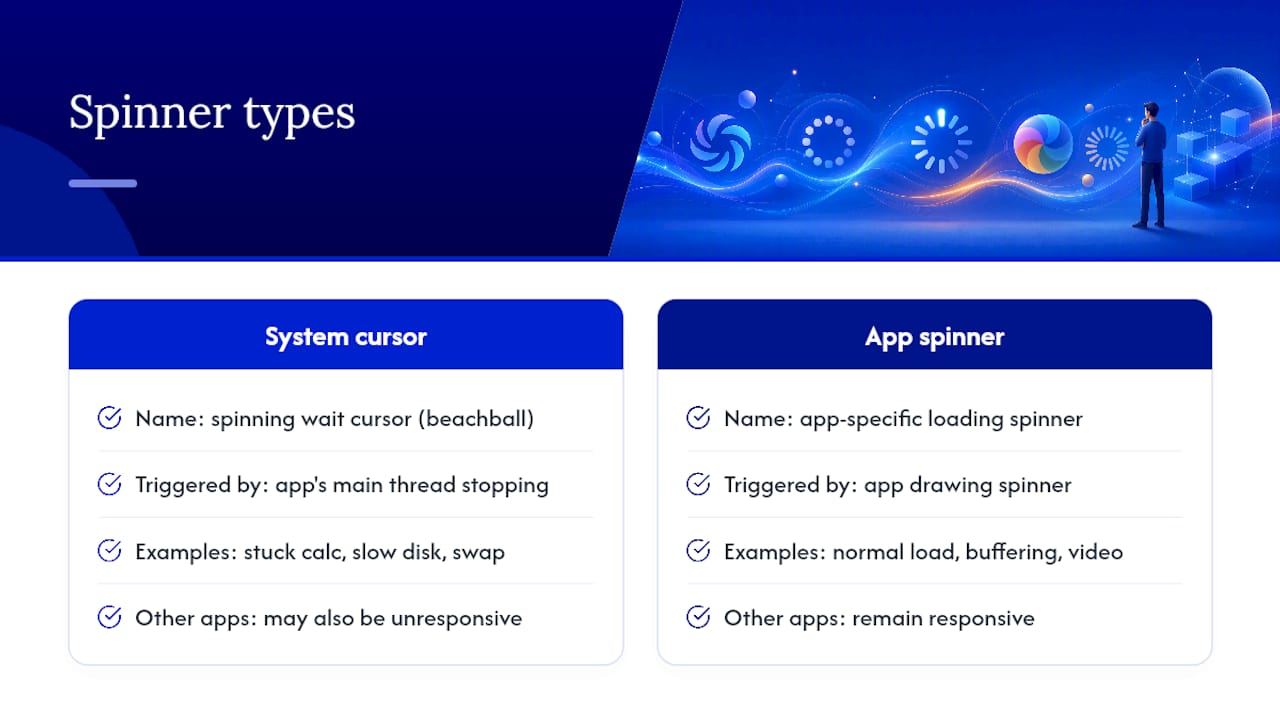
Apple calls it the spinning wait cursor, but most people know it as the rainbow pinwheel or beachball. It appears whenever an app’s main thread stops processing events for a few seconds straight, whether that’s from a stuck calculation, a slow disk read, or memory getting swapped to your startup drive. In other words, macOS isn’t broken. Something running inside it is temporarily too busy to respond, according to the technical explanation on Wikipedia.
Not every spinning icon you see is this system-level cursor, either. Browsers, video apps, and some third-party software draw their own loading spinners that look similar but have nothing to do with macOS itself, a distinction worth knowing before you start troubleshooting the wrong thing, as this breakdown of spinner types explains. If only one app shows a spinner while everything else on screen moves normally, you’re likely dealing with that app’s own indicator or a localized hang, not a system-wide freeze.
How Do You Stop a Frozen Mac Right Now?
Give a suspected heavy task several seconds before you touch anything. Exporting a large video file, opening a bloated spreadsheet, or waking from sleep can all trigger a brief spinner that clears on its own, a pattern confirmed by MoniThor’s troubleshooting guide. Past that window, or if the app shows “(Not Responding)” in the Force Quit list, stop waiting and act.
- Press Cmd + Option + Esc to open the Force Quit Applications window.
- Select the frozen app (it’s usually flagged as “Not Responding”) and click Force Quit.
- If the Force Quit window itself won’t help you identify the culprit, close it and open Activity Monitor instead, then quit the offending process from there.
- Try the Dock alternative: Control-click (or right-click) the app’s icon and choose Quit, holding Option to reveal Force Quit if a normal quit doesn’t respond.
- If the entire system is frozen and nothing responds, hold the power button for about 10 seconds to force a shutdown, then restart, a step Business Insider’s Mac troubleshooting guide recommends as the last resort for total freezes.
While you sort things out, close heavy browser tabs, quit apps you’re not using, and disconnect external drives if one seems to be the trigger. These aren’t fixes, but they buy your Mac breathing room while you diagnose the real cause.
Pro Tip: Before force quitting anything, glance at the menu bar clock. If it’s still ticking, your Mac isn’t frozen at the OS level. Only the foreground app is stuck, and a simple Force Quit will almost always clear it without a restart.
Why Does the Spinning Wheel Keep Coming Back?
The pattern matters more than the spinner itself. A one-time beachball during a big file export is normal. A beachball that shows up daily, spreads across multiple apps, or follows you into Finder is a sign of resource exhaustion or a deeper conflict.
Start by separating app-level hangs from system-level slowdowns:
- Single app frozen, everything else fine: usually a bug in that specific app, often tied to a single overloaded thread pegging one CPU core.
- Multiple apps sluggish, Finder lagging too: points to system-wide resource pressure, typically CPU, memory, or disk.
- Spinner appears right after waking from sleep or plugging in a peripheral: often a driver or extension conflict rather than raw resource shortage.
- Spinner tied to specific file types (large photos, video, spreadsheets): likely an app that’s inefficient with big files rather than a system fault.
Memory pressure is one of the most common hidden culprits. When your Mac runs low on free RAM, macOS starts swapping data to disk to compensate, and that swapping is dramatically slower than RAM access. If you’re running a dozen browser tabs alongside a photo editor and a video call, you can hit that wall without ever seeing a warning until things freeze.
Disk space plays a similar role. MoniThor’s data suggests keeping at least 10% of your startup drive free, since macOS needs room for virtual memory swap files and temporary caches. A nearly full drive doesn’t just run out of storage, it starves the exact processes that would otherwise keep your Mac responsive.
Spotlight indexing is another frequent, overlooked trigger. After a major macOS update, connecting a new external drive, or restoring from backup, the mds and mdworker processes can chew through CPU and disk I/O for a while as they rebuild the search index, according to Lifewire’s troubleshooting notes. If your Mac feels sluggish shortly after one of those events, indexing is worth checking before you assume something’s broken.
What Deeper Troubleshooting Steps Actually Fix It?
When quick fixes don’t stick, it’s time to go deeper. These steps in order will resolve the vast majority of persistent spinning wheel cases that aren’t hardware related.
- Open Activity Monitor (Applications > Utilities) and sort by %CPU. A single process pegged near 100% for an extended stretch is your prime suspect. Switch to the Memory tab and check Memory Pressure. Green means fine, yellow means getting tight, red means your Mac is actively swapping and struggling.
- Quit the resource hog directly from Activity Monitor using the X button in the toolbar, rather than force quitting blind.
- Boot into Safe Mode to rule out third-party software. On Apple Silicon Macs, hold the power button until “Loading startup options” appears, then select your startup disk while holding Shift. On Intel Macs, hold Shift right at startup. Safe Mode disables most third-party extensions and clears certain caches, which often isolates whether an installed kernel extension or login item is the real cause, per Lifewire’s step-by-step guide.
- Run Disk Utility First Aid on your startup volume to catch and repair file system errors that can silently slow down every disk read.
- Update or reinstall the problem app, and check for pending macOS updates. Developers regularly patch memory leaks and performance regressions, and an outdated app is a common source of recurring freezes, something MoniThor’s guide flags as a top preventable cause. If problems persist system-wide, a clean macOS reinstall through Recovery mode is the next step.
- For advanced diagnosis, Console logs and Instruments sampling can pinpoint exactly which code path is blocking, a method documented on Wikipedia’s overview of the spinning cursor as the technical root of the freeze. This level of detail is mainly useful for developers or when you’re handing symptoms off to a technician.
Pro Tip: Take a screenshot of Activity Monitor’s CPU and Memory tabs the moment you catch a freeze happening. If you end up needing professional help, that snapshot tells a technician in seconds what would otherwise take them ten minutes to reproduce.
When Does the Spinning Wheel Mean a Hardware Problem?
Software fixes have limits. If you’ve run Safe Mode, Disk Utility First Aid, and app updates and the freezing keeps returning, hardware deserves a look. A few signs point specifically toward failing components rather than a software conflict, and Eclectic Light Company’s analysis of Mac freezes treats persistent, unexplained beachballing as a red flag worth investigating beyond routine fixes.
- Repeated freezing across completely unrelated apps, especially ones that worked fine last week.
- Audible clicking, grinding, or SMART disk warnings, or Disk Utility reporting errors it can’t repair.
- Loud fan noise, visible thermal throttling, or kernel panics that keep recurring after a restart.
- Disk I/O errors that reappear immediately after you’ve already run First Aid once.
If any of that sounds familiar, back up your data immediately and stop attempting DIY physical fixes. A drive that’s failing can lose files permanently if you keep forcing it to work, and a board-level issue is not something to open a case for without training.
What Actually Determines If You Should Act Now?
Most spinning wheel complaints Repair Genius sees fall into a clear pattern: people wait too long on hangs that were never going to clear on their own, then panic over a one-time freeze that meant nothing. The triage is simpler than it looks. Tolerate a spinner tied to a task you know is heavy. Act the moment it recurs across different apps, follows a restart, or shows up alongside clicking sounds or thermal throttling. That second category is where DIY troubleshooting reaches its ceiling, and where on-site MacBook and iMac repair with proper diagnostics matters more than another forum thread. Professional technicians approach every visit the same way: diagnose on-site, protect the data first, and quote the fix before touching anything.
— Michael
Get Your Mac Diagnosed the Same Day, on Your Terms
If you’ve run through Force Quit, Safe Mode, and Disk Utility and the spinning wheel keeps coming back, the problem probably isn’t something a fresh restart will fix. Certified technicians provide same-day, on-site diagnostics, so you skip the drop-off-and-wait cycle of a traditional repair shop entirely.

Data safety is handled at every step, pricing is quoted upfront with no hidden fees, and most Mac issues, from a failing drive to a thermal problem causing repeated freezes, can cost less than replacing the machine. Before your visit, back up what you can, and jot down exactly when the spinning wheel shows up (which apps, how long it lasts, whether it follows a restart or a peripheral). That detail lets the technician start diagnosing the moment they arrive instead of retracing your steps.
If your MacBook or iMac has been freezing, clicking, or running hot for weeks, book MacBook & iMac repair and get a same-day diagnosis at your location instead of guessing your way through another round of restarts.
Sources
- How to stop the spinning wheel on Mac — Business Insider
- Spinning pinwheel — Wikipedia
- How to Fix the Spinning Wheel on Mac — MoniThor
- Why your Mac has a spinning wheel and how to stop it — Lifewire
FAQ
How do I get rid of the spinning wheel on my Mac?
Wait 10 to 15 seconds first, since many spinners clear on their own during heavy tasks. If it persists, press Cmd + Option + Esc to Force Quit the frozen app, or hold the power button for about 10 seconds if the entire system is unresponsive.
How can I fix the spinning wheel of death on my Mac?
Start with Force Quit or a forced restart, then check Activity Monitor for a process pegging CPU or Memory. If the problem keeps returning, boot into Safe Mode and run Disk Utility First Aid to rule out extension conflicts or disk errors.
How do I stop the pinwheel from returning after I fix it once?
Keep macOS and your apps updated, since developers regularly patch the memory leaks that cause recurring freezes. Also keep at least 10% of your startup drive free, since a nearly full disk forces more aggressive memory swapping.
What should I do if the spinning wheel appears constantly, even after restarting?
Constant spinning across a restart often signals a hardware issue rather than software, especially if it comes with clicking sounds or thermal throttling. Back up your data right away and get an on-site diagnostic instead of continuing to force restarts, which can worsen a failing drive.
Does a spinning wheel mean my Mac has a virus?
Rarely. It’s almost always tied to CPU load, low memory, or disk issues rather than malware, though a sudden, unexplained slowdown paired with unfamiliar processes in Activity Monitor is worth investigating further, including a look at common Mac malware signs.
Recommended
- MacBook Not Turning On? Get Same Day Repair in Orlando
- Signs Your Laptop Needs Immediate Repair: 2026
- Same Day Laptop Repair Explained: What to Expect
- How to Expedite Your Laptop Repair Process Fast










