
iPad ghost touch means your screen registers taps and swipes nobody made. The most effective first move is a restart, plus unplugging the charger and every accessory, because that can clear one-off glitches and help rule out interference. If the problem keeps coming back, back up your data before any deeper troubleshooting or repair.
TL;DR:
- If ghost touches stop when unplugged, test another known good charger and cable, then try a different outlet away from nearby electronics and tangled leads.
- Update iPadOS and try Reset All Settings before restoring; the reset preserves apps and files but removes preferences such as network passwords and wallpaper.
- Back up through iCloud or to an encrypted computer before restoring; a restore erases the iPad, while encryption retains saved passwords and health data.
- Ghost touches persisting after a clean restore, or recurring in one area after a drop or repair, suggest digitizer or display connection damage.
Table of Contents
- Quick fixes to try now
- Software troubleshooting: updates, Reset All Settings, and restores in the right order
- Hardware and environmental causes: digitizer failure, repairs, EMI, and pressure
- How to test and isolate the cause safely
- When to get professional repair and what to expect
- Author perspective: what we see on the job
- Preventative measures to avoid ghost touch problems on iPads
- Recommended tools and apps for ghost touch diagnostics
- Common myths and misconceptions about ghost touch
- Editorial take: fix the cheap things fast, then stop
- When ghost touch needs a technician, we come to you
- FAQ
- Sources
Quick fixes to try now
Start with the cheapest, safest steps. Each is a quick step, and some ghost touch episodes stop after you try one of them. Work down the list in order and stop as soon as the screen behaves.
- Restart, then force restart. Power the iPad off and on. If it ignores you, use the force restart sequence for your model. Apple Support explains that the button sequence differs by iPad: models without a Home button need a quick press of the top volume button, then the bottom volume button, then a long hold of the top power button.
- Charge a drained iPad. A deeply drained battery can leave the screen acting strangely or not responding at all. Apple’s guidance is to connect power for up to 60 minutes before judging the result.
- Clean the screen. Power the iPad off and wipe it with a dry microfiber cloth. Oil, moisture and film can mimic touches.
- Remove the case and screen protector. A tight case or a bubbling protector can press on the glass. Take both off and test bare.
- Unplug accessories. Disconnect keyboards, hubs, USB-C or Lightning adapters, and turn Bluetooth off for a few minutes. Apple’s screen troubleshooting page lists these same steps before service.
- Swap the charger and cable. Try a known-good charger and cable, then test while the iPad is unplugged. Owners in an Apple Community thread describe a screen going wild only while charging.
- Note when it happens. If the ghost touches show up only while plugged in, stop charging and write down what you see.
Pro Tip: Make a quick screen recording or phone video the first time ghost touch appears, and say out loud whether the iPad was plugged in and whether the case was on. That clip is worth more than any description later.
Don’t panic if the cause turns out to be a bad cable. As Lifewire’s troubleshooting guide points out, ghost touch is rarely a sign of hacking. Most cases come from hardware defects, environmental factors or system software glitches.
Software troubleshooting: updates, Reset All Settings, and restores in the right order
If the quick fixes didn’t hold, move to software. The order matters: go from least destructive to most destructive, and never skip the backup before an Erse.
- Update iPadOS. Go to Settings > General > Software Update. Apple publishes system and security fixes with every release, such as those listed in the iPadOS 17.7.3 security notes, and a stability fix can clear touch glitches that a restart can’t. Keep the iPad plugged into a trusted charger during the update.
- Try Reset All Settings. Go to Settings > General > Transfer or Reset iPad > Reset > Reset All Settings. This keeps your apps, photos and files, but it wipes preferences such as Wi-Fi passwords and wallpaper, so you’ll set those up again. Several owners in a community thread on stopping ghost touch report that this step ended the problem when restarts didn’t. It is different from Reset Network Settings, which won’t help here.
- Back up. Before anything that erases the iPad, make a backup. An iCloud backup is convenient and runs over Wi-Fi. An encrypted local backup on a computer is faster to restore and includes saved passwords and health data. Either one works, but make one. Our guide on encrypting local backups and using iCloud before repair walks through both.
- Use recovery mode and Restore. If the update and the reset both fail, connect the iPad to a computer and restore it. The steps depend on your model, and Apple’s update and restore guide lists each one. Restore erases everything, so confirm your backup finished first.
- Stop and book service. If ghost touch survives a clean restore, software is not your problem. Continuing to reset only costs you time.
A real-world pattern worth knowing: some owners report touch trouble right after a specific iPadOS update, and the common advice in one Apple Community discussion is to charge for at least 30 minutes and force restart before assuming the screen is broken.
Apple’s own advice on the next step: if the iPad is still unresponsive after charging and a forced restart, the options left are a restore through a computer or professional repair.
Hardware and environmental causes: digitizer failure, repairs, EMI, and pressure
When ghost touch survives every software step, the cause is physical. Knowing the pattern helps you describe the fault accurately and avoid paying for the wrong fix.
- Digitizer or display assembly failure. The digitizer is the touch-sensing layer under the glass. When it degrades, ghost touches become persistent and repeat, often in the same area. According to repair answers on iFixit, persistent or worsening ghost touch, especially after a drop or an earlier screen repair, often points to a degraded digitizer layer or a failed connection to the logic board, and it usually calls for replacing the display assembly.
- Pinched or creased flex cables. A screen replacement can go wrong in small ways. The same iFixit discussion notes that technicians keep the display supported on its edge during installation so the delicate ribbon cables aren’t stressed, and that micro-creases or pinching can trigger ghost touch. A separate iFixit thread reaches the same conclusion: improperly seated connectors cause erratic behavior after a replacement. Fixing this means opening the iPad again, which is not a casual job.
- Electromagnetic interference. Cheap or damaged chargers and nearby cabling can disturb the touch sensor. The Apple Community charging discussion describes behavior that appeared only on certain chargers or when cables ran close to other leads.
- Pressure and flexing. A tight case clip, a bent frame, or pressure on one corner can shift the digitizer layers enough to register touches. Owners in another Apple Community thread reproduced ghost touch by pressing or twisting the device.
- Other red flags. Heat near the screen, onset right after an impact, or ghost input always landing in the same patch of glass all point toward hardware.
If your iPad is also misbehaving while charging, our iPad not charging guide covers the power side of the problem. For more on why hardware symptoms matter before anyone opens a device, see our article on tablet screen repair and swollen battery risks.
How to test and isolate the cause safely
An ordered test can help you tell whether you’re dealing with software, an accessory or interference, or failed hardware. Change one thing at a time and watch the screen for a little while.
- Restart the iPad and watch for ghost touches.
- Remove the case, screen protector and every accessory, then test again.
- Unplug the charger and run the iPad on battery.
- Plug in a known-good charger and cable, ideally a genuine one.
- Move to a different outlet or room, away from other electronics and tangled cables.
- Update iPadOS if an update is waiting.
- Run Reset All Settings and test once more.
Between steps, try a gentle flex test. Hold the iPad flat and apply light pressure to each corner with your fingertips, watching for touches that appear under pressure. Be careful here. Don’t twist or bend the frame, and stop at once if anything creaks or cracks.
Pro Tip: Film the screen during each test and read your own notes back. Capture the time the ghost touches start, whether the iPad was plugged in, whether the case was on, and which part of the screen reacts. That footage can help a technician narrow down the cause.
Now read the results. If the problem disappears when the iPad is unplugged, suspect the charger, cable or interference. If ghost touch shows up with everything removed, on battery, after a reset, the fault is almost certainly in the display or its connections. Ghost touch that only appears when you press a corner points to mechanical stress, either from the case or from a frame that has flexed.
When to get professional repair and what to expect
Some problems are not worth another weekend of troubleshooting. Book a repair when any of these is true:
- Ghost touch continues after a restart, an update and Reset All Settings.
- It started after a drop, an impact, or an earlier third-party screen repair.
- It happens with the case off, accessories removed and the iPad unplugged.
- The same patch of screen misbehaves every time.
As iFixit’s repair community notes, these are the situations where display assembly replacement is typically the cure.
Here’s what a technician usually does:
- Diagnose first. Confirm the fault with your video and a hands-on test.
- Reseat or replace parts. That can mean reseating connectors, replacing a damaged flex cable, or swapping the display assembly or digitizer.
- Escalate if needed. If a new screen doesn’t fix it, board-level diagnostics come next.
Straightforward screen swaps may be completed during a service appointment, while board-level work can take longer. Our guide to iPad screen replacement in Orlando explains how timelines work in practice, and our overview of iPad digitizer repair providers shows what a digitizer repair actually involves.
Before anyone touches your iPad:
- Back up to iCloud or an encrypted local backup.
- Ask how your data is handled during the repair.
- Ask about the diagnostic fee, the parts warranty and the expected turnaround.
- Ask for a diagnostic report you can keep.
Author perspective: what we see on the job
Our team at Repair Genius has handled on-site electronics repair, and ghost touch calls follow a pattern. The people who save the most time are the ones who tried the isolation steps first, filmed the problem and backed up their data. By the time we arrive, we can often point at the cause.
Three habits make the biggest difference: capture a video of the behavior, run through the isolation sequence above before you book, and back up before any repair. When you book with us, we quote pricing up front and explain how we protect your data throughout the job, so there are no surprises when the work starts.
Preventative measures to avoid ghost touch problems on iPads
You can’t prevent every hardware failure, but you can remove most of the common triggers.
- Use quality charging gear. Stick with genuine or certified chargers and cables, and replace any that are frayed, bent or running hot. Cheap chargers are a frequent source of interference.
- Choose a case that fits. A case should hold the iPad without squeezing the frame. If the clips feel tight or the edges press on the glass, switch cases.
- Treat the iPad like glass, because it is. Avoid stuffing it into a crowded bag where something can press on the screen. Carry it flat, and keep it out of hot cars.
- Keep the screen clean. Wipe it regularly with a dry microfiber cloth, and replace a screen protector as soon as it lifts or bubbles.
- Stay current on updates. Install iPadOS updates when they arrive, and keep the iPad plugged in while they run.
- Route cables sensibly. Keep charging cables from looping near other cables or leads while the iPad charges.
- Fix drops promptly. If your iPad takes a hard fall, have the screen checked even if it still works, since a stressed digitizer connection can fail weeks later.
- Back up regularly. A recent backup turns any future repair or restore from a crisis into an inconvenience.
Recommended tools and apps for ghost touch diagnostics
You don’t need special software to diagnose ghost touch, and be wary of apps that promise a one-tap fix. The best tools are the ones already on your iPad and in your drawer.
- Screen Recording. Add it to Control Center under Settings > Control Center, then record a minute of the problem. It captures what the screen is doing and what you were doing at the same time.
- A plain drawing app. Notes with the Markup pencil, or any blank canvas, is a handy test bed. Set the iPad down untouched and watch for stray marks appearing on their own.
- Built-in Touch settings. Look at Settings > Accessibility > Touch to check whether options such as Touch Accommodations or AssistiveTouch are changing how touches register. These can make a healthy screen seem erratic.
- A second charger and cable. Honestly the most useful diagnostic tool. Swapping them tells you quickly whether interference or a faulty cable is involved.
- A microfiber cloth. A clean screen removes false readings from smudges and moisture.
- A phone camera. Film the iPad from the side while you flex-test gently, so a technician can see exactly what you did.
No third-party app can repair a failing digitizer. If these checks point to hardware, the next step is a technician.
Common myths and misconceptions about ghost touch
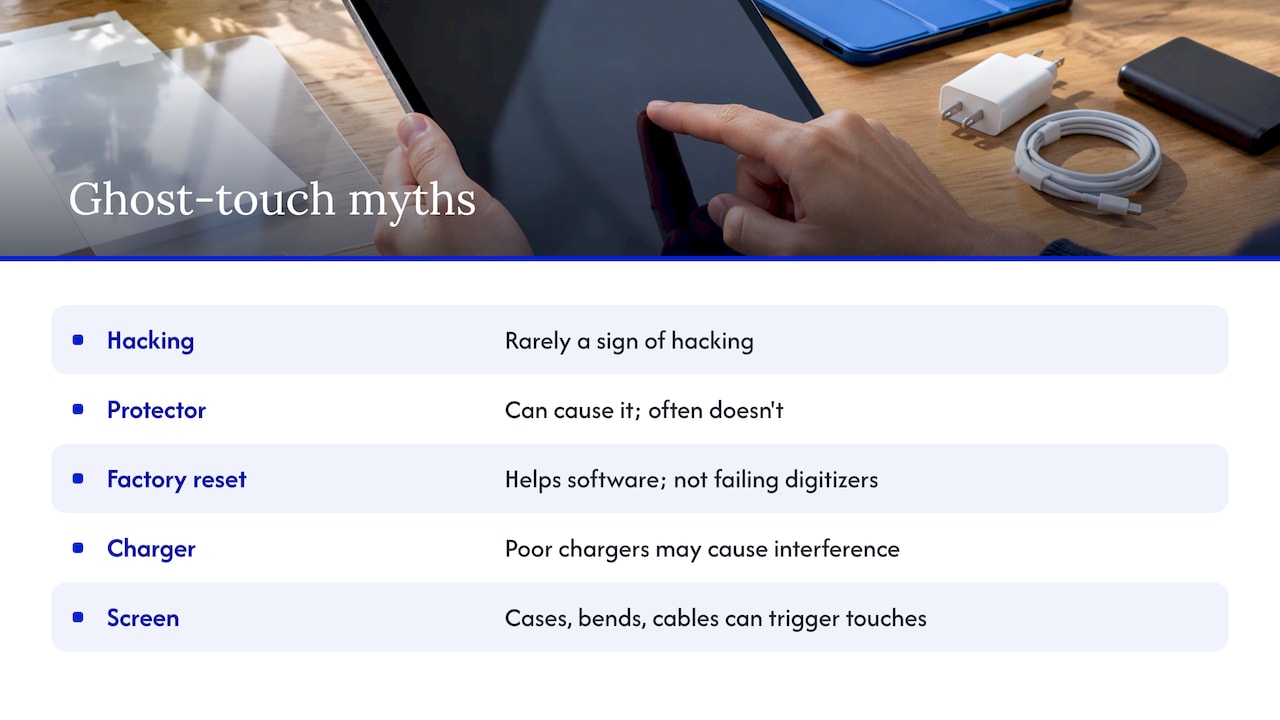
“My iPad has been hacked.” This is the worry people raise most. Ghost touch is rarely a sign of a hacked device, and Lifewire explains that iPadOS sandboxing makes remote control unlikely. Most cases trace to hardware, environment or software glitches.
“A screen protector always causes it.” Sometimes a lifted or poorly fitted protector is the culprit, which is why removing it is a good test. But plenty of iPads with protectors never have a problem, and plenty without them do.
“Factory resetting will always fix it.” A restore helps when the cause is software. If the digitizer or its connections are failing, the ghost touches come right back on a freshly erased iPad.
“Any charger works the same.” Low-quality or damaged chargers can introduce interference, and behavior that only appears while plugged in often points that way.
“If it stops temporarily, it’s fixed.” Intermittent problems often return. A fault that appears after a drop or a repair tends to get worse over time, not better.
“Only the screen can cause it.” Cases that squeeze the frame, a slightly bent iPad and cable placement can all trigger phantom touches without the display itself being damaged.
Editorial take: fix the cheap things fast, then stop
Most ghost touch advice online tells you to try everything: reset this, reinstall that, restore, restore again. I think the opposite is closer to the truth. A handful of free tests can help separate software from hardware. The first thing to do is isolate, not reset. Unplug the charger, take off the case, film the problem, and see whether it follows the accessories or follows the iPad.
What gets overrated is the stack of increasingly drastic software resets. A full restore on an iPad with a failing digitizer is wasted effort and puts your data at risk. What gets underrated is the video and the backup, because both make any repair faster and safer.
If the problem survives the isolation steps and a Reset All Settings, treat it as hardware and stop experimenting. Further hours of tinkering rarely uncover a cause the first hour missed, and a pinched cable gets worse when opened by someone without the right tools.
— Michael
When ghost touch needs a technician, we come to you
Our team brings iPad and tablet repair straight to your door in Orlando and Winter Park, so you don’t have to carry a misbehaving iPad into a shop and leave it behind. If ghost touch is still there after the steps in this guide, here’s what you get with our iPad and tablet repair service:
- On-site diagnostics and repairs, including display and digitizer replacement and flex cable reseating, with board-level triage when needed.
- Transparent pricing quoted before work begins, with no hidden fees.
- Data-safety practices throughout the repair, plus clear guidance on backing up before we start.
- Repairs backed by a warranty on parts and labor.

Booking us also lowers the risk of making things worse by opening the iPad yourself, which is how a loose connector turns into a cracked display. Pick a time and place that suits you, show us your video, and we’ll tell you honestly what the iPad needs. Book our on-site iPad repair and we’ll take it from there.
FAQ
Why is my iPad screen touching itself?
Usually the cause is a software glitch, interference from a charger or accessory, or a failing digitizer. Start by restarting, removing the case and unplugging everything. If it continues on battery with nothing attached, the fault is likely in the display.
Can ghost touch mean my iPad was hacked?
Almost never. Lifewire notes that modern iPadOS makes unauthorized remote control unlikely, and most cases are hardware defects, environmental factors or system software glitches.
Does Reset All Settings fix ghost touch?
Sometimes. Owners in an Apple Community thread report that it stopped ghost touch for them, and it keeps your data. You’ll need to reconfigure settings like Wi-Fi afterward.
How do I know if my iPad needs repair?
Book a repair if ghost touch survives a restart, an update and Reset All Settings, started after a drop or earlier repair, or continues with the case off and the iPad unplugged. Those signs point to the display assembly or its connections.
Will a restore erase my data?
Yes. A restore wipes the iPad, so back up first to iCloud or an encrypted local backup before you try it.
Sources
- If your iPad doesn’t respond – Apple Support
- How to Fix Ghost Typing and False Touch on iPad
- Why is my LCD panel moving and touching erratically on its own? – iPad 7 – iFixit
- Stop iPad ghost touching
Recommended
- Restore iPad Speaker Sound Today: Routing, Restarts, Same Day Repair
- Top 3 iPad Digitizer Repair Providers 2026
- Why Device Repairs Fail: Common Mistakes Explained
- Device Repair Technician Checklist: 2026 Best Practices










