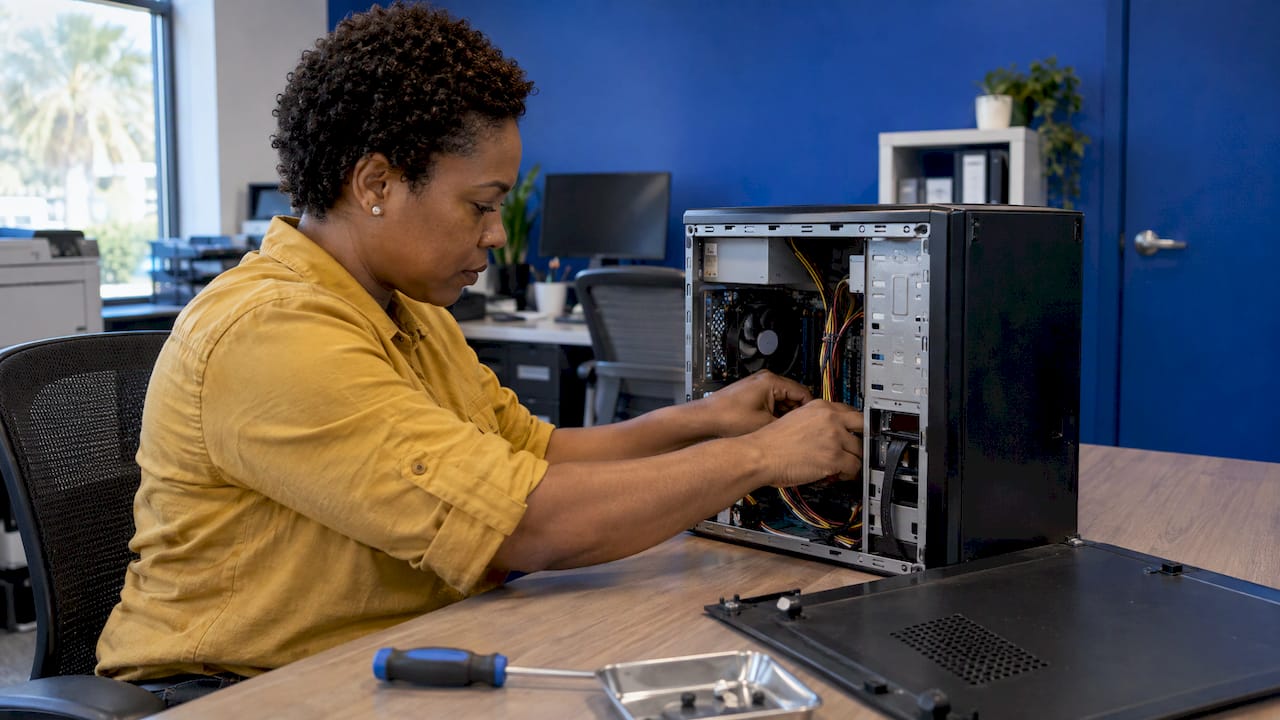
Office computer maintenance comes down to four habits: apply updates, back up files, scan for malware, and keep the hardware clean. Done on a schedule, they take about half an hour a week. The jobs that go beyond that routine, such as failing drives, suspected infections and network faults, are where an on-site technician saves you a lost day. If you run an office in Orlando or Winter Park, our on-site computer repair team comes to you the same day, so the machines stay where your work is.
TL;DR
- Maintenance covers software updates, backups, malware checks, storage cleanup and physical cleaning, not just wiping down a keyboard.
- A workable rhythm: check updates weekly, back up changed files daily, scan for malware monthly, deep-clean quarterly.
- Restart machines regularly. A restart applies pending security patches and clears minor glitches.
- Staff can handle updates, restarts and surface cleaning. Suspected malware, odd account activity, failing hardware and network changes belong with a technician.
- In Orlando and Winter Park, we repair and troubleshoot office computers on site, with the quote given up front.
Table of Contents
- What office computer maintenance actually includes
- A maintenance schedule you can actually keep
- How to clean computers and peripherals without damaging them
- When an office computer slows down: what to check first
- What employees can handle, and what belongs with a technician
- Building maintenance into a new or growing office
- Signs that a computer needs a technician now
- On-site repair for Orlando and Winter Park offices
- Our perspective on office computer maintenance
- FAQ
- Sources
What office computer maintenance actually includes
Most people picture dusting a tower. In practice, maintenance is a mix of security, software, storage and hardware care. HP’s U.S. guidance lists operating-system updates, removing unneeded programs, startup management, driver updates, backups, antivirus, malware scans, firewall settings and passwords as one combined discipline. A spotless machine with unpatched software is still a risk, and a fully patched machine with clogged fans will still overheat.
For a small office, it helps to split the work into five buckets:
- Updates: the operating system, business apps, browsers and drivers.
- Backups: copies of the files your business cannot afford to lose, stored somewhere other than the computer itself.
- Protection: antivirus, firewall and password hygiene.
- Storage and speed: free drive space, startup programs and background apps.
- Physical care: dust, cables, keyboards, screens and airflow.
Each bucket has a different owner in a typical small business. Employees can take most of buckets one, four and five. Buckets two and three need a defined routine and someone accountable for it, which is often the owner or office manager.
A maintenance schedule you can actually keep
A routine that is too ambitious gets dropped by week three. TechRepublic suggests weekly, monthly and yearly tasks, with roughly 30 minutes set aside for the weekly and monthly ones. The table below turns that rhythm into an office checklist, using the frequencies HP and Norton publish.
| How often | Task | Why it matters |
|---|---|---|
| Daily | Confirm antivirus is running; make sure changed critical files are backed up; notice odd slowdowns | HP recommends daily checks of antivirus status and changed-file backups |
| Weekly | Check for system and app updates; restart; run a malware scan | Norton advises weekly malware scans and weekly verification that antivirus updates are arriving |
| Monthly | Clean keyboards, mice, screens and vents; review installed programs | Dust buildup and unused software both slow a machine down |
| Quarterly | Deep-clean internal components; test that a backup actually restores; review firewall settings | HP suggests testing backups quarterly; Norton suggests a quarterly firewall review |
| Yearly | Review which machines are aging, which need more memory or storage, and who has access to what | Planned upgrades cost less than emergency replacements |
Two habits in that table deserve emphasis because they are the ones offices skip.
Restart on purpose
Cornell’s university IT guidance explains that installing Windows updates and restarting regularly applies security patches and resolves minor application and performance problems. It also notes that on Windows 11, choosing Restart applies updates more fully than Shut down may. A computer that has run for three weeks without a restart is usually a computer with patches waiting. If an update hangs part-way, our walkthrough on what to do when Windows Update is stuck covers the safe order of steps.
Test the backup, not just the backup job
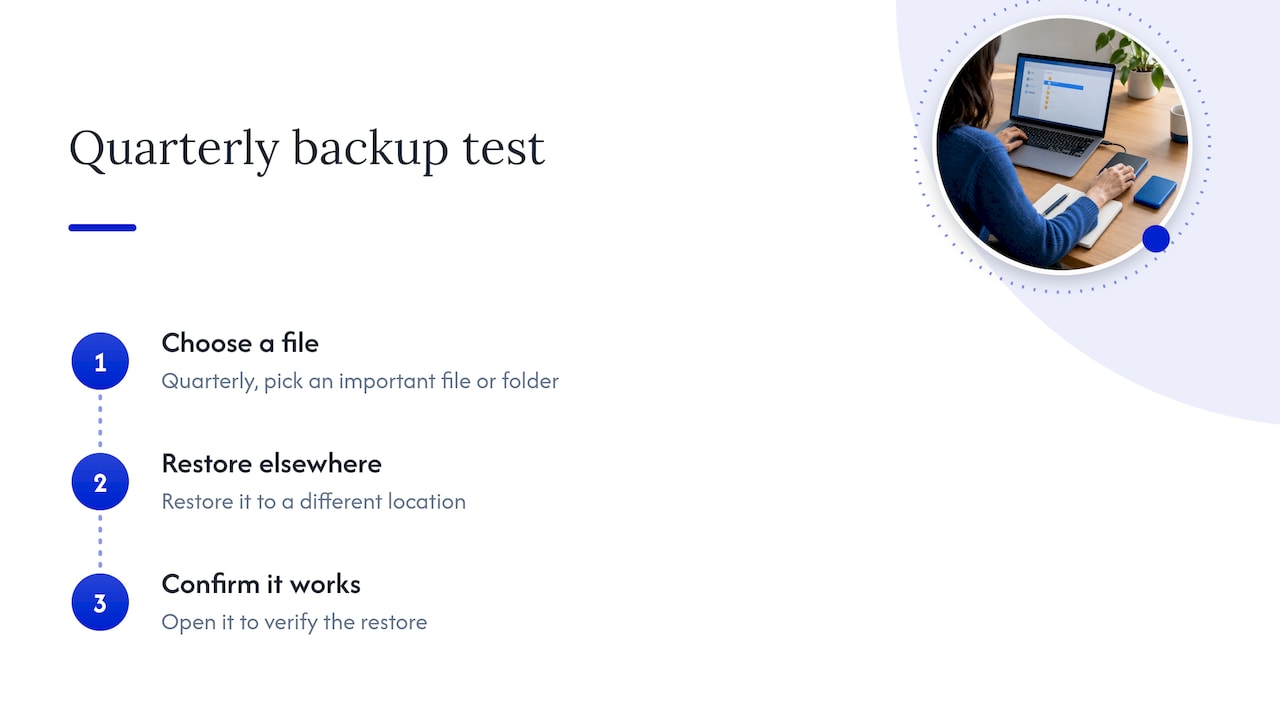
A backup that has never been restored is a hope, not a backup. Once a quarter, pick one important file or folder and restore it to a different location. If it opens correctly, the routine works. If you are deciding how to protect files before any device goes in for service, our piece on encrypting local backups and using iCloud daily explains why both matter.
How to clean computers and peripherals without damaging them
Physical cleaning is the part every employee can do, and the part most often done wrong. The common mistakes are spraying liquid directly on a screen, using paper towels, and cleaning a powered-on machine.
HP’s own cleaning guidance for its equipment says to power off and unplug the device, disconnect peripherals, moisten a microfiber cloth rather than spraying the device, avoid paper towels, keep liquid out of ports and let surfaces dry fully before powering on. A business-services guide on office electronics adds that you should remove dust first with a dry microfiber cloth or carefully used compressed air, then apply cleaner to a lightly dampened cloth, never straight onto the device.
A simple monthly routine:
- Shut down and unplug the machine. Disconnect the keyboard, mouse and other peripherals.
- Wipe dust from the case, vents and desk area with a dry microfiber cloth.
- Use short bursts of compressed air on vents and keyboard gaps, holding the can upright.
- Lightly dampen a clean cloth and wipe the keyboard, mouse and screen with gentle strokes.
- Let everything air-dry completely, then reconnect and power on.
For surfaces many people touch, HP’s guidance identifies a 70% isopropyl alcohol and 30% water solution as a CDC-recommended disinfectant for the external surfaces of its products. Always apply it to the cloth, never the device, and keep it away from openings.
Cables and airflow matter too. Loose cables get kicked, pinched and unplugged at the wrong moment, and a tower pushed against a wall cannot breathe. Keeping laptops raised and cables tidy helps both, and accessories such as laptop risers and cable management gear are a low-cost way to give desks more airflow and fewer tangled cords.
Internal cleaning of fans and power supplies is a quarterly job in most maintenance checklists. If you are not comfortable opening a case, this is a good task to hand to a technician during a scheduled visit. Opening a desktop or laptop incorrectly can damage components or void a warranty.

When an office computer slows down: what to check first
A slow computer is the most common complaint in any office. Before you assume the machine is finished, work through the usual causes in order. HP’s support documentation says to check airflow and fans, available drive space, memory, fragmentation, malware and unnecessary applications, and to restart if the cause is unknown.
A practical sequence for a non-technical employee:
- Restart. It costs nothing and clears many temporary issues.
- Look at free storage. A drive that is nearly full slows everything down. Remove files and programs you no longer need.
- Check startup programs. Too many apps launching at login drag down the first ten minutes of every workday.
- Feel for heat and listen for fans. A loud, hot machine usually has blocked airflow or a failing fan.
- Run a malware scan. Unexplained slowness with pop-ups or browser changes points to infection.
- Check the basics if it will not start. Confirm the outlet, indicator lights, cable connections and monitor brightness before assuming the worst.
If you want the longer version of this list, see why a computer runs slow and the quick fixes. If none of the steps help, the cause is probably hardware (a failing drive, tired battery or low memory) or something deeper in the software. That is the point to stop guessing. Our hardware repairs and upgrades cover those cases, and the earlier a failing drive is caught, the better the chance your data comes through intact. If a machine has already died, this repair rule that protects your data explains what to do first.
What employees can handle, and what belongs with a technician
The line between routine care and technical work matters more in a business than at home, because office computers hold customer records, invoices and logins.
Safe for employees:
- Installing updates and restarting
- Surface cleaning and cable tidying
- Clearing out unused programs and files
- Running the scheduled antivirus scan
- Saving work to the agreed backup location
Hand to a technician:
- Suspected malware, phishing or unauthorized account activity. Contributors to the Forbes Technology Council advise escalating these rather than trying to fix them alone, because a DIY workaround can expose data or destroy evidence.
- Network-security settings, complex technical faults, data inconsistencies and personal devices being connected to company systems.
- Hardware failures: strange noises from a drive, a battery that swells, a screen that flickers, a machine that will not power on.
- Anything involving a machine that holds sensitive data and is leaving the building.
That last point is worth a closer look. The U.S. General Services Administration’s maintenance-security guide, built on NIST SP 800-53, calls for scheduling, documenting and monitoring maintenance, sanitizing information before off-site maintenance and keeping records of who did what and when. That is a federal standard, and a small business does not need its paperwork. But the principle scales down: the fewer times your hard drives leave the office, the fewer places your data can end up.
Why on-site service fits office maintenance
When a technician works at your desk, the computer stays in your sight and your data stays in your building. Repair Genius repairs devices at the customer’s chosen location in Orlando and Winter Park, with a focus on data security. You also avoid the dead time of dropping a machine off, waiting, and collecting it. For a four-person office, one workstation out of action for three days is a real cost. For a deeper look at the tradeoffs, read our comparison of on-site computer repair versus a repair shop and the guide to on-site repair for office electronics.
Building maintenance into a new or growing office
The easiest time to set up good maintenance is when devices are first deployed. Create admin accounts separate from daily-use accounts, turn on disk encryption, and enroll machines in a management system so updates and security settings apply consistently. We lay out that order in our guide to small business device setup.
A short written policy helps more than most owners expect. One page is enough:
- Who runs the weekly update and restart check
- Where files must be saved so they are backed up
- Who to tell if a computer behaves strangely or a suspicious email arrives
- Who is allowed to install software
- How often the backup restore test is done, and who signs it off
Keep a simple log of repairs and upgrades for each machine: the date, what was done and by whom. When a computer starts failing repeatedly, the log shows whether repair or replacement makes more sense. Repairing is often far cheaper than replacing, and a technician can give you the figures for your specific machines in a quote before any work starts.
Signs that a computer needs a technician now
Some symptoms should not wait for the next scheduled check:
- Pop-ups, browser redirects or programs you did not install. Our guide to Windows virus symptoms that need immediate action shows what to look for, and adware removal on Windows covers the cleanup.
- Repeated crashes, blue screens or restarts that nobody asked for.
- Clicking, grinding or beeping from inside the case.
- Files that vanish, will not open or show up changed.
- Shared printers or Wi-Fi that keep dropping. Start with the quick checks in our Wi-Fi printer fixes and laptop Wi-Fi checks; if the problem persists, it is likely a network configuration issue.
- A device that overheats even after the vents are cleaned.
If an infection is suspected, disconnect the machine from the network and stop using it for sensitive work until it has been checked. Continuing to log into email or banking from a compromised computer is the most common way a small problem becomes a costly one.
On-site repair for Orlando and Winter Park offices
Repair Genius brings certified technicians to your office in Orlando and Winter Park, offering same-day service, quotes given up front and no hidden fees. The team has more than 10 years of experience, and repairs carry a warranty on parts and labor.
For offices, the relevant services are on-site computer repair, hardware repairs and upgrades, software troubleshooting, virus and malware removal, data recovery and backup solutions, networking and internet issues, and business IT and on-site support. Macs are covered as well, through MacBook and iMac repair, along with iPad and tablet repair and phone repair for the devices your staff carry.
If a computer is already failing, book an on-site visit and describe the symptoms. We diagnose the problem at your desk and quote the repair before any work begins.

Our perspective on office computer maintenance
Most of the emergency calls from offices begin the same way: the machine had been warning its owner for weeks. A fan that got louder, a restart that kept being postponed, a backup nobody had tested. None of those is dramatic on its own. Together they become a dead computer on a deadline day.
That is why we think of maintenance as a short, boring routine plus a fast route to a professional when the routine finds something. Employees can keep the basics going. The moment a problem touches hardware, security or data, it should be handled by someone who can diagnose it properly and tell you plainly what it will cost.
We built our service around that idea. Our technicians come to your office in Orlando or Winter Park, so your computers and your data stay with you. We quote up front, we stand behind parts and labor with a warranty, and we keep our communication clear so you always know what is happening and why.
A maintained office does not need heroic repairs. It needs small problems caught early, and someone to call when they are not small anymore.
Michael
FAQ
How often should office computers be maintained?
Check for updates weekly, back up changed critical files daily and scan for malware weekly or monthly. Clean the outside of each machine monthly and the inside quarterly. HP’s schedule is a solid reference, and a yearly review of aging machines rounds it out.
Is it bad to leave a work computer on all the time?
Leaving it on is not the main problem. Never restarting it is, because pending updates and security patches do not fully apply until a restart. A regular restart, at least weekly, keeps the machine patched and responsive. Overnight, shutting down or sleeping is fine either way.
What is the safest way to clean a keyboard and screen?
Power off and unplug, then wipe with a lightly dampened microfiber cloth. Never spray liquid on the device, avoid paper towels and keep moisture out of ports and vents. Let everything dry completely before turning it on again.
Should I fix a suspected virus myself?
For an office computer that holds business or customer data, no. Disconnect it from the network and have a technician check it, since a DIY fix can leave the infection in place or erase evidence of what was accessed. We handle virus and malware removal on site in Orlando and Winter Park.
Can maintenance be done at my office instead of a shop?
Yes. We perform repairs and troubleshooting at the location you choose in Orlando and Winter Park, so staff keep working nearby and the data does not leave the premises.
Sources
- HP: Essential computer maintenance guide
- HP: 10 essential computer maintenance tips
- TechRepublic: Regular maintenance for your work setup
- Norton: 19 computer maintenance tips
- Cornell IT: PC maintenance, security and best practices
- HP: Devices cleaning guidance
- Spectrum BSA: Cleaning office electronics
- HP: Troubleshooting guide
- GSA: Maintenance (MA) CIO-IT Security guide
- Forbes Technology Council: Issues to let IT teams handle
- The Urban Geek: Portable monitors and laptop extenders
Recommended
- Small Business Device Setup: Admin, Encrypt, Then Enroll in MDM
- On-Site Repair for Office Electronics: 2026 Guide
- On-Site Computer Repair vs Repair Shop
- Why Employee Devices Need Quick Repair: 2026 Guide