
“Other” is the catch-all label your Mac uses for files it can’t sort into a named category like Apps, Photos or Documents. On current versions of macOS the label is called System Data, and Apple describes it as a general category for all Apple and third-party files that don’t belong to a more specific one. It is not a single folder, it is not a sign of malware by itself, and a large number does not always mean you should delete something. If your Mac is nearly full and Storage settings shows a huge gray bar, this guide explains what is in it, what is safe to clear, and when to stop and get hands-on help.
TL;DR
- “Other” was renamed System Data in newer macOS versions. Both mean the same thing: files macOS can’t place in a specific category.
- It is calculated, not stored in one place, so you can’t open it and click delete. Apple’s own Storage screen only reports the space it takes.
- The safest wins are old installer files, old device backups, the Trash, and a restart. Back up before touching anything else.
- Never delete system or Library files you don’t recognize. A wrong deletion can cause instability, data loss or a Mac that won’t start.
- If the number stays huge after safe cleanup, a technician can look at the machine in person. We do that on-site in Orlando and Winter Park.
Table of Contents
- What “Other” actually means on a Mac
- How to see it on your Mac
- What is inside Other / System Data
- Why it gets so big
- Why you can’t just delete it
- How to free space safely, step by step
- What not to touch
- Is a huge Other number a sign of malware?
- When the number won’t come down
- Our perspective
- Need a hand with a full Mac?
- FAQ
- Sources
What “Other” actually means on a Mac
Open your Mac’s storage screen and you see a colored bar: Apps, Documents, Photos, Music, and so on. Whatever the Mac can’t label goes into one remaining slice. In older macOS versions that slice was named Other. In macOS Monterey and later, Macworld explains, the label became System Data, and the two are essentially the same thing.
The plain-English version: “Other” means “everything we couldn’t classify.” It is a leftover bucket, not a type of file.
Two details help make sense of it:
- It is a subtraction. The Mac adds up the categories it recognizes and the rest becomes the catch-all. That is why you can’t click into it and see a list.
- It depends on indexing. Macworld’s explanation of the older “Other” label says the classification is based on Spotlight indexing, the system your Mac uses to know what kind of file something is. Files that Spotlight doesn’t report on by default, such as the contents of the System and Library folders, fall into Other.
One harmless quirk from the same source: if you start your Mac in Safe Mode, “Other” can be the only entry in the storage graph. That is just how the graph behaves in Safe Mode and is nothing to worry about.
How to see it on your Mac
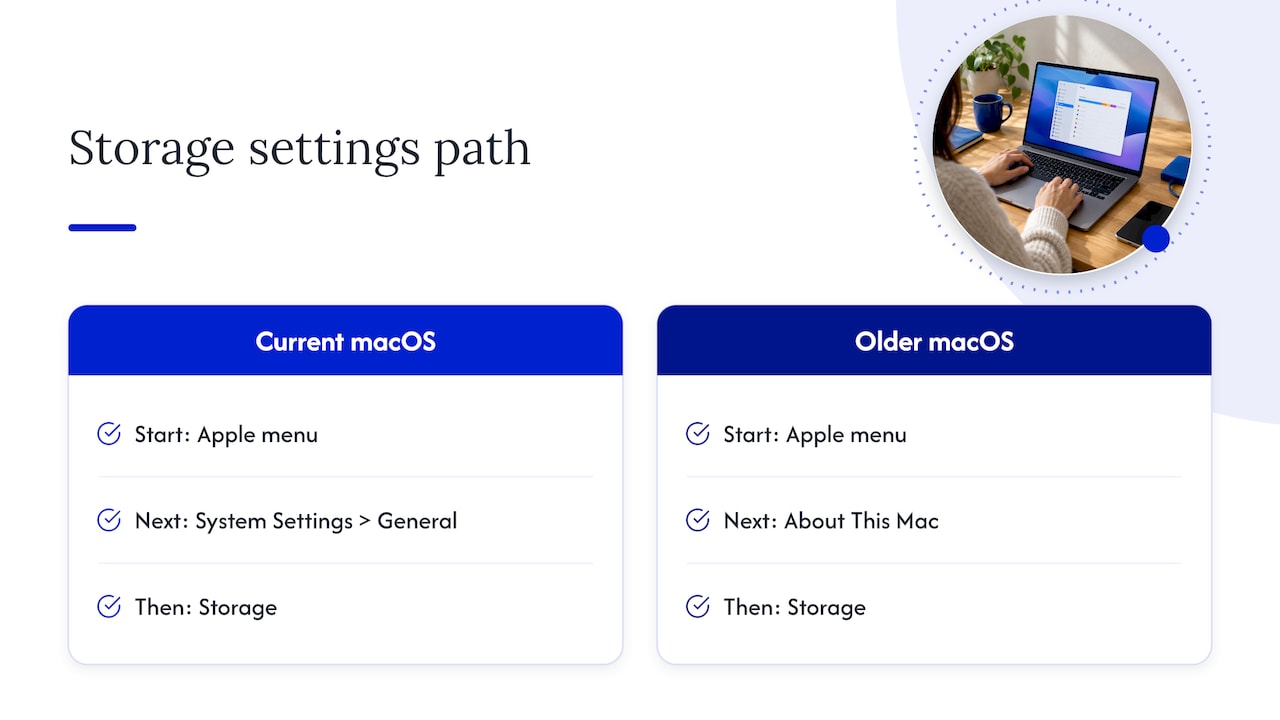
On a current Mac, choose Apple menu, then System Settings, then General, then Storage. Wait a moment while the bar finishes calculating. The number can shift as macOS recounts, and Apple notes that the System Data category varies in size depending on the current state of your Mac. A reading taken right after an update, a big download or a backup can look very different from one taken the next day.
On older macOS versions, the same screen is reached through the Apple menu, About This Mac, then Storage, and the label still reads Other.
What is inside Other / System Data
Apple lists the main contents as log files, caches, virtual machine files and other runtime system resources, plus temporary files, fonts, app support files and plug-ins. Macworld’s guide to clearing System Data adds items that tend to pile up in practice:
| What it is | Where it comes from | Safe to remove yourself? |
|---|---|---|
| Caches and logs | Apps and macOS speeding up repeated work | Mostly managed by macOS; clearing app caches resets preferences for that app |
| Temporary files | Installers, updates, apps in use | A restart clears many of them |
| Local Time Machine snapshots | Time Machine, when your backup disk isn’t connected | Handled by macOS as space is needed |
| Old iPhone and iPad backups | Backups made through your Mac | Yes, if you no longer need them and have another copy |
| Disk images (.dmg files) | Installers you downloaded and never deleted | Yes, after the app is installed |
| App leftovers | Support files that remain after you delete an app | Only if you know exactly what they belong to |
| Plug-ins and extensions | Browsers, creative apps, system add-ons | Leave alone unless you know the app |
Recent macOS versions and some third-party apps may also download large on-device AI models. Macworld advises not deleting Apple Intelligence files by hand from system folders. If a third-party AI tool is holding a big model you no longer use, remove it through that app’s own controls.
Why it gets so big
Most jumps in System Data have a boring explanation:
- A recent macOS update. Installers, temporary files and logs accumulate and often shrink again later.
- Local snapshots. If your laptop is away from its Time Machine drive much of the time, macOS keeps local snapshots on the internal drive as a stopgap.
- Old device backups. An iPhone backup made years ago can quietly occupy many gigabytes.
- Heavy app use. Video editing, virtual machines, development tools and browsers with many tabs generate large caches.
- Leftovers from deleted apps. Uninstalling an app by dragging it to the Trash doesn’t always remove its support files.
If the figure suddenly balloons and your Mac also becomes slow or noisy, that is a different question than a big bar on its own. Constant slowdowns and a spinning wheel can point to a drive, memory or software problem. For that case we wrote a guide on stopping a Mac spinning wheel and when to call for same-day repair.
Why you can’t just delete it
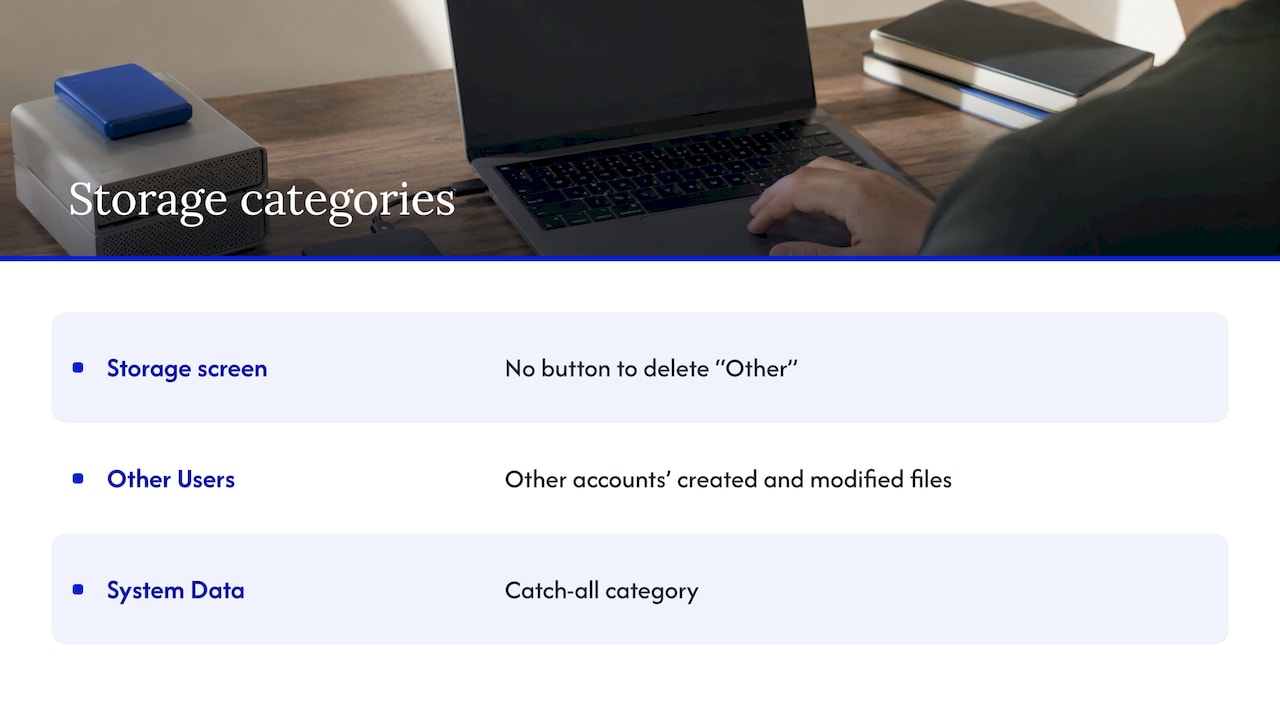
People search for how to “delete Other storage” because the Storage screen offers no button for it. That is by design. Apple states that you can’t select and delete files in the Other Users, macOS and System Data categories: they only report the space they occupy. Other Users, for the record, holds files created and modified by other user accounts on your Mac. System Data is the catch-all described above.
So clearing it really means clearing the specific things inside it that you control. Everything below is organized from safest to riskiest.
How to free space safely, step by step
Step 1: Back up first
Both Macworld guides recommend a full backup before you remove anything from this category. Some System Data files are essential to macOS, and deleting the wrong ones can cause instability, data loss, or prevent your Mac from booting. If you back up an iPhone or iPad to your Mac, read our note on encrypting local backups and using iCloud daily so you aren’t relying on a single copy.
Step 2: Empty the Trash and restart
Deleted items still count against your storage until the Trash is emptied. After that, restart the Mac. Macworld notes that a restart clears temporary caches. This takes two minutes and is the step most people skip. Check the Storage screen again afterward, since the number is recalculated.
Step 3: Remove old installers and disk images
Open Finder, then your Downloads folder, and look for .dmg files and installer packages for apps that are already installed. Macworld lists these as among the safest files to remove from the Other category. Sort by Size to find the heavy ones quickly.
Step 4: Delete old iPhone and iPad backups
Backups of old devices are another safe candidate, provided you have a current backup elsewhere. In the Storage settings you will see an iOS Files category that holds iOS backups and firmware, and some leftovers may sit in System Data as well. If you have a phone that is also full, our 10-minute iPhone checklist for “Storage Full” walks through the phone side.
Step 5: Check other user accounts
Apple’s U.S. support page suggests looking in the Users folder on Macintosh HD for leftover data belonging to deleted users, and for shared files you no longer need to share. On a family Mac or an office machine that has changed hands, this alone can recover a surprising amount.
Step 6: Trim big files you recognize
Large documents, exports and downloads are easy wins because you know what they are. If oversized PDFs are part of the pile, you can delete PDF pages without uploading the file anywhere, which keeps private paperwork on your own machine while shrinking it.
Step 7: Handle caches carefully
Caches live mostly in the Library folder. Macworld explains you can reach it from the Finder by choosing Go, then Go to Folder. The same guidance carries a warning that matters: if you aren’t sure what something is, leave it alone. Deleting the cache of an app you use makes it forget your preferences and other details. Apple also suggests starting in safe mode to clear certain system caches, which lets macOS do the sorting rather than you.
What not to touch
- Anything in system folders you can’t identify. Guessing here is how Macs end up unable to boot.
- Apple Intelligence and on-device model files. Don’t remove them manually from system folders.
- Local snapshots through Terminal commands copied from forums. macOS manages them and frees them when space is needed.
- “Cleaner” tools that promise one-click fixes. Because System Data isn’t one folder, a tool is still deciding for you which unlabeled files to remove.
Is a huge Other number a sign of malware?
Usually not. Caches, snapshots and backups explain nearly every large reading. But unexpected storage growth combined with pop-ups, browser changes, fans running constantly or apps you didn’t install deserves a closer look. We cover the real signals, and what to tell a technician, in 4 urgent Mac malware signs.
When the number won’t come down
Sometimes you’ve emptied the Trash, cleared installers, deleted old backups and the bar is still enormous. At that point the problem is no longer “what is Other?” but “what is this specific Mac doing?” A technician can inspect the disk, see what the machine is really holding, check that the drive and software are healthy, and make cleanup decisions without putting your files at risk.
That is where on-site help is practical. Our MacBook and iMac repair service comes to your home or office in Orlando and Winter Park, with data safety as a priority. Your files never need to leave the room while someone works on the machine. For a Mac that is also slow because it is short on memory, our guide on when 16GB of RAM is enough explains how to tell storage trouble from memory trouble.
Our perspective
Most people who ask us about “Other” storage are not curious about file systems. They have a deadline, a video call or a full laptop, and they want their Mac to work again.
Our advice is the same every time: the label is vague, but the fix doesn’t have to be. Back up, empty the Trash, restart, then remove what you can name. Old installers, old device backups and forgotten downloads are things you can recognize on sight. System folders are not.
The cost of a wrong guess is high. A deleted cache can reset an app. A deleted system file can stop a Mac from starting. That is why we prefer to look at the machine itself, in front of the owner, explain what we find, and quote the work up front.
Our technicians bring more than ten years of experience to MacBook, iMac and Windows computer work, and we do it at your location so the device and your data stay with you. If storage is only one symptom of a bigger problem, we can look at the whole picture in a single visit.
Michael
Need a hand with a full Mac?
If your Mac is still full after the safe steps above, or you simply don’t have time to sort through folders, our on-site computer repair service covers software troubleshooting, hardware upgrades, and data recovery and backup solutions, performed at the location you choose in Orlando and Winter Park. Pricing is quoted up front with no hidden fees, and parts and labor are backed by a warranty.

For MacBooks and iMacs specifically, see our MacBook and iMac repair page or start from our home page to book.
FAQ
Is “Other” storage the same as System Data?
Yes, in practice. In macOS Monterey and later the Other label was renamed System Data, and the contents of Other were merged with the System and System Data categories. If you see either word on your Mac, you are looking at the same catch-all bucket.
Can I delete Other storage on a Mac directly?
No. Apple’s Storage screen only reports how much space System Data uses and gives no way to select its files. You free space by removing items you can identify, such as old installers, iOS backups, large downloads and Trash contents, then letting macOS recalculate.
Why did Other storage suddenly get so large?
Common causes are a macOS update, local Time Machine snapshots made while your backup drive was disconnected, old device backups, or heavy use of apps that build large caches. The figure also fluctuates as macOS recounts, so check it again after a restart before acting.
Is it safe to delete files from the Library folder?
Only if you know exactly what a file is. Some Library files are essential to macOS, and removing the wrong ones can cause instability or stop the Mac from booting. Clearing an app’s cache also resets that app’s preferences. Back up first, and leave anything unfamiliar alone.
Does a large Other number mean my Mac has a virus?
Rarely. Caches, snapshots and backups are the usual explanation. Look for other symptoms, such as unfamiliar apps, browser redirects or constant fan noise, before suspecting malware.
Sources
- Free up storage space on Mac, Apple Support
- Change Storage settings on Mac, Apple Support
- Find and delete files on your Mac, Apple Support
- How to delete Other storage on a Mac, Macworld
- How to clear System Data on Mac and free up storage space, Macworld
- What exactly is “Other” hard drive storage?, Macworld
Recommended
- 10 Minute iPhone Checklist to Fix ‘Storage Full’ and Keep Photos
- Stop a Mac Spinning Wheel in 15 Seconds, When to Call Same Day Repair
- Before Upgrading RAM: When 16GB Is Enough and When to Call a Pro
- Encrypt Local Computer Backups Before Repair, Use Daily iCloud Too