
If Windows signs you in with a blank desktop, a “We can’t sign in to your account” message or a temporary profile, your files are almost certainly still on the drive. The usual repair path is simple: restart and try Safe Mode, check the profile entry in the registry if you are comfortable doing so, and otherwise build a new account and copy your data across. This guide walks through each step in the order that carries the least risk, and it tells you where to stop.
TL;DR
- A temporary profile means Windows could not load your normal one. Nothing you save in it survives sign-out, so copy anything important to an external drive first.
- Start with restarts and Safe Mode. Many cases clear without any deeper repair.
- Registry edits to the ProfileList key fix one specific pattern (a duplicate entry ending in .bak). Back up before you touch it.
- If nothing works, create a new administrator account and copy your folders from C:Usersold name to the new one.
- Stuck, short on time or holding business data? We repair this on-site in Orlando and Winter Park.
Table of Contents
- What a Windows profile problem looks like
- Step 0: Protect your files before you repair anything
- Step 1: Restart and try Safe Mode
- Step 2: Rule out security software and pending updates
- Step 3: Check the ProfileList registry key
- Step 4: Create a new profile and move your data across
- After the rebuild: what you will need to redo
- Perspective: why we rebuild instead of gambling
- When to stop and call a technician
- Get it fixed where you are
- FAQ
- Sources
What a Windows profile problem looks like
Your user profile is the folder and registry data that hold your desktop, documents, browser bookmarks and app settings. When it fails to load, the symptoms tend to be dramatic, which is why people assume the worst.
Common signs, according to one troubleshooting guide, include a bare or changed desktop, documents, pictures or bookmarks that seem to be missing, settings that reset after every restart, a temporary profile, and a sign-in or profile service error. You may also see a banner saying you have been signed in with a temporary profile.
Microsoft documents what that banner means: a temporary profile is issued whenever an error stops your real profile from loading. It is deleted at the end of the session, and any changes to desktop settings and files are lost when you sign out. That last point matters most. Do not save work into a temporary profile and assume it will be there tomorrow.
Why it happens
The usual suspects are abrupt shutdowns, power loss, failing storage, bad updates, and sync conflicts between a local profile and a cloud account, as the same guide lists. A Microsoft Q&A advisor adds interrupted updates and incompatible third-party apps to the list, describing how problems can build up quietly until a major event such as a Windows update pushes you into the temporary profile fallback.
True corruption is rarer than the name suggests. A Microsoft engineer writing on Microsoft Learn says it is rare for Windows to fail to load a profile because it is genuinely corrupt. More often another process has locked the user’s ntuser.dat file, Windows cannot find the profile, or policy tells it not to load the profile. That is good news for you: a profile that is blocked is often a profile that can be unblocked.
Step 0: Protect your files before you repair anything
Before any fix, confirm your data is still there. Open File Explorer, go to the C: drive, then Users, and look for the folder carrying your old username. Microsoft Q&A guidance says that if the files are present, copy them to an external drive rather than the current desktop, because nothing saves when you sign out of a temporary profile.
If the old folder looks empty or missing, check C:Windows.old. A Microsoft Q&A reply notes that files can be archived there during a version install that failed. Copy anything you find to external storage so it is safe.
A few practical habits help here:
- Use an external drive or a USB stick with enough room for Desktop, Documents, Downloads, Pictures and Videos.
- If OneDrive was on, look inside the OneDrive folder too. Microsoft Q&A guidance points out that some folders may sit inside the OneDrive directory, for example under OneDriveDocuments.
- If the drive itself is making noises, running slowly or throwing read errors, stop experimenting. Failing storage is a documented cause of profile trouble, and repeated restarts can make a dying drive worse. That is a data recovery job, not a profile job. Our data recovery guide for Orlando explains what to expect.
If you take backups before repairs, our note on encrypting local computer backups covers how to keep them safe.
Step 1: Restart and try Safe Mode
The first fix is also Microsoft’s. The “We can’t sign in to your account” support page says to restart the device in Safe Mode and sign in with the original profile, then restart normally and sign in again. Multiple restarts may be needed.
If you cannot reach Safe Mode through settings, use the sign-in screen:
- Hold Shift and select Power, then Restart.
- Choose Troubleshoot, then Advanced options, then Startup Settings, then Restart.
- Press 5 or F5 for Safe Mode with Networking.
- Sign in with your account password, not a PIN or biometrics.
These steps come from a Microsoft Q&A answer on sign-in failures tied to the same support guidance. Once you are in, restart normally and see whether your real desktop returns.
If you also want to confirm what Windows thinks happened, open Event Viewer and look in the Applications log for Event ID 1511. Microsoft’s troubleshooting documentation identifies Event ID 1511 as the sign that Windows cannot find the local profile and is logging you on with a temporary one.
Step 2: Rule out security software and pending updates
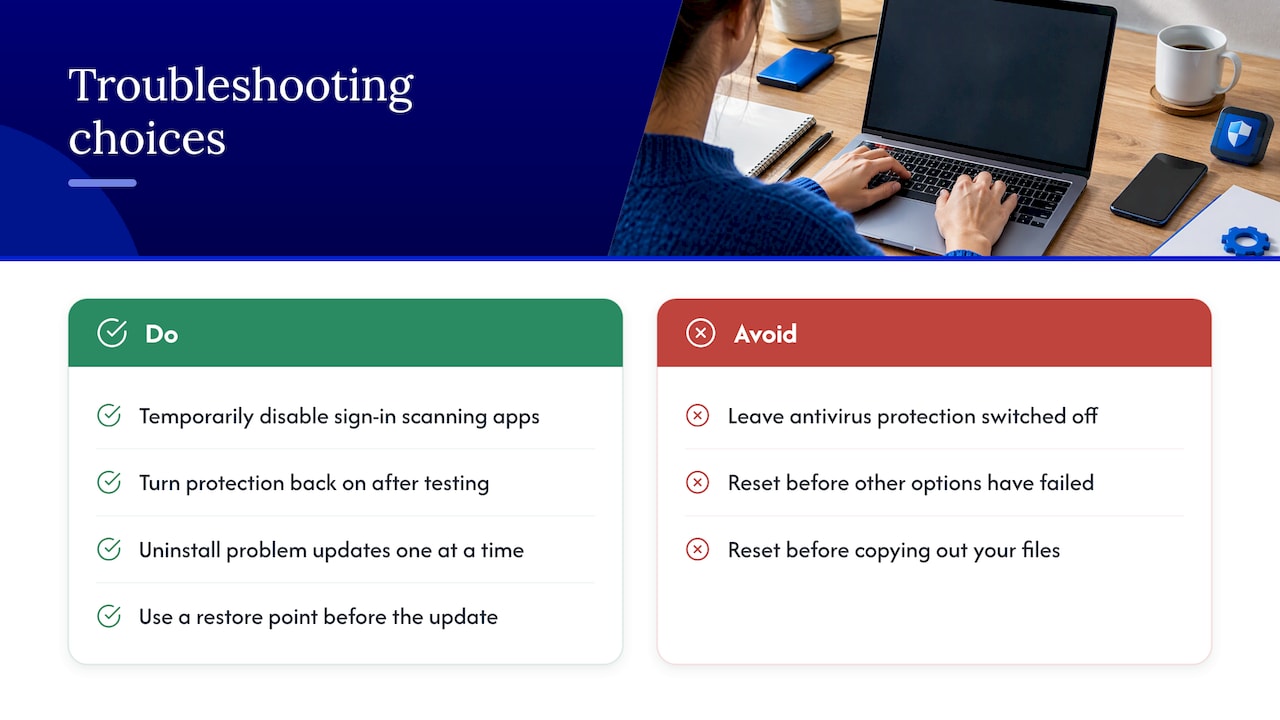
Sometimes the thing blocking your profile is something that scans or touches it during sign-in. If Safe Mode did not solve it, Microsoft Support suggests you temporarily disable antivirus software or apps that scan during sign-in. If that fails, the same page describes setting the Startup Type of the Windows Defender Advanced Threat Protection and Microsoft Defender Antivirus services to Disabled in the Services app, restarting, and trying again.
Treat that as a short test, not a permanent state. Turn protection back on as soon as you have finished troubleshooting. If you suspect the problem started with malware rather than a bad shutdown, read our guide to Windows virus symptoms that need immediate action before you leave anything switched off.
If the trouble began right after an update, you have two more options. A Microsoft Q&A advisor describes using Shift+Restart to reach the recovery environment, then Troubleshoot, Advanced Options and Uninstall Updates, removing problem updates one at a time. A system restore to a point before the update is another route. If the update itself hangs, our guide to a stuck Windows update covers that separately.
Avoid Reset this PC unless everything else has failed and your files are copied out. It is on the Microsoft Q&A advisor’s list as a last resort, and it is the step most likely to turn a fixable problem into a rebuild.
Step 3: Check the ProfileList registry key
This is the fix most search results focus on, and it targets a specific pattern. Open the Registry Editor and go to:
HKEY_LOCAL_MACHINESOFTWAREMicrosoftWindows NTCurrentVersionProfileList
Under that key, each profile has an entry named with a long security identifier (SID). If you see two entries with the same long ID, one of them ending in .bak, you have the pattern this fix addresses. The Microsoft Q&A steps are:
- Rename the entry without .bak by adding .old to the end.
- Rename the entry with .bak by removing .bak.
- Delete the entry you renamed to .old.
- Restart.
Two cautions apply, and both are part of the instructions, not an afterthought.
Back up first. The same Microsoft page warns that editing registry subkeys is meant for advanced users, administrators and IT professionals, and that doing it incorrectly can cause serious problems. It points readers to Microsoft’s registry backup and restore guide. Export the ProfileList key before you change a thing, and copy your personal files out as described in Step 0.
Leave the system entries alone. Microsoft’s troubleshooting page says that when you remove the backup entry for the affected user, you must not remove the entries for the built-in accounts S-1-5-18, S-1-5-19 and S-1-5-20. Those belong to Windows itself.
If you do not see a .bak entry, or if you are not sure which entry belongs to you, stop here. Guessing in the registry is how a profile that could have been rescued becomes one that needs a rebuild.
Step 4: Create a new profile and move your data across
When the fixes above fail, a new profile is the dependable answer, and it is what Microsoft itself recommends. The ranking advice online agrees: damaged profiles are generally replaced rather than patched. Microsoft’s “We can’t sign in” page says that if all else fails you should create a new local administrator account, sign in to it and copy personal data from the old profile.
The copying procedure on Microsoft’s corrupted profile page runs like this:
- Add a new user account and set it as an administrator.
- Sign in with the new account.
- Open File Explorer and go to C:Usersold username.
- Select all files and folders and copy them.
- Go to C:Users
ew username and paste. - Restart the PC and sign in as the new user.
Microsoft specifically warns against changing File Explorer view options to show hidden files or protected operating system files while you do this. Copy the visible folders only: Desktop, Documents, Downloads, Pictures and Videos, as Microsoft Q&A notes.
If Windows says access is denied
Sometimes the old folder refuses to open. A Microsoft Q&A answer explains that you can right-click the old folder, choose Properties, then Security, then Advanced, and check that your current account has Full Control, changing the Owner if needed. Then copy the files you want into matching folders in your current profile.
Do not delete the old profile in a hurry
Keep the old folder until you have checked that everything important arrived. Microsoft’s engineer cautions that deleting a whole profile to fix a misbehaving application is a quick fix with huge ramifications, because it can break other applications and remove stored credentials, keys and certificates that may be critical to the user. Work through a checklist first: browser bookmarks, email data, saved passwords, tax documents, and anything stored by line-of-business software.
After the rebuild: what you will need to redo
A fresh profile starts clean. Expect to reinstall some apps and re-enter settings. A Microsoft Q&A advisor notes that after recreating a profile, applications may not be present and might need to be reinstalled. If you normally install from the Microsoft Store, your download history in the Store app lets you re-download them.
A sensible order of work:
- Sign in to your Microsoft account and let OneDrive sync, then confirm Desktop and Documents look right.
- Reinstall the apps you use daily first. Leave rarely used software for later.
- Reconnect printers, email accounts and Wi-Fi, and sign back in to your browser sync.
- Set up a regular backup so the next bad shutdown costs you nothing.
If you want to cut the chance of a repeat, the causes listed earlier are the guide: use Shut down rather than holding the power button, put a laptop on a charger during updates, and replace storage that shows warning signs.
Perspective: why we rebuild instead of gambling
Most people who call us about a temporary profile are not worried about Windows. They are worried about the tax records, school work or client files they cannot see. So we start with the data, every time. We confirm where the files live, copy them out, and only then decide whether a registry fix or a clean profile is the right repair.
Our view is that the profile is rarely the real problem. It is the symptom. A failing drive, an interrupted update or a security tool fighting with sign-in is usually underneath it, and a fix that ignores the cause tends to come back. That is why our technicians, with more than 10 years of experience behind them, check storage health and security software before declaring the job done.
We also do this at your location. You do not have to unplug a work computer, carry it across Orlando and leave it for days with your data inside. We quote the work up front, with no hidden fees, and we keep your information secure throughout.
Michael
When to stop and call a technician
There is a clear line between a repair you can do at the kitchen table and one worth handing over. Call someone if any of these is true:
- You are not sure how to edit the registry, or the edit did not solve the problem. A Microsoft Q&A response recommends contacting Microsoft Support for guided help in that case.
- The temp profile keeps returning after several restarts. One backup vendor’s support page says that if the TEMP user persists after up to three restarts, the cause is likely the Windows profile itself and a local technician is the recommended next step.
- The computer holds business data, client records or anything you cannot afford to lose.
- The drive is slow, clicking, or reporting errors.
- You use the machine for work and every hour offline costs money.
Get it fixed where you are
We handle profile repair, data rescue and clean rebuilds on-site in Orlando and Winter Park. A technician comes to your home or office, copies your files to safe storage first, finds out why the profile failed, and restores your account. Pricing is quoted up front, and our work carries a warranty on parts and labor. Same-day service is part of how we work.

See our on-site computer repair services to book a visit, or read how on-site repair compares with a repair shop if you are weighing your options. Small business owners can also look at our on-site support for office electronics.
FAQ
Can a corrupted Windows user profile really be repaired?
Sometimes, yes. If the cause is a duplicate .bak entry in the registry, a locked file, or security software interfering with sign-in, the original profile can often be restored. If not, the dependable route is a new profile with your files copied across, which is the method Microsoft’s own support page describes.
Will I lose my files if Windows gives me a temporary profile?
Usually not. Your files normally remain in C:Users under your old username, and Microsoft Q&A guidance says to check there first. What you do lose is anything saved during the temporary session, because temporary profiles are deleted at sign-out. Copy important files to an external drive before you restart.
How do I fix a temporary profile without editing the registry?
Restart the computer, then try Safe Mode and sign in with your original account, then restart normally. If that fails, disable antivirus or sign-in scanning apps briefly, or roll back a recent update. Microsoft Support lists these steps in order. A new administrator account is the fallback.
Will I need to reinstall my programs after creating a new profile?
Some of them, yes. Files copy across easily, but app settings and some installed programs may not carry over. Store apps can be re-downloaded from your Store history, and desktop programs need their installers or license keys. Gather those before you start.
Is it safe to delete the old profile once the new one works?
Wait. Deleting a profile removes stored credentials, keys and certificates, and Microsoft’s engineer warns that it can break other applications. Keep the old folder until you have used the new account for a few weeks and checked that everything you need is present.
Sources
- Recovering a corrupted user profile: what to check first
- Mythical Creatures – Corrupt User Profiles | Microsoft Learn
- Temporary User Profiles – Win32 apps | Microsoft Learn
- “We can’t sign in to your account” error message | Microsoft Support
- Fix a corrupted user profile | Microsoft Support
- We can’t sign into your account error occurs when you make an RDP connection | Microsoft Learn
- Documents, pictures, files all disappeared overnight | Microsoft Q&A
- Stuck in repeating loop of temp profiles | Microsoft Q&A
- Switch my account | Microsoft Q&A
- Desktop reverts to factory background | Microsoft Q&A
- How to restore files from a deleted user account | Microsoft Q&A
- After last Windows update, I get message “We can’t sign into your account” | Microsoft Q&A
Recommended
- Windows Update Stuck? How to Fix It Safely Step by Step
- Windows Blue Screen: What It Means and How to Fix It
- 3 Windows Virus Symptoms That Need Immediate Action, Diagnose & Fix