When Mail on your Mac stops syncing, the cause is almost always one of four things: a connection problem, an account that needs to sign in again, a full mailbox, or an account set up with the wrong provider type. Start with the quick checks below, then follow the section for your email provider. If none of it works, the account usually needs to be removed and re-added, and we explain how to do that without losing mail.
TL;DR
- Check your internet connection first, then open Window > Connection Doctor in Mail. It tells you which account is failing and why.
- Test your email in a web browser. If webmail works, the account is fine and the problem is on the Mac. If webmail fails too, the problem is the provider or your password.
- Full storage, a VPN, and a password changed on another device are the most common hidden causes.
- Gmail and Microsoft 365 accounts often need a fresh sign-in through the provider’s own login screen.
- Removing and re-adding the account is the last resort. Copy any mail stored only “On My Mac” first.
Table of Contents
- Start with the five-minute checks
- Use Connection Doctor to see what is actually wrong
- Check the usual hidden causes
- Fix iCloud Mail not syncing
- Fix Gmail not syncing in Apple Mail
- Fix Outlook and Microsoft 365 not syncing
- Before you remove an account
- Fix Mail by changing how it checks
- A note on suspicious sync problems
- Perspective: what we see on the job
- When to call for on-site help
- Get a technician to fix it at your door
- FAQ
- Sources
Start with the five-minute checks
Most sync problems are not dramatic. Run these in order before you change any settings.
1. Confirm the Mac is online. Apple’s support page for this problem begins with checking that your Mac is connected to the internet, because the issue may be temporary. Open Safari and load a page you have not visited recently. If it will not load, the problem is your network, not Mail. Our guide to fixing a laptop that will not connect to Wi-Fi covers the quick checks.
2. Look at the Mail sidebar. Apple notes that Mail shows status icons next to accounts, such as a warning symbol or a lightning bolt, that point to specific connection errors. A greyed-out or crossed-out account usually means it is offline or disabled.
3. Force a manual check. Click the Get New Mail button in the Mail toolbar, or Control-click the Mail icon in the Dock and choose Get New Mail. Apple documents both methods in its Mail General settings guide. If new messages appear after a manual check, the automatic schedule is the issue. In Mail > Settings > General you can change how often Mail checks, or confirm it is not set to Manually.
4. Test webmail. Sign in to your email provider’s website. Apple recommends this step because it shows whether the account is valid and whether the provider has an outage. If new mail shows up in the browser but not in Mail, the problem sits on your Mac. If the browser also fails, stop troubleshooting the Mac and deal with the provider or password.
5. Restart Mail, then the Mac. It sounds basic, and it clears a surprising number of stuck connections. Quit Mail fully with Command-Q, reopen it, and give it a minute to reconnect. If a Mac is sluggish enough that Mail will not even finish loading, see our notes on stopping the spinning wheel on a Mac.
Use Connection Doctor to see what is actually wrong
Guessing wastes time. Mail has a built-in diagnostic tool. Choose Window > Connection Doctor from the Mail menu bar. According to Apple’s Connection Doctor guide, it reports account and server problems, shows details and logs, and has a Check Again button to retest after you change something.
What the results usually mean:
| What Connection Doctor shows | What it usually points to | What to try |
|---|---|---|
| Login failed or password rejected | Password changed elsewhere, or the provider wants a fresh sign-in | Re-enter the password, or sign in again through the provider |
| Cannot reach incoming mail server | Network problem, provider outage, or a VPN | Test webmail, turn off the VPN, try another network |
| Traffic blocked | Firewall or network-monitoring software | Check security software settings |
| Everything shows as connected | Mail is connected but a setting or folder is limiting what you see | Check mailbox settings and storage |
Apple’s help for messages that will not arrive lists the same three culprits Connection Doctor can reveal: login problems, incoming mail server issues, and firewall software blocking network traffic.
Check the usual hidden causes
If the connection is fine and Connection Doctor does not name a clear problem, look at these.
A full mailbox or storage quota
Exceeding your provider’s quota can stop you from sending or receiving. Apple explains how to check: Control-click the account’s mailbox in the Mail sidebar and choose Get Account Info to see how much storage you are using. Details are on the same Apple page on sending and receiving email. If you are near the limit, delete large attachments and empty Trash and Junk in webmail, not just in Mail.
A VPN or network-monitoring software
Apple’s guidance specifically mentions reviewing VPN or network-monitoring software. These tools can block the ports Mail uses. Turn the VPN off, click Check Again in Connection Doctor, and see if mail flows. If it does, add an exception for Mail in the VPN or security app rather than leaving it off.
A password that keeps getting rejected
If Mail repeatedly asks for your password, Apple says to confirm it matches the current password you use on other devices or in webmail. The Apple page on repeated password prompts walks through it. A password changed on your phone or in a browser is the classic trigger, since the Mac is still using the old one.
The wrong provider type
This one catches people who set up an account years ago. The right provider choice is not always obvious, because the provider’s name may not appear in the email address, or the account may rely on a different company for sign-in. Apple’s page on choosing the correct email provider explains the details. If the account was added as the wrong type, it will not sync properly, and the fix is to remove it and add it again with the right provider.
Fix iCloud Mail not syncing
For an iCloud address, work through these checks, all drawn from Apple’s iCloud Mail troubleshooting page:
- Check iCloud storage. A full iCloud account can block incoming mail.
- Make sure iCloud Mail is switched on in your Apple Account settings on the Mac.
- Rule out a VPN blocking your network connection.
- Test at iCloud.com/mail. If mail is there, the account works and the Mac is the issue.
- If an outgoing mail alert appears, open Server Settings and select iCloud as the Outgoing Mail Account.
Mac and iPhone showing different mail
If your Mac and iPhone disagree, confirm both are signed in with the same Apple Account and that iCloud Mail is turned on for each. Apple’s guide to setting up iCloud Mail on all your devices says that without iCloud Mail enabled on a device, you cannot send or receive iCloud Mail there. If the phone receives mail but the Mac does not, the Mac is the device missing a setting.
For Gmail or Outlook accounts, the Mac and iPhone each hold their own connection to the provider. A problem on one device does not mean the other is broken, so fix them separately.
Fix Gmail not syncing in Apple Mail
Gmail trouble in Apple Mail often comes from how the account signs in, or from a huge inbox.
- Sign in with Google. Google’s help page says to remove your Gmail information from the email client and sign in again with Google. It adds that app passwords are not recommended and are unnecessary in most cases. See Google’s guide to adding Gmail to another email client.
- Keep the app current. The same Google page recommends upgrading to a newer email client or version if sign-in fails.
- Limit big IMAP folders. If downloads are slow, Google suggests limiting IMAP folders to 10,000 messages or fewer. In Gmail on the web, you can adjust which labels show in IMAP. A Mac that sits on “Downloading” for half an hour is often fighting a very large All Mail label.
If you remove the Gmail account to sign in again, read the “Before you remove an account” section below first.
Fix Outlook and Microsoft 365 not syncing
Microsoft 365 work accounts are the most fragile in Apple Mail. Microsoft has documented that these accounts can become disconnected from Apple Mail. Its reconnection guide gives the immediate workaround: when Apple Mail prompts you, click Edit Settings and re-enter your login credentials.
If no prompt appears, go to your Mail account settings and re-enter the credentials there. If that fails, Microsoft says to delete the Microsoft 365 account and add it again as a Microsoft Exchange account, entering your credentials when asked.
A few points that save frustration:
- Choose Exchange. Apple says Exchange is the right provider choice on Mac for Exchange-based accounts, including common Outlook.com, Hotmail, Live, MSN and onmicrosoft.com addresses where applicable. Choosing wrongly means removing and re-adding the account, as the Apple provider page explains.
- Adding an account. Microsoft’s setup steps for Mail on Mac say to choose Mail > Add Account, select Exchange and Continue, enter your name, email address and password, sign in, pick the apps to use, and click Done.
- Server address for school or work accounts. If Mail does not configure itself, one university’s help desk tells students to use outlook.office365.com as the server address rather than an .edu address. Illinois State University publishes this in its Microsoft 365 Mail setup guide. Your own organization’s IT team may use a different address, so ask them if the default fails.
If your problem is the Outlook app itself and not Apple Mail, see our guide on Outlook not opening on Mac.
Before you remove an account
Removing and re-adding the account is Apple’s last-resort advice for persistent problems, and it works often. But do it carefully.
- Test webmail first. Make sure the account is valid and there is no service outage. Apple’s own troubleshooting page puts this step before removal.
- Copy anything stored only on your Mac. Apple warns that removing an account removes its messages from the Mac. Copies normally remain on the mail server, but mail in an On My Mac mailbox does not. Drag those messages somewhere safe first. The details are in Apple’s guide to managing email accounts in Mail.
- Write down your settings. Know your email address, password and the provider type.
- Remove the account in Mail > Settings > Accounts.
- Add it back with the correct provider. This is where wrong-provider mistakes get fixed.
If the mail you cannot afford to lose exists only on this Mac and the Mac itself is misbehaving, back it up before you do anything else. Our article on data recovery in Orlando explains what recovery involves and why acting early matters.
Fix Mail by changing how it checks
Some sync complaints are really about timing. Mail does not always display new messages the second they arrive. In Mail > Settings > General, the checking frequency can be set to a fixed interval or to Manually. If you set it to Manually long ago and forgot, Mail will never refresh itself. Switch it to a short interval, then use Get New Mail once to confirm everything is working.
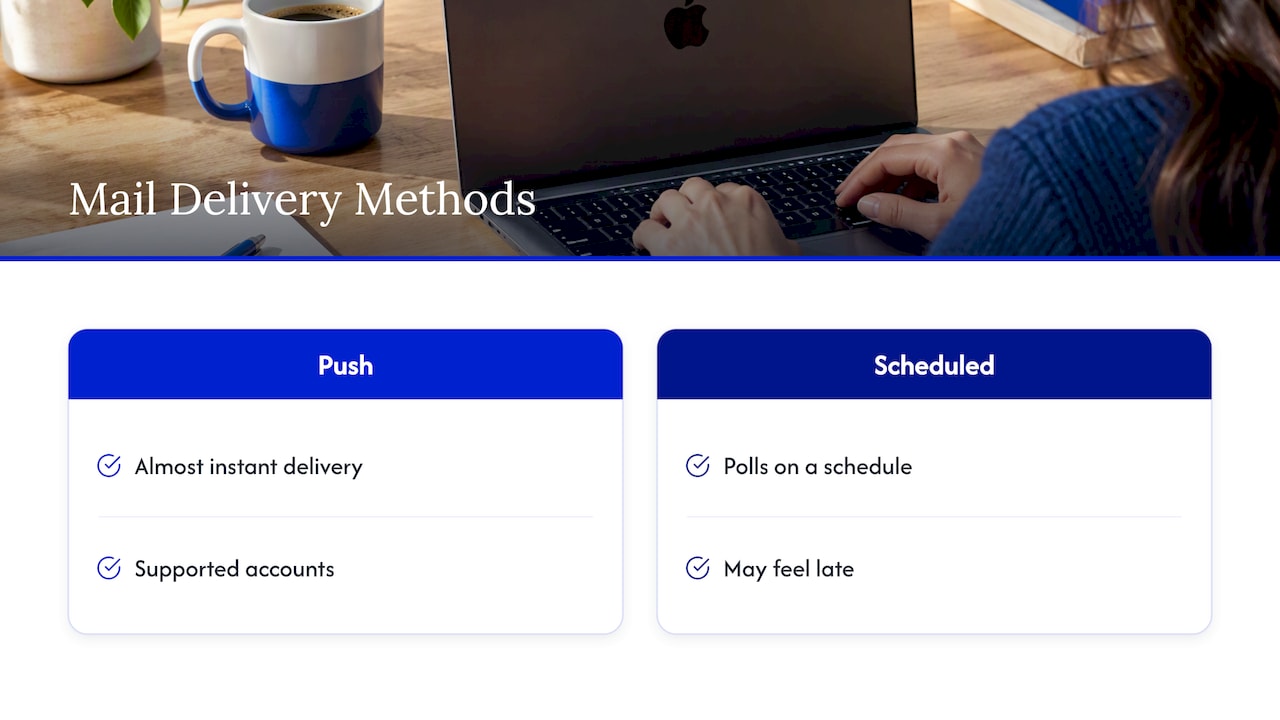
For accounts that support push delivery, new mail can arrive almost instantly. For others, Mail polls on a schedule. If you expect instant delivery from a provider that only supports scheduled checks, mail will feel late even though nothing is broken.
A note on suspicious sync problems
Most sync failures are boring. But if you also see mail you did not send, unexpected password reset emails, or sudden login prompts on several accounts at once, treat it as a security problem and not a sync problem. Change the password from a trusted device and read our checklist of phishing email signs you can verify in 30 seconds. If the Mac itself acts strangely, our list of Mac malware signs shows what to tell a technician.
Perspective: what we see on the job
Most “Mail is broken” calls we get are not hardware failures. They are an account that was set up as the wrong type years ago, a password changed on a phone, or a mailbox that quietly filled up. The tricky part is that the Mac gives you no clear sign which one it is until you check Connection Doctor and webmail side by side.
That is why we start every email visit the same way: confirm the account works in a browser, then work out what the Mac is doing differently. It keeps us from touching your data when we do not need to, and it is how we keep your messages and files safe throughout the repair.
If you are comfortable following the steps above, do it. If you would rather have someone at your door who has fixed this many times, that is what our on-site service is for. We come to your home or office in Orlando and Winter Park, explain the problem in plain language, and quote the work up front.
Michael
When to call for on-site help
Try the steps above first. Then consider a technician if:
- Mail still fails after you remove and re-add the account, and webmail works.
- Several accounts fail at once, or the whole Mac is slow, freezing or showing odd pop-ups.
- You manage email for a small business with multiple devices and the problems keep coming back.
- You have important mail stored only on this Mac and do not want to risk removing an account on your own.
- You are in a hurry. A client email you cannot receive is a problem worth solving today.
We handle this kind of work as part of our on-site computer repair, including software troubleshooting, network and internet issues, and data recovery and backup. If the machine itself is the problem, see our MacBook and iMac repair page.
Get a technician to fix it at your door
Repair Genius sends a technician to your home or office in Orlando or Winter Park, often the same day. We diagnose the problem on the spot, tell you what it is and what it costs before we start, and we prioritize the safety of your data throughout. Our approach is built on transparent pricing, with no hidden fees, and on more than 10 years of experience.

If your Mac’s Mail is still not syncing after the steps above, book on-site MacBook and iMac repair or start from our homepage.
FAQ
Why is Mail not syncing between my iPhone and my Mac?
For iCloud Mail, both devices must use the same Apple Account with iCloud Mail turned on. Without that setting, the device cannot send or receive iCloud Mail. For Gmail or Outlook accounts, each device connects separately, so check the account on the Mac using Connection Doctor and webmail.
How do I refresh email on my Mac?
Click Get New Mail in the Mail toolbar, or Control-click the Mail icon in the Dock and choose Get New Mail. To change how often Mail checks automatically, open Mail > Settings > General and pick a frequency. If it is set to Manually, Mail only checks when you ask it to.
Why are my emails not coming through at all?
Start with your internet connection, then test your account in webmail to rule out a provider outage or wrong password. A full mailbox can also block incoming mail, and Apple suggests checking storage by Control-clicking the account mailbox and choosing Get Account Info. A VPN or firewall can block the connection as well.
Will I lose my emails if I remove and re-add my account?
Copies of mail normally remain on the mail server, so most messages come back when you add the account again. Mail stored only in an On My Mac mailbox is different: copy it somewhere safe before removing the account. Apple states this in its guidance on managing accounts in Mail.
Why does Mail keep asking for my password?
The password Mail has saved probably no longer matches the one your provider expects, often after a change on another device or in webmail. Confirm the current password works in a browser, then enter it in Mail. If the prompt keeps coming back, the account may need to be removed and added again.
Sources
- If you can’t send or receive email on Mac, Apple Support (US)
- If you can’t send or receive emails on Mac, Apple Support (UK)
- Change General settings in Mail on Mac, Apple Support
- Use Connection Doctor in Mail on Mac, Apple Support
- If you can’t receive messages, Mail User Guide
- If Mail on your Mac keeps asking for your password, Apple Support
- Choose the correct email provider in Mail, Apple Support (US)
- Choose the correct email provider in Mail, Apple Support (Ireland)
- If iCloud Mail isn’t working, Apple Support
- Set up iCloud Mail on all your devices, Apple Support
- Add and manage email accounts in Mail on Mac, Apple Support
- Add Gmail to another email client, Gmail Help
- Reconnecting your Microsoft 365 account to Apple Mail, Microsoft Support
- Set up email in Mac OS X Mail, Microsoft Support
- Configuring Mail in macOS for Microsoft 365 Email and Calendar, Illinois State University