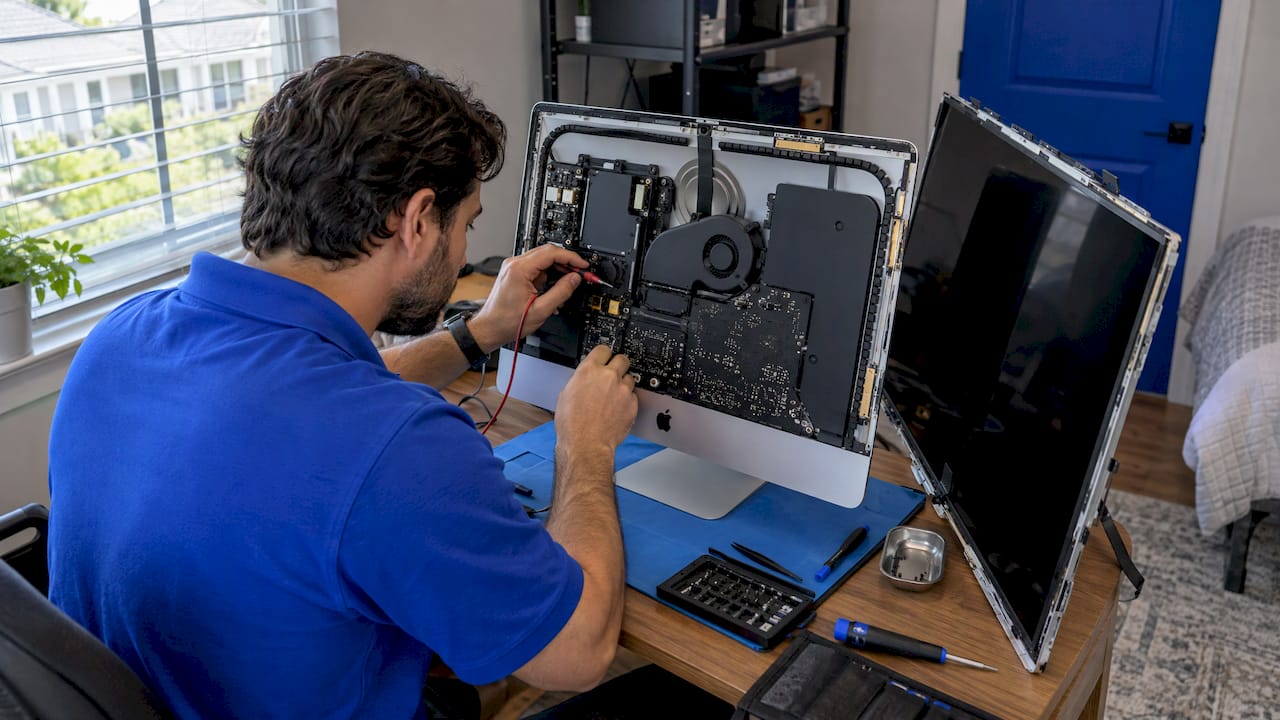
If your iMac is completely dead, or shuts off without warning, the power supply may be to blame. But it is not the only suspect. A bad outlet, a worn cable, a stuck power button, the logic board and the display circuitry can all look identical from the outside. Confirm the cause first, because the power supply sits behind the display, holds a dangerous charge, and is not a part to guess at. This guide covers the symptoms, the checks you can run safely, what a proper diagnosis looks like, what the repair involves, and when it makes sense to repair instead of replace.
TL;DR
- A failed power supply usually shows up as no power at all: no chime, no fan, no display, or sudden shutoffs. The same signs can come from the cable, outlet, power button, logic board or display.
- Start with the safe checks Apple recommends: cable, outlet, a 10-second power button hold, unplugging accessories, and an SMC reset on Intel models.
- A power supply should be condemned by measurement and diagnostic LED patterns, not by symptoms alone.
- Replacement means opening the display and working near capacitors that can still shock you after unplugging. This is a job for a trained technician.
- Whether to repair depends on the iMac’s age, Apple’s vintage and obsolete status, and the quoted cost against the value of the machine.
Table of Contents
- Signs your iMac power supply may be failing
- What to check before you assume the power supply is dead
- Reading the diagnostic LED on older iMacs
- How a technician confirms the power supply has failed
- What the repair actually involves
- How much does iMac power supply repair cost?
- Get the right part: identify your iMac model
- Repair or replace? How to decide
- Perspective: why we diagnose first, and at your door
- Book an on-site iMac repair in Orlando or Winter Park
- What to do while you wait for the repair
- FAQ
- Sources
Signs your iMac power supply may be failing
Apple’s own technician guidance describes a dead iMac as one with no power, no fan spin, no startup chime, no image on an external display, no drive activity and no Caps Lock response. In the Late 2009 27-inch guide, the symptom set includes total loss of power, no fan or drive activity, no chime, no display, only diagnostic LED 1 lit, or sudden power loss.
In everyday terms, you might see:
- Nothing happens when you press the power button. No light, no sound, no fan.
- The iMac shuts off by itself, sometimes within minutes, sometimes under load.
- It powers off intermittently, and works again after sitting unplugged for a while.
- A faint click or a brief fan spin and then silence.
The important point is that the same list also fits other faults. The same Apple guide notes these symptoms can come from the outlet or cable, the power button, the DC cable and connectors, the logic board, the display or video subsystem, overheating or temperature sensors, software, or even an accessory. That is why a dead iMac does not automatically mean a dead power supply.
What to check before you assume the power supply is dead
Apple recommends a staged approach. Its support article on a Mac that won’t turn on, last updated June 2, 2025, walks through the outside causes first. Work through them in this order:
- Check the power cable. Make sure it is undamaged and firmly seated in both the iMac and the wall outlet.
- Test the outlet. Plug in a lamp or phone charger to confirm the outlet works. If you use a surge protector or power strip, plug the iMac straight into the wall.
- Try another compatible cable. A cord that looks fine can still fail internally.
- Hold the power button for about 10 seconds, then release and press it again normally.
- Disconnect everything else. Unplug USB devices, external drives, adapters and displays, then try again.
- Reset the SMC on Intel iMacs. Apple lists this as a step before seeking service. Apple silicon iMacs, such as the 2021 M1 models, do not have a separately resettable SMC, so skip this step on those.
If you recently had a power bump, a storm or a brownout, mention it to whoever services the machine. Power events are a common trigger for supply failures, and the history helps a technician narrow the cause.
If none of this brings the iMac back, stop there. Do not open the case. The next steps involve internal measurements and high-voltage parts.
Reading the diagnostic LED on older iMacs
Many Intel iMacs have small diagnostic LEDs on the logic board that tell a technician what stage of startup the machine reached. Public guidance from iFixit’s community, written about the 21.5-inch EMC 2428 model, explains the basics: LED 1 indicates trickle voltage and should stay lit while AC power is connected, while LED 2 shows the logic board detected proper power after startup. The same guidance says that if no LED or only LED 1 lights, the power supply should be checked after you have verified the outlet and cable. LED 3 or 4 faults point instead toward video communication or the display and inverter.
Treat that as a guide, not a verdict. Another iFixit answer for a 27-inch Retina 5K iMac with only LED 1 on cautions that LED 2 failing to appear is non-specific and may come from the power supply, logic board, power button or interconnecting cable. Seeing the light pattern is the start of the diagnosis, not the end.
These LEDs are on the inside, so you cannot read them without opening the machine. That is one more reason this is a technician’s step.
How a technician confirms the power supply has failed
According to Apple’s technician guide for the Late 2009 27-inch model, a proper diagnosis involves observing the diagnostic LEDs, measuring the specified standby and power-request signals including the 12-volt line, inspecting the AC and DC connectors and cables, testing power-button continuity, and separating LED patterns from display faults. In that flow, the outlet and cable are checked first, then standby voltage and LED 1. Missing standby power points toward replacing the supply.
The same guide also makes the key point: because an LED 2 failure can reflect the logic board or cabling, a power supply should not be condemned from symptoms alone.
In practice that means a good technician will:
- Rule out the cord, outlet and power button.
- Measure rather than guess.
- Inspect connectors for burn marks, bulging components or a smell of overheated electronics.
- Check whether the logic board or display is the real culprit before quoting a power supply.
This matters for your wallet. Swapping a power supply that was never the problem costs you the part, the labor and the time, and leaves the iMac just as dead.
What the repair actually involves
The power supply in an iMac is not a plug-in box like on a desktop tower. It sits behind the display and logic board, and reaching it generally means separating the display from the body.
The work
Apple’s 2019 service manual shows that power supply access is part of a display-open repair sequence, requiring careful handling of the display, the power-button cable, logic board connections and several Torx fasteners. On the 21.5-inch EMC 2805 model, iFixit rates the replacement as Difficult and estimates 45 minutes to 1 hour. That guide also calls for removing the display, using new adhesive strips when closing it up, and managing an unbalanced iMac whose hinge can move. A service wedge makes the job easier.
Those are the figures for a prepared professional with the right tools. A first-timer should expect more time and more risk, not less.
The danger
This is the part not to skip. Apple’s Mid 2011 technician guide warns that the power supply and LED backlight board stay powered while the iMac is plugged in, and says to allow capacitors two to three minutes to discharge after unplugging. For the 2021 M1 iMac, Apple’s service manual says never to install or remove parts while the iMac is connected to an outlet, and to wait at least two minutes after unplugging before touching the logic board or power supply.
iFixit’s guide for the 2019 27-inch Retina 5K model adds that you should unplug the iMac, hold the power button for ten seconds, and avoid capacitor leads and exposed solder joints. It warns that capacitors may hold enough charge for a dangerous shock. For the 21.5-inch EMC 2544, its guide describes a high-voltage shock risk from large capacitors on the exposed board and says to handle the board only by its edges.
If you are comfortable with electronics, that is still a lot of warnings. If you are not, it is a clear signal to hand the machine to someone trained.
How much does iMac power supply repair cost?
There is no single number, because the total depends on your model, the part, the labor and whether the power supply turns out to be the only failed component.

For reference on the part alone: iFixit’s guide for the 21.5-inch Late 2012 to 2019 iMac lists a new power supply at $129.99 and a used one at $49.99, both showing as sold out, plus adhesive strips at $24.99. Treat these as a snapshot of one retailer’s list prices, not a quote for your machine. Parts availability and prices move, and larger or older models can cost more or less.
What drives the final price:
- Model and year. Each generation uses a different supply, and wattage varies.
- Part source. New, refurbished and used parts differ in price and reliability.
- Labor. Opening the display, replacing the supply and sealing the machine properly takes skilled time.
- What else is wrong. If the logic board or display is also damaged, the repair is a different conversation.
- Warranty. Parts and labor coverage is worth asking about before you agree to anything.
A word on bargain parts. One forum thread on this exact repair compared supplies priced around $140 with a listing for far less. Very cheap parts from unknown sellers can be the wrong model, used, or worn. A wrong part costs you a second repair.
Get the right part: identify your iMac model
Power supplies are not interchangeable across years. Before anyone orders a part, they need your exact model. Apple’s Identify your iMac model page explains how to find it using About This Mac, the serial number, the model identifier or the part number. It lists identifiers such as iMac18,3 for 2017, iMac19,1 and iMac19,2 for 2019, iMac20,1 and iMac20,2 for 2020, and iMac21,1 and iMac21,2 for the 2021 M1 models.
Even within one era, details differ. An iFixit answer about early 24-inch iMacs shows two Apple part numbers, 661-4422 at 240 W and 661-4478 at 250 W, which is why model and EMC identification comes before ordering.
If your iMac will not start, you may not be able to open About This Mac. In that case, the serial number printed on the stand or the box still works, as does the label on the machine.
Repair or replace? How to decide
Ask three questions.
1. How old is the iMac, and does Apple still service it? Apple defines a product as vintage when it was discontinued more than five and less than seven years ago, and as obsolete after seven years. Obsolete products get no hardware service and no ordered parts from Apple. That does not make repair impossible, since independent technicians use alternative parts, but it tells you where your machine stands in Apple’s own program.
2. Is the power supply the only fault? An Apple Community post about a 2017 27-inch iMac reports that an Apple repair center found both the logic board and the power supply damaged, and a commenter noted repair value depends on cost against the age of the computer. Power events can damage more than one component, which is why diagnosis comes before a quote.
3. What is on the drive? Photos, documents, client files and years of work are often worth more than the machine. Any repair plan should protect them. If your iMac will not start, ask about getting data off before parts are swapped. See our guide on what to do when your computer dies and how to protect your data with encrypted backups.
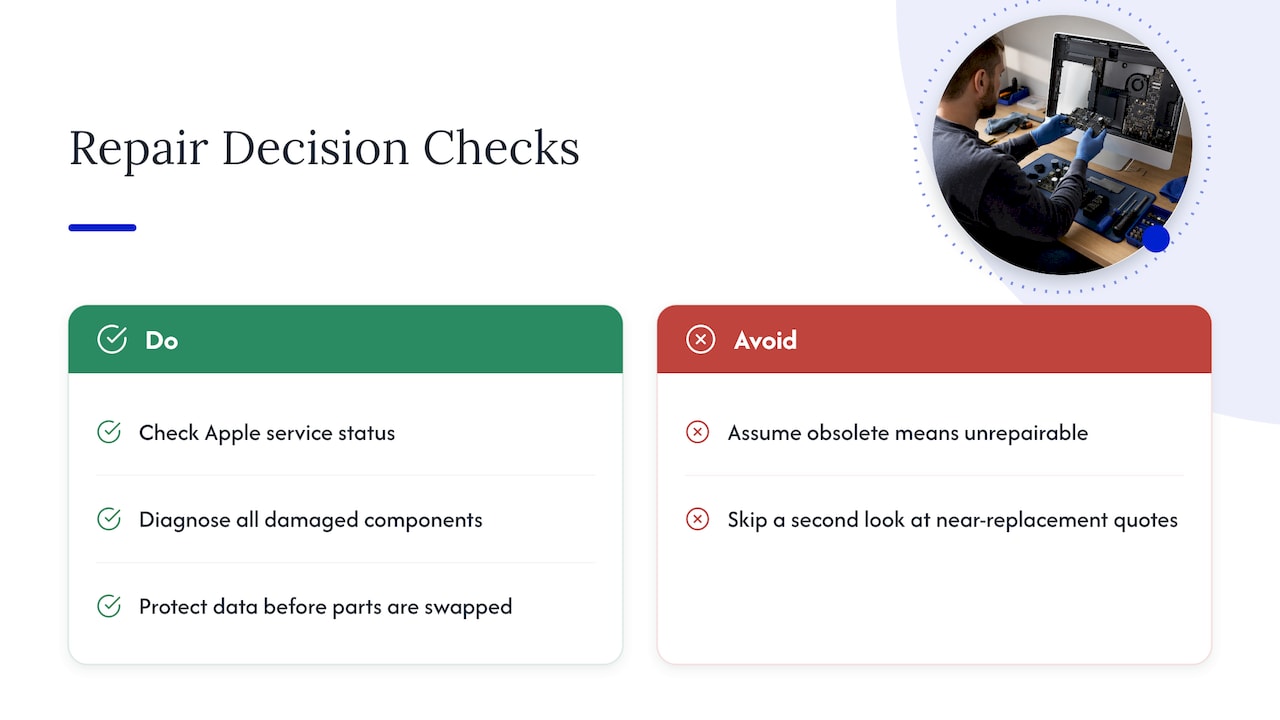
As a rule of thumb: a younger iMac with a clean diagnosis that points only to the power supply is usually a good repair. A very old machine with several failing parts is a closer call. A quote that costs close to a comparable replacement is worth a second look. A reliable repair provider will tell you this up front instead of pushing the job.
Perspective: why we diagnose first, and at your door
We see the same pattern often with a dead iMac. The owner assumes the power supply, orders a part, and finds out later it was a cable, a button or the logic board. So our rule is simple: measure first, quote second.
That is also why we do this where you are. Moving a big all-in-one to a shop is awkward, and it leaves your files out of your sight. When a technician comes to your home or office in Orlando or Winter Park, you can see what is being checked, and you hear the findings in plain language before any part is bought.
We built our service around certified technicians, board-level repair skills, quality parts backed by a warranty on parts and labor, and a quote with no hidden fees. For an iMac, that means we tell you what failed, what it takes to fix, and whether repair is the sensible move for a machine of its age.
If the power supply is the culprit, we will say so. If it is not, we will say that too, and tell you what is.
Michael
Book an on-site iMac repair in Orlando or Winter Park
If your iMac will not start and you are in Orlando or Winter Park, we come to you with the tools to find out why. Our MacBook and iMac repair service covers diagnostics, hardware repair and data protection, with the price quoted up front.

If your problem is a laptop that will not power on, our page on MacBook not turning on repair in Orlando covers that case. For a full overview of how a visit works, read our on-site MacBook and iMac repair guide, or contact us through the main site to book.
What to do while you wait for the repair
A few habits will protect you and your data.
- Leave the iMac unplugged once you have finished the basic checks, especially if you smelled burning or saw smoke. Do not keep trying the power button repeatedly.
- Do not open the case yourself to look at the supply. The charge in the capacitors does not disappear just because the cord is out.
- Write down the symptoms. Note when it last worked, whether there was a storm or outage, and any sounds, lights or smells. This shortens the diagnosis.
- Find your model details. Have the serial number and approximate year ready.
- Think about your backups. If you use Time Machine or iCloud, check when the last backup ran. If you do not, tell the technician so the data is handled carefully.
- Avoid the cheapest part you can find. The right part for your exact model matters more than saving a few dollars.
FAQ
Can I replace an iMac power supply myself?
It is possible, but it is not a casual repair. The job means opening the display, working near capacitors that can deliver a dangerous shock, and resealing the machine with new adhesive. Apple’s and iFixit’s own guides carry explicit shock warnings and rate at least one model’s replacement as Difficult. If you are not experienced with electronics, have a trained technician do it.
How do I know if it is the power supply or the logic board?
You usually cannot tell from the outside. A technician measures standby and power-request voltages, checks the connectors and cables, and reads the diagnostic LEDs. Apple’s own guidance says a power supply should not be condemned from symptoms alone, because the logic board and cabling can produce the same signs.
Is it worth repairing an older iMac?
It depends on the age, the total quote and what else is wrong. Apple stops hardware service and parts ordering for products it classes as obsolete, which is seven years after discontinuation. For machines past that point, a repair can still make sense if the diagnosis is clean and the cost is well below a replacement, and if the files on the drive matter to you.
What should I try before calling for service?
Check the cable and outlet, try another compatible cable, hold the power button for about 10 seconds, unplug all accessories, and reset the SMC if your iMac is an Intel model. Apple lists these steps in its support article for a Mac that won’t turn on. If the iMac stays dead, stop and call a technician.
Sources
- If your Mac doesn’t turn on, Apple Support
- Apple Technician Guide, iMac (27-inch, Late 2009)
- Apple Technician Guide, iMac (27-inch, Mid 2011)
- Apple service manual, iMac 2019
- Apple service manual, iMac (24-inch, M1, 2021)
- iFixit: iMac Intel 21.5" EMC 2805 Power Supply Replacement
- iFixit: iMac Intel 27" Retina 5K Display 2019 Power Supply Replacement
- iFixit: iMac Intel 21.5" EMC 2544 Power Supply Replacement
- iFixit Answers: Not Turning On, Suspect Faulty Power Supply
- iFixit Answers: Diagnostic LED #1 ON only, won’t power on
- iFixit Answers: Why will my machine not re-start?
- Identify your iMac model, Apple Support
- Vintage and obsolete products, Apple Support
- Repair for iMac Retina 5K 27 inch 2017, Apple Community
Recommended
- Top 5 MacBook Battery Replacement Providers 2026
- MacBook Speaker Replacement: Costs, Steps and When to Call a Pro
- Fix iPad Not Charging: Fast Troubleshooting Guide