
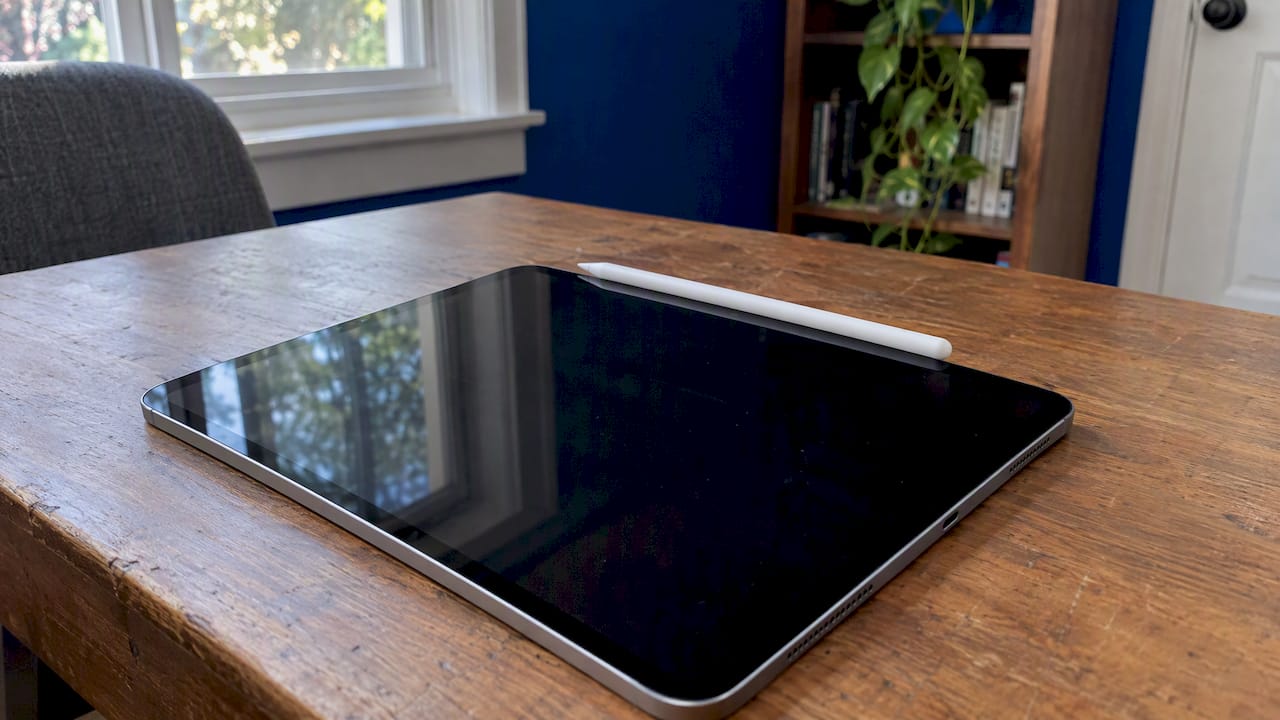
Most Apple Pencil connection problems come down to four things: the wrong Pencil for the iPad, a stale Bluetooth pairing, a loose tip or dead battery, or a software glitch on the iPad. Work through them in that order and you will fix the large majority of cases in about ten minutes, without a store visit. If none of it works, the fault is usually the Pencil’s battery or the iPad’s own charging hardware, and this guide shows how to tell which.
TL;DR
- Confirm the Pencil is compatible with your exact iPad model first. A USB-C port alone does not mean it works.
- Charge it, tighten the tip, restart the iPad, then choose Forget This Device in Bluetooth settings and pair again.
- Frequent dropouts point to a low or degraded battery, 2.4GHz Wi-Fi interference or a software glitch.
- If the Pencil charges on one iPad but not on yours, the iPad’s connector or charging system is the suspect, and that is a job we do on site in Orlando and Winter Park.
Table of Contents
- Start with compatibility: which Pencil goes with which iPad
- The 10-minute checklist, in order
- Apple Pencil not charging
- Apple Pencil keeps disconnecting
- Connected but not writing
- Resetting an Apple Pencil Pro (and every other model)
- Perspective: why a “Pencil problem” is often an iPad problem
- When your iPad needs a repair, we come to you
- Which fix to try, by symptom
- Don’t replace the Pencil until you’ve done these checks
- FAQ
- Sources
Start with compatibility: which Pencil goes with which iPad
This is the cause people skip, and it explains a lot of “my Pencil never connected” complaints, especially after buying a used Pencil or a new iPad. Apple publishes a compatibility list by Pencil and iPad model. Three points from it matter most:
- Apple Pencil Pro needs iPadOS 17.5 or later and works only with specific models: M4 and M5 iPad Pro, M2 through M4 iPad Air, and the A17 Pro iPad mini.
- Apple Pencil (USB-C) works only with the iPad models Apple lists, including the iPad (10th generation) and iPad mini (6th generation).
- A USB-C port does not by itself establish compatibility, as MacRumors’ buyer’s guide points out.
The first-generation Pencil is the confusing one. It has a Lightning connector, so it plugs straight into older iPads. The iPad (10th generation) has a USB-C port instead, so you need the USB-C to Apple Pencil Adapter and a compatible USB-C cable to pair and charge it. Plug the Pencil into a USB-C cable alone and nothing happens.
How each Pencil connects and charges
| Pencil | How it pairs and charges | Common trap |
|---|---|---|
| Apple Pencil (1st generation) | Lightning plug into the iPad, or the USB-C adapter and cable on the iPad (10th generation) | Tip or cap loose, or no adapter on a USB-C iPad |
| Apple Pencil (2nd generation) | Attaches magnetically to the iPad’s side edge | Case or thick cover blocks the magnetic contact |
| Apple Pencil (USB-C) | Cable-based charging and pairing through its USB-C port, per Apple’s compatibility list | Used with an iPad not on Apple’s list |
| Apple Pencil Pro | Magnetic attachment, newer iPads only | iPad not updated to iPadOS 17.5 or later |
Check the model name printed on your Pencil, and your iPad’s model under Settings > General > About. Then match them against Apple’s list. If they do not match, no amount of re-pairing will help, and the fix is a compatible Pencil or iPad.
The 10-minute checklist, in order
Apple’s own guidance for a Pencil that won’t pair is to make sure the iPad is updated, the Pencil is compatible, and the Pencil is charged, then reconnect it, restart and confirm Bluetooth is on. Here is that sequence with the details people miss.
- Turn Bluetooth on. Open Settings > Bluetooth and confirm the toggle is green. The Pencil only appears there once it has paired.
- Check for iPadOS updates. Settings > General > Software Update. Apple Pencil Pro will not work at all on older versions.
- Charge the Pencil. Attach it magnetically or plug it in for several minutes. A fully drained Pencil may not show anything at first.
- Tighten the tip. Unscrew it slightly and screw it back on firmly. A loose tip can stop the Pencil from working or showing up in Bluetooth, according to The Mac Observer. One Reddit user in the top results found exactly that. It costs nothing to try, so do it early.
- Remove the case. Thick or magnetic-interfering iPad cases can keep a 2nd generation or Pro Pencil from sitting flush on the edge.
- Restart the iPad. Turn Bluetooth off, restart, and turn it back on.
- Re-pair. Details below.
How to re-pair an Apple Pencil properly
Pairing on top of a corrupted pairing is a common reason for the “Verifying connection” message that never finishes. Clear it first:
- Go to Settings > Bluetooth.
- Under My Devices, find your Apple Pencil and tap the info (i) icon.
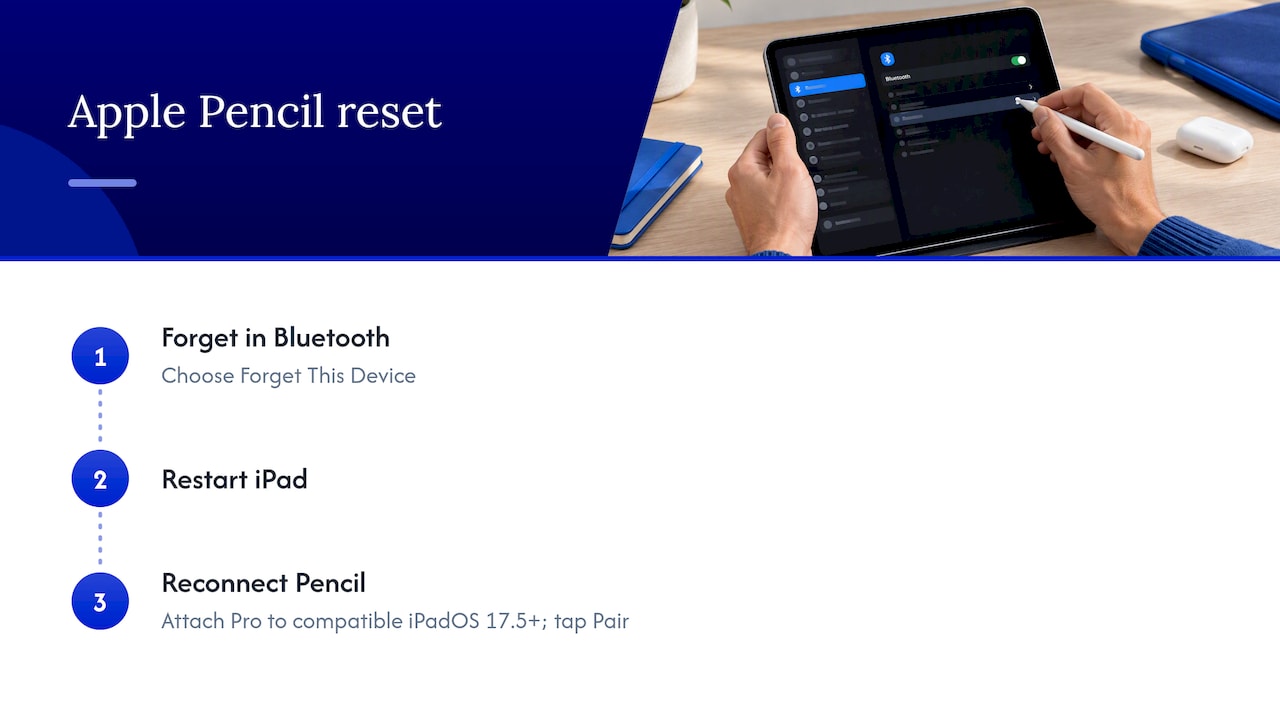
- Tap Forget This Device and confirm.
- Reconnect the Pencil: attach it magnetically (2nd generation and Pro), plug it into the Lightning port (1st generation), or connect it with the adapter or cable as appropriate.
- When the Pair button appears, tap it.
That sequence is Apple’s documented re-pair method. The Pair prompt only appears when the Pencil is physically connected, so if you never see it, the fault is likely contact, charge or compatibility rather than Bluetooth settings.
Apple Pencil not charging
With a Pencil that won’t charge, you first need to know which side is failing: the Pencil or the iPad.
Rule out the obvious
- 1st generation: Make sure the Lightning plug is fully seated. If you are on an iPad (10th generation), confirm you are using the adapter and a working USB-C cable, not a bare cable.
- 2nd generation and Pro: Remove cases and look for debris or a film on the iPad’s magnetic edge. Try attaching on the correct side.
- USB-C Pencil: Try a different cable. Apple notes that this model enters a sleep state to preserve battery when magnetically attached to an iPad, so a Pencil that looks inactive on the iPad is not necessarily broken.
Deeply drained batteries
Lithium-ion batteries can suffer permanent damage if they sit discharged for long periods, per The Mac Observer. If your Pencil lived in a drawer for a year, a dead battery is a real possibility. Leave it connected to charge for a while before deciding. If it still shows nothing, the battery cannot hold charge.
The cross-test that settles it
If you have access to a second compatible iPad, try the Pencil on it. If it charges and pairs there, your Pencil is fine and your iPad is the problem. If it fails on both, the Pencil is the culprit. This one test saves most people from replacing the wrong item.
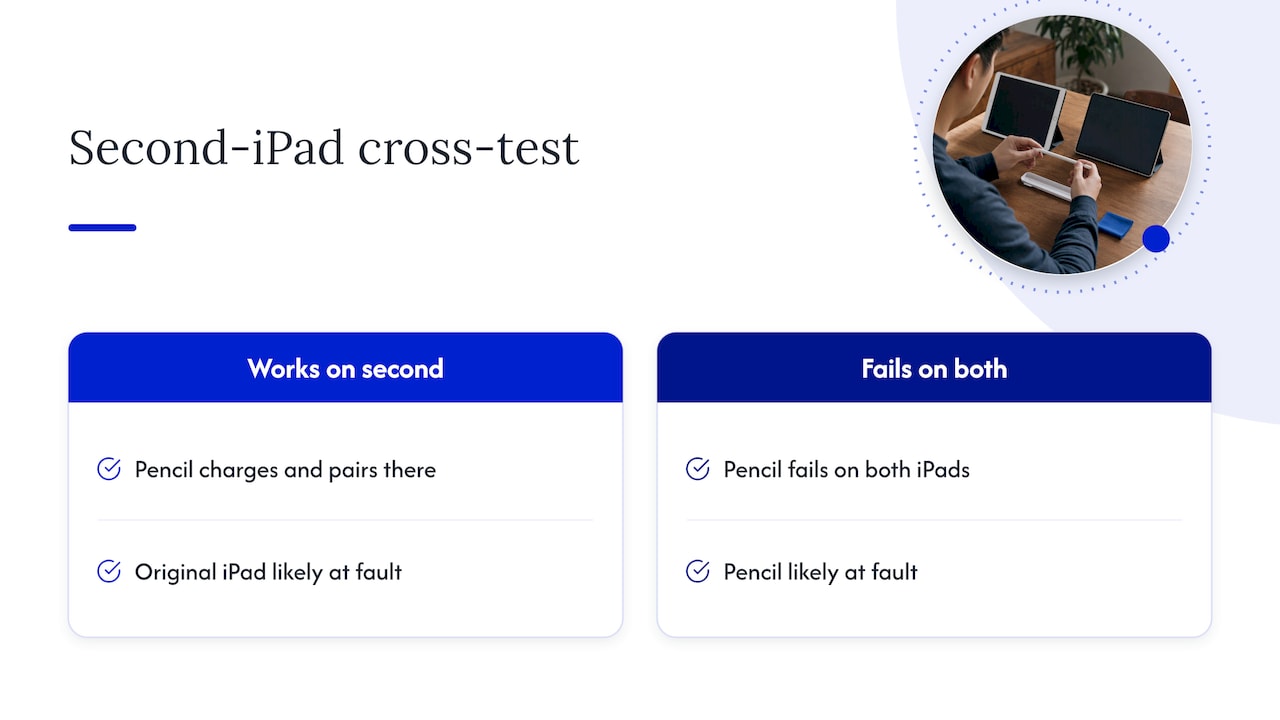
If the Pencil works elsewhere and the iPad refuses to charge other accessories, see our guide on an iPad not charging. A damaged Lightning or USB-C port can block both the Pencil’s pairing (on 1st generation) and ordinary charging.
Apple Pencil keeps disconnecting
Intermittent dropouts feel different from a Pencil that never connects. It works, then stops mid-stroke, then returns. The Mac Observer lists low battery, 2.4GHz Bluetooth and Wi-Fi interference, and software glitches as the usual causes. Work through them like this:
- Keep the battery up. Charge the Pencil above 30% before a long session.
- Cut interference. Switch off Wi-Fi briefly to see whether dropouts stop. If they do, move closer to a 5GHz network or away from crowded wireless gear such as routers, microwaves and other Bluetooth devices.
- Restart the iPad. It clears software glitches that cause the Pencil to lose its link.
- Forget and re-pair. Use the steps above.
- Update iPadOS. Connection bugs are often patched in software updates.
If the dropouts continue after all that, suspect the battery. A permanently damaged battery that can’t hold a charge can cause disconnections. A sign is a Pencil that works fine for a few minutes after charging, then dies within the hour.
Connected but not writing
Sometimes the Pencil shows as connected in Bluetooth and still draws nothing. A few things to try, in this order:
- Check the tip. Worn or loose tips fail to register pressure. Tighten it, and if it’s worn flat or damaged, swap in a replacement tip.
- Test in different apps. If it writes in Notes but not in a third-party app, the problem is that app’s settings, not your Pencil. Look for a Pencil or “draw with finger” option in the app.
- Check Settings > Apple Pencil and confirm the options there are what you expect.
- Clean the screen. A cracked screen protector or a screen with moisture or heavy film can confuse touch input.
- Restart the iPad and re-pair.
If strange touches appear on their own, or the Pencil writes in the wrong place, that is a different fault entirely. Our iPad ghost touch checklist walks through it. A damaged digitizer or a screen that was replaced poorly can cause both input problems and Pencil trouble.
Resetting an Apple Pencil Pro (and every other model)
No Apple Pencil has a physical reset button. The practical reset is the one above: forget it in Bluetooth, restart the iPad, and reconnect so the pairing starts clean. For the Pencil Pro, that means Forget This Device, then re-attach it to the side of a compatible iPad running iPadOS 17.5 or later and tap Pair when prompted.
If the Pencil Pro still won’t pair on a compatible iPad after a clean re-pair, restart, update and a different charging position, the likely causes are the Pencil’s own hardware or the iPad’s magnetic charging area. Apple’s support site offers a repair and service estimator for out-of-warranty replacement of Pencils. Check it for your exact model, because prices vary by model and change over time.
Perspective: why a “Pencil problem” is often an iPad problem
We repair iPads, iPhones, MacBooks and Windows laptops at customers’ homes and offices around Orlando and Winter Park, so we see this pattern constantly. Someone assumes the Pencil has failed, buys a replacement, and the new one fails in exactly the same way. The Pencil is only half of a two-part system, and the iPad half is where we usually find the answer.
Here is how we think about it. A Pencil that works on another iPad is a healthy Pencil. If it fails on yours, we look at the things that touch it: the charging port or magnetic edge, the software state, a case that interferes, and screen or digitizer faults after a previous drop or repair. Those are things a technician can diagnose with the iPad in hand. Software resets and a careful look at the connector often come first, because they cost the least and risk the least data.
We also push back on the instinct to wipe the iPad as the first step. A full reset solves some Bluetooth problems but puts your notes, drawings and photos at risk if there is no current backup. Before any hands-on work we ask about backups, and we treat data safety as part of the repair, not an afterthought. If you have never encrypted your computer backups, read our note on backing up before repair.
And where a Pencil’s own battery has failed, we tell people so. We do not sell Pencils, and we would rather you spend nothing on the iPad than pay for a repair that was never going to fix it. The goal of a diagnosis is a straight answer.
— Michael
When your iPad needs a repair, we come to you
If the cross-test shows the Pencil works on another iPad but not on yours, or the iPad won’t take a charge, won’t register touch correctly, or has a damaged port, that is repair territory. Our technicians do iPad and tablet diagnostics and repairs at your home, office or school in Orlando and Winter Park, often the same day. Quotes are given up front, with no hidden fees, and repairs are backed by a warranty on parts and labor.

See our iPad and tablet repair page or book from repairgeniuses.com. If your iPad’s battery is the weak point, our overview of iPad battery repair options explains what to look for. For cracked or unresponsive glass, see iPad digitizer repair.
Which fix to try, by symptom
| What you see | Most likely cause | Try this |
|---|---|---|
| No Pair button ever appears | Incompatible model, missing adapter, poor contact | Check Apple’s compatibility list, use the adapter on USB-C iPads, remove the case |
| Shows in Bluetooth but “Verifying connection” hangs | Corrupt pairing | Forget This Device, restart, re-pair |
| Pencil not in Bluetooth at all | Loose tip, dead battery, Bluetooth off | Tighten tip, charge, toggle Bluetooth |
| Won’t charge on any iPad | Failed Pencil battery | Charge longer, try a second device, check Apple’s service options |
| Won’t charge on yours only | iPad connector, case or software | Remove case, restart, update, book an iPad diagnostic |
| Drops out mid-session | Low battery, 2.4GHz interference, glitch | Charge above 30%, turn off Wi-Fi to test, restart |
| Connected but no ink | Tip, app setting, screen fault | Tighten tip, test in Notes, check screen |
Don’t replace the Pencil until you’ve done these checks
Replacing a Pencil is the expensive answer, and often the wrong one. Before you spend anything, run through these questions:
- Is the Pencil’s exact model on Apple’s list for your exact iPad?
- Did you try a tight tip and a clean re-pair?
- Has the Pencil been charged for a long time at least once?
- Does it behave the same on a second iPad?
- Is the iPad updated, and is its charging port clean and undamaged?
If the answers point at the iPad, repair is the cheaper path. If they point at a dead Pencil battery, replacement is the only remedy and no technician can talk you out of that. That is an honest result too, and it is better to know before buying parts.
A word on cases and accessories: third-party iPad covers with strong magnets or thick edges can quietly cause magnetic Pencils to charge poorly, and cheap cables can make a USB-C Pencil seem dead. Swapping to the cable and adapter that came with the product is a two-minute test.
FAQ
Why is my Apple Pencil not showing up in Bluetooth?
The most common reasons are a loose tip, a drained battery, a Pencil that is not compatible with your iPad, or Bluetooth being off. Tighten the tip, charge the Pencil, confirm compatibility on Apple’s list and toggle Bluetooth. If it appeared before and now doesn’t, restart the iPad and reconnect the Pencil so the Pair prompt returns.
How do I pair an Apple Pencil with a USB-C iPad?
The iPad (10th generation) needs the USB-C to Apple Pencil Adapter and a compatible USB-C cable for the 1st generation Pencil. Connect the Pencil through the adapter and cable, then tap Pair when it appears. Apple Pencil (USB-C) and Pencil Pro work only with models on Apple’s compatibility list.
Can a bad iPad cause my Apple Pencil to stop connecting?
Yes. A dirty or damaged charging port, a software glitch, a thick case, or a faulty screen can all interfere. Test the Pencil on a second compatible iPad. If it works there, the issue is with your iPad, and a technician can diagnose it without replacing the Pencil.
Why does my Apple Pencil keep disconnecting?
Low battery, interference on the 2.4GHz band, and software glitches are the usual causes. Charge above 30%, restart the iPad and try with Wi-Fi off to test for interference. If it persists, the Pencil’s battery may be worn out.
Can a Pencil’s battery be replaced?
Apple’s own community guidance says a failed Pencil battery is solved by replacing the Pencil, not by replacing the battery alone. Check Apple’s service estimator for your model’s current out-of-warranty fee, and ask your retailer about warranty coverage if you bought it recently.
Sources
- If you can’t pair Apple Pencil with your iPad, Apple Support
- Apple Pencil compatibility, Apple Support
- Apple introduces new Apple Pencil, Apple Newsroom
- Apple Pencil Buyer’s Guide, MacRumors
- Apple Pencil Not Showing Up in Bluetooth? 9 Easy Fixes, The Mac Observer
- Apple Pencil Keeps Disconnecting? Here Are 9 Solutions, The Mac Observer
- Apple Pencil replacement, Apple Community
Recommended
- iPad Ghost Touch: 7 Checks First, Repair Only If These Fail
- Fix iPad Not Charging: Fast Troubleshooting Guide
- Top 3 iPad Digitizer Repair Providers 2026










