

Use iCloud for daily automatic off-site backups and keep an occasional encrypted computer backup for a full local copy. The two methods protect against different failure modes: iCloud saves you if the device is lost or damaged, while a local backup restores faster and stores extra data like saved passwords, but only if you enable encryption and remember the password.
TL;DR:
- Regular iCloud backups are automatic and protect your data if the device is lost or damaged, but storage limits and slow restores can be issues for large libraries.
- Enabling encrypted local backups on your computer stores passwords and health data securely but requires remembering a strong encryption password that Apple cannot recover.
- For faster restore speed and comprehensive data capture, a manual encrypted local backup is preferable, especially before major updates or repairs.
- Managing both backup methods together provides layered security: daily iCloud backups for convenience and encrypted local backups for control and speed.
- Properly securing and remembering your encryption password is critical, as losing it makes your local backup permanently inaccessible.
Table of Contents
- Comparing iCloud and computer backups at a glance
- What iCloud backup actually stores and protects
- Computer backups and how to turn on encryption
- Weighing the advantages and trade-offs of each method
- Matching the backup method to the situation
- Creating a secure encrypted local backup step by step
- Restoring from iCloud versus restoring from a computer backup
- Fixing the most common backup and restore failures
- Protecting your data before a repair or recovery visit
- What most advice gets wrong about backups
- Consider Repair Genius for on-site backup and secure data recovery
- Where to read the official documentation
- Sources
- FAQ
Comparing iCloud and computer backups at a glance
The two methods diverge on where your data lives, what gets included, and how fast you can get back up and running. Apple documents both as valid, complementary options rather than competitors, and the differences matter most when you’re actually trying to restore a device under pressure.
| Dimension | iCloud backup | Computer backup (Finder/Apple Devices/iTunes) |
|---|---|---|
| Encryption | Encrypted by default | Not encrypted unless you turn on Encrypt local backup |
| Where it’s stored | Apple’s servers (off-site) | Your Mac or PC’s local disk |
| Includes passwords & Health data | Yes, as part of standard encryption | Only if Encrypt local backup is enabled |
| Requires a computer to restore | No | Yes |
| Automatic vs manual | Automatic, on a daily schedule | Manual, triggered by the user |
| Typical restore scenario | Restore during setup, over Wi-Fi | Restore via cable, generally faster for large libraries |
A few quick rules cut through the decision:
- If convenience matters most, let iCloud run automatically in the background and forget about it.
- If privacy and control matter most, use an encrypted computer backup so nothing sensitive sits on a third-party server.
- If restore speed matters most, a local backup over a cable usually beats redownloading everything from iCloud.
What iCloud backup actually stores and protects
iCloud Backup runs automatically once a day when your device is locked, connected to power, and on Wi-Fi. Each backup is incremental, meaning only new or changed data uploads after the first full backup, which keeps daily backups fast and light on data use.
iCloud backs up:
- Photos and videos not already saved through iCloud Photos.
- App data, device settings, and your home screen layout.
- Messages, call history, and health data (encrypted).
- Device settings like wallpaper and ringtones.
It does not back up content already stored in iCloud separately, like synced Photos or Mail, since those live outside the backup itself.
Standard iCloud backups are already encrypted, but Advanced Data Protection extends that to end-to-end encryption, which means even Apple can’t read your backup. That stronger privacy comes with a catch: if you lose your account recovery information after turning on Advanced Data Protection, Apple cannot help you recover the backup.
Storage is the other practical limit. iCloud counts every backup, synced photo, and document against your plan’s quota, and large photo libraries fill that quota fast. Managing which apps back up to iCloud, or upgrading your storage tier, keeps daily backups running without interruption.
Computer backups and how to turn on encryption
A backup stored on your Mac or PC lives entirely on your own hardware, which means its size is limited only by your free disk space, not a subscription tier. That makes it a practical option for archiving a full backup before a major change, especially if you route the file to an external drive afterward.
By default, computer backups are not encrypted. Turning on Encrypt local backup adds saved website passwords, Health data, and Wi-Fi settings to the backup, none of which are included otherwise. The trade-off is real: that password becomes the only key to the backup.
- On a Mac, open Finder, select your device in the sidebar, and check the box for Encrypt local backup.
- On Windows, open the Apple Devices app (or iTunes on older systems), select your device, and enable the same encryption option under Backups.
- Set a password you will remember and store it somewhere safe, separate from the device itself.
Pro Tip: Write the encryption password down in a password manager the moment you set it, not after you need it.
Weighing the advantages and trade-offs of each method
Each method earns its place for different reasons, and neither fully replaces the other.
- iCloud backs up automatically without you lifting a finger, and it survives even if your computer and device are both lost.
- iCloud storage beyond the free tier costs money, and large photo libraries can eat through it quickly.
- A computer backup restores faster for large data sets since it transfers over a cable instead of downloading from a server.
- An encrypted computer backup captures passwords and Health data that standard iCloud backups otherwise handle differently, but it depends entirely on you running it and remembering the password.
- A local backup sitting on one laptop offers zero protection if that laptop fails, unless you’ve archived a copy elsewhere.
Matching the backup method to the situation
The right choice usually comes down to what you’re preparing for, not a fixed rule.
- Traveling without a laptop, or needing to restore quickly from anywhere: rely on iCloud, since setup-time restores only require your Apple Account.
- Preparing for a repair, a major iOS update, or a device migration: create a fresh encrypted computer backup first, since it captures more categories and restores faster.
- Day-to-day protection: let iCloud run daily in the background, and add a weekly or pre-update encrypted local backup as a second layer.
Pro Tip: Before any major iOS update, make one encrypted local backup even if iCloud is current. It gives you a fast fallback if the update goes wrong.
This layered routine reflects how independent security coverage frames the trade-offs: daily iCloud plus periodic encrypted local backups cover different failure modes, one for lost or stolen devices, the other for a faster, more complete restore when you have access to a computer.
Creating a secure encrypted local backup step by step
Before starting, update your device’s operating system and your backup software, confirm you have enough free disk space, and make sure you’re using a computer you trust.
- Connect your device with a cable and open Finder on a Mac, or Apple Devices (or iTunes) on Windows.
- Select your device, then choose “Back up all of the data on your device to this computer.”
- Check Encrypt local backup and set a password you’ll remember.
- Click Back Up Now and wait for the process to finish without disconnecting the device.
- Confirm the backup’s date and size in the software, then copy the backup folder to an external drive for a second copy.
Losing an encrypted backup’s password makes that backup permanently unusable, since Apple has no way to unlock it for you. That single detail is why storing the password somewhere durable matters as much as making the backup itself.
Restoring from iCloud versus restoring from a computer backup
The two restore paths diverge early, and knowing which one applies avoids wasted time.
- For an iCloud restore, begin device setup, sign in with your Apple Account, and choose “Restore from iCloud Backup” when prompted.
- Keep the device on Wi-Fi and connected to power throughout, since the restore downloads your full backup plus any purchased content.
- For a computer restore, connect the device, open Finder or Apple Devices, and choose “Restore Backup” from the device’s summary screen.
- Enter the encryption password immediately if the backup was encrypted, since the restore will not proceed without it.
- Expect some apps to redownload content after the restore finishes, and be ready to sign back into accounts that don’t transfer automatically.
Apple’s restore instructions outline both flows in more detail, including what to do if a restore stalls partway through.
Fixing the most common backup and restore failures
Most backup problems trace back to a handful of causes.
- Not enough iCloud storage: delete old backups you no longer need or upgrade your iCloud+ tier.
- Backup won’t run automatically: confirm the device is locked, charging, and on Wi-Fi, or trigger a manual backup instead of waiting.
- Computer won’t recognize the device: update both operating systems, try a different cable or USB port, and accept the “Trust This Computer” prompt.
- Backup looks corrupt or incompatible: try restoring on a different computer, or fall back to the most recent iCloud backup if one exists.
If a full backup keeps failing because storage is tight, freeing up space on the device itself often resolves the root cause before it becomes a backup problem at all.
Protecting your data before a repair or recovery visit
Before handing a device over for repair, a current backup on both fronts avoids unnecessary data loss. Repair Genius emphasizes data safety throughout every on-site repair and offers data recovery and backup support as part of its service lineup.
A short checklist before any service appointment includes knowing how to factory reset an iPhone before selling to prepare your device securely.
- Run a fresh iCloud backup and confirm the date it completed.
- Create an encrypted local backup if you want passwords and Health data preserved, and write down where the password is stored.
- Disable Find My or sign out of accounts only if the technician’s instructions call for it.
Following contact-preservation steps beforehand also reduces the chance of losing anything during a screen or battery swap.
What most advice gets wrong about backups
Most backup guides treat iCloud and computer backups as rivals, asking which one is “better.” That framing misses the actual risk: the real failure isn’t picking the wrong method, it’s picking one and never touching it again. An iCloud backup you never check and a local backup you made once in 2023 offer roughly the same false sense of security.
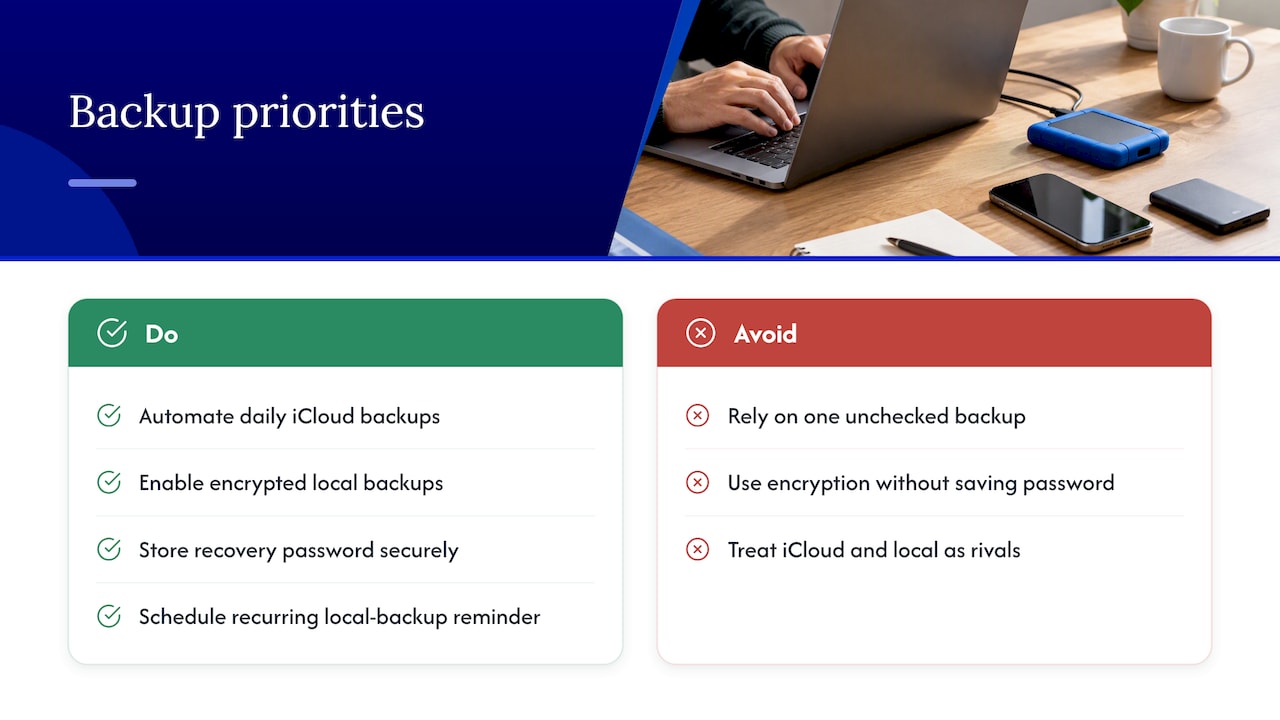
The trade-off that deserves more attention is the encryption password. Enabling Encrypt local backup is the right move for anyone who wants passwords and Health data preserved, but it hands you full responsibility for a password Apple cannot recover. Advanced Data Protection raises the same stakes for iCloud. Stronger encryption is worth choosing, but only if you treat the recovery information around it as seriously as the backup itself.
If you take one thing from this, let it be the routine over the debate: automate the iCloud side, and put a recurring reminder on your calendar for the encrypted local backup instead of trusting yourself to remember.
— Michael
Consider Repair Genius for on-site backup and secure data recovery
If forgotten encryption passwords, failing hardware, or the need for a secure local backup before a repair sound familiar, that’s exactly where professional help earns its cost. Professional services handle data recovery and backup support as part of on-site repair visits, working at your location with prompt availability and transparent pricing.

Whether it’s an iPhone with a cracked screen, a MacBook that won’t boot, or a phone that needs data pulled off before a repair, Repair Genius’s data recovery service can secure your information first. Book a visit through Repair Genius and get a same-day technician instead of guessing your way through a failed restore.
Where to read the official documentation
- About encrypted backups, Apple’s guide to password requirements and risks.
- iCloud Backup basics, covering storage tiers and quota management.
Sources
- Advanced Data Protection for iCloud – Apple
- About encrypted backups on your iPhone, iPad, or iPod touch – Apple Support
- Axios: Apple encryption and iCloud backups
FAQ
What isn’t saved in an iCloud backup?
Content already stored separately in iCloud, such as synced Photos, Mail, and data already in iCloud Drive, isn’t duplicated inside the backup itself. Apple’s backup documentation explains that the backup covers device settings, app data, and messages instead of content that syncs independently.
What are the disadvantages of iCloud backup?
iCloud backups depend on your storage plan, so large photo and video libraries can fill a free tier quickly and require a paid upgrade. Restoring also requires signing in to your Apple Account and a stable Wi-Fi connection, which can be slower than a cable-based restore for large amounts of data.
What is the best backup method for iPhone?
Apple’s own guidance treats iCloud and computer backups as complementary rather than an either-or choice, recommending daily automatic iCloud backups paired with periodic encrypted local backups. That combination covers both a lost or stolen device and a faster, more complete restore when a computer is available.
Do we really need an iCloud backup?
An iCloud backup protects your device even if it’s lost, stolen, or damaged beyond recovery, since the backup lives off-site on Apple’s servers. Without it, a local backup alone leaves you exposed if both the device and the computer holding that backup are unavailable at the same time.
Is iCloud backup safe if I enable Advanced Data Protection?
Yes, Advanced Data Protection extends iCloud Backup to end-to-end encryption, meaning even Apple cannot access it. The trade-off is that losing your account recovery details after enabling it can make the backup permanently unrecoverable, so safeguarding that recovery information becomes essential.
Recommended
- How to Transfer Contacts Before Phone Service
- When Your Computer Dies: The Repair Rule That Saves Your Data
- On-Site Computer Repair vs Repair Shop
- When to Call Computer Repair Services (And What It Should Cost)





