
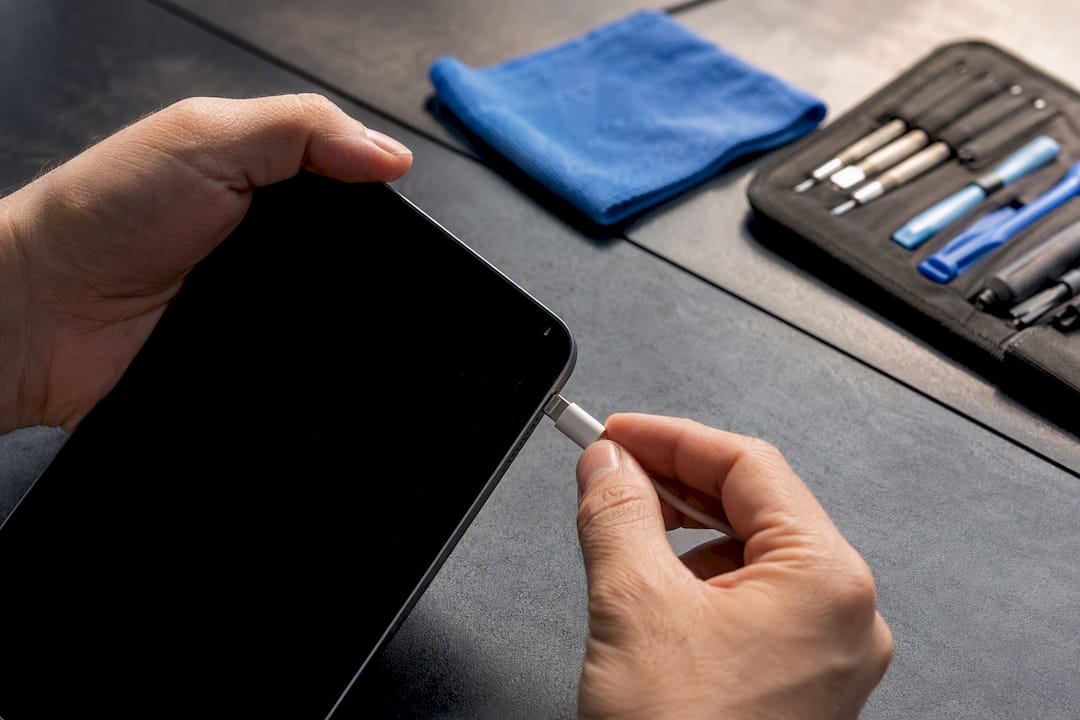
If your iPad isn’t charging, the fastest fix is usually a 20W+ Apple-certified wall adapter paired with a known-good USB-C or Lightning cable. Check the port for lint before you touch settings. Try these first:
- Swap in a different Apple-certified charger and cable, then plug into a wall outlet, not a computer port.
- Check the charging port for lint, dust, or debris under bright light.
- Try a different outlet or power strip.
- If the battery is fully dead, leave it on charge for 10 to 15 minutes before expecting a response.
- Force-restart the iPad if the screen is frozen or unresponsive.
If none of that works, you’re likely dealing with a port, battery, or logic-board issue that needs a technician’s diagnostic equipment rather than another cable swap.
Key Takeaways
Most charging failures trace back to a weak adapter, a worn cable, or a lint-packed port, not a dead battery.
| Point | Details |
|---|---|
| Start with power basics | Test a 20W+ Apple-certified adapter and a known-good cable before touching any settings. |
| Rule out software early | Force restart, update iPadOS, and try Reset All Settings before assuming hardware failure. |
| Inspect before you clean | Use a flashlight to check for lint, bent pins, or corrosion, then clear debris with a plastic toothpick. |
| Watch for hardware red flags | Swelling, heat, or charging failure across multiple cables signals a battery or port problem. |
| Book professional diagnostics | Repair Genius runs on-site current, voltage, and port testing in Orlando and Winter Park with upfront pricing. |
Table of Contents
- How Do You Know Your iPad Isn’t Charging?
- Will a Restart Fix an iPad That Won’t Charge?
- Could the Cable or Adapter Be the Problem?
- How Do You Clean an iPad Charging Port Safely?
- When Is an iPad Charging Problem a Hardware Issue?
- What Does a Technician Check During iPad Charging Diagnostics?
- Should You Repair or Replace an iPad That Won’t Charge?
- A Repair Tech’s Take on iPad Charging Fixes
- How Repair Genius Handles iPad Charging Repairs
- Where to Read More on iPad Charging Fixes
- Frequently Asked Questions
- Sources
How Do You Know Your iPad Isn’t Charging?
An iPad shows charging status through the battery icon in the corner of the screen and through the battery image on the Lock Screen. A lightning bolt next to the icon means it’s charging. No bolt, or a message reading “Not Charging,” means the iPad is getting some power but not enough to register a real charge.
Run these quick tests before assuming the worst:
- Plug the same charger into a different device to confirm the adapter itself works.
- Try your iPad with a different cable and adapter combination.
- Test the outlet with another gadget, like a lamp or phone charger.
- Power the iPad completely off and check whether the charging icon still appears.
Pro Tip: If you’re using the iPad heavily while it’s plugged in, streaming video or running GPS, it can draw more power than the charger supplies. That looks identical to a charging failure but is really just the device outpacing its power source.
Will a Restart Fix an iPad That Won’t Charge?
Software glitches cause a surprising share of charging complaints, and a restart resolves more of them than most people expect. Try these steps in order:
- Restart the iPad normally through Settings, then plug it back in.
- Force-restart if the screen is frozen: on iPads with a Home button, hold the Home and top buttons together until the Apple logo appears; on iPads without a Home button, hold the top button and either volume button simultaneously.
- If the battery was completely drained, give it 10 to 15 minutes on the charger before expecting the screen or logo to respond at all.
- Update to the latest iPadOS in Settings > General > Software Update, since bugs in charging management get patched fairly often.
A few settings are worth checking too:
- Look in Settings > Battery for a “Slow Charger” message, which means the connected source can’t supply enough power, not that anything is broken.
- Disable Low Power Mode while diagnosing, since it can throttle charging behavior in confusing ways.
- If nothing else explains the symptom, try Settings > General > Transfer or Reset iPad > Reset All Settings. It clears misconfigured power settings without touching your files.
- Power the iPad off entirely and plug it in. If the battery icon appears cleanly with the screen dark, that isolates the issue away from software load and points toward hardware.
Could the Cable or Adapter Be the Problem?
Cables and adapters fail more often than people assume, and mismatched wattage is one of the most common culprits behind slow or failed charging. Start by checking the basics.
- Look for a USB-C or MFi-certified Lightning cable with no fraying, bent pins, or loose fit at either end.
- Swap in a cable you know works with another device to rule out a bad connector.
- Confirm the adapter is rated 20W or higher. Low-wattage adapters, damaged cables, and computer USB ports are among the most common causes of slow charging, and an older iPhone charger or laptop port often can’t keep up with an iPad’s power draw.
Run the test in this order: known-good cable plus a 20W+ Apple-certified wall adapter, then the same cable in a different outlet, then, only as a last resort, a computer’s USB port (expect slower charging there, not a fault).
Pro Tip: Higher-end iPads support USB-PD fast charging. If yours came with a 30W or larger adapter, using a weaker one won’t stop charging, but it will noticeably slow it down and can trigger that “Slow Charger” warning.
How Do You Clean an iPad Charging Port Safely?
A blocked port is one of the sneakiest causes of an iPad that only charges sometimes. Lint packs down into a felt-like layer over time, and simply blowing on the port rarely clears it out.
- Power off the iPad completely before touching the port.
- Shine a flashlight directly into the port and look for compacted lint, bent pins, discoloration, or a greenish residue.
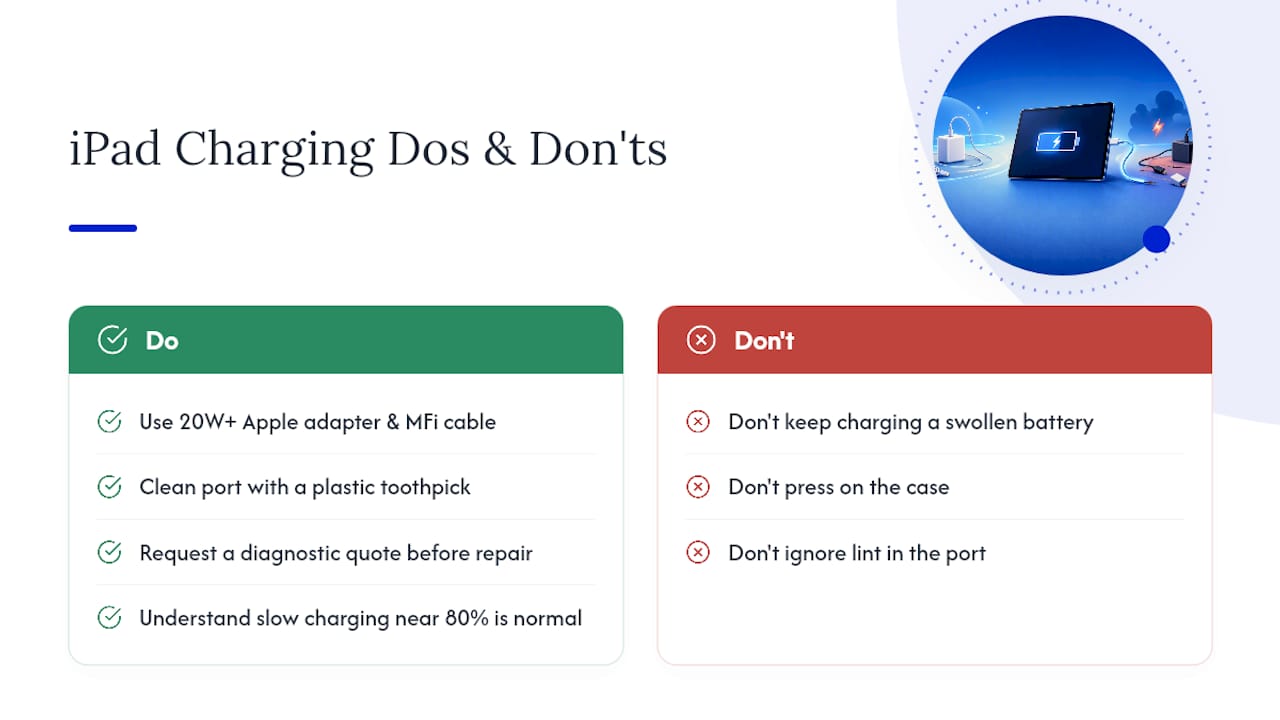
- Use a wooden or plastic toothpick, or an anti-static brush, to gently work debris loose. Never insert metal tools or compressed air canisters, since both can bend pins or push moisture deeper inside.
- Reinspect with the light before testing a charger again.
- If cleaning restores a solid connection, the fix was mechanical, not electrical.
- Bent pins, corrosion, or any sign of moisture mean it’s time to stop and get the port inspected professionally rather than forcing a cable back in.
When Is an iPad Charging Problem a Hardware Issue?
If you’ve tried a verified cable, a 20W+ adapter, and a clean port and the iPad still won’t charge, the cause is probably internal. A few components tend to fail more than others.
- A degraded battery or its management board, which can cause charging failures even when the cells themselves test normally.
- A damaged or corroded charging port assembly.
- A failed Tristar-style charging controller on the logic board, which substandard chargers or liquid exposure can damage over time.
Warning signs that point to hardware rather than software:
- The iPad fails to charge with multiple verified cables and adapters.
- The case near the battery feels warm or visibly swollen. If you notice swelling, stop charging immediately and don’t puncture or bend the device.
- The port looks physically bent, cracked, or corroded.
Any of those point toward a battery replacement, port assembly swap, or board-level repair.
What Does a Technician Check During iPad Charging Diagnostics?
An on-site technician runs a structured sequence rather than guessing, because charging failures can hide two or three separate causes at once.
- Reproduce the failure using a known-good cable and adapter to rule out user error.
- Inspect the port and surrounding housing under magnification for bent pins, corrosion, or hidden liquid residue.
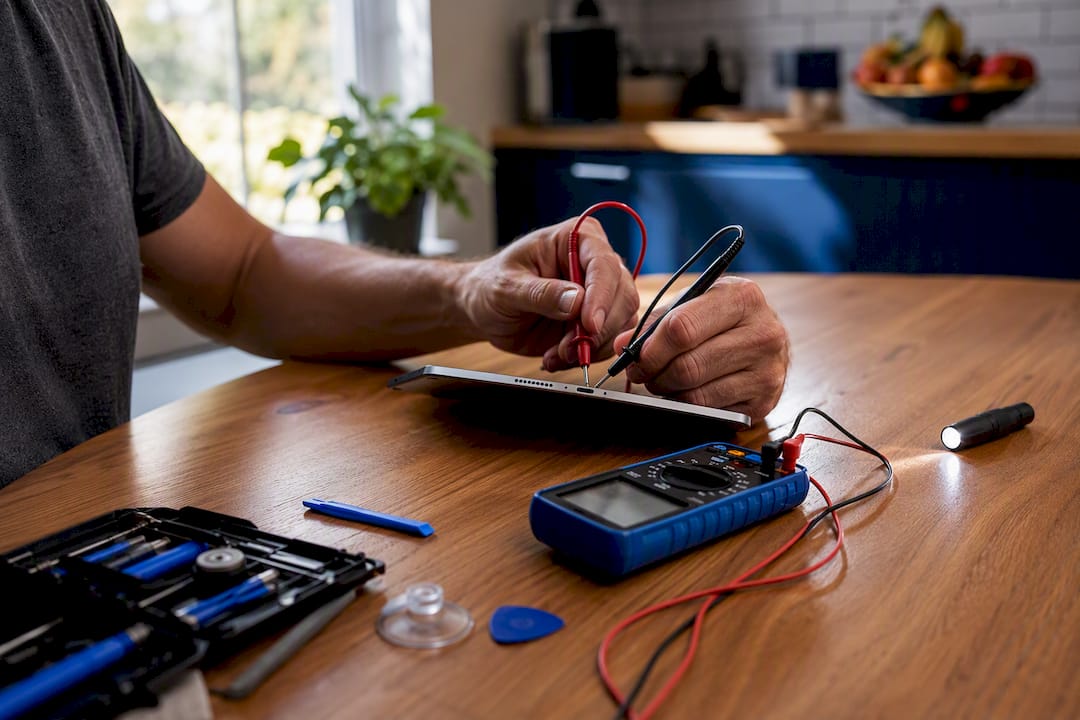
- Measure actual charging current reaching the battery rather than just watching the screen icon.
- Check battery voltage and overall health against the device’s expected baseline.
- Scan for liquid-damage indicators, since a corroded internal contact can look identical to a simple debris jam from the outside.
Pro Tip: Techs test charging with the iPad fully powered off, which strips out software load and gives a cleaner read on the actual hardware. Photographing the port before and after cleaning also protects both the customer and the shop if a warranty question comes up later.
Most on-site diagnostics take well under an hour, and the outcome usually lands in one of three buckets: a cleaned port that fixes everything, a straightforward battery swap, or board-level work that needs a longer turnaround.
Should You Repair or Replace an iPad That Won’t Charge?
Once you’ve swapped the cable and adapter, cleaned the port, and force-restarted with no luck, or if you see port damage or a swollen battery, it’s time to book a repair rather than keep experimenting.
- Diagnostic fee: usually the smallest cost, and it tells you exactly which part failed before you commit to anything bigger.
- Port assembly repair: mid-range cost, appropriate for bent pins or corrosion that cleaning couldn’t fix.
- Battery replacement: cost varies by iPad model and battery capacity, but it’s often far cheaper than replacing the whole device.
- Board-level repair: the most involved and priciest option, reserved for Tristar chip failures or logic-board damage.
Device age, remaining warranty, and local labor rates all shift where you land in that range, which is why an upfront diagnostic quote matters more than any generic price list.
A Repair Tech’s Take on iPad Charging Fixes
Skip the DIY board-level repairs. Back up your data before any charging port or battery job, and insist on tested, brand-appropriate parts rather than whatever’s cheapest. The cable-to-adapter-to-port-to-software order covers most fixes; once you’ve run through it and still have nothing, on-site service beats another week of guessing.
How Repair Genius Handles iPad Charging Repairs
Cleaning a port yourself gets you partway there, but a bent pin, a failing Tristar chip, or a battery on its way out needs equipment and testing most people don’t have in a kitchen drawer. Repair Genius sends a certified technician to your home or office in Orlando or Winter Park and runs the same diagnostic sequence covered above: known-good cable and adapter test, port inspection, charging current measurement, and a battery health check, all before quoting a single dollar.

Every quote is given upfront, with no hidden add-ons once the tech starts work, and every repair carries a warranty on parts and labor. Most charging port and battery jobs get handled same-day, so you’re not without your iPad for a week while it sits at a counter somewhere. If your device also shows screen damage alongside the charging issue, the same visit can cover both. Request an on-site diagnostic quote or start with the Repair Genius home page to book a visit and get your iPad charging again today.
Where to Read More on iPad Charging Fixes
- Apple Support’s official iPad charging guide walks through adapter, cable, and force-restart steps by model.
- Apple’s battery charging documentation explains “Slow Charger” messages and wait times for drained batteries.
- iFixit’s slow-charge troubleshooting page covers port assembly and logic-board failure points with repair-tech detail.
- Mac Observer’s charging guide breaks down wattage and USB-PD adapter compatibility.
- Asurion’s port-cleaning guide details safe tools for clearing compacted lint.
Frequently Asked Questions
Why does my iPad say “Not Charging” when it’s plugged in?
That message usually means the iPad is receiving power, but not enough to charge reliably. Switching to a 20W+ Apple-certified adapter and an MFi-certified cable resolves it in most cases.
Why does my iPad only charge sometimes?
Intermittent charging often points to a loose cable connection or lint buildup inside the port that makes contact unreliable. Cleaning the port with a plastic toothpick usually restores a steady connection.
Is it normal for iPad charging to slow down near 80%?
Yes. Charging intentionally slows near 80% to reduce heat and extend battery lifespan, which people frequently mistake for a fault.
How much does it cost to fix an iPad charging port?
Cost depends on whether the fix is a simple cleaning, a port assembly replacement, or a board-level repair, with board-level work costing the most. A diagnostic quote before any repair gives you an exact number for your specific model.
Should I keep charging an iPad with a swollen battery?
No. Stop charging immediately and avoid pressing on the case. A swollen battery needs professional replacement, not continued use.
Sources
- If your iPad won’t charge – Apple Support
- Charge the battery – Apple Support
- iPad Slow Charge – iFixit Troubleshooting
- iPad Charging Slowly? Check These 6 Causes and Solutions – The Mac Observer
- How to clean iPad charging port – Asurion
Recommended
- Top 5 iPad Battery Repair Providers 2026
- iPad & Tablet Repair in Orlando | On-Site Service
- Top 4 iPhone Charging Port Repair Providers 2026
- Top 3 iPad Digitizer Repair Providers 2026





