

Do this right now: open iCloud or Google Contacts, confirm sync is on, and export a .vcf backup to your email or computer. That’s the core of it. Before you hand your phone to any technician, including the certified team at Repair Genius, those three steps protect every number you’ve saved. The rest of this guide fills in the exact menu paths, verification steps, and questions worth asking before drop-off.
Quick three-step action list:
- Turn on iCloud Contacts sync (iPhone) or Google Contacts sync (Android) and tap “Back Up Now”
- Export your contacts as a .vcf file and email it to yourself or save it to your computer
- Check the “Last backup” timestamp and confirm contacts appear at icloud.com/contacts or contacts.google.com
Pro Tip: Do all three before you leave home. A backup started in the parking lot of a repair shop may not finish before the technician takes the device.
Key Takeaways
Backing up contacts to iCloud or Google Contacts, exporting a .vcf file, and verifying the backup timestamp are the three steps that protect your data before any phone repair.
| Point | Details |
|---|---|
| Back up to the cloud first | Enable iCloud Contacts or Google Contacts sync and run a manual backup before drop-off. |
| Export a .vcf file | Save a vCard copy to your computer or email it to yourself as a second layer of protection. |
| Verify the timestamp | Check “Last Backup” in iCloud or Google Backup settings and confirm contacts appear online. |
| Handle SIM carefully | Remove a physical SIM to keep it safe; ask about eSIM impact before repair begins. |
| Repair Genius on-site option | Repair Genius performs same-day repairs at your location in Orlando and Winter Park, keeping your device in your possession throughout. |
Table of Contents
- What to do in the five minutes before you leave the phone with a technician
- How to back up and export contacts from an iPhone before repair
- How to back up and export contacts from an Android phone before repair
- SIM and eSIM: what to remove or save before service
- What to do if the phone doesn’t power on before service
- How to confirm the backup worked and test-restore safely
- What to ask the repair provider about data safety
- How long backups take and what they might cost
- What repair technicians actually need from you
- On-site repair in Orlando and Winter Park keeps your data in sight
- Sources
What to do in the five minutes before you leave the phone with a technician
Run through these steps in order. Each one takes under a minute on its own.
- Check the last backup date and time. On iPhone: Settings > [your name] > iCloud > iCloud Backup. On Android: Settings > System > Backup. If the timestamp is outdated, run a new backup now.
- Enable cloud sync. iPhone: confirm Contacts is toggled on under iCloud. Android: confirm Google Contacts sync is active under Settings > Google.
- Export a .vcf file. On Android, open the Contacts app > Settings > Export. On iPhone, use icloud.com/contacts (select all, export vCard). Save the file to your computer or email it to yourself.
- Remove the physical SIM if you want to keep your phone number and any SIM-stored contacts with you during the repair.
- Log out of banking and payment apps, or lock them with a separate PIN. This limits what anyone could access even if the device is unlocked for testing.
Pro Tip: Keep the phone plugged in and on Wi-Fi until the backup finishes. iCloud will warn you if you’re running low on free storage, so check that first.
Watch your Google account selection carefully. If you have multiple Google accounts on the device, contacts may be saving to the wrong one.
How to back up and export contacts from an iPhone before repair
Start here: go to Settings > [your name] > iCloud > turn on Contacts. Then go to iCloud Backup > Back Up Now. That single sequence covers most people. The steps below add a file-based safety net.
iCloud backup and contacts sync
- Settings > [your name] > iCloud > scroll to Contacts > toggle on.
- Settings > [your name] > iCloud > iCloud Backup > tap Back Up Now.
- Wait for the progress bar to complete. The last backup date and time appear directly under Back Up Now once it finishes.
- Open a browser and go to icloud.com/contacts to confirm your contacts are visible there.
Contacts stored in iCloud stay current across every signed-in device, and iCloud.com can restore archived contact versions if something goes wrong during repair.
Export contacts as a .vcf file from iCloud.com
- Go to icloud.com/contacts in a desktop browser.
- Select all contacts (click one, then Cmd+A on Mac or Ctrl+A on Windows).
- Click the gear icon > Export vCard.
- Save the .vcf file to your computer or attach it to an email to yourself.
Local backup via Finder or iTunes
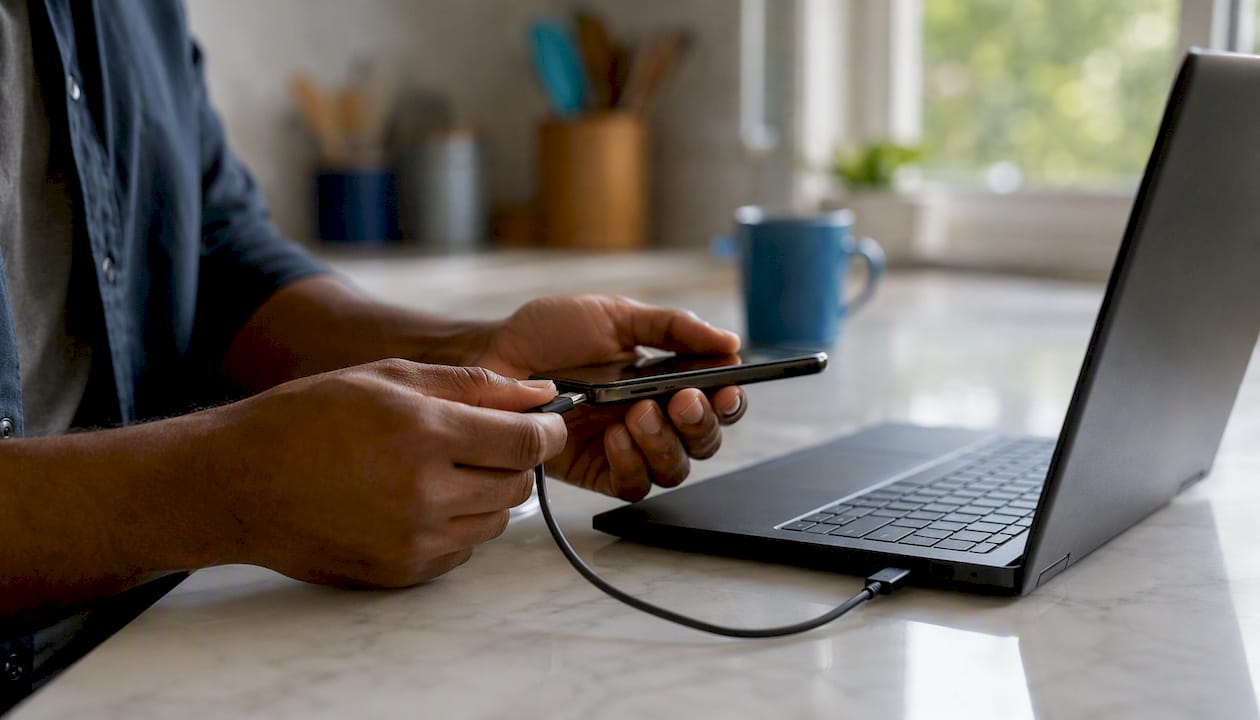
Connect your iPhone to a Mac (Finder) or Windows PC (iTunes). Select the device, choose “Back up all of the data on your iPhone to this Mac/PC,” and click Back Up Now. Contacts are included in this local snapshot.
Pro Tip: If iCloud shows “Not enough storage,” do the local Finder/iTunes backup as your primary safety net. It’s free and stores everything on your computer.
How to back up and export contacts from an Android phone before repair
Start here: open Settings > Google > Backup and confirm “Back up to Google Drive” is on. Then open the Contacts app and export a .vcf file. Two minutes, two layers of protection.
Google Contacts sync and full backup
- Settings > Google > Backup > turn on Back up to Google Drive.
- Tap Back up now and wait for it to complete.
- Android backups include contacts, call history, app data, SMS/MMS, and device settings, so this covers far more than contacts alone.
- Go to contacts.google.com in a browser and confirm your contacts appear there.
To save device or SIM contacts directly to your Google Account, go to Settings > Google services and preferences > Backup & restore > Sync device and SIM contacts automatically, then choose which Google Account to save them to.
Export contacts as a .vcf file
- Open the Contacts app > tap the menu (three lines or dots) > Settings > Export.
- Choose the account or storage location and save the .vcf file.
- Email the file to yourself or copy it to a computer.
Samsung Smart Switch and Pixel notes
Samsung users can open Smart Switch (pre-installed on most Galaxy devices) and back up contacts to a computer or microSD card. For Pixel phones, you can restore data from only one previous device unless you reset the Pixel first, so confirm your backup source before repair.
Pro Tip: Contacts saved only inside a third-party app (WhatsApp, Outlook, LinkedIn) won’t appear in your Google Contacts export. Check each app’s own export or backup option separately.
SIM and eSIM: what to remove or save before service
Short answer: remove a physical SIM if you want to keep your number and any SIM-stored contacts in your possession. Leave an eSIM installed unless the repair provider specifically tells you otherwise.
Before handing over the device:
- Open your Contacts app and check whether any contacts show “SIM” as their storage location
- Export SIM contacts to your Google Account or save them as a .vcf before removing the card
- Photograph the SIM tray and note the SIM number if you’re concerned about reinstallation
eSIM caution: Removing or reprovisioning an eSIM can be complex and may require contacting your carrier to reactivate. If the repair involves the SIM tray or motherboard, ask the technician explicitly whether the eSIM will be affected before they begin work.
Pro Tip: Label a small envelope with your SIM details and keep it with you during the repair. It takes ten seconds and removes any reinstallation guesswork.
What to do if the phone doesn’t power on before service
Rely on whatever cloud backup already exists. If the device won’t boot, you can’t create a new one on the device itself.
Practical options, in order of effort:
- Check icloud.com/contacts or contacts.google.com from any browser. If sync was on, your contacts are already there.
- Connect the phone to a trusted computer. Finder or iTunes may still recognize the device and allow a backup even when the screen is unresponsive.
- For Pixel phones, note that you can only restore from one previous device unless you reset first, so confirm your last backup source with Google.
- If no cloud or computer backup exists, professional data recovery is the remaining option. It is not guaranteed and can be significantly more expensive than a standard repair.
Pro Tip: Ask the technician upfront whether they offer on-site data extraction and whether that service affects your repair warranty. Get the answer before they open the device.
How to confirm the backup worked and test-restore safely
Check this before you leave: the backup timestamp and a quick look at your contacts in a browser. That takes 60 seconds and confirms everything transferred.
Verification steps
- iPhone: Settings > [your name] > iCloud > iCloud Backup. The date and time under “Last Backup” should match when you ran it.
- Android: Settings > System > Backup > “Last backup” timestamp.
- Open icloud.com/contacts or contacts.google.com and scroll through a few entries to confirm names and numbers are correct.
Test-restore without wiping your device
- Import the exported .vcf file into your computer’s contacts app (Contacts on Mac, Outlook or Windows Contacts on PC) and spot-check 10–15 entries.
- If you have a spare phone, restore contacts from your Google backup via Settings > Google > Set up & restore > Restore contacts. The restore skips contacts that already exist, so duplicates aren’t a concern.
Pro Tip: Don’t restore to your primary phone before the repair. Restore to a spare device or import the .vcf to a computer. That way you’re testing the backup without touching the phone going in for service.
What to ask the repair provider about data safety
Ask these questions before you hand anything over. A trustworthy shop answers them without hesitation.
- Will testing be done on-site, or does the device leave the premises?
- Will you need my passcode? If so, for what specific step?
- Do you use Samsung Maintenance Mode or Apple Repair State to limit data access during diagnostics?
- Will you remove or replace the SIM or eSIM?
- Do you have a written data-handling policy?
Repair shops that use maintenance modes or repair states limit technician access to personal data during testing. On-site repair keeps the device in your line of sight the entire time, which is the most direct form of data visibility. Off-site or mail-in repair requires more trust in the provider’s internal policies.
Pro Tip: Note the technician’s name and ask for a written or emailed summary of what will be done. It takes 30 seconds and creates accountability on both sides.
For more on protecting personal data during device repair, Repair Genius publishes practical guidance on its site.
How long backups take and what they might cost
Contact-only backups are fast. Syncing a few hundred contacts to Google or iCloud typically takes under two minutes on a decent Wi-Fi connection. A full device backup is a different story.
Time and cost factors to know:
- Full iCloud backup: 5–30 minutes depending on data size and connection speed; slower on congested networks
- iCloud free tier is 5 GB. A full phone backup often exceeds that, triggering a prompt to upgrade (50 GB costs $0.99/month, 200 GB costs $2.99/month from Apple)
- Google One offers a free tier of storage shared across Gmail, Drive, and Photos
- Professional data recovery for a dead device can range from moderately expensive to very costly depending on damage severity, and success is not guaranteed
Pro Tip: Start your full backup the night before the repair appointment, not the morning of. That gives it time to complete even if your connection is slow.
Understanding repair cost trade-offs before your appointment helps set realistic expectations for the whole service visit.
What repair technicians actually need from you
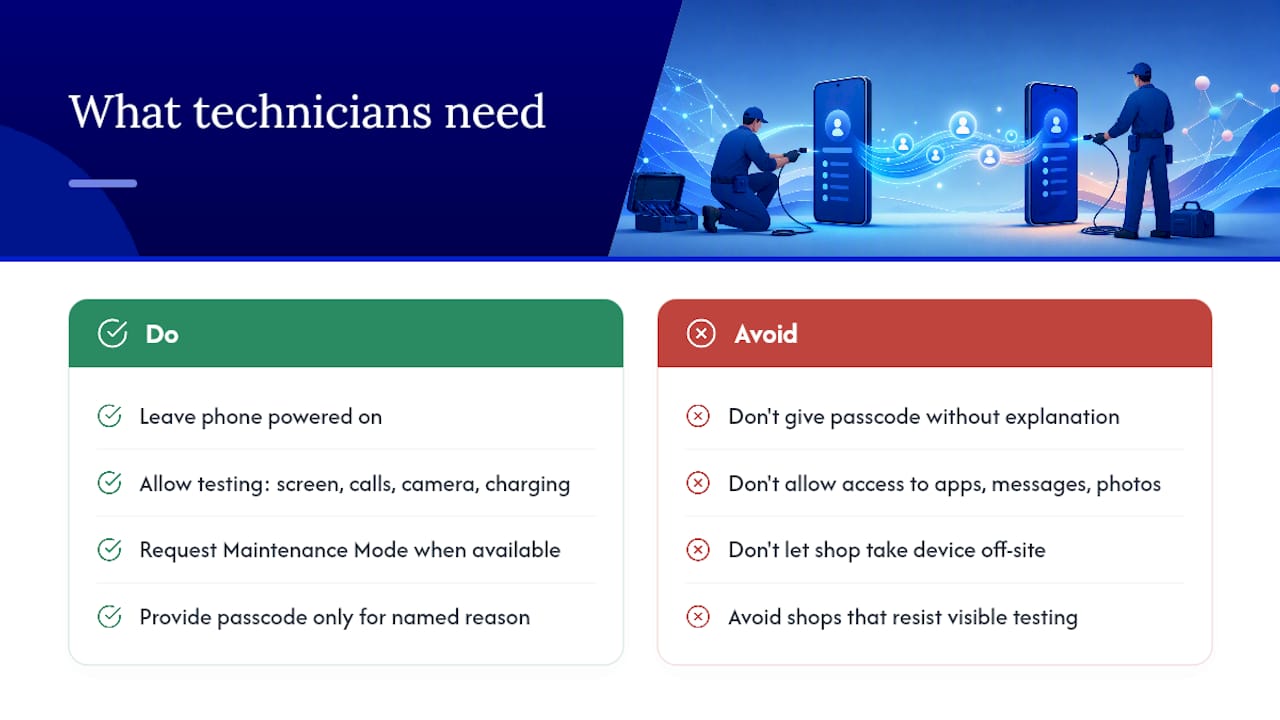
Most technicians need the phone powered on and the ability to test core functions: screen response, call quality, camera, and charging. They rarely need access to your apps, messages, or photos.
Reputable shops use maintenance modes where available. Samsung Maintenance Mode and Apple Repair State let a technician run diagnostics while keeping personal content hidden. If you’re present during testing, you can watch exactly what’s opened and what isn’t. That’s a reasonable thing to request, and a good shop won’t push back on it.
Providing a passcode is sometimes necessary for specific tests (Face ID calibration, for example), but you should only do it for a named, specific reason. If a technician asks for your passcode without explaining why, ask them to clarify before you type it in.
Repair Genius performs repairs on-site at your location, which means the device stays in your presence throughout. That’s a structural data-safety advantage over shops that take devices to a back room or ship them off-site.
On-site repair in Orlando and Winter Park keeps your data in sight
When a technician comes to you, the device never leaves your hands until the repair is done. That’s the clearest way to reduce data exposure during service.

Repair Genius sends certified technicians directly to your location in Orlando and Winter Park for same-day repairs on iPhones, Android phones, tablets, and laptops. Pricing is quoted upfront with no hidden fees, and every repair comes with a warranty on parts and labor. You watch the work. You keep the phone. There’s no off-site handoff and no waiting room.
If your phone needs service and you want to keep it in your possession the whole time, book a same-day on-site repair or visit Repairgeniuses to check availability in your area.
Sources
Recommended
- Device Repair Checklist for Employees: On-Site Prep Guide
- Microphone Repair in Orlando & Winter Park: Fast Fix Guide
- How to Fix a Water Damaged Phone





