

If your Mac is showing ransom notes, security software that won’t turn back on, or it’s sending spam nobody asked for, the answer is yes, that’s malware, and you need to disconnect from Wi-Fi right now before you do anything else. Most other symptoms, a hot fan, a slower boot, a pop-up here or there, are more often software bloat than an infection. Apple’s own defenses like XProtect and Gatekeeper catch a lot automatically, but they miss things too, so checking Activity Monitor yourself still matters. When the signs stack up and you can’t clear them, a technician, whether that’s Repair Genius or someone else qualified, should take it from there.
TL;DR:
- Ransom notes, security software that won’t turn back on, and unexplained network activity are the most urgent signs indicating malware infection on a Mac.
- Multiple suspicious browser changes, frequent crashes, and persistent pop-up ads together strongly suggest malware, especially if they occur alongside other tier-two indicators.
- Confirmed malware cases require disconnecting from the internet, backing up only safe files, and running full scans in Safe Mode before attempting manual removal.
- Most Mac infections originate from social engineering prompts, fake updates, or malicious downloads, highlighting the importance of scrutinizing every unexpected install request.
- When signs are inconclusive or malware persists despite self-remediation, professional help from qualified technicians is advised to ensure complete removal and system hardening.
Table of Contents
- Mac Malware Signs: A Prioritized Symptoms Checklist
- How to Check Your Mac Now for Malware
- Containing and Removing Confirmed Mac Malware
- How macOS Protects You, and Where That Protection Ends
- When to Call a Pro for Mac Malware Removal
- Unfamiliar Startup Items and Login Agents
- Ransomware and File Access Problems
- Common Types of Mac Malware and How They Behave
- How Malware Actually Gets Onto a Mac
- Get Hands-On Help for a Suspected Mac Infection
- The Real Lesson Behind Mac Malware Signs
- Sources
Mac Malware Signs: A Prioritized Symptoms Checklist
Not every weird Mac behavior means you’re infected. The trick is knowing which signs to trust and which to shrug off. Here’s how to sort them, ranked from “drop everything” to “keep an eye on it.”
Tier one: act now. These are the signs that almost never have an innocent explanation.
- A ransom note, locked files, or file extensions you don’t recognize on documents that used to open fine.
- Security software (Gatekeeper, XProtect, or a third-party antivirus) that’s disabled and won’t re-enable no matter what you try.
- Friends or contacts telling you they got a weird email or message from your account that you never sent.
- Your Mac sending network traffic when you’re not using it, especially uploads, which can mean data is leaving your machine without permission.
Kaspersky’s guidance on Mac cleanup lists exactly these three: files you suddenly can’t access, contacts receiving spam, and security tools getting shut off without your input. When any of these show up, macOS malware detection stops being a “maybe” question. This is confirmation.
Tier two: strong indicators, worth investigating today. On their own, any one of these could be a coincidence. Two or three together are not.
- Pop-up ads appearing even when your browser is closed.
- Your browser homepage or default search engine changed itself, or a toolbar you never installed showed up.
- New browser extensions you don’t remember adding.
- Websites redirecting you somewhere you didn’t type, especially fake “your Mac is infected, call now” pages.
- Your Mac fan running constantly, or the battery draining fast, even when you’re not doing anything demanding.
- Apps crashing repeatedly, or your whole system freezing for no clear reason.
Norton’s research on virus warning signs puts suspicious browser changes, frequent crashes, and unexpected pop-ups near the top of its list of the most common indicators, alongside network activity that spikes when the machine should be idle.
Tier three: worth watching, rarely conclusive alone. A Mac that’s just generally slower, a spinning beach ball that shows up more than it used to, storage that’s mysteriously fuller. These overlap heavily with normal wear: too many browser tabs, a full startup disk, an outdated app hogging memory. If you’re only seeing this tier, check for the usual non-malware culprits before assuming the worst.
Here’s the pattern that matters more than any single symptom: malware rarely announces itself with one obvious sign. It’s usually a cluster. A homepage hijack plus new extensions plus a fan that won’t quit is a very different story than a fan that won’t quit on its own during a video export.
Statistic worth knowing: Mac-specific malware families have been climbing steadily in recent years, a reversal of the old assumption that Macs simply don’t get targeted. That doesn’t mean every Mac owner needs to panic. It means the old “Macs don’t get viruses” line is aging badly, and the signs above deserve more attention than they used to get.
How to Check Your Mac Now for Malware
Once you suspect something’s off, work through these steps in order. Don’t skip to removal before you’ve actually confirmed what you’re dealing with, you’ll want that information whether you fix it yourself or hand it to a technician.
- Disconnect from the internet first. If you saw any tier-one sign, especially spam going out or ransom notes, pull your Wi-Fi or unplug Ethernet before anything else. This stops data from leaving and stops malware from downloading reinforcements.
- Open Activity Monitor (Applications > Utilities). Sort by CPU, then by Network. Look for process names you don’t recognize, especially anything running constantly at high CPU with your Mac otherwise idle, or anything sending steady network traffic when you’re not using an app that should.
- Check your browsers. Open Chrome, Safari, or Firefox and look at your homepage, default search engine, and installed extensions. Remove anything you don’t remember installing yourself. If your browser has started throwing more insecure-site warnings than usual, that’s often the browser doing its job, not a false alarm.
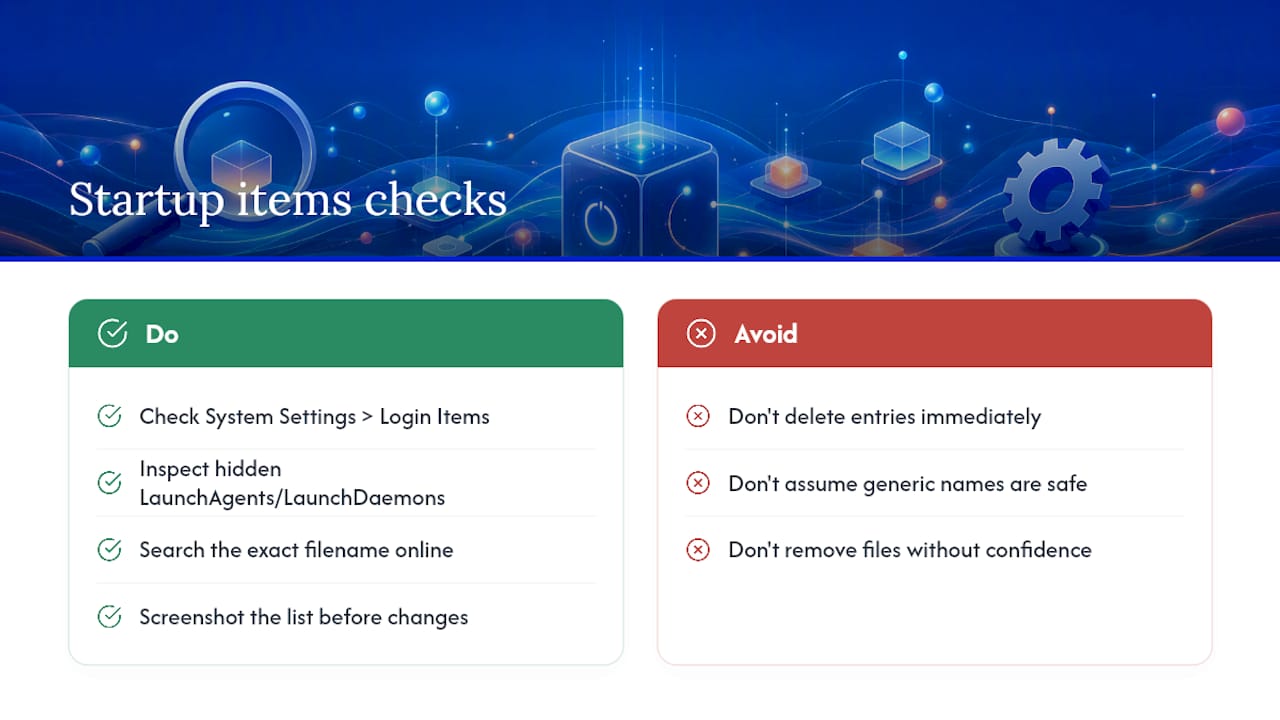
- Review Login Items and background services. Go to System Settings > General > Login Items to see what launches at startup. For a deeper look, check
~/Library/LaunchAgentsand/Library/LaunchDaemonsfor files you don’t recognize, this is where a lot of persistent malware hides itself so it survives a restart. - Scan your Downloads and Applications folders. Look for anything you don’t remember installing, particularly disk images or apps with generic names like “PDF Converter” or “Video Player.”
- Boot into Safe Mode and run a full scan. Restart while holding Shift (or the power button on Apple silicon until you see startup options), then run your antivirus tool’s full scan. Safe Mode blocks a lot of malware from loading, which makes it easier for a scanner to catch and remove.
When you’re looking at process names in Activity Monitor, search them exactly as written, not paraphrased, before assuming the worst. Plenty of legitimate macOS background processes have cryptic-sounding names. Malware often deliberately mimics that pattern, using something that looks like a system service, so don’t delete anything you can’t positively identify first.
Pro Tip: Take a screenshot of anything suspicious in Activity Monitor, the exact process name, CPU percentage, and network usage, before you close anything or restart. If you end up calling a technician, that screenshot saves them a diagnostic step and saves you money.
Run steps one through four immediately. Steps five and six can wait until after you’ve backed up anything genuinely irreplaceable, since a full scan and Safe Mode restart take time you might not want to spend while contacts are receiving spam from your address.
Containing and Removing Confirmed Mac Malware
Once you’ve confirmed something’s wrong, contain it before you try to remove it.
- Keep the Mac off Wi-Fi and Ethernet until you’re through the cleanup.
- Back up only files you’re confident aren’t compromised, ideally to an external drive you disconnect immediately after, not to a cloud service that syncs automatically.
- If you’re on a mixed network with Windows machines, be extra careful with shared drives. A file that’s harmless to macOS can still be Windows-targeted malware riding along, waiting to infect the next PC that opens it.
For removal, run your antivirus tool’s full scan in Safe Mode and let it quarantine what it finds rather than deleting manually. Remove suspicious browser extensions through each browser’s own settings menu. If you found unfamiliar LaunchAgents earlier, you can delete those files directly, but only ones you’ve verified aren’t part of legitimate software you actually use.
Change your passwords from a different, clean device, not the infected Mac, starting with email and banking. Turn on two-factor authentication anywhere it isn’t already active, then check recent account activity for logins you don’t recognize. Locking down your email specifically matters most, since it’s usually the recovery path for every other account you have.
Pro Tip: Stop and call a professional if you hit ransom notes, security software that won’t re-enable, or the same infection coming back after a clean scan. Those are signs of a deeper compromise that DIY tools typically can’t fully resolve.
How macOS Protects You, and Where That Protection Ends
Apple builds several layers of defense directly into macOS. XProtect scans for known malware signatures and updates automatically in the background. Gatekeeper blocks apps that aren’t properly signed from launching without your explicit approval. Notarization means Apple has scanned an app for known malicious content before it ever reaches you. XProtect Remediator goes a step further, actively hunting for and removing malware that’s already running.
These update quietly and constantly, which is exactly why most Mac users never think about malware at all.
They’re not a guarantee, though. Attackers get around them through social engineering, tricking you into approving something yourself, through supply-chain attacks that poison a legitimate app’s update, or through malware that’s technically notarized but still behaves badly once installed. Most real-world Mac infections start with a deceptive prompt: a fake player update, a “codec” you need to watch a video, a browser extension disguised as something useful. The fix isn’t more paranoia, it’s automatic updates turned on, and a hard rule against approving installs you didn’t go looking for yourself.
When to Call a Pro for Mac Malware Removal
Call a technician once you’re looking at ransomware, security tools you can’t re-enable, an infection that keeps returning after a clean scan, or a Mac that won’t boot at all. A reputable on-site service runs offline diagnostics, secures your data with a proper backup before touching anything, removes the infection, then hardens the system so it doesn’t happen again.
Repair Genius handles this same-day across Orlando and Winter Park, with transparent, itemized pricing and over 10 years of experience prioritizing data safety during the process. Before booking anyone, ask about their credentials, exactly how they handle your data, and whether labor and parts carry a warranty.
Unfamiliar Startup Items and Login Agents
If your Mac has apps or processes launching that you never installed, that’s one of the more reliable signs of infection, since malware needs to survive a restart to keep running. Check System Settings > General > Login Items first. Anything listed there that you don’t recognize, especially something with a generic or system-sounding name, deserves a closer look before you assume it’s harmless.
Beyond the visible Login Items list, macOS also runs background services from hidden folders: ~/Library/LaunchAgents for your user account and /Library/LaunchDaemons for system-wide services. This is where a lot of persistent malware actually lives, because most users never look there. A file with a name like com.apple.helper.plist sitting in that folder isn’t automatically suspicious; Apple and legitimate third-party apps use that naming convention too. But a file you don’t recognize, tied to an app you already removed, or with a name that’s almost right but slightly off, is worth researching before you delete it.
The safest approach is patience over speed here. Search the exact file name online, check whether it matches a known legitimate service, and only remove it once you’re confident it’s not attached to something you still use. If you’re unsure, screenshot the list before you touch anything, that record is useful whether you resolve it yourself or hand it to a technician later.
Ransomware and File Access Problems
Files that suddenly won’t open, have a strange new extension, or come with a note demanding payment to unlock them are one of the clearest confirmations of malware you’ll ever see, no other tier-two symptom compares. This is ransomware, and by the time you’re seeing a demand for payment, the encryption has usually already happened.
There’s no reliable way to decrypt ransomware-locked files yourself without the attacker’s key, and paying the ransom doesn’t guarantee you get that key back either. What you can do is disconnect the Mac from your network immediately to stop the encryption from spreading to any connected external drives or shared folders, then leave the affected files alone rather than trying repeated fixes that could make recovery harder.
If you had a recent backup on a drive that was disconnected at the time of infection, that backup is your way out. If you didn’t, this is exactly the scenario where professional data recovery becomes worth the cost, since attempting DIY recovery on encrypted files can sometimes make the situation permanent. Missing files without a ransom note usually point to something else, a failed sync, a moved folder, but files that won’t open combined with a demand for payment is unambiguous.
Common Types of Mac Malware and How They Behave
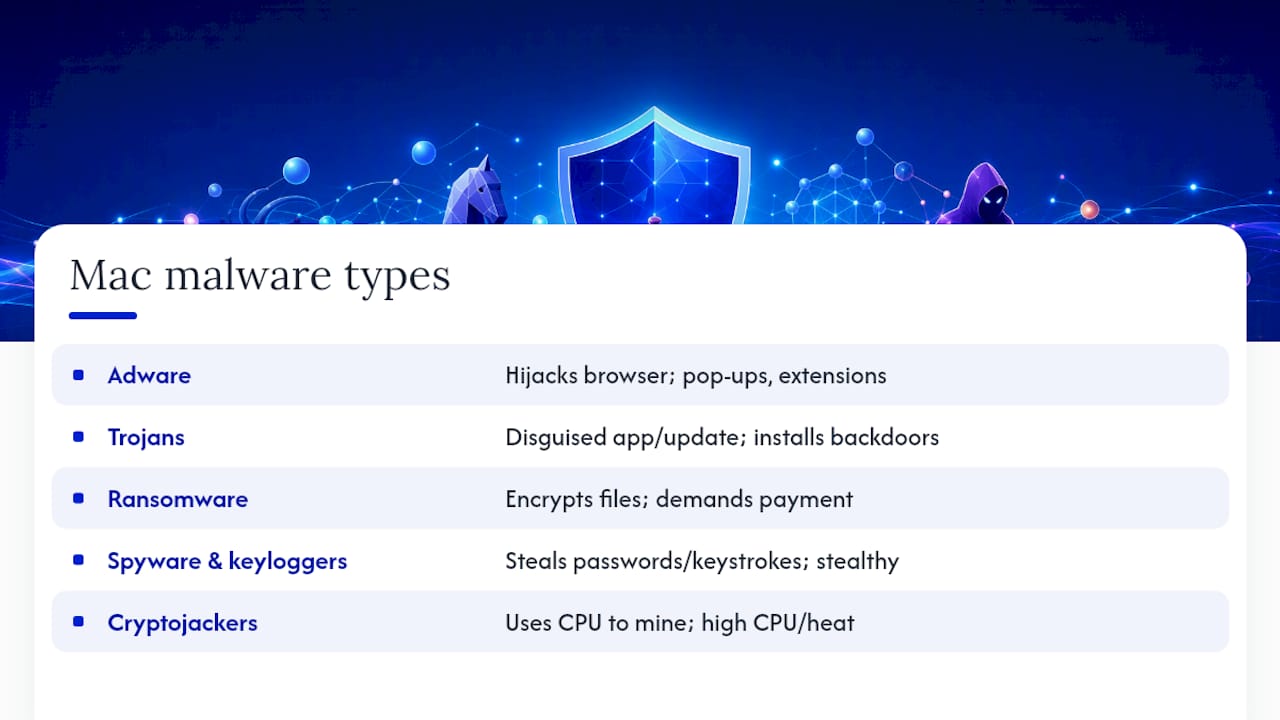
Mac malware isn’t one thing. Each category behaves differently, which is partly why symptoms vary so much from one infection to the next.
Adware is the most common and least destructive. It hijacks your browser homepage, injects pop-up ads, and installs extensions you never asked for. Annoying, rarely dangerous, but a clear sign something got past you.
Trojans disguise themselves as legitimate software, a fake Flash update or PDF tool, and once installed, open a door for further payloads. This is the category behind most of the social-engineering-driven infections on macOS.
Ransomware encrypts your files and demands payment, covered above. Rare on Mac compared to Windows, but not unheard of, and the consequences are severe when it does hit.
Spyware and keyloggers run quietly in the background, harvesting passwords, browsing history, or keystrokes without any visible symptoms at all, which is exactly what makes them dangerous. Outgoing network traffic when you’re idle is often the only visible clue.
Cryptojackers hijack your CPU to mine cryptocurrency for someone else, which shows up as a hot fan, a struggling battery, and high CPU usage in Activity Monitor even when you’re not running anything demanding.
Knowing which category you’re likely dealing with helps you judge urgency, adware can usually wait a day; ransomware and spyware cannot.
How Malware Actually Gets Onto a Mac
Almost none of this happens because you visited the wrong website. The overwhelming majority of Mac infections start with social engineering, tricking you into installing something yourself. A pop-up claims your video needs a special codec. A fake update prompt appears for software you already trust. A “helpful” browser extension promises to block ads but installs adware instead.
Malicious downloads are the second major path, pirated software, cracked apps, or installers from sites that aren’t the developer’s own. These often bundle malware alongside whatever you actually wanted, and because you approved the install yourself, Gatekeeper’s protections don’t stop it.
Compromised legitimate software, a supply-chain attack, is rarer but more serious, since it can slip past checks that would normally catch something obviously fake. And if you’re on a network with Windows machines, an infected file that does nothing to your Mac can still spread if you pass it along on a shared drive or USB stick.
The common thread across nearly all of these: you’re asked to click “allow,” “install,” or “update” for something you didn’t go looking for. Treating that prompt with more suspicion than you currently do is the single highest-leverage habit change here.
Get Hands-On Help for a Suspected Mac Infection
If you’ve worked through the checklist above and you’re still not sure, or you’ve confirmed malware and don’t want to risk making it worse, that’s exactly where an on-site technician earns their fee. Repair Genius sends certified technicians directly to your home or office in Orlando and Winter Park the same day, with upfront pricing and no hidden charges added after the fact. Every repair emphasizes keeping your personal data secure throughout the process, not just after. Book a malware removal and diagnostic visit and get a straight answer, and a fix, without driving anywhere or leaving your Mac with a stranger overnight.
The Real Lesson Behind Mac Malware Signs
Most guides treat every odd Mac behavior as equally suspicious, and that’s the wrong instinct. A slow Mac and a Mac sending spam are not the same emergency, and treating them that way either creates needless panic or, worse, trains people to shrug off symptoms that actually matter. The signs worth losing sleep over are narrow: ransom notes, security tools you can’t re-enable, and network activity you can’t explain. Everything else is a “check it today” problem, not a “drop everything” one.
The bigger blind spot is how much faith people put in Apple’s built-in protections. XProtect and Gatekeeper are genuinely good, but they’re built to catch known threats and unsigned software, not to stop you from clicking “install” on something that tricked you fair and square. Social engineering doesn’t fail because Apple’s defenses are weak. It succeeds because it targets the one thing no operating system can patch: a person’s judgment in a rushed moment. Fix that instinct, treat every unexpected install prompt as guilty until proven innocent, and you’ll prevent more infections than any scanner will ever catch for you.
— Michael
Sources
- Protecting against malware in macOS – Apple Support
- How to Remove Malware on your Mac
- How to tell if your computer has a virus: 11 warning signs
Check vendor documentation before running any third-party removal tool, since instructions change as macOS and threats both evolve.
Recommended
- MacBook Not Turning On? Get Same Day Repair in Orlando
- Top 5 MacBook Battery Replacement Providers 2026
- When Your Computer Dies: The Repair Rule That Saves Your Data










