To remove adware from Windows 10 or 11, uninstall the apps you don’t recognize, clean your browser extensions and settings, run a full Microsoft Defender scan (then an offline scan), and check startup items if the ads return. If the ads still come back after that, the next step is a Windows reset or a technician. This guide walks through each step in the order that does the least damage first.
TL;DR
- Adware usually shows up as pop-ups, a changed homepage, redirects, unfamiliar extensions and a slower PC.
- Start with Settings > Apps: sort by install date and uninstall anything you didn’t choose to install.
- Clean the browser next, then run a Microsoft Defender full scan and an offline scan.
- If ads return after a browser reset, look for a startup entry, scheduled task, proxy setting or browser policy that is putting them back.
- Back up your files before any reset. If you would rather not do this yourself, we can do it on-site in Orlando and Winter Park.
Table of Contents
- How to tell a Windows PC has adware
- Before you start
- Step 1: Uninstall the program behind the ads
- Step 2: Clean your browser
- Step 3: Scan with Microsoft Defender
- When the ads keep coming back
- Reset Windows or call a technician
- Keep adware from coming back
- Our perspective: why adware cleanup goes wrong
- Have us clean it on-site
- FAQ
- Sources
How to tell a Windows PC has adware
Adware is software that pushes ads at you, often by changing your browser. McAfee lists pop-ups, homepage changes, unfamiliar extensions, redirects and slower performance as the common signs. Malwarebytes adds web pages that don’t display properly, new toolbars appearing on their own and the browser crashing.
Microsoft describes the same pattern from the Windows side. In its unwanted software guidance, the signs include programs you didn’t install that are hard to uninstall, browser settings that changed and can’t be modified, constant messages about your device’s health, and ads that can’t be easily closed.
A quick self-check:
- Do ads appear when you aren’t browsing, or on sites that normally don’t have them?
- Did your homepage or default search engine change without your say-so?
- Are there extensions or toolbars you don’t remember adding?
- Does a program refuse to uninstall?
- Did the problems begin after you installed a free converter, downloader, coupon tool or “PDF” utility?
Two or more yeses make adware likely. Slowness on its own has many causes, so if that is your only symptom, our guide to a computer running slow covers the other suspects. If you also see crashes, strange errors or security warnings you can’t explain, read Windows virus symptoms that need immediate action, because it may be more than adware.
Before you start
A few habits make cleanup safer, based on the Windows adware guidance from MalwareTips:
- Close your browsers so ad scripts stop running while you work.
- Write down what you installed recently. Free converters, downloaders, coupon tools and cracked software are the usual suspects.
- Don’t click the ads, even ones that look like Windows alerts or update prompts.
If anything on the PC matters to you (photos, tax files, work documents), copy it to an external drive or cloud storage now. Cleanup is usually non-destructive, but a reset later is not, and having a backup removes the pressure from every decision that follows.
Step 1: Uninstall the program behind the ads
The most reliable fix is to remove the software that displays the ads. Microsoft’s instructions are simple: select Start, then Settings > Apps > Apps & features, choose the app and select Uninstall. If the symptoms started recently, sort the list by install date and remove recent apps you didn’t install on purpose.
What to look for in the list:
- Programs installed around the date the ads began.
- Vague or generic names such as “Browser Helper,” “PC Optimizer” or “Search Protect.” McAfee suggests looking for unrecognized entries with names like these.
- Anything you have no memory of installing and can’t find a purpose for.
If you aren’t sure about an entry, search its exact name before deleting it. Don’t remove drivers or anything from your PC maker or Microsoft unless you know what it does.
If an uninstall keeps failing
Restart in Safe Mode and try again. Trend Micro’s help center describes the Safe Mode route: Settings > System > Recovery > Advanced startup > Restart now > Troubleshoot > Advanced options > Startup Settings > Restart, then press 4. Repeat the uninstall steps there.
Step 2: Clean your browser
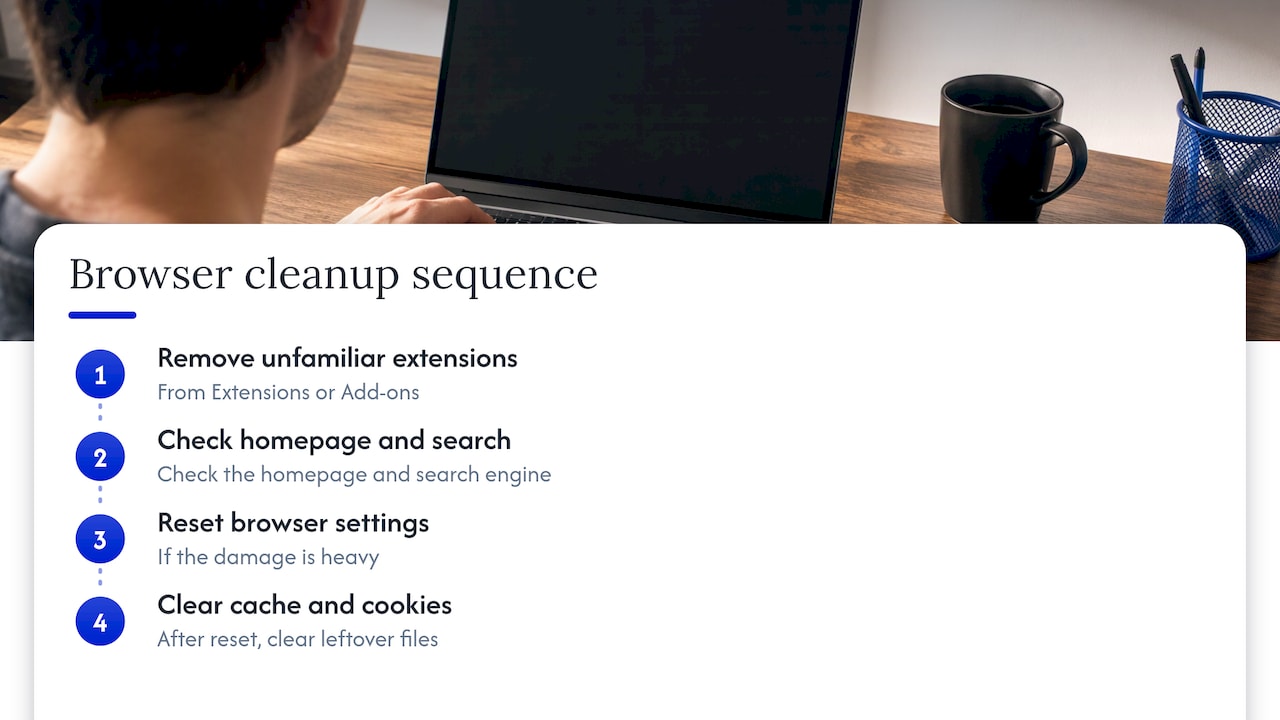
Uninstalling the program does not always undo what it did inside Chrome, Edge or Firefox. Work through the browser in this order.
Extensions and settings
Open the browser menu, find Extensions or Add-ons, and remove anything you don’t recognize. Then check your homepage and search engine. McAfee recommends using the browser’s reset-to-default option if the damage is heavy. Bookmarks and saved passwords typically stay, but legitimate extensions will need to be reinstalled afterward.
Trend Micro’s browser cleanup article adds one more step: after the reset, delete the browser cache and cookies to clear leftover files the adware saved.
Notification pop-ups are not always adware
Many “adware” pop-ups are really notifications from a website that asked to show notifications, and someone clicked Allow. ProDigitalTips points out that no scanner will find these because they are a browser permission, not a program. You can manage them here:
| Browser | Where to look |
|---|---|
| Edge | edge://settings/content/notifications |
| Chrome | chrome://settings/content/notifications |
| Firefox | Settings > Privacy & Security > Permissions > Notifications |
Remove any site you don’t recognize from the Allow list. If the pop-ups stop, you were dealing with a permission, not an infection.
Step 3: Scan with Microsoft Defender
Windows already includes a capable scanner. Microsoft recommends getting the latest security intelligence in Windows Security, running a full scan with Microsoft Defender Antivirus, and then running an offline scan if the unwanted software persists.
Here is how the scan types differ, according to Microsoft’s Windows Security documentation:
| Scan | Use it when |
|---|---|
| Quick scan | You don’t want to spend time on a full scan |
| Full scan | You want every file and program checked |
| Microsoft Defender Antivirus (offline scan) | You are worried about persistent malware, or want to scan without an internet connection |
The offline scan restarts the device and scans before Windows loads, which makes it harder for persistent malware to hide or defend itself. To run the full scan, open Windows Security, go to Virus & threat protection > Scan options, choose Full scan and select Scan now. It can take an hour or more, so start it when you don’t need the PC.
If you prefer a dedicated second scanner, CISA suggests using a legitimate product designed to remove spyware and making sure your anti-virus and anti-spyware tools are compatible with each other. Download any scanner only from its maker’s own site, since fake “cleaner” downloads are a common way adware spreads.
When a scanner finds adware, it will likely quarantine it so you can review it. Kaspersky’s guidance is that when in doubt, deleting the item also removes files that could bring the adware back.
When the ads keep coming back
If ads return after a browser reset, the adware is almost certainly still on the system. MalwareTips explains that a reset can clear the symptoms while the underlying program re-adds extensions and restores hijacked settings after a reboot. Something is putting the problem back, so find that something. Check these places in order:
- Startup apps. Press Ctrl + Shift + Esc, open Task Manager > Startup, and disable suspicious entries by right-clicking and choosing Disable, as McAfee describes.
- Browser shortcuts. Right-click the shortcut, choose Properties and check the Target. It should end with the browser’s program file, with nothing tacked on.
- Proxy settings. Go to Settings > Network & internet > Proxy. Unless you set one up yourself, it should be off.
- Browser policies. Type edge://policy or chrome://policy in the address bar. Gridinsoft notes that entries forcing extension installs are a classic reason an extension reinstalls itself.
- Task Scheduler. The same source suggests looking for tasks that run from your AppData or Temp folders.
Then repeat the full scan. Removing the restoring source first, and cleaning the browser second, is the order that holds.
If you are comfortable with it, you can also trace an ad to its source. Malwarebytes Labs describes using Process Explorer to identify the process behind an advertisement and Resource Monitor to see where that process is connecting. This is a power-user step. Most people are better off skipping it.
Reset Windows or call a technician
Sometimes cleanup isn’t worth another evening. Microsoft’s own recovery guidance lists Reset this PC as the most disruptive option and recommends trying the gentler options first. It reinstalls Windows from scratch.
A reset is reasonable when, as HP puts it, a serious infection is difficult to remove by normal means, or the PC keeps throwing errors and performance problems. Before you do it:
- Back up everything you need to an external drive or cloud storage. Microsoft Q&A advises the same, then reinstalling apps only from trusted sources.
- Know that Windows offers options to keep your files or remove everything, plus a cloud download that fetches a fresh copy of Windows.
- Use the path Start > Settings > System > Recovery > Reset this PC, as Experte describes.
Call for professional help when a reset fails repeatedly, the PC won’t boot, you suspect a hardware fault, or the machine holds data you can’t replace. HP lists these same triggers. If the PC is stuck mid-update on top of everything else, see our guide to a stuck Windows update. If files are at risk, read about data recovery in Orlando before you try anything that overwrites the drive.
Not sure whether you have adware, a virus or something else? Our explainer on malware versus a virus lists the immediate steps for home users.
Keep adware from coming back
Most reinfections trace back to the same habit: the same download site, installer or “free tool” bundle. These steps close the door.
- Download from official sources. Microsoft recommends getting software only from official websites or the Microsoft Store.
- Keep Defender on. Real-time protection detects and removes known unwanted software.
- Turn on potentially unwanted app blocking. Microsoft says these apps aren’t malware, but they might show unwanted ads or offer other apps you didn’t ask for. In Windows Security, go to App & browser control > Reputation-based protection settings and switch on Potentially unwanted app blocking. Block apps covers software from any browser, while Block downloads works only in Edge.
- Use Smart App Control if you have it. Microsoft says it can be turned on only for new Windows 11 installs, so it won’t be available on a PC that upgraded in place unless you reset it.
- Choose Custom install. Decline extra offers during setup, avoid cracks and keygens, and never click Allow on random notification prompts, as MalwareTips advises.
- Be careful with pop-ups. CISA says not to click links inside pop-up windows, and to close them with the X in the title bar instead.
- Vet extensions and update your browser. CISA’s browser guidance covers keeping the browser current and checking extensions before you add them.
Our perspective: why adware cleanup goes wrong
In our on-site work, adware calls rarely fail because the customer skipped a step. They fail because the visible symptom gets treated and the cause gets left behind. Someone resets the browser, the ads vanish for a day, and then a startup entry quietly brings them back.
That is why we work from the cause outward: what was installed, what starts with Windows, what the browser has been told to trust, and only then the scan. We also keep the customer’s data in view the whole time. Nothing about a cleanup should put your files at risk, so we confirm what needs to be backed up before anything gets changed.
We come to your home or office in Orlando and Winter Park, explain what we find in plain language, and quote the work up front. Our aim is for you to keep your PC, not replace it. If a machine does need a clean Windows reinstall, we tell you why and protect your files first.
Michael
Have us clean it on-site
If you would rather not spend an evening in Safe Mode and Task Scheduler, we can handle it where you are. Repair Genius provides on-site virus and malware removal, software troubleshooting and data recovery for Windows PCs in Orlando and Winter Park, with pricing quoted up front and a focus on keeping your data safe.

See the details on our on-site computer repair page or get in touch through Repair Genius to book a visit.
FAQ
Is adware a virus?
No, though the two are often lumped together. Microsoft describes unwanted software as programs that change your Windows experience without your consent, such as modifying your browsing or showing misleading messages. Adware can still open the door to worse problems, so treat it seriously and clean it up promptly. Our malware versus virus guide explains the difference in more detail.
Is Microsoft Defender enough to remove adware?
For many cases, yes. Microsoft advises running a full scan, then a Defender offline scan if the problem persists, and uninstalling apps you don’t need from Settings. Defender can’t remove a notification permission in your browser, though, so check your browser’s notification settings too.
Will resetting my browser delete my bookmarks or passwords?
Typically not. Bookmarks and saved passwords usually stay intact, but extensions are turned off or removed, so you need to reinstall the legitimate ones afterward. If ads return after the reset, the cause is likely outside the browser, in startup items, a scheduled task or a browser policy.
How long does a full scan take?
Plan on anywhere from about 30 minutes to a couple of hours, depending on how much is on the drive. McAfee puts a full system scan at 30 minutes to a couple of hours, and other guides say a Defender full scan can take an hour or more. Start it when you don’t need the computer.
Should I factory reset my PC because of adware?
Only after the gentler steps fail. A reset reinstalls Windows and is the most disruptive recovery option, so back up your files first. If you aren’t sure the backup is complete, or the PC won’t start, have a technician look at it before you reset.
Sources
- Unwanted software, Microsoft Learn
- Protect your PC from unwanted software, Microsoft Support
- Virus and threat protection in the Windows Security app, Microsoft Support
- App & browser control in the Windows Security app, Microsoft Support
- Recovery options in Windows, Microsoft Support
- Reset your PC, Microsoft Support
- Microsoft Q&A on adware that keeps returning
- Recognizing and Avoiding Spyware, CISA
- Tips to Stay Safe while Surfing the Web, CISA
- How to Remove PC App Store Adware, Trend Micro Help Center
- How to remove adware from web browsers, Trend Micro Help Center
- How to Remove Adware from Your Computer, McAfee
- Adware, Malwarebytes
- Adware the series, part 1, Malwarebytes Labs
- How to Remove Adware from your Computer, Kaspersky
- Adware Removal Guide for Windows, MalwareTips
- Adware Removal: How to Remove Adware on Windows 11/10, ProDigitalTips
- Browser Extension Keeps Reinstalling Itself, Gridinsoft
- How to Remove Adware in 2026, Experte
- How to Factory Reset Windows, HP
Recommended
- 3 Windows Virus Symptoms That Need Immediate Action, Diagnose & Fix
- Windows Update Stuck? How to Fix It Safely Step by Step
- 7 Steps to Stop an Infection Now for Home Users: Malware vs Virus
- Windows Blue Screen: What It Means and How to Fix It