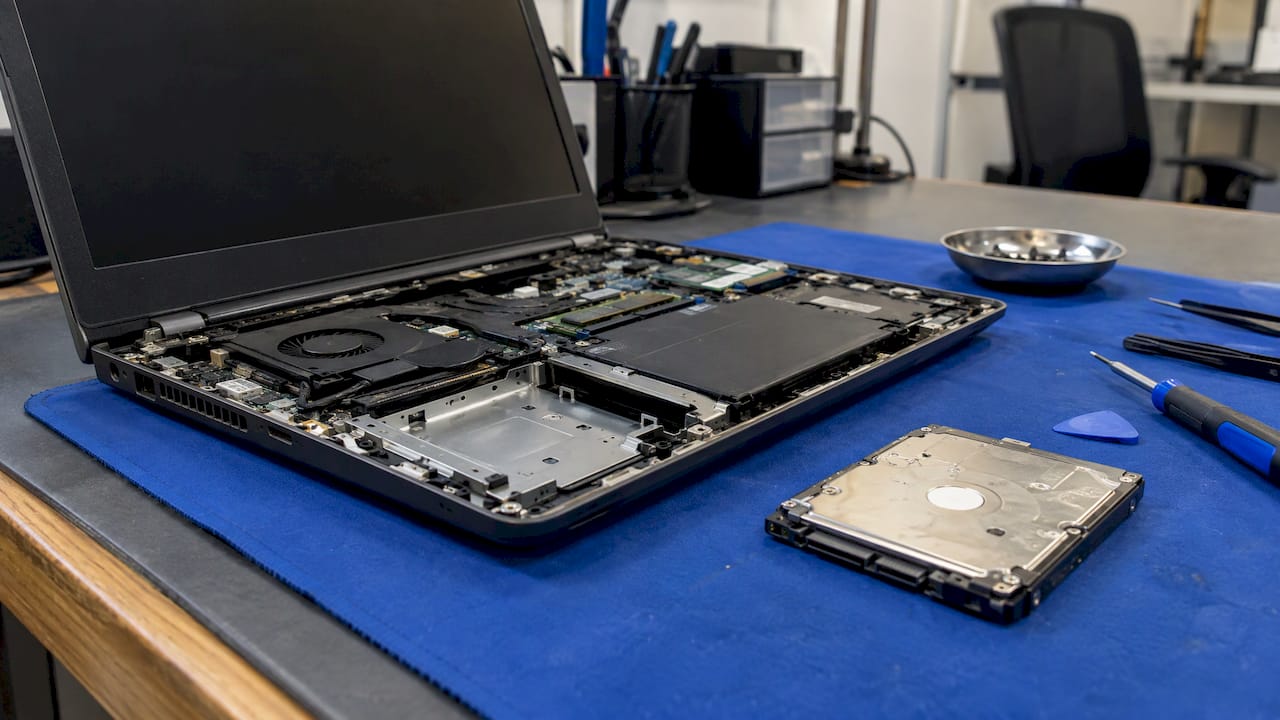
Most repairs never touch your files. A cracked screen, a tired battery or a worn charging port are hardware jobs, and your photos, messages and documents sit on a separate storage chip or drive. Data goes missing when a repair involves the storage itself, a reset, a failed file-system fix or a restore that goes wrong. If that has already happened, stop using the device and read the recovery steps below before you do anything else. If it has not, a backup made before the technician arrives is what protects you. Our technicians at Repair Genius come to you in Orlando and Winter Park, so you can back up, hand over the device and watch the work, rather than leaving it on a shop bench for days.
TL;DR
- Screen, battery, port, keyboard and memory repairs should not affect stored data. Repairs that touch storage, the main board, software or the operating system can.
- If files are missing, stop using the device right away. Every new write to the drive lowers the chance of getting old files back.
- After a Windows disk repair, files are often still on the disk but moved or unindexed, so they may be recoverable.
- A full backup, a locked (encrypted) drive and limited sharing of passwords are the three protections that matter before any repair.
- Recovery costs rise sharply once a drive has physical damage, so a backup costs far less than a rescue.
Table of Contents
- Can a repair really erase your data?
- Repairs that usually leave your data alone, and those that put it at risk
- What to do the moment you notice files are missing
- Can the data be recovered?
- What data recovery costs
- Protect your data before any repair
- Why on-site repair lowers the risk
- Book an on-site repair that keeps your files safe
- FAQ
- Sources
Can a repair really erase your data?
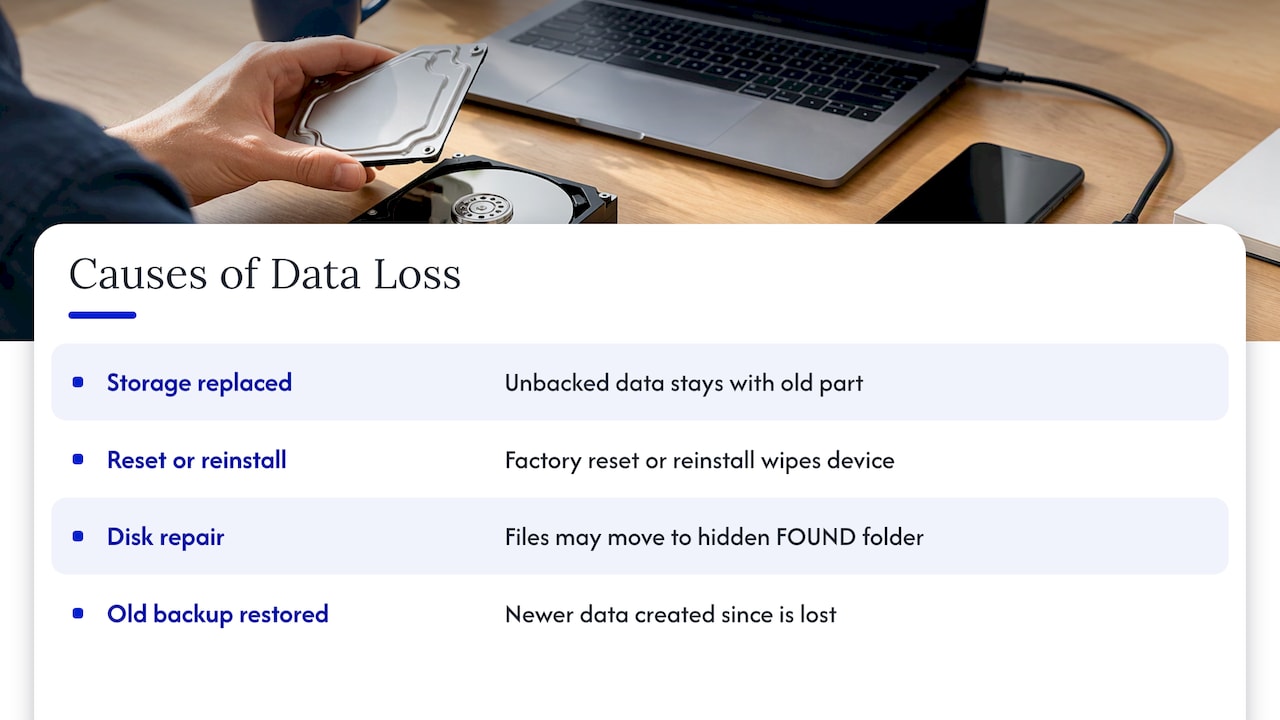
Yes, but only certain kinds of repair do, and the cause is usually one of four things.
The repair replaces the part that holds your data. On a laptop, the storage drive or the main board may need replacing. On a phone, a dead main board can mean swapping in a different one. The old storage does not carry over, so anything not backed up stays behind with the old part. A discussion on Apple’s support forum is typical of what people report, but the principle is simple: replaced storage means a blank start.
The repair requires a reset or reinstall. Software fixes for a device that will not boot, a corrupted system or a stubborn infection sometimes end in a factory reset or a fresh operating system install. That wipes the device by design.
A disk-repair tool rearranges files. Windows can run an automatic Check Disk repair after a crash. Microsoft’s support answer on this explains that afterward the files are usually still physically on the disk but displaced into a hidden FOUND folder, or with a reset file index. To the owner it looks like the files vanished.
A restore from backup fails or overwrites newer data. This is the quiet one. People restore an old backup onto a repaired device and lose everything created since.
Notice what is not on the list: replacing a screen, a battery, a camera, a keyboard or a charging port. The New York Times’ personal tech column notes that battery, keyboard, memory and jack repairs should not affect the data on your drive. That matches how these devices are built. Those parts connect to the board and the power path, not to the files.
Repairs that usually leave your data alone, and those that put it at risk
Use this as a quick map. It describes the general pattern, not a promise about any one device, which is why a backup comes first in every case.
| Repair or problem | Risk to your stored data | Why |
|---|---|---|
| Cracked screen or back glass | Low | Display and glass are separate from storage |
| Battery replacement | Low | Power component only |
| Charging port repair | Low | Connector sits apart from storage |
| Keyboard or memory (RAM) swap on a laptop | Low | Drive is untouched |
| Water damage cleaning | Medium | Corrosion can affect the board and storage, and a device that will not power on may need deeper work |
| Operating system reinstall or factory reset | High | Wipes the device by design |
| Main board or storage replacement | High | Your data lives on the part that is replaced |
| Disk repair after a crash or boot failure | Medium | Files can be moved, unindexed or damaged |
| Failing drive with clicking or grinding | High | Physical failure that gets worse with each use |
If your device has had liquid exposure, the first minutes matter more than the repair itself. Our guide on cutting power before you blot a spill walks through it. For an Android phone stuck restarting, fixing boot loops without a reset explains why a reset is not always the first move.
What to do the moment you notice files are missing
The order below is built around one idea: the less the device writes to its storage, the more of your old data is still sitting there to be found.
- Stop using the device. Do not keep browsing, installing apps or saving files. Microsoft’s guidance for missing files after a disk repair is to stop using the affected drive immediately. New data can land on top of the space your old files occupy.
- Do not run more repair tools. Another round of disk checks, formatting or partition changes can rearrange things further. Leave the device as it is.
- On Windows, look for the hidden FOUND folder. After an automatic disk repair, Microsoft says to check for a hidden folder named FOUND.000 (or FOUND.001) at the root of the drive. Recovered fragments often appear there with generic names.
- Check cloud and backup copies. Look in iCloud, Google account backups, OneDrive and any external drive before assuming anything is gone. Photos in particular are often synced without people realizing.
- If nothing turns up, get the drive scanned by a technician. Recovery software has to be installed on a different drive from the one you are rescuing, and it should not be run on a drive that is failing physically. If the drive clicks, grinds or has been dropped, power it off.
- Tell the repair provider exactly what you did and saw. The sequence of events (a repair, a restart, a prompt to restore) tells a technician which kind of loss this is.
One point on expectations: after a software-level problem, the chances of getting files back are far better than after a physical one, and they drop with every hour of continued use. That is why steps 1 and 2 come first.
Can the data be recovered?
Often, yes. The answer depends on what happened.
- Files hidden or unindexed after a disk repair: frequently recoverable, because the data is still on the disk. This is the case Microsoft describes.
- Accidentally erased after a reset or reinstall: sometimes recoverable on a traditional drive if little has been written since. On modern phones and many laptops, storage is encrypted and erased in a way that makes recovery unrealistic, so backups are the real safety net.
- Physical failure of a drive or storage chip: recoverable in some cases with specialist bench work, with lower odds and higher cost.
Phone users should be especially clear on one thing. If your phone was wiped or its storage replaced and you had no backup and no cloud photo sync, the data is generally gone. That is a hard fact of how modern phones protect your information, and it is the strongest argument for backing up first.
For laptops and desktops, we handle data recovery and backup work on-site. Our overview of data recovery in Orlando explains what to expect from the process.
What data recovery costs
Cost depends mostly on whether the problem is logical (a file system or software issue on a working drive) or physical (a mechanical, electronic or chip failure). Published U.S. figures for 2026 from Bench’s laptop repair pricing guide give a sense of the range:
| Type of case | Typical U.S. range (2026) |
|---|---|
| Software-level recovery | $100 to $350 |
| Accessible hardware failure | $300 to $800 |
| Severe, clean-room work | $500 to $2,500 and up |
| Diagnostic assessment | $50 to $100 |
These are industry-wide ranges, not Repair Genius prices. They show the pattern that matters: the further a case drifts from a simple software problem, the more it costs and the less certain the result. A drive that has kept spinning with failing sectors, or been used heavily after the loss, moves from the first row toward the third.
On a repair job with us, the price is quoted up front: diagnostics, labor and parts, with no hidden fees. For any data-related work, ask for that quote before the technician begins.
Protect your data before any repair
This is the section that saves the most grief. A thirty-minute routine beats any rescue.
1. Make a full backup, ideally two
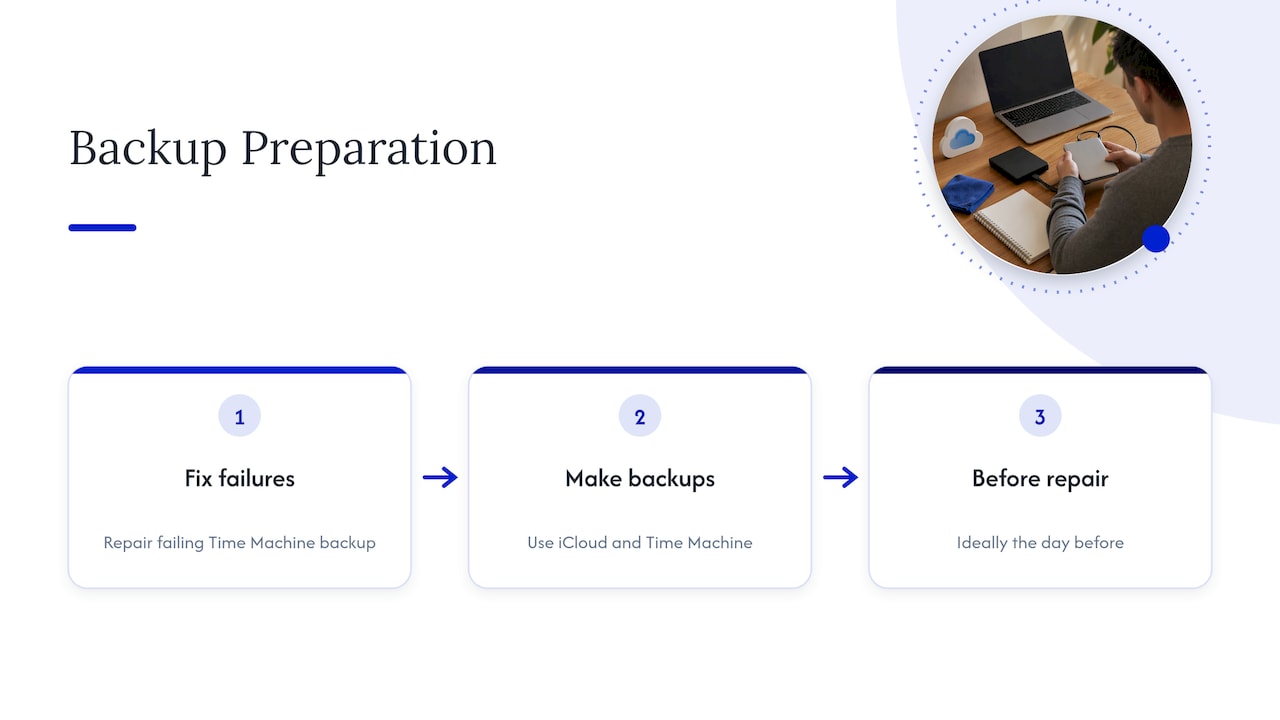
For iPhone and iPad, Slashgear’s walkthrough points to Settings, your name, iCloud, iCloud Backup, then Back Up Now. For a Mac it treats iCloud as a syncing service and Time Machine on an external drive as the full backup, and it recommends doing both, ideally the day before the repair. The reasoning is sound: a single backup can fail at the worst moment, for instance when the backup drive and the original go down together.
If your Time Machine backup is failing or corrupt, fix that first: see our guide to repairing a failed Time Machine backup. If you are weighing cloud against local copies, encrypting local backups and using daily iCloud too covers how the two work together.
2. Confirm the drive is encrypted
Encryption scrambles your files so they cannot be read without your login. 6abc’s consumer guide to repair privacy says to check that the drive is encrypted: FileVault on a Mac under System Settings, Privacy & Security, and Device Encryption or BitLocker on Windows under Settings, Privacy & Security. Exact menu names vary by version, so look for those names in your own settings.
3. Limit what the technician needs from you
The same 6abc piece advises signing out of sensitive accounts, not providing your main password unless it is truly necessary, asking whether the repair can be done without unlocking the device, and never sharing banking or investment passwords or an encryption recovery key. The New York Times adds that if a technician must start the computer, you can clear browser history and stored passwords and use a guest or limited account instead of handing over your real login.
Protecting the accounts themselves matters too. Two-factor sign-in, including hardware security keys for account protection, means that even a leaked password does not open your email or banking.
4. Know whether your repair touches storage
A screen or battery job is a different risk from a board or drive replacement. Before the technician starts, ask which part is being replaced and whether any step involves resetting or reinstalling the system. Our article on questions that protect your data before electronics repair lists what to ask.
5. Prepare for your situation
- Students with coursework on one laptop should read how to protect student data during device repair and copy assignments to a second location the same day.
- Employees and small teams with work devices can use the on-site device repair checklist so that company files and logins are handled consistently.
- Business owners weighing which repairs a team laptop might need will find the business laptop repair types guide useful for planning.
Why on-site repair lowers the risk
Data worries grow when a device leaves your sight. A phone or laptop that goes into a queue at a drop-off counter, then sits for days, gives you little visibility into who opened it or what was done. When the repair happens where you are, you see which part is being replaced, you can say no to a reset, and you leave with the device in hand the same day.
That is how we work. Repair Genius sends certified technicians to the location you choose in Orlando and Winter Park, with same-day service, honest diagnostics, a price quoted up front and a warranty on parts and labor. Data safety is built into the service, so your personal information stays protected throughout the job.
Our view on data and repair
Almost every data-loss story we hear starts the same way: someone assumed the repair would be harmless, or assumed the shop kept a copy. Neither is a safe assumption, and neither is the technician’s fault when it fails. The real cause is that no one backed up.
Our approach is to treat your data as the most valuable thing on the device, more than the screen or the battery. That is why we put honest diagnostics first: before any work begins, we want you to know whether the repair touches storage, and what that means for your files. A repair that only replaces glass or a battery should not put your photos at risk, and we say so plainly. When a board-level repair or a reset is the only way forward, you hear that before we start, not after.
Because we come to you, you can be there. You can back up while we set up, decline a step you are not comfortable with and keep your passwords private where the repair allows. We also offer data recovery and backup solutions for computers, so if something has already gone wrong, the same technician who understands your device can look at it.
The best result is the boring one: the device works, nothing is missing and you never had to think about recovery.
Michael
Book an on-site repair that keeps your files safe
If your phone, tablet or computer needs work, we can come to your home, office or campus in Orlando or Winter Park, quote the job up front and repair it the same day. For laptops and desktops, see our on-site computer repair services, which cover hardware repairs, software troubleshooting, malware removal and data recovery and backup solutions.

For phones, start with our iPhone repair or Android and Samsung repair pages. You can reach us from the Repair Genius home page.
FAQ
Will replacing my phone screen delete my photos?
No. The screen is separate from the storage chip that holds your photos and messages, so a screen replacement does not normally affect them. You should still back up first, because any repair has a small chance of an unexpected problem, and a backup turns that chance into an inconvenience.
My files disappeared after Windows ran a disk repair. Are they gone?
Not necessarily. Microsoft explains that after an automatic disk repair, files are usually still on the disk but moved into a hidden FOUND folder or missing from the index. Stop using the drive, look for that folder, and have the drive scanned with recovery software installed elsewhere if it is empty.
How much does it cost to recover data from a laptop?
U.S. 2026 industry ranges run from about $100 to $350 for software-level recovery to $500 to $2,500 and up for severe physical damage, according to Bench’s pricing guide. The type of failure is the biggest factor. Ask for a written quote before work starts.
Should I give the technician my password?
Only if the repair truly requires it. Ask first whether the work can be done without unlocking the device, and use a guest or limited account if a login is needed. Never share banking passwords or an encryption recovery key.
Sources
- Windows’ automatic file repair erased more than half of my files (Microsoft Q&A)
- Keeping Data Secure When Your Laptop Is in the Shop (The New York Times)
- How to protect your data before handing over a device for repairs (6abc)
- How To Secure Your Data Before Sending Your Apple Device for Repair (Slashgear)
- How to Price Laptop and Computer Repairs in 2026 (Bench)
- Hardware security keys for account protection
Recommended
- Why Device Repairs Fail: Common Mistakes Explained
- Data Recovery Orlando: What You Need to Know
- Time Machine Backup Repair: Fix a Failed or Corrupt Backup
- How to Transfer Contacts Before Phone Service