
A kernel panic is fixable most of the time, and the fix usually starts with software or a connected device. If your Mac restarts on its own and shows a message that it restarted because of a problem, Apple says faulty software is the most likely cause, while damaged or incompatible hardware, including attached external devices, can also trigger one. Work through the steps below in order. If the panics return after a clean software setup, the cause is probably inside the machine, and that is where our technicians come to you in Orlando and Winter Park with a same-day, on-site repair.
TL;DR
- One panic is not a verdict. Update macOS, unplug extras and see whether it happens again.
- Apple’s order for repeat panics: Safe Mode, remove non-Apple add-ons, disconnect devices, run Apple Diagnostics, then reinstall macOS.
- Copy the panic report the moment the alert appears. It tells you whether to suspect software, a peripheral or hardware.
- Panics that survive all of that, or that hit during startup, point to memory, storage, firmware or the logic board.
- Back up before you change anything. If the Mac will not stay up long enough to do it, we can handle data recovery on site.
Table of Contents
- What a kernel panic is
- First, capture the panic report
- Back up before you troubleshoot
- The fix order Apple recommends
- When the panic is a hardware problem
- How we handle it on site
- Perspective
- Get your Mac repaired where you are
- Keeping your Mac stable afterward
- A special case: kernel panic loops after an upgrade
- FAQ
- Sources
What a kernel panic is
The kernel is the core of macOS. When it detects a fault it cannot safely continue past, it stops, writes a report to disk and restarts the Mac. To you it looks like a sudden black screen, a restart and a message that your computer restarted because of a problem.
The common causes fall into a short list:
- A faulty or incompatible driver, kernel extension or low-level app.
- A peripheral that is failing or badly connected: a dock, display, hub or cable.
- Bad memory or a failing storage drive.
- Damaged or buggy firmware.
- Occasionally, a bug in macOS itself.
One detail from long-time Mac analysts is useful for setting expectations: panics became very infrequent from OS X Yosemite onward unless the Mac had a hardware problem. A single panic after an update or a new accessory is normal troubleshooting territory. A pattern of panics deserves a closer look at the hardware.
First, capture the panic report
Within about a minute of restarting, macOS shows a Panic Alert inviting you to send the report to Apple. Copy its contents before you click send, because once the alert is dismissed it cannot be brought back. Paste it into a note or email to yourself.
Reports are also stored on the Mac itself, in /Library/Logs/DiagnosticReports/, so you can find them later if you missed the alert.
What to look for in the report
You do not need to read every line. Three things carry most of the meaning:
- The first lines after the word “panic”. The log may suggest a cause there, and it also tells you which CPU core the panic occurred on. If panics repeat, keep a note of the core. The same core showing up again can point toward a hardware problem.
- Third-party kernel extensions. If a non-Apple extension is listed as loaded at the time of the panic, that is your first suspect. Uninstall it if you can.
- Watchdog lines. A message about no check-ins from watchdogd means a core system process did not report in before its timeout. Ask what changed recently: a new driver, a VPN or security tool, a dock or display, or a heavy workload.
If the report names nothing third-party and the panics keep coming, treat that as a signal that the fault is more likely hardware or firmware. Keep the report. A technician can use it to go straight to the right component.
Back up before you troubleshoot
Before you reinstall anything or remove software, make sure your files are safe. A Time Machine backup or a copy of your key folders to an external drive takes minutes. If the Mac panics too quickly to finish a backup, do not keep forcing restarts. Repeated crashes can make a failing drive worse. Our data recovery service is built for exactly this situation, and because we come to your home or office, your device stays with you while the work is done.
The fix order Apple recommends
Apple’s own guidance gives a clear sequence. Take the steps one at a time and use the Mac normally for a while after each, so you know which one worked.
Step 1: Install updates and remove the suspect
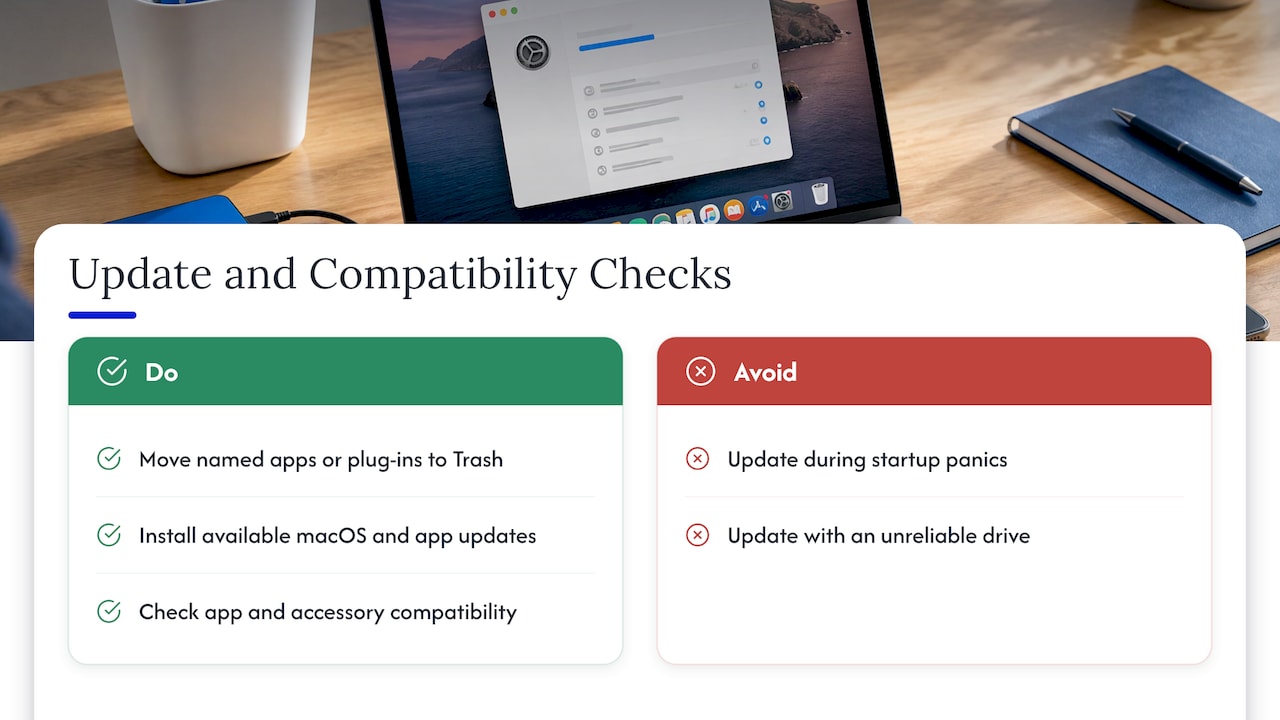
If the panic message or report names a specific app or plug-in, move it to the Trash. Then install every available macOS and app update. Apple’s guidance on unexpected restarts lists installing all available software updates as the first software check.
While you are at it, check that your apps, drivers and accessories are compatible with your macOS version. If an accessory is old and its software is no longer maintained, a current replacement from a Mac products and accessories catalog can remove an incompatibility at its root.
Where it goes wrong: people update while the Mac is still panicking on startup, or they update with an unreliable drive. If the Mac cannot stay on long enough to finish an update, that itself is diagnostic information.
Step 2: Start in Safe Mode
Safe Mode helps you work out whether software that loads at startup is causing the problem. The method depends on your chip:
- Apple silicon: shut down, then press and hold the power button until “Loading startup options” appears. Select your startup volume, hold Shift, and click Continue in Safe Mode.
- Intel: turn on or restart the Mac and immediately hold Shift until the login window appears.
If the Mac starts in Safe Mode, open the App Store from the Apple menu, click Updates and install what is offered. Then restart normally and see if the panic is gone.
The result is informative either way. A Mac that is stable in Safe Mode but panics in normal mode points to something that loads at startup: a driver, a login item or an extension. A Mac that panics even in Safe Mode shifts suspicion toward hardware.
Step 3: Remove non-Apple add-ons
Apple’s guidance for continuing panics is to uninstall plug-ins or enhancement software that did not come from Apple. Think about what you installed in the weeks before the first panic: VPN clients, antivirus tools, audio drivers, virtualization software, display utilities. Remove the most recent first, one at a time.
Step 4: Disconnect every device
Shut down and unplug everything except an Apple keyboard and mouse. That includes hubs, docks, external drives, printers and displays. Then use the Mac for about as long as it normally takes before an unexpected restart. If the panics stop, reconnect devices one at a time until the culprit shows itself. Check cables and connections too, since a loose or damaged connection can be the whole problem.
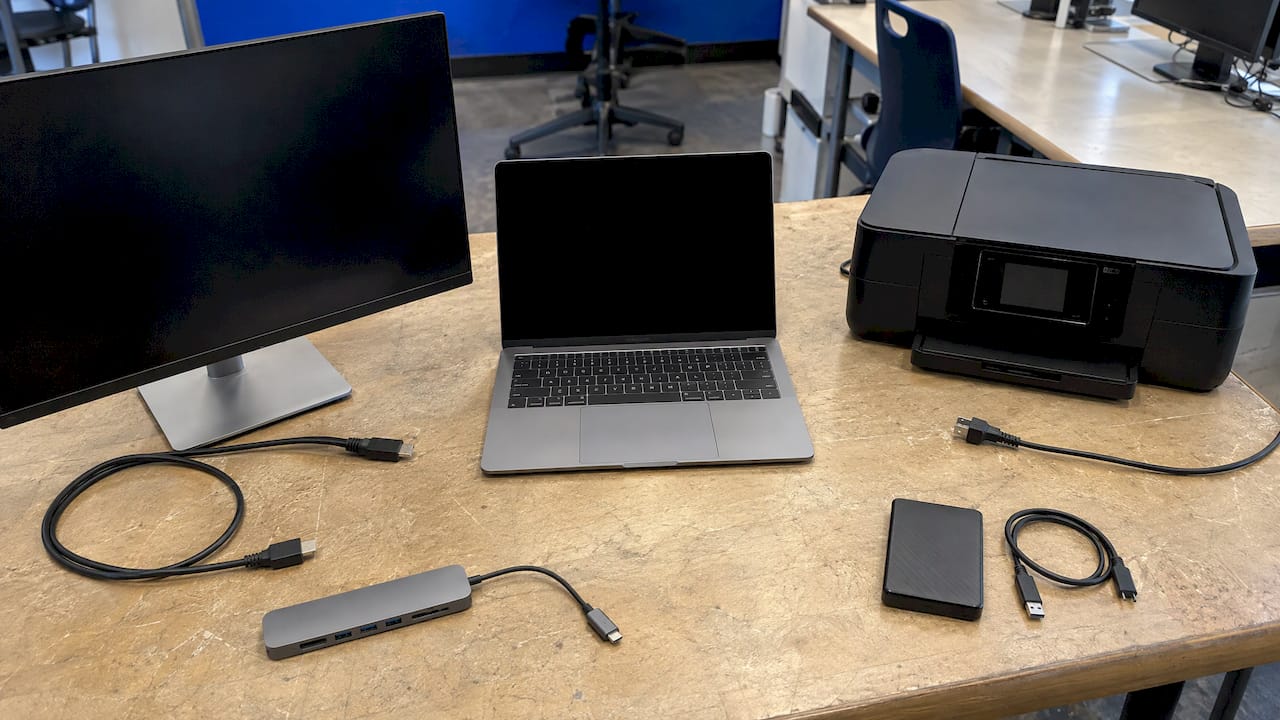
If the Mac only panics when something is plugged into a USB-C port, the port itself may be the issue. Our guide to MacBook USB-C diagnosis and repair explains how to tell the difference between a bad cable, a bad device and a bad port.
Step 5: Run Apple Diagnostics
With devices still disconnected, run Apple Diagnostics. On an Intel Mac, hold D at startup to launch it. On Apple silicon, it starts from the startup options screen. Diagnostics checks for hardware faults and gives reference codes. Write them down.
A clean result does not rule out every hardware problem, but a reported fault tells you the repair is a parts job, not a software one.
Step 6: Consider resetting NVRAM on an Intel Mac
On an Intel Mac, the key combination Option-Command-P-R resets NVRAM. One caution from Mac analysts: resetting NVRAM right after a panic can clear logs used to build the full panic report, so capture your report first. Apple silicon Macs handle this automatically at restart, so there is nothing for you to do.
Step 7: Reinstall macOS
If the earlier steps do not help, Apple’s last software step is reinstalling macOS from macOS Recovery. Reinstalling does not remove your apps or personal data, but a backup first is still wise. If a clean reinstall does not stop the panics, software is almost certainly not the cause.
When the panic is a hardware problem
A Mac that keeps panicking after Safe Mode, Diagnostics and a reinstall is telling you something specific. Long-observed hardware causes include memory, storage and the logic board, plus damaged firmware, sometimes after a failed update.
The worst pattern is a panic that happens early in startup. The Mac can get locked in a cycle of panics and forced restarts that only you can break. Analysts have tied that pattern to significant hardware failure, damaged firmware or failing storage. Apple notes that if a restart loop happens every time the Mac tries to start, the Mac might eventually shut down. At that point, more experimenting at the kitchen table stops being useful.
| Symptom | Likely area | Next move |
|---|---|---|
| Panic named after a new app or driver | Software | Remove it, update, retest |
| Panics only with a dock, hub or display attached | Peripheral or port | Test connections one by one |
| Fine in Safe Mode, panics in normal mode | Startup software | Remove login items and extensions |
| Panics in Safe Mode too | Hardware or firmware | Run Apple Diagnostics, book a repair |
| Panics soon after startup, repeating | Storage, memory, logic board | Back up if possible, book a repair |
| Same CPU core named in several reports | Possible hardware fault | Keep the reports for the technician |
How we handle it on site
Once the fault is hardware, the real question is who opens the machine, and what happens to your data while they do. We built our service around that. Our technicians are certified, and they come to the place you choose in Orlando or Winter Park, so your Mac does not sit on a bench in a shop. We offer MacBook and iMac repair, including advanced board-level work, and hardware repairs and upgrades.
Here is what each step of that looks like:
- Diagnosis. Bring the panic reports you saved. They shorten the path to the cause.
- A quote before work starts. Pricing is transparent, with no hidden fees, and you see the cost for diagnostics, labor and parts up front.
- Data safety. We prioritize keeping your personal information secure throughout the repair, and we offer data recovery and backup solutions if the drive is in trouble.
- The repair. Parts and labor carry a warranty.
If your Mac is also freezing or showing the spinning wheel between panics, our guide on when to call same-day repair covers the overlap. If you suspect something malicious is behind the instability, read the malware signs worth telling a technician.
Perspective
Most kernel panic advice online ends at “reinstall macOS.” In our experience as repair specialists, that is where the useful part begins. Software fixes are worth doing in order, because they cost nothing and they narrow the field. But a Mac that panics in Safe Mode, or panics during startup, is giving you a hardware answer.
Our approach is to treat the panic report as evidence, not noise. Bring it, and we can work from it. Then we explain what we find in plain language and quote before any work begins.
The other thing we care about is your data. A panicking Mac is a stressed Mac. We would rather secure what matters to you first and then repair the machine, at your home or office, without you handing it over for days.
Michael
Get your Mac repaired where you are
If your Mac is still panicking after the steps above, we can come to you the same day in Orlando or Winter Park. We repair MacBooks and iMacs on site, with certified technicians, up-front pricing and a warranty on parts and labor.

See our MacBook and iMac repair page or book through our site and tell us what the panic report says.
Keeping your Mac stable afterward
Once the panics stop, a few habits make a return less likely:
- Install macOS and app updates when they are released, and do not stack many changes at once.
- Add one new driver, VPN tool or accessory at a time so a problem can be traced.
- Keep a current backup. Encrypt local backups and keep iCloud running too if you want both a local and a cloud copy.
- Watch for early signs of a failing machine. Our list of signs a laptop needs immediate repair is a good checklist.
- Understand why some fixes do not last. We explain common reasons device repairs fail so you can avoid them.
A special case: kernel panic loops after an upgrade
Some panics are tied to a specific piece of software that does not survive an operating system upgrade. Stanford University IT, for example, warns that anyone using OpenAFS must uninstall it before upgrading to a new macOS version or the computer ends up in a kernel panic loop, and it gives recovery steps for that case. The lesson applies more widely. If you run low-level software such as file system drivers, security agents or virtualization tools, check that they support the macOS version you are moving to before you upgrade, and remove what is not supported.
FAQ
Is a kernel panic fixable?
Usually, yes. Apple identifies faulty software as the most likely cause, so updates, removing add-ons and Safe Mode solve many cases. If the panics continue after a clean reinstall, the cause is likely hardware, and a repair of the faulty component fixes it.
What triggers a kernel panic on a Mac?
The usual triggers are faulty software, incompatible drivers or kernel extensions, and damaged or incompatible hardware, including attached devices. Memory, storage and logic board faults are the hardware causes most often named. Damaged firmware and macOS bugs are less common triggers.
Can I cause a kernel panic on purpose?
There is no reason to. A panic forces an unclean shutdown and can lose unsaved work. If you want to test whether a device or app is the cause, connect or install it and use the Mac normally. Do not try to force a crash.
How do I know if my Mac needs a repair?
If panics continue in Safe Mode, if Apple Diagnostics reports a fault, if the Mac panics early in startup, or if a clean macOS reinstall does not help, treat it as a repair. Save the panic reports first. We can then diagnose it at your location in Orlando or Winter Park.
Sources
- If your Mac restarts and a message appears, Apple Support
- If your Mac restarted because of a problem, Apple Support
- Start up your Mac in safe mode, Apple Support
- Mac startup key combinations, Apple Support
- How to reinstall macOS, Apple Support
- macOS Kernel Panic Recovery, Stanford University IT
- How to deal with a kernel panic, The Eclectic Light Company
- Dealing with a kernel panic, The Eclectic Light Company
- Did that Mac just restart itself? About kernel panics, The Eclectic Light Company
- Kernel Panic on Mac: Read the Log and Fix It, trio.so
- Troubleshooting kernel panics, r/macsysadmin
Recommended
- Stop a Mac Spinning Wheel in 15 Seconds, When to Call Same Day Repair
- 4 Urgent Mac Malware Signs and What to Tell a Technician
- MacBook USB-C Repair: Diagnose the Port, Then Fix It
- Top 5 MacBook Battery Replacement Providers 2026