
To turn off Find My before a repair, open Settings, tap your name, tap Find My, tap Find My iPhone, switch it off and enter your Apple Account password. If your iPhone runs iOS 27 or later, you may not need to turn it off at all: Apple’s Ready for Repair option keeps Find My on during an eligible repair. If you can’t reach the phone’s settings, you can do it from iCloud.com/find on another device.
Below you’ll find each method, the reason repairers ask for it, and what to do when the password is the problem. We repair phones on-site in Orlando and Winter Park, so we see this step every week.
TL;DR
- iOS 26 or earlier: Settings > your name > Find My > Find My iPhone > turn off, then enter your Apple Account password.
- iOS 27 or later: open Find My, select the iPhone, tap More, tap Repair or Trade In, then tap Enable.
- Can’t use the phone? Use Find My on another Apple device or iCloud.com/find and choose the repair option or Remove This Device.
- Never hand over your Apple Account password or passcode. Back up first, because the phone may be erased during service.
- Forgot the password? Reset it first. Account recovery can take days, so start before you book.
Table of Contents
- Why a repairer asks you to turn off Find My
- Turn off Find My on the iPhone itself
- The iOS 27 option: keep Find My on with Ready for Repair
- Turn off Find My remotely
- Prepare the rest of the phone before the visit
- What if you forgot your Apple Account password?
- Perspective: why this step is worth doing right
- Get it fixed at your door in Orlando or Winter Park
- Common problems and quick fixes
- Turn Find My back on afterward
- FAQ
- Sources
Why a repairer asks you to turn off Find My
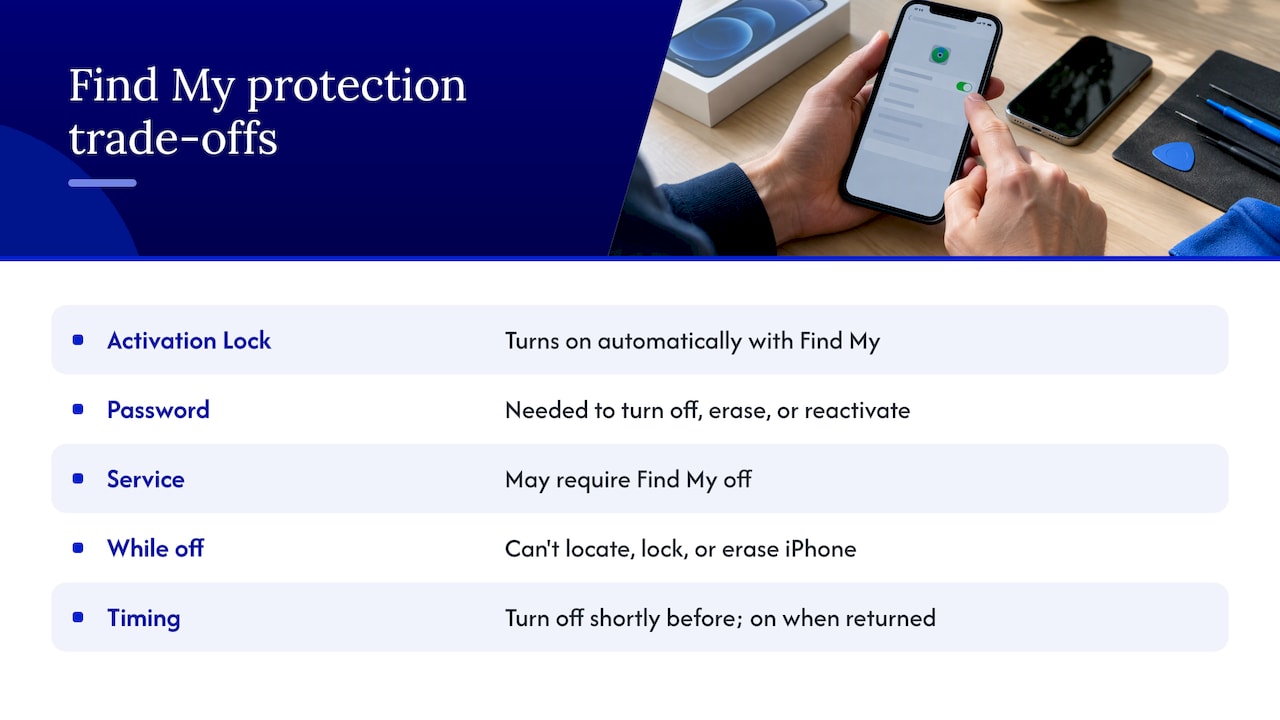
Find My comes with Activation Lock. Apple says Activation Lock turns on automatically when Find My is enabled, and it exists to stop another person from using a lost or stolen iPhone. The same page says your Apple Account password is required before anyone can turn off Find My, erase the device, or reactivate and use it.
That protection is the reason for the request. For iOS 26 or earlier, Apple says it might not be able to service an iPhone if Find My isn’t turned off, which prevents someone else from getting service on your phone without your knowledge. Repairers who follow the same practice are protecting you and screening out stolen devices. Apple also notes that turning off Find My automatically removes Activation Lock, so it is one step, not two.
There is a trade-off while it’s off. Apple’s security guide says that with Find My and the Find My network off, you can’t locate, lock or erase the iPhone if it’s lost or stolen. That is why the timing matters: turn it off shortly before the repair, and turn it back on when the phone is returned. With an on-site repair, the phone stays with you and in your sight, which keeps that window short.
Turn off Find My on the iPhone itself
This is the standard method for iOS 26 or earlier, and the fastest if the phone works. Apple’s steps for the iPhone:
- Open Settings.
- Tap your name at the top.
- Tap Find My, then Find My iPhone.
- Switch Find My iPhone off.
- Enter your Apple Account password and tap Turn Off.
To check it worked, go back to the Find My iPhone screen and confirm the switch is gray. Do this yourself. You type the password, not the technician.
Check these four things first
- You’re signed in to the right account. If the name at the top of Settings isn’t yours, the phone may be tied to someone else’s account, which needs sorting out before any repair.
- You know your Apple Account password. The prompt will ask for it, not your passcode.
- You have a network connection. The phone needs to verify the password.
- The phone has enough battery to complete the steps and the backup.
The iOS 27 option: keep Find My on with Ready for Repair
Apple changed the process for newer software. According to Apple’s service-appointment guide, iOS 27 or later uses Ready for Repair or Trade In instead of turning Find My off. Apple says eligible devices on iOS 27 or later can keep Find My on during an eligible repair or trade-in, so the device stays secure and findable.
To enable it, per the same Apple page:
- Open Find My on the iPhone.
- Select the device.
- Tap More, then scroll to Repair or Trade In.
- Tap Repair or Trade In, then tap Enable.
- Authenticate with your Apple Account password.
The idea isn’t brand new. In 2024, MacRumors described the earlier iOS 17.5 Repair State as keeping Find My and Activation Lock on and showing a Ready for Repair label. Ars Technica reported that it left the phone functional while preserving Activation Lock, which lowers the risk if a phone is lost in transit.
Two practical notes. First, Apple says “eligible” repairs, so the option may not appear for every device or repair type. If you don’t see it, use the standard method above. Second, a repairer’s own procedure may still call for Find My to be off, so tell us which method you used when you book and we’ll confirm what the job needs.
Turn off Find My remotely
If the screen is cracked beyond use, the phone won’t boot, or you can’t unlock it, you can still prepare it from another device. Apple directs you to Find My on another device or iCloud.com/find, where you select the iPhone and choose Repair or Trade-In, or Remove This Device.
The behavior depends on whether the phone is online, according to Apple’s iCloud guide:
| Phone status | What happens at iCloud.com/find |
|---|---|
| Online | It can’t be removed immediately. Continue prepares it for repair or trade-in. |
| Offline | Activation Lock is removed immediately, and the device is removed from Find My after 30 days. |
A cracked phone that’s still powered on and connected is usually “online.” A dead phone is offline, so the removal takes effect at once.
A warning about the Erase option
If you see Erase on that page, don’t use it casually. Apple says that when a device was sold or given away without turning off Find My, you erase it and then choose Remove This Device. Erasing removes all content, immediately removes Activation Lock and lets another person activate the device. For a repair you almost never want that, so back up first if you can, and pick the repair option rather than the erase route.
Prepare the rest of the phone before the visit
Turning off Find My is one item on a longer list. Apple’s checklist for a service appointment covers these points:
- Back up the iPhone and confirm iCloud syncing finished.
- Turn off Apple Cash and remove Wallet cards and passes.
- Check Parts and Service History for unfinished repairs.
- Prepare Find My for your iOS version.
- Be ready to restore the phone, since Apple says it may be erased during service.
To confirm the sync, Apple says to open Settings, tap your name, tap iCloud, and check that the icon next to Saved to iCloud is green.
A few extras from our own routine: write down which apps use two-factor codes sent to this phone, because those codes matter when you restore. If storage is nearly full, the backup can fail, and our storage-full checklist helps you free space without losing photos. If you’re switching phones or want a second copy, moving your contacts before service takes a few minutes. Computer users should also read how to encrypt local backups before repair.
Keep your credentials to yourself
Apple’s guidance is plain: don’t give the technician your Apple Account password or passcode, and stay present if software support needs access to the phone. A repair that needs the screen, battery or charging port swapped doesn’t require your credentials. If someone asks you to share them, that is a reason to step back.
What if you forgot your Apple Account password?
This is the most common snag. Don’t wait until the technician arrives to find out.
- Try changing or resetting the password from another trusted device or Apple’s account page.
- If that fails, start account recovery. Apple says the confirmation message arrives within 72 hours, recovery can take several days or longer, and Apple Support can’t shorten the wait.
So if your battery is dying and you can’t recall the password, start recovery now and book the repair for after it completes. In the meantime, the phone remains locked to you, which is Activation Lock doing its job.
If you bought the phone used and the previous owner’s account is still on it, ask that person to remove the device from their account. We can’t bypass Activation Lock, and no legitimate repairer can.
Perspective: why this step is worth doing right
We’ve been fixing phones for over 10 years, and Find My is the step that causes the most avoidable delays. People either don’t know about it, or they discover mid-appointment that the password is gone.
Our view is simple: the check protects you. It stops a stolen phone from being repaired and resold, and it keeps your account tied to your device. We’d rather you turn it off in your own living room, with your own hands, than hand over credentials to anyone.
That’s also why on-site repair fits this job well. You stay with the phone from the first tap to the last, you enter your own password, and you turn Find My back on the moment we finish. Pair that with up-front quotes, clear communication and warranty-backed parts, and the process is calm instead of stressful.
If your iPhone is on iOS 27 or later, try the Repair or Trade In option first. If it isn’t available for your repair, we’ll walk you through the standard method over the phone.
Michael
Get it fixed at your door in Orlando or Winter Park
Once Find My is sorted, the repair itself is the easy part. We come to your home, office or campus in Orlando and Winter Park, with same-day service, data safety as a priority and pricing quoted up front. Our iPhone repair page covers screens, back glass, batteries, charging ports and cameras. We also repair iPads, Samsung and Android phones, and Macs.

Before you book, have your iOS version and the repair you need ready. If you want to know what to expect on the day, read our iPhone screen repair process, or look at iPhone 16 repair if that’s your model. Ready to go? Visit Repair Genius to request a visit.
Common problems and quick fixes
The switch is grayed out or won’t turn off. Check that you’re signed in to your own Apple Account and connected to the internet, then try again. If it still fails, use iCloud.com/find from another device.
The phone is stuck or won’t power up properly. If it’s looping on the logo, see our guide on what to do when an iPhone is stuck on the logo before assuming the worst. Our recovery versus DFU guide is for advanced users who are comfortable with restores.
The phone won’t charge. Run through the safe charging checks first, since a clean port or a different cable sometimes solves it. If not, a charging port repair is a routine job.
You’d like Find My to protect the phone while it’s with a repairer. On iOS 27 or later, that is what Ready for Repair is for. Otherwise, keep the time Find My is off as short as you can and turn it back on right after.
Turn Find My back on afterward
Don’t skip this. When the repair is done, go to Settings > your name > Find My > Find My iPhone and switch it on. If you used Ready for Repair, check the Find My app and disable the repair state according to Apple’s instructions, then confirm the phone shows normally. Also confirm Send Last Location is on if you want a final location sent when the battery is critically low. Apple says Find My may locate an iPhone through the Find My network for up to 24 hours after it’s powered off or offline, when the feature stays enabled, which is one more reason to leave it on day to day.
Finally, restore from your backup if the phone was erased, re-add your Wallet cards, and check that your messages and photos are all back.
FAQ
Do I have to turn off Find My for every iPhone repair?
On iOS 26 or earlier, Apple says it might not be able to service the phone if Find My is on. On iOS 27 or later, Ready for Repair or Trade In can keep Find My on for eligible repairs. If the option doesn’t appear for your repair, use the standard method.
Can I turn off Find My without the phone?
Yes. Use Find My on another Apple device or iCloud.com/find, select the iPhone and choose the repair or Remove This Device option. An online phone can’t be removed immediately and needs Continue. An offline one has Activation Lock removed right away.
Does turning off Find My erase my data?
No, turning it off doesn’t erase anything by itself. The repair, though, may involve erasing or restoring, and Apple says the phone may be erased during service. Back up first and confirm iCloud shows a green icon next to Saved to iCloud.
Should I give the technician my Apple Account password?
No. Apple advises against giving your password or passcode to the technician. You enter the password yourself when you turn Find My off, and you can change it afterward if you ever feel unsure.
What if I can’t remember my Apple Account password?
Try resetting it first. If that fails, start account recovery. Apple says the confirmation message arrives within 72 hours and recovery can take several days or longer, so begin before you book your repair.
Sources
- Prepare your iPhone or iPad for a service appointment, Apple Support
- How to use Ready for Repair or Trade In, Apple Support
- Activation Lock for iPhone and iPad, Apple Support
- Turn off Find My on your devices and items, Apple Support
- Turn off Find My on iPhone, Apple Support
- Find My and location sharing, Apple Support
- Remove a device from Find Devices on iCloud.com, Apple Support
- What to expect during account recovery, Apple Support
- How to Get Your iPhone Ready for Repair, MacRumors
- iOS 17.5 makes it less of a hassle to send your iPhone in for repair, Ars Technica
Recommended
- How to Transfer Contacts Before Phone Service
- iPhone Screen Repair Process Explained for 2026
- Same Day Apple Repair Near Me That Keeps Your Warranty
- iPhone Touch Not Working: Fixes to Try Before Repair