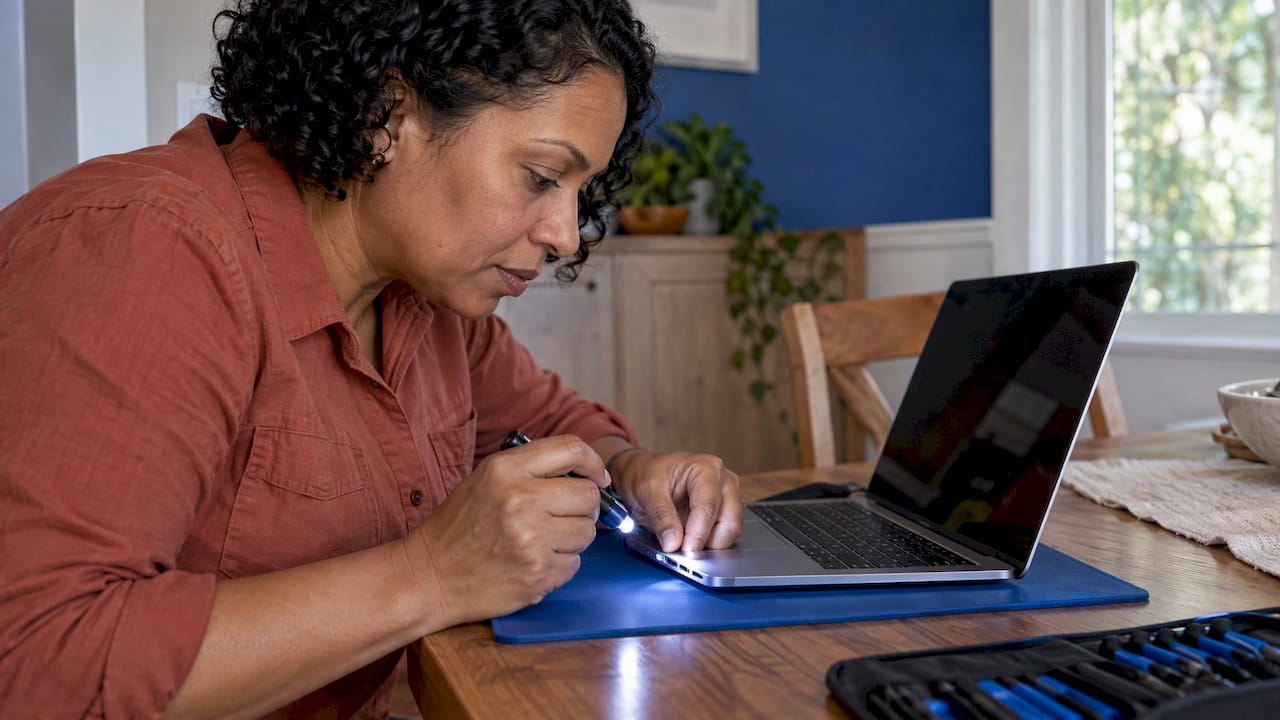
If your MacBook’s USB-C port has stopped charging or stopped recognizing devices, the cause is usually one of four things: the cable, the power adapter, debris in the port, or a failed port or board inside the Mac. The first three you can rule out in about 15 minutes. If they all check out, the port itself needs a repair, and that is work for a technician with board-level tools. In Orlando and Winter Park, we do that at your home or office.
TL;DR
- Start with the cheap suspects: a different USB-C cable, a different outlet, a restart and a look inside the port for lint.
- A Mac that charges only when you wiggle the cable has a cable, adapter or port problem. Stop using that cable and have it evaluated.
- Apple Diagnostics can point to the failing hardware component, and it is worth running before you book anything.
- When the port or its board has failed, the fix is a replacement part, not a cleaning. That repair can be done on-site.
- Back up your data before any repair, and ask for a quote that covers diagnostics, parts and labor up front.
Table of Contents
- Start with the checks Apple recommends
- Cable, adapter, port or Mac: how to tell
- Run Apple Diagnostics before you book
- When it is the port: what the repair involves
- Signs the problem is bigger than a port
- Repair or replace the MacBook?
- Get it fixed at your door in Orlando or Winter Park
- Prepare your MacBook for a repair visit
- Frequently asked questions
- Sources
Start with the checks Apple recommends
Most “dead port” cases are not dead ports. Apple’s own troubleshooting list for a Mac laptop that will not charge is short and worth doing in order, because each step eliminates a suspect:
- Check the power. Unplug the adapter and plug it back in, at both ends.
- Restart the Mac. A restart clears many temporary charging glitches.
- Test the outlet. Plug in a lamp or phone charger that you know works.
- Try a different USB-C cable that supports charging. Many cables carry data only or are rated for low power.
- Check for line noise. Unplug the adapter from the wall for 30 seconds, then plug it back in.
- Try another AC plug on the adapter, if yours has a swappable one.
- Inspect the ports for debris. Power the Mac off first, then look with a flashlight.
- Check for software updates.
If the adapter feels hot, Apple says to disconnect the USB-C cable from the Mac and let the adapter cool before you handle it. Treat that as a safety step, not a quirk.
One detail trips people up: a Mac charges through only one port at a time, using the source that supplies the most power. According to Apple’s charging page, plugging chargers into several ports does not charge the laptop faster. So if one port charges and the other does not, you already have useful information about which side is failing.
A note on cleaning the port
Lint packs into USB-C ports over the years, especially if the laptop rides in a bag. Debris can stop a cable from seating fully, which looks exactly like a failed port. With the Mac off, a bright light and a wooden or plastic toothpick (never metal) are enough to see whether the port is packed. Do not push hard. The center tongue inside the port is thin, and bending it turns a cleaning job into a repair job.
Cable, adapter, port or Mac: how to tell
The goal is to change one thing at a time. Use this table as a way to read your results.
| What you see | Most likely cause | What to do next |
|---|---|---|
| Charges with a second cable, not with the first | The first cable | Retire that cable |
| Charges only when you wiggle or move the cable | Worn cable, adapter or loose port | Stop using that cable and get the cable and adapter evaluated, as Apple advises |
| Charges in one port but not the other | Failed port or its board | Run Apple Diagnostics, then book a port repair |
| Adapter gets very warm, charging starts and stops | Adapter or cable fault | Disconnect, let it cool, try a known-good adapter |
| No port charges, with a working adapter and cable | Power circuitry, battery or board | Full diagnostic, since this goes beyond the port |
| Port charges but will not connect drives or displays | Port data lines or board | Test the accessory on another computer, then book diagnostics |
The Apple guidance on wiggling is blunt, and we agree with it. A Mac that charges only while the cable is moved is telling you something is physically loose or damaged. Continuing to use it risks damaging the port further.
Check the adapter’s wattage
Underpowered adapters cause slow or intermittent charging. Apple says a Mac that charges over USB-C can use any USB-C power adapter or display that supports USB Power Delivery. To see what your adapter actually delivers, hold the Option key, choose Apple menu, then System Information, and select Power in the sidebar. The wattage appears under AC Charger Information.
Apple’s replacement adapter guidance is to use one with equal or greater wattage than the adapter that came with the Mac. Its list runs from the 35W Dual USB-C Port Compact adapter up to the 140W USB-C adapter. A phone charger will often power a MacBook Air slowly, and a larger MacBook Pro may not charge at all under load on a weak one. That is not a port problem.
Which MacBooks use USB-C charging at all? Per Apple, these include MacBook Pro models introduced in 2016 or later, MacBook Air models introduced in 2018 or later, and MacBook models introduced in 2015 or later.
Run Apple Diagnostics before you book
Apple Diagnostics tests the Mac’s hardware and suggests which component might be at fault. Apple’s page notes that in macOS Tahoe 26 and later, you are asked to choose a specific diagnostic to run, such as for the built-in display, keyboard or trackpad. Steps differ between Apple silicon and Intel Macs, so follow Apple’s instructions for your model.
A diagnostic result is useful context to give a technician. It will not always name a USB-C port, but a hardware-fault reference code tells us where to look and saves time on the visit.
When it is the port: what the repair involves
A USB-C port on a MacBook is not a standalone socket you can swap like a wall outlet. Depending on the model, the port is either soldered to the logic board or sits on a small separate board that connects to it. That difference drives the repair.
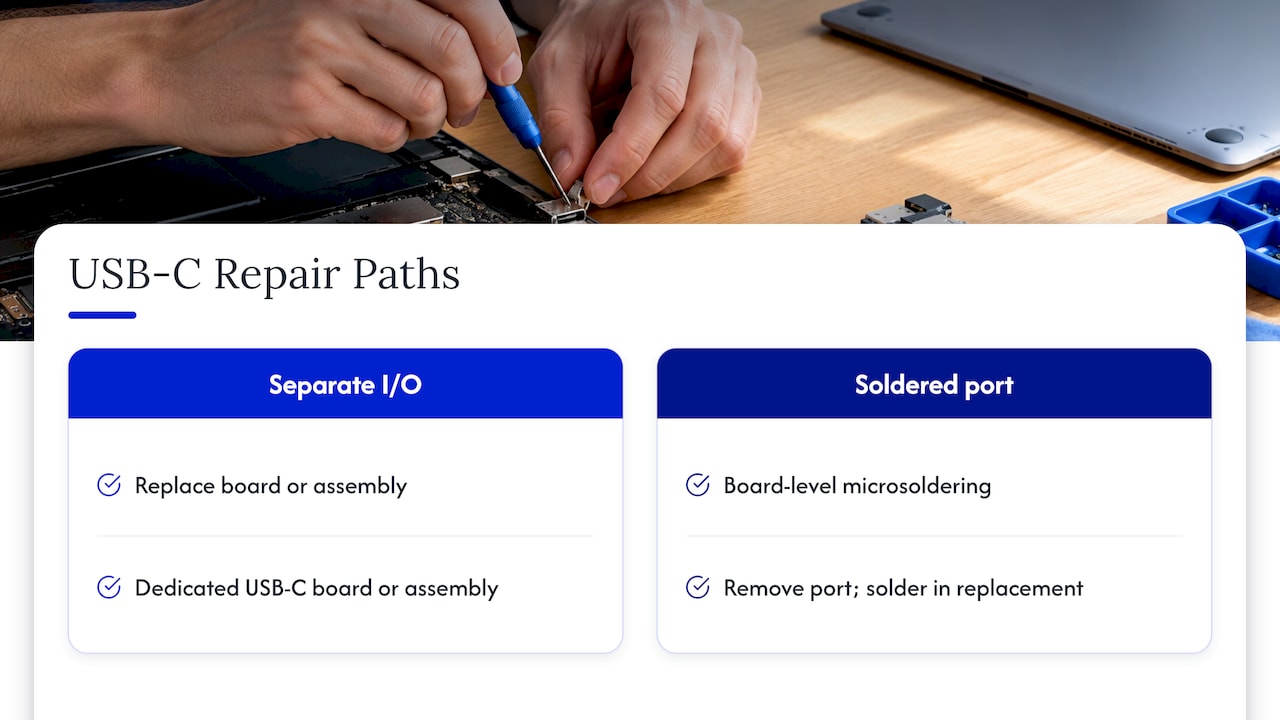
Models with a separate USB-C board. Many MacBook Pro models use a dedicated I/O board or port assembly. Apple’s MacBook Pro (16-inch, 2023) Repair Manual includes dedicated troubleshooting sections for USB-C, Thunderbolt and HDMI issues, plus procedures for replacing USB-C boards. iFixit’s guide for that model notes it has three USB-C ports, one on the left and two on the right, held in with T5 Torx screws.
Models where the port is soldered to the board. Here the repair is board-level: the damaged port is removed and a new one is soldered in place. This takes micro-soldering skill, a steady hand and the right equipment. It is not a screwdriver job, and it is where a general shop will often tell you the whole logic board must be replaced.
Safe-repair steps a technician follows
Repair guides share the same opening moves, and they matter for safety. The iFixit guide for the 2026 MacBook Pro 14-inch tells the technician to let the battery drain below 25% before starting, fully shut the Mac down, close the lid and unplug the MagSafe cable and any accessories before disassembly. A lithium-ion battery that is full and connected during a repair is a risk, and a careful technician treats it that way.
Then the sequence is roughly:
- Confirm the fault with a known-good cable, adapter and accessory.
- Open the bottom case and disconnect the battery.
- Inspect the port, its board and the surrounding area for liquid residue, burn marks or bent pins.
- Replace the port assembly or perform the board-level repair.
- Reassemble, then test charging, data transfer and display output on every port.
Why a repair sometimes fails to fix it
If a USB-C port stops working after a previous repair, or after a liquid spill, the port may not be the only damaged part. A short can affect nearby power components on the logic board. That is why a proper diagnosis comes before a part order. Replacing a port when the real fault is a power-delivery chip on the board wastes money, and we would rather tell you that before the repair than after. Our guide on why device repairs fail covers the common mistakes behind repeat visits.
Signs the problem is bigger than a port
A failing port is the common case, but some symptoms point elsewhere. Watch for:
- The Mac will not charge in either port with a verified adapter and cable.
- The battery drains much faster than it used to, or the case looks slightly raised. Our piece on laptop battery lifespan explains typical wear.
- The Mac shut off after a spill or drop.
- Charging stops and starts, with the adapter hot to the touch.
Our checklist on signs your laptop needs immediate repair covers the warning signs that should not wait. If the battery is swollen, stop charging and use the Mac no further until a technician inspects it.
Repair or replace the MacBook?
A failed port rarely means the Mac has reached the end of its life. The processor, memory and display are usually fine. The decision comes down to the age of the machine, what else is wrong with it, and the quote. Our repair before replacement checklist walks through that comparison.
Ask any provider for a written quote that separates diagnostics, parts and labor. Apple does not publish a flat out-of-warranty price for port repairs, so expect any figure to follow an inspection of your specific model. If your Mac is under AppleCare+ or still in warranty, check Apple’s coverage terms before paying anyone else, since your coverage may change the best route.
Our take on MacBook USB-C repair
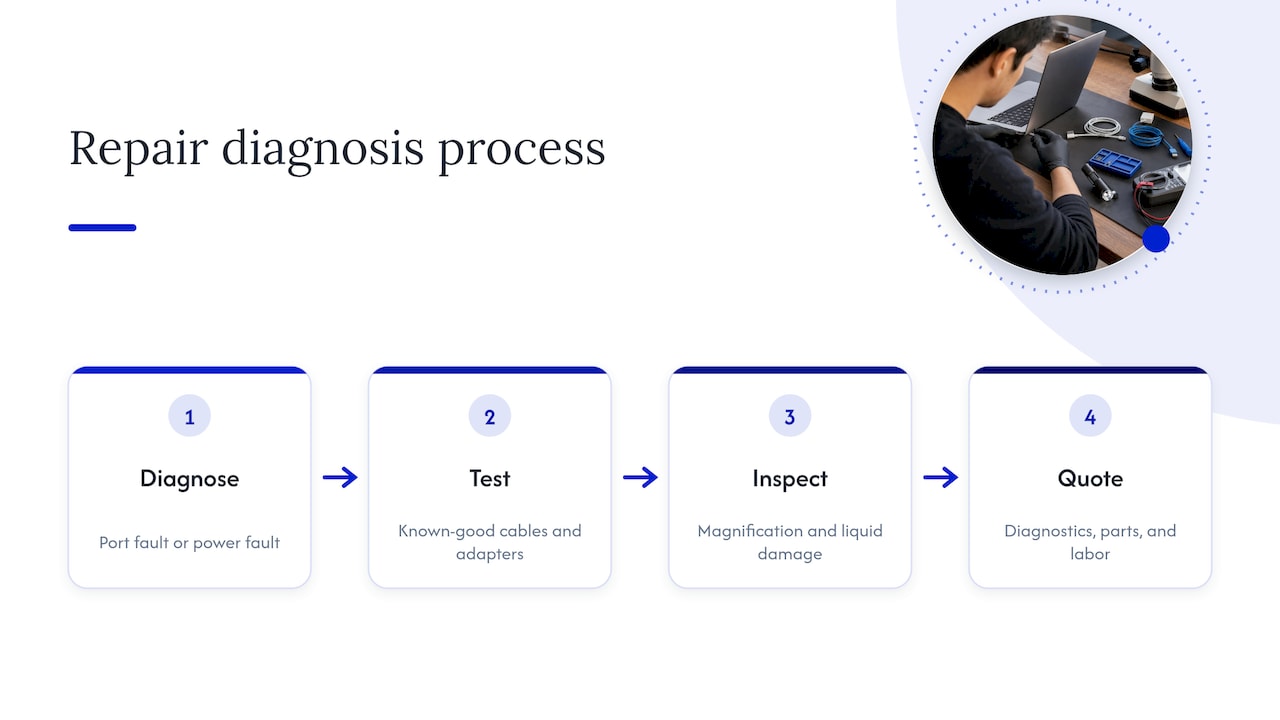
Most people who call us about a MacBook port have already tried a second cable and cleaned the port, and they are right to. What they usually have not done is separate a port fault from a power fault, and that distinction decides the repair.
We start with a diagnosis, not a part order. We test with our own known-good cables and adapters, check the port under magnification and look for liquid damage before we quote. Then you get a price that covers diagnostics, parts and labor, with no hidden fees.
The other thing we care about is your data. Your files stay on your Mac, and the work happens in front of you at your home or office. Our technicians are certified and have more than 10 years of experience behind them, including board-level repairs, and our parts and labor are covered by a warranty.
A USB-C port repair is usually a fraction of what a new MacBook costs. We would rather get your current machine charging again, the same afternoon whenever the schedule allows.
Michael
Get it fixed at your door in Orlando or Winter Park
If your checks point to the port, our technicians come to you. We repair MacBooks and iMacs on-site in Orlando and Winter Park, so you do not have to leave your Mac at a counter or ship it away. Pricing is quoted up front and covers diagnostics, labor and parts, and repairs carry a warranty on parts and labor.
See our MacBook and iMac repair page to book, or read how on-site MacBook and iMac repair in Orlando works from the first call to the finished job.

Prepare your MacBook for a repair visit
A little preparation makes the visit faster and safer.
- Back up first. If the port still lets you connect a drive, use Time Machine. If not, use iCloud or copy key files over Wi-Fi. Our guide to encrypting local backups and using iCloud daily explains the setup.
- Note what you have tried. Cables, adapters, outlets and the wattage shown in System Information all help.
- Gather your accessories. Keep the original adapter and every cable you tested nearby.
- Write down the symptoms. Which port fails, whether wiggling matters, and any past spills or drops.
- Run Apple Diagnostics and keep the reference code if one appears.
If you already suspect data is at risk, read what to know about data recovery in Orlando before you try anything else. If the problem looks like a general laptop port issue rather than a Mac-specific one, our laptop USB port repair guide and laptop charging port repair steps cover the wider checks.
Frequently asked questions
Why is my MacBook not charging through USB-C?
The most common causes are a faulty cable, an underpowered or failing adapter, debris in the port or a failed port. Work through Apple’s list: replug, restart, test the outlet, swap the cable, clear line noise and inspect the port. If a known-good cable and adapter still fail in every port, the fault is inside the Mac.
Can a MacBook USB-C port be repaired?
Yes. On some models the port sits on a replaceable board, and Apple’s repair documentation covers replacing it. On others the port is soldered to the logic board, so the fix is a board-level repair by a technician with micro-soldering equipment.
Is it safe to keep using a cable that only works when I wiggle it?
No. Apple advises stopping use of that cable and having the cable and power supply evaluated. The same wiggle can point to a loose port, so avoid forcing the connector and book a diagnostic.
Does it matter which USB-C port I charge from?
Not for speed. The Mac charges from one port at a time, and plugging into both does not charge it faster. It does help with diagnosis: if one port works and the other does not, the working one is your answer about which side is failing.
Do I need to back up before a port repair?
Yes, as with any repair. A port repair should not touch your files, but a backup protects you if anything unexpected turns up, such as a liquid-damaged board. Back up first if the Mac still starts.
Sources
- If your USB-C power adapter isn’t charging your Mac laptop, Apple Support
- Charge your Mac laptop computer, Apple Support
- Use a power adapter with your Mac, Apple Support
- Use Apple Diagnostics to test your Mac, Apple Support
- MacBook Pro (16-inch, 2023) Repair Manual, Apple Support
- MacBook Pro 16" 2023 USB-C Ports Replacement, iFixit
- MacBook Pro 14" 2026 USB-C Ports Replacement, iFixit
Recommended
- Laptop Charging Port Repair Steps: DIY Guide
- Laptop USB Port Repair: 15 Minutes of Safe Checks Before Teardown
- Where to Find Reliable MacBook Repair Near Me