

If Windows Update is stuck, wait first, then restart, then work through the fixes below in order. Most stalls clear with patience or a restart. The rest usually come down to a corrupted update cache, damaged system files, a full disk or a driver problem. Each of those has a specific fix, and none of them needs a reinstall.
This guide covers Windows 10 and Windows 11. It tells you how long an update can reasonably take, when a hard shutdown is acceptable, how to clear the update cache, how to repair system files, and how to read the error codes Windows shows you. It also tells you when the job is better handed to a technician.
TL;DR
- Give the update time before you act. Windows can’t reliably predict how long an update takes, so a slow progress bar alone isn’t proof of a freeze.
- If nothing has moved for hours, a hard shutdown is a reasonable step. Modern Windows handles it better than older versions did, but data can still be at risk.
- Next, run the Windows Update troubleshooter, check free disk space and your connection, then clear the SoftwareDistribution folder.
- If that fails, repair system files with
sfc /scannowand DISM, and check the drive withchkdsk. - Error codes point to causes. A code starting with 0xC1900101 usually means a driver problem.
Table of Contents
- How long should a Windows update take?
- What to do first when Windows Update seems stuck
- Fix 1: Run the Windows Update troubleshooter
- Fix 2: Clear the Windows Update cache
- Fix 3: Check disk space, your connection and VPNs
- Fix 4: Repair system files with SFC and DISM
- Fix 5: Check the drive for errors
- Fix 6: Pause security software temporarily
- Fix 7: When Windows won’t start at all
- Reading the error codes
- An advanced case: the Trusted Installer timeout
- Perspective
- When to stop and call a technician
- How to keep updates from getting stuck again
- FAQ
- Sources
How long should a Windows update take?
The time depends on your connection speed, your network settings and the size of the update, according to Microsoft’s update troubleshooting guide. A small monthly patch on a fast laptop can finish in minutes. A feature update on an older machine with a mechanical hard drive can run for hours.
There are a few reasons “taking forever” is often normal:
- Size. Feature updates are far larger than monthly cumulative updates.
- Download method. Windows Update uses Delivery Optimization to download updates and reduce bandwidth use, so downloads may be throttled to avoid choking your connection.
- Slow storage. The install phase after the download is mostly disk work. Old hard drives take much longer than SSDs.
- Background load. Antivirus scans, sync tools and other apps compete for the same resources.
The percentage counter is not a reliable clock either. Business Insider notes that Windows doesn’t reliably calculate how long an update will take, so the best bet is to let it run its course. Counters often sit at 0%, 30% or 95% for a long time and then jump.
Signs the update is really frozen
Treat it as stuck, not slow, when you see these:
- The same screen and the same percentage for several hours.
- The drive activity light is completely off, or the fan has gone quiet and nothing on screen changes.
- The PC reboots in a loop and returns to the same update screen.
- Windows rolls back the update after restarting and tries again.
There is one specific case worth knowing. Microsoft documents a scenario where the system may hang for about 15 minutes because the Trusted Installer service didn’t finish installing within its default timeout. That is a short pause, not an all-day freeze, but it shows why a few quiet minutes aren’t cause for alarm.
What to do first when Windows Update seems stuck
Start with the least risky steps and move up only as needed.
- Wait. Give a laptop that is plugged in at least an hour or two before you judge it. For a stall on the “Getting Windows ready” screen, Business Insider advises waiting at least three hours before a hard shutdown.
- Keep it on power. Plug a laptop into the charger. A battery dying mid-update makes everything worse.
- Check the basics. Confirm you have a working internet connection and enough free disk space. Microsoft lists both among the first checks for a stuck percentage.
- Disconnect extras. Unplug USB drives, docks, printers and other accessories that Windows may be trying to load drivers for.
- Restart. If the machine is responsive, restart it from the Start menu. Microsoft suggests a restart for updates stuck at 0% or 100%, making sure no other application is blocking the process.
Is it safe to force a restart?
Usually, yes, once you have waited long enough. Business Insider reports that interrupting an update used to be dangerous, while modern Windows versions make it less risky to restart a stuck PC. It still calls for caution, though, because a forced shutdown can occasionally leave files in a bad state.
To do a hard shutdown, hold the power button until the computer turns off. On a desktop, you can also unplug the power cord, wait one minute and plug it back in. Then turn the PC on and let Windows finish or roll back on its own.
If the machine holds files you can’t replace and you haven’t backed them up, stop here before forcing anything. A technician can pull the data off first. More on that near the end.
Fix 1: Run the Windows Update troubleshooter
The built-in troubleshooter is the easiest repair and fixes a surprising share of stuck updates. Microsoft lists it as the first step when an update stalls at a particular percentage.
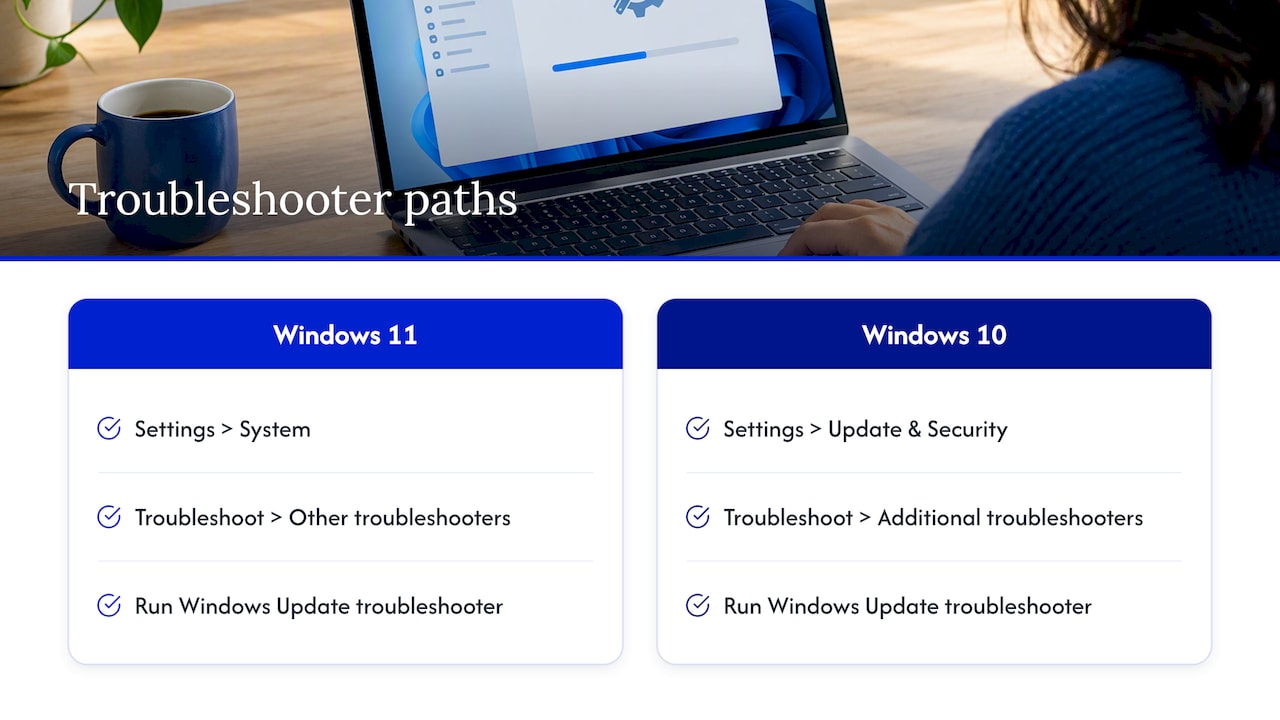
Windows 11: open Settings, go to System, then Troubleshoot, then Other troubleshooters, and run the Windows Update troubleshooter.
Windows 10: open Settings, go to Update & Security, then Troubleshoot, then Additional troubleshooters, and choose Windows Update.
Let it finish, apply any fix it suggests, restart, and check for updates again. If the PC won’t reach the desktop, one approach from the research is to boot into Safe Mode and run the troubleshooter from there.
Fix 2: Clear the Windows Update cache
Windows stores downloaded update files in a folder called SoftwareDistribution. If a download there is corrupted, Windows keeps retrying the same broken file. Microsoft’s method is to stop the service, delete the files in C:WindowsSoftwareDistribution, and restart the service, as described in its update troubleshooting guide.
Here is the sequence in practice:
- Open the Start menu, type
cmd, right-click Command Prompt and choose Run as administrator. - Stop the services by typing
net stop wuauservand pressing Enter, thennet stop bitsand Enter. - Open File Explorer and go to
C:WindowsSoftwareDistribution. - Select everything inside the folder and delete it. Delete the contents, not the folder itself.
- Back in Command Prompt, type
net start wuauserv, thennet start bits. - Restart the PC and run Check for updates.
The first scan after clearing the cache takes longer than usual because Windows rebuilds its list. That is expected.
Fix 3: Check disk space, your connection and VPNs
Three boring causes account for many stuck updates.
- Low disk space. Feature updates need several gigabytes of free room to unpack. Delete large files, empty the Recycle Bin and run Disk Cleanup.
- A flaky connection. If the download keeps stalling at 0%, test another network or reconnect your Wi-Fi. If your laptop’s wireless keeps dropping, our quick Wi-Fi checks for laptops can save you time.
- VPN or proxy. Microsoft notes that error 0x800f0922 might mean the PC couldn’t connect to the Windows Update servers, and if you use a VPN to connect to work, you should disconnect it and turn it off.
Fix 4: Repair system files with SFC and DISM
If the earlier fixes fail, Windows’ own files may be damaged. Microsoft recommends running sfc /scannow or the DISM command DISM.exe /Online /Cleanup-image /Restorehealth in Command Prompt to repair them, as the update troubleshooting page explains.
Use an administrator Command Prompt and run the commands one at a time:
- Run
DISM.exe /Online /Cleanup-image /Restorehealthand wait for it to finish. It can sit at a percentage for a while, which is normal. - Run
sfc /scannowand let it complete. - Restart and try the update again.
For error 0x80073712 in particular, Microsoft specifically recommends the DISM command.
Fix 5: Check the drive for errors
A failing or error-ridden drive can make updates hang during install. Microsoft suggests running chkdsk/f C: in Command Prompt to repair potential hard-drive errors affecting installation. Windows will usually ask to schedule the check for the next restart. Say yes and let it run before you log in.
If the check reports many bad sectors, or the PC has been slow and noisy for weeks, the drive itself may be on its way out. In that case, back up what you can and consider a replacement. Our guide on why a computer runs slow covers the signs of a tired drive.
Fix 6: Pause security software temporarily
Antivirus and firewall tools sometimes block update components. Microsoft’s guidance is to try temporarily disabling antivirus or firewall software if the basic steps fail. Turn it back on as soon as the update finishes. If you are not sure your PC is clean, check for the warning signs first. Our list of Windows virus symptoms shows what needs immediate action. Malware can itself break Windows Update.
Fix 7: When Windows won’t start at all
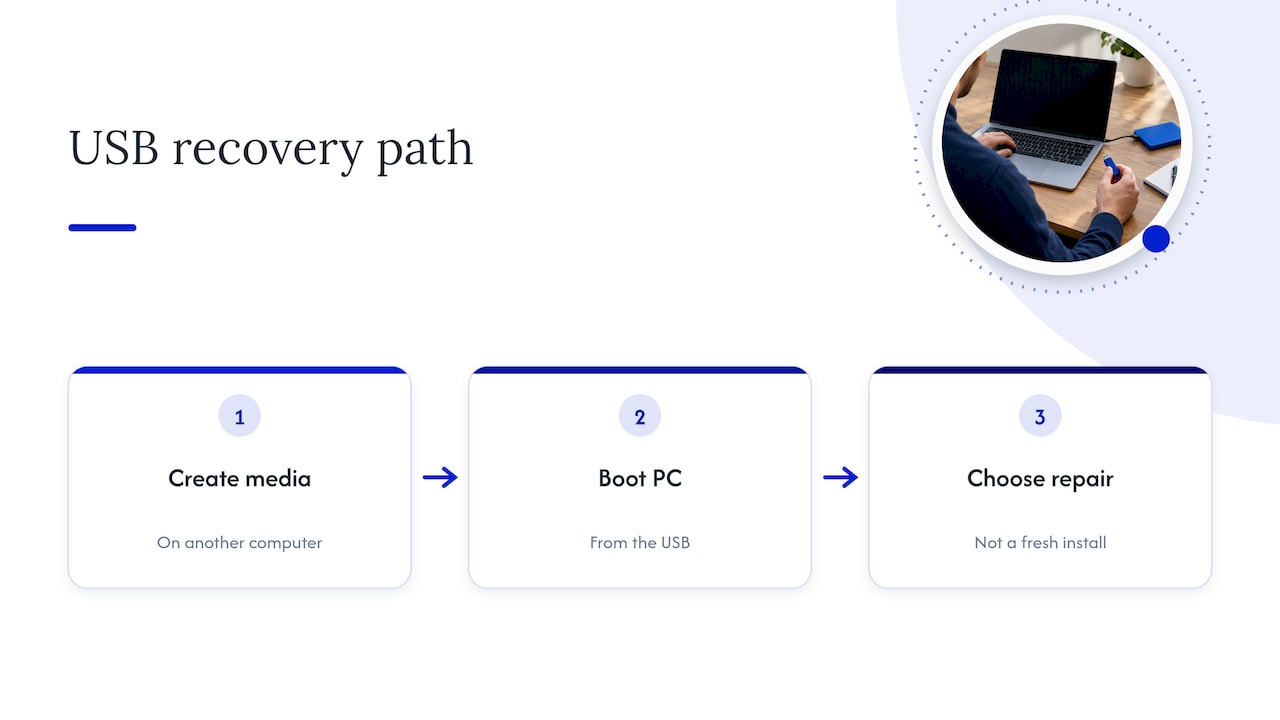
If the PC is stuck in a boot loop after an update, the desktop-based fixes above aren’t available. Business Insider suggests using Windows Startup Repair from a bootable USB installer if a PC remains stuck after a restart.
This means making installation media on another computer, booting from it, and choosing the repair option instead of a fresh install. Be careful at each screen. Choosing the wrong option can wipe data. If the screen goes blue instead, read what a Windows blue screen means. If the PC won’t power up cleanly at all, try the manufacturer-backed boot checks first.
Reading the error codes
When an update fails instead of freezing, Windows usually shows a code. These two are the ones Microsoft documents in the sources we used:
| Code | What it usually means | What to try |
|---|---|---|
| 0xC1900101 (any code starting this way) | Usually a driver error | Unplug extra devices, update or reinstall drivers, then retry |
| 0x800f0922 | The PC may not have reached the Windows Update servers | Disconnect and turn off any VPN, check your connection |
| 0x80073712 | Damaged or missing update files | Run the DISM Restorehealth command |
Codes like 0x80070005 are commonly tied to permission problems. If your code isn’t in the table, search the exact code on Microsoft’s support site rather than a random forum, and apply only fixes written for your Windows version.
Why Windows Update fails in the first place
Most failures trace back to a short list: corrupted download files, not enough disk space, a driver that won’t install, a VPN or security tool in the way, or damaged system files. That is why the fixes above run from easy to thorough. You are working down the list of likely causes, cheapest check first.
An advanced case: the Trusted Installer timeout
In one scenario documented by Microsoft, updates appear to hang during restart and are then uninstalled. The cause is that Trusted Installer didn’t finish within its default timeout, and the workaround is to increase the timeout in the registry. This is a registry change. A wrong edit can destabilize Windows, so follow Microsoft’s page exactly, back up the registry first, and ask a professional if you aren’t comfortable doing it.
Perspective
Most people who call us about a stuck update have already tried the obvious things, and many have already pressed the power button in frustration. That is understandable, but it is the moment when the real risk is data, not the update.
Our approach is to protect the files first. A technician who comes to you can check the drive, back up what matters, then run the repair steps in a safe order. We would rather tell you the cause in plain words than guess at it and charge you for parts you don’t need.
Updates that fail repeatedly are rarely random. We see the same patterns: a nearly full drive, a driver that won’t cooperate, an old hard drive that has slowed to a crawl, or malware interfering in the background. Each has a clear fix once someone finds it.
That is why we do this at your home or office in Orlando and Winter Park. You keep your device in sight, your data stays with you, and you get the cost explained before any work starts.
Michael
When to stop and call a technician
DIY fixes work well for most stalls. Stop and get help when:
- The PC holds important files with no backup, and it won’t boot.
- The update has failed more than once even after clearing the cache and repairing system files.
chkdskor DISM report errors they can’t repair.- The machine is a work computer where downtime costs you money.
- You suspect malware or a failing drive.
- You aren’t comfortable with Command Prompt or the registry.
We offer on-site computer repair in Orlando and Winter Park, covering software troubleshooting, virus and malware removal, data recovery and backup, and hardware upgrades. Our quotes are given up front, and repairs come with a warranty on parts and labor.

If you would rather not risk your files, book a technician through our computer repair page. Describe what the screen shows and whether you have a backup, and we will tell you what to expect before we arrive. Mac users can start with our MacBook and iMac repair page instead.
How to keep updates from getting stuck again
A few habits make stalls rarer:
- Back up before big updates. Feature updates touch a lot of files. Copy your documents and photos to an external drive or cloud storage first.
- Keep free space. Aim for plenty of free storage on the system drive, not just the bare minimum.
- Stay on recommended settings. Microsoft’s training material says recommended settings download and install updates automatically, so critical fixes aren’t missed. Small, regular updates are less likely to stall than a huge catch-up update after months.
- Update on power and a stable network. Leave a laptop plugged in and avoid starting an update on shaky hotel or café Wi-Fi.
- Restart weekly. Many pending updates just need a clean restart to finish.
- Replace aging drives. If your PC is years old and still on a mechanical drive, a solid-state upgrade makes updates faster and more reliable.
FAQ
Why is my Windows Update taking forever to install?
Install time depends on your connection speed, network settings and update size, according to Microsoft. Slow drives and background programs add to it. Because Windows doesn’t reliably estimate completion time, a slow counter alone doesn’t mean a freeze. Wait a few hours with the laptop plugged in before you act.
What is the longest a Windows Update can take?
There is no official maximum. Small updates take minutes and feature updates on older hardware can run for hours. Business Insider advises waiting at least three hours on the “Getting Windows ready” screen before a hard shutdown. If there is no sign of activity beyond that, move on to the fixes above.
What should I do if Windows Update is frozen at 0%?
Check your internet connection and free disk space, disconnect any VPN, and restart. Then run the Windows Update troubleshooter. If it still sits at 0%, stop the update service, clear the contents of C:WindowsSoftwareDistribution, restart the service and try again.
Is it safe to turn off my PC during an update?
It is less risky than it used to be, but it still carries some risk. Wait several hours first, keep a laptop on its charger, and use a hard shutdown only when nothing is moving. If the PC holds irreplaceable files and has no backup, get a technician to secure the data before you force anything.
What does error code 0xC1900101 mean?
Microsoft says an error beginning with 0xC1900101 is usually a driver error. Unplug unneeded devices, update or reinstall the affected drivers, and retry the update. If the code returns, a technician can identify which driver is the culprit.
Sources
- Troubleshoot problems updating Windows | Microsoft Support
- Get help with Windows upgrade and installation errors | Microsoft Support
- Windows Update hangs and updates are uninstalled | Microsoft Learn
- How Windows Update works | Microsoft Learn
- Examine Windows Update settings in Windows client | Microsoft Learn
- Getting Windows Ready Screen Stuck? 7 Ways to Troubleshoot | Business Insider
Recommended
- 3 Windows Virus Symptoms That Need Immediate Action, Diagnose & Fix
- Computer Running Slow? Causes & Quick Fixes
- 6 Manufacturer Backed Checks When Your Laptop Won’t Boot
- Windows Blue Screen: What It Means and How to Fix It










