

If your iPhone screen lights up but ignores your finger, start with a force restart, then clean the screen, remove the case and screen protector, and unplug every accessory. Those steps fix most software glitches and surface problems. If touch is still dead after that, the cause is almost always hardware: a damaged display, a water-affected connection or a board fault. That is the point where a technician needs to look at it.
This guide walks through the checks in the order that saves you the most time, shows how to do them when you cannot tap anything, and explains what a repair actually involves.
TL;DR
- Force restart first. On a Face ID iPhone: press and release Volume Up, press and release Volume Down, then hold the side button until the Apple logo appears.
- Clean and dry the screen and your hands, remove the case and screen protector, and disconnect all Lightning or USB-C accessories.
- If touch only fails after a drop, a water exposure or a crack, skip further tinkering. The display or its connection is probably damaged.
- Back up before any repair if you still can. If you cannot unlock the phone, a computer in Recovery Mode can still update it.
- If nothing restores touch, book a repair. We come to you in Orlando and Winter Park, the same day in most cases.
Table of Contents
- Why an iPhone suddenly stops responding to touch
- Step 1: Force restart your iPhone
- Step 2: Clean the screen and strip it down
- Step 3: Update iOS, even when the screen is dead
- Using the phone when touch won’t cooperate
- Step 4: Look for signs of liquid or impact damage
- Symptoms and what they usually mean
- When it’s time for professional repair
- Our perspective: what we see in the field
- Getting it fixed without leaving home
- What to do while you wait for repair
- FAQ
- Sources
Why an iPhone suddenly stops responding to touch
The touchscreen on an iPhone does not detect pressure the way a button does. It reads tiny electrical changes caused by your skin, and iFixit explains that substances on the screen or on your fingers can disrupt that reading and cause erratic behavior. That is why lotion, sweat, water droplets or a film of grease sometimes make a screen act as if a ghost is typing.
Causes fall into four groups:
- Surface and environment. Dirt, moisture, a thick or misaligned screen protector, a case pressing on the glass, or temperature. MakeUseOf notes the iPhone’s operating range is 32 to 95 degrees Fahrenheit, and outside it the screen can stop responding. In Central Florida, a phone left on a dashboard or by a pool in summer is the classic example.
- Software. iOS can glitch during ordinary use, and the same MakeUseOf article points out that keeping the phone updated brings Apple’s later bug fixes. A frozen app or a bad update can make the screen seem dead when the phone itself is only stuck.
- Accessories. A faulty charger or cable, or a connected accessory, can interfere with touch. Apple lists disconnecting them as an early step.
- Hardware. A cracked or impacted display, a damaged digitizer, liquid damage, or a fault on the logic board. These do not fix themselves, and no setting changes them.
The trick is to work from the cheapest, least invasive cause to the most serious one.
Step 1: Force restart your iPhone
A force restart clears minor software hiccups and works even when the screen ignores you, because it uses the physical buttons. Apple’s current instructions for restarting an unresponsive iPhone are:
- iPhone with Face ID (iPhone 8 and later, including every recent model): quickly press and release Volume Up, quickly press and release Volume Down, then hold the side button until the Apple logo appears.
- iPhone 7 or 7 Plus: hold the side button and Volume Down together until the logo appears.
- iPhone 6s and earlier: hold the Home button and the side or top button together until the logo appears.
The speed of those first two presses matters. If you hold a button too long or press out of order, you may open the power-off slider or Emergency SOS instead, and neither is easy to dismiss without touch.
If the phone does not turn on at all, Apple’s guidance is to charge it for an hour and try again. A battery drained to zero can look exactly like a dead, unresponsive screen.
Step 2: Clean the screen and strip it down
This step feels too simple to matter, and it fixes a surprising number of cases. Apple’s support page for a screen that is not working tells you to:
- Make sure the screen is clean and free of debris or water.
- Disconnect any Lightning or USB-C accessories.
- Remove the case or screen protector if you have one.
Use a soft, lint-free cloth, lightly dampened if needed, and dry your hands completely. Wipe from the edges inward. Do not spray liquid directly onto the phone. Then take the case off and peel back the protector if it is bubbled, cracked or lifting at the edges. A cracked tempered-glass protector can swallow touches along the crack line while the screen beneath is perfectly fine.
Test again in a different room too. If touch works in the air-conditioned living room but not in a hot car, the temperature is your culprit and the phone just needs to cool down before you use it.
Step 3: Update iOS, even when the screen is dead
If touch fails right after an update, or an update is overdue, a software bug may be responsible. When touch works at least partly, go to Settings, General, Software Update.
When the home screen is completely unresponsive, you cannot enter your passcode or tap “Trust” on a computer. In that case, iFixit describes updating the phone from a computer in Recovery Mode, which does not require any touch input. Choose Update, not Restore. Update keeps your data; Restore erases it.
Recovery Mode is a bigger step than a restart, and a wrong choice can cost you your photos. If you are not comfortable with it, our guide to Recovery versus DFU mode explains the order to try things in and when to stop. A related guide covers an iPhone stuck on the logo screen if the update stalls.
Using the phone when touch won’t cooperate
Sometimes the touch problem is partial. A dead zone at the top, a strip near the edge, or a screen that works only in some orientations all suggest a hardware fault, but they also give you a way to get your data out.
IFixit notes two workarounds worth trying: using Siri to get to the home screen, or rotating to landscape so the parts of the display that still respond are reachable. Treat these as temporary measures, not fixes. The goal is to unlock the phone, check that a recent backup exists and, if it does not, make one before anyone opens the device.
Step 4: Look for signs of liquid or impact damage
If the steps above did nothing, ask what happened to the phone in the days before.
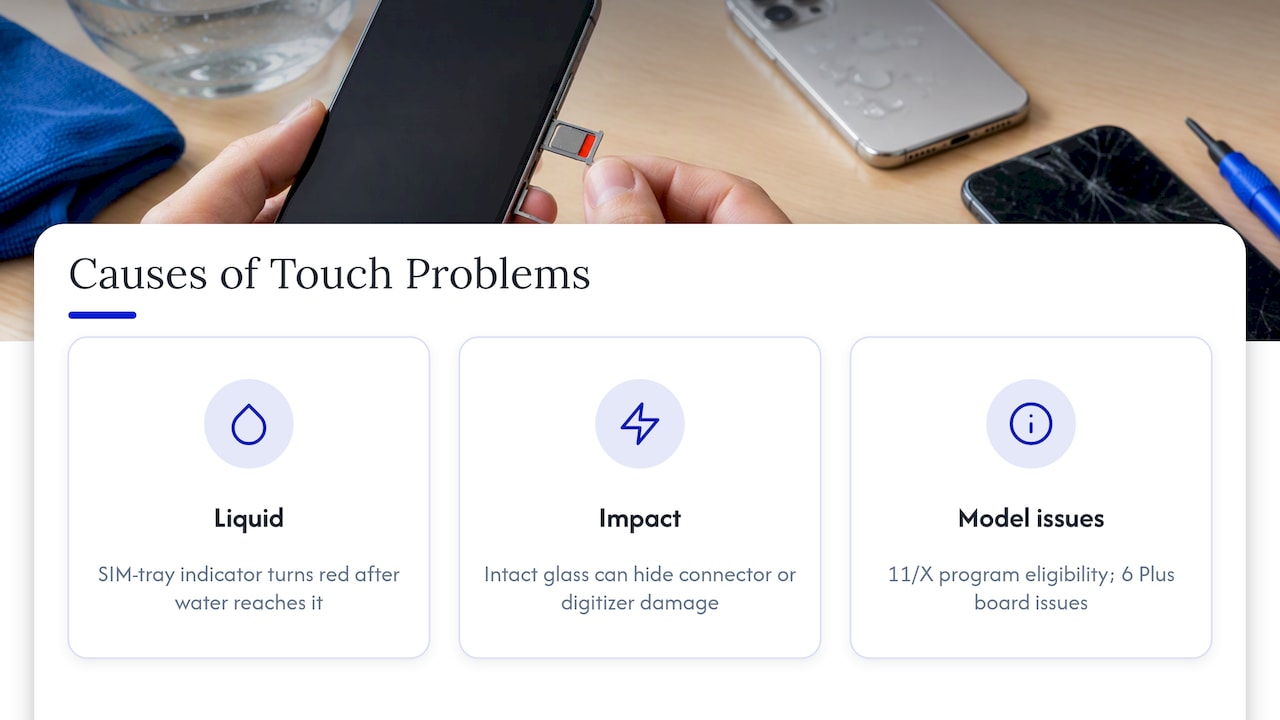
Water. MakeUseOf points out that iPhone 4s and later models have a Liquid Contact Indicator inside the SIM card tray that turns red when water has reached it. A red indicator, even if the phone dried and worked for a while, makes corrosion on the display connector or board a prime suspect. Do not charge a phone you believe is wet; moisture plus power can turn a repairable fault into a dead board.
Drops. A fall can leave the glass looking perfect while loosening the display connector or damaging the digitizer. Symptoms include touch that works only when you press on the frame, flickering, or lines across the display.
Known model issues. iFixit mentions that for the iPhone 11 and iPhone X, Apple Service Programs may address touch problems, and that iPhone 6 Plus models have well-documented board issues that affect touch. If you own one of these, check Apple’s current program pages for eligibility before paying for a repair. Programs have set eligibility windows, so verify them on Apple’s site.
The display itself. If you want to know whether the panel is also showing faults, a browser-based dead pixel test can reveal stuck or dead pixels, patches or color problems. Lines, blotches or dead zones alongside touch trouble point toward the display assembly rather than software.
Symptoms and what they usually mean
| What you see | Most likely cause | What to do |
|---|---|---|
| Touch fails after an update | Software glitch | Force restart, then update via Settings or Recovery Mode |
| Random taps, “ghost” touches | Dirty screen, damaged protector, or failing display | Clean, remove protector, then test |
| Dead strip or zone after a drop | Damaged digitizer or loose display connector | Back up, then book a repair |
| Touch dies after water exposure | Liquid damage, corrosion | Power off, do not charge, get it inspected |
| Touch fails only when hot or cold | Temperature | Let the phone return to normal range |
| Touch fails only when plugged in | Charger or cable fault | Try a different certified cable and charger |
| Screen lights but nothing responds, no change after restart | Hardware fault | Professional diagnosis |
When it’s time for professional repair
Apple’s own advice is blunt: if the screen still isn’t working after the basic steps, you may need to set up service for your device. Here is how we would read the signs.
Repair is likely needed if:
- Touch stayed dead after a force restart, a cleaned screen, no case and no accessories.
- The problem started after a drop, bend or liquid exposure.
- The display shows cracks, lines, flicker or dead zones.
- Touch works intermittently and gets worse over days.
Holding off is reasonable if:
- The problem only appears in one app, which points to the app.
- Touch returns after a restart and has not come back.
- The phone was hot or cold when it failed and now works normally.
A broken touch layer on a modern iPhone is almost always a display replacement or a connector repair, not a mystery. If the fault lies on the logic board, the work is microscopic soldering, which is a different skill from swapping a screen. That is why it matters who you hand the phone to.
Our perspective: what we see in the field
We have fixed phones in Orlando and Winter Park for over 10 years, and the pattern is consistent. People arrive after trying everything in a random order, often including a factory reset that did nothing for touch but wiped their photos. Our advice: do the free steps in the order above, and stop before you do anything irreversible.
Three things we would tell a friend:
- Protect your data before anything else. Touch failures rarely destroy your photos and messages, but a reset, a restore or an unqualified repair can. If your phone still unlocks, check that iCloud or a computer backup is recent. Our note on encrypting local backups and using iCloud too covers it.
- A cheap repair that fails is expensive. Poor parts and rushed work are why repeat touch problems happen. We wrote up the common mistakes that make device repairs fail so you know what to ask any technician.
- Know the price before work starts. You should get a clear quote, an honest diagnosis and a warranty on parts and labor. If a repair costs more than the phone is worth, a good technician says so.
The phone you carry holds your work, your family photos and your two-factor codes. Treat the repair as a data-handling job as much as a hardware one.
— Michael
Getting it fixed without leaving home
The usual repair-shop routine is a drive, a wait and a day without your phone. We skip that. A technician comes to your home, office or campus in Orlando or Winter Park, diagnoses the phone in front of you, quotes the work up front and, for common display repairs, finishes the job on the spot. You watch your data stay on the device the whole time.
For touch failures we handle display and digitizer replacement, connector and charging-port faults, water damage recovery and board-level diagnosis. See our iPhone repair services to book, or read how an iPhone screen repair is carried out before you decide.

Not sure whether you need a replacement or just a clean? Our page on iPhone screen repair in Orlando explains the signs of each. If your problem is on a tablet instead, iPad ghost touch has its own checklist.
What to do while you wait for repair
A few habits keep a bad situation from getting worse:
- Keep the phone powered on and charged if it works at all, unless you suspect water, in which case power it off.
- Don’t press hard on the screen. Extra force can crack a damaged panel or shift a loose connector.
- Don’t open the phone yourself. Suction cups and pry tools can tear display cables on newer iPhones that are sealed against water.
- Note when it started and what happened. A drop yesterday or a rainy commute last week saves diagnostic time.
- Write down your passcode and Apple ID details. A technician may need to test the phone after the repair, and you will want to be able to sign back in.
- Keep the SIM tray closed unless you are checking the liquid indicator. Do it once, carefully, and put it back.
If you cannot reach your data at all, a professional can often pull it from a phone with a damaged screen. Learn what to expect from data recovery in Orlando.
FAQ
Why is my phone suddenly not responding to touch?
The most common causes are a software glitch, a dirty or wet screen, or an accessory interfering with touch. Heat or cold can also cause it. If none of those apply and the phone was dropped or got wet, the display or its connection is likely damaged.
How do you unfreeze an unresponsive iPhone?
Force restart it using the buttons, since that does not need the screen. On a Face ID model, press Volume Up, press Volume Down, then hold the side button until you see the Apple logo. Older models use a different button combination, listed above.
Is there a way to use the screen if touch is unresponsive?
Sometimes. Siri can open apps and get you to the home screen, and rotating to landscape may bring responsive parts of the display into reach. If the home screen is unresponsive, a computer in Recovery Mode can update the phone. These are workarounds, not repairs.
Can a screen protector cause touch problems?
Yes. A thick, cracked or poorly aligned protector can block touches, and Apple tells you to remove the case or protector as part of its basic checks. If touch returns without it, replace the protector rather than the screen.
Will I lose my data if I repair the screen?
A proper display or digitizer replacement does not touch your data, which stays on the phone’s storage. The risk comes from resets, restores and careless handling. Back up first if you can, and ask the technician how they protect your information.
Sources
- If the screen isn’t working on your iPhone or iPad (Apple Support)
- Restart an unresponsive iPhone (Apple Support)
- iPhone Touch Screen Not Working: iFixit Troubleshooting
- 7 Reasons Why Your iPhone’s Touchscreen Has Stopped Responding (MakeUseOf)
Recommended
- iPad Ghost Touch: 7 Checks First, Repair Only If These Fail
- iPhone Power Button Repair: Fixes, When to Call a Tech
- Face ID Repair: Quick Fixes and When to Get Help
- Save Your Data: Fix iPhone Stuck on Logo, Update First and Wait 1 Hour










