

When Outlook will not open on a Mac, the cause is usually one of four things: a frozen process left over from the last session, an outdated app, a damaged profile, or a problem with your account or Microsoft’s service. Work through the fixes below in order, from the fastest to the most involved. Most people get back in before they reach the reinstall step. Before you delete anything, read the section on protecting your mail, because one step in this process can erase messages stored only on your computer.
TL;DR
- Force quit Outlook, then restart the Mac. This clears the most common lockups and takes two minutes.
- Update Outlook from Help > Check for Updates. Organization-managed Microsoft 365 apps on macOS that missed the July 13, 2026 update deadline run in reduced functionality mode.
- If it still fails, test with a brand new macOS user account. If Outlook opens there, the problem is in your profile, not the app or the Mac.
- Export your mailbox before deleting a profile or reinstalling. Deleting the Main Profile also deletes mailbox data stored on your computer.
- If the Mac itself is freezing, spinning, or slow in every app, the issue is hardware or system level, and a technician is the faster route.
Table of Contents
- First, work out what kind of failure you have
- Fix 1: Force quit Outlook and restart your Mac
- Fix 2: Update Outlook and the rest of Office
- Fix 3: Rule out an account or service problem
- Fix 4: Disable add-ins and rebuild the data file
- Fix 5: Test with a new macOS user account
- Protect your mail before you delete anything
- Fix 6: Create a new Outlook profile
- Fix 7: Reinstall Outlook
- What we see in the field
- When the problem is the Mac, not Outlook
- Get it fixed at your door in Orlando or Winter Park
- FAQ
- Sources
First, work out what kind of failure you have
The words “Outlook not opening” cover several different symptoms, and each points to a different fix. Spend thirty seconds identifying yours.
| What you see | Most likely cause | Start with |
|---|---|---|
| Icon bounces in the Dock, then stops, no window | Crashed or stuck process | Force quit and restart |
| Window opens, then freezes or shows a loading state | Corrupt profile or data file, or a bad add-in | Update, then new profile |
| Message that there is a problem and the app must restart, repeating | Profile or app damage | New profile, then reinstall |
| Sign-in error after the window opens | Account or service issue | Check service status, restart Outlook |
| Every app is slow or spinning | Mac-level problem | Check the Mac, not Outlook |
Two quick tests narrow things down further. First, open another Office app such as Word. If it launches fine, the problem is isolated to Outlook. If it fails too, the fault is probably the Office installation or macOS. Second, open your email in a web browser. If the webmail works, your account and mail are fine, and you are fixing the app, not recovering anything.
Fix 1: Force quit Outlook and restart your Mac
It sounds too simple, but it is the first step in nearly every community thread on this problem. In one Microsoft Q&A thread, a user reported that force-quitting and restarting Outlook cleared a lockup and let new messages arrive again.
Here is how to do it properly:
- Try a normal quit first with Command-Q, or choose Quit from the Outlook menu in the menu bar. Apple’s guidance on how to force an app to quit starts there.
- If that does nothing, press Option-Command-Escape, select Outlook in the list, and choose Force Quit.
- Restart the Mac from the Apple menu. If the Mac will not restart normally, Apple says you can hold the power button for up to 10 seconds to force a power-off.
- Open Outlook again before you open anything else, so nothing competes with it for memory.
A restart matters more than it seems. Forcing Outlook to quit only ends that one process, while a restart clears system-level lockups and refreshes the environment the app runs in, which is why the community answer pairs the two.
Fix 2: Update Outlook and the rest of Office
An outdated Office build is a leading reason an app that worked last week will not launch today. If Outlook opens even briefly, go to Help in the menu bar and choose Check for Updates, as Microsoft’s update instructions describe. Update every Office app, not only Outlook, since they share components.
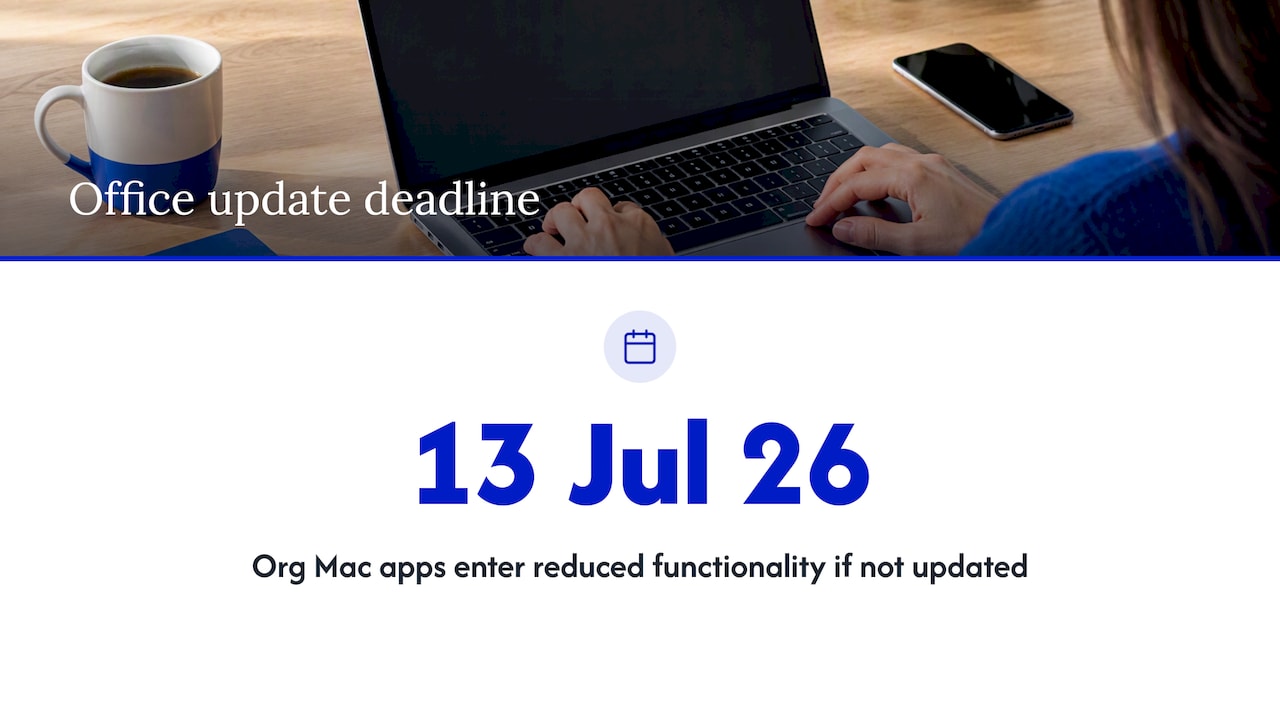
There is a hard deadline behind this for work and school accounts. Microsoft states that Microsoft 365 apps on macOS used through an organization had to be updated by July 13, 2026, or they enter reduced functionality mode. If your Outlook is tied to an employer or school and you have not updated since before that date, this may be your whole problem.
If Outlook will not open at all, you cannot reach the Help menu. In that case open Word or Excel and run Check for Updates from there, because the updater covers the whole suite. Businesses that manage many Macs often hand this to an IT provider; for example, Microsoft 365 management support covers keeping Outlook and the rest of the suite current across a team.
After updating, restart the Mac once more, then try Outlook.
Fix 3: Rule out an account or service problem
Sometimes Outlook is fine and the sign-in is what breaks. Microsoft documented a case in which some Outlook for Mac users hit sign-in errors because a service principal was disabled. Microsoft fixed it with a service change on May 14, 2025 and advised restarting Outlook. The lesson is not that this exact error will return, but that server-side problems exist and look identical to a broken app.
If you use a work account, ask your administrator to check the Service health page in the admin center, which Microsoft points admins to for up-to-date service status. If you are a solo user, signing in to webmail from a browser tells you most of what you need: if webmail also fails, wait and try later rather than reinstalling anything.
Fix 4: Disable add-ins and rebuild the data file
The Microsoft Q&A answer on an unresponsive Outlook suggests, besides force-quitting and updating, disabling add-ins and rebuilding the Outlook data file. Add-ins from third-party tools are a classic cause of a crash at launch, because they load before you can do anything.
If Outlook opens for a few seconds, go to the add-ins menu and turn off everything you do not recognize, then restart the app. If it never opens long enough, skip ahead to the profile fix, which sidesteps the add-in problem by starting clean.
A small note on search: if Outlook opens but search returns limited or no results, that is a different issue. Microsoft’s older guidance for a macOS Big Sur bug said re-indexing Outlook email files in Spotlight was a workaround. That guidance is from 2021 and for an old version, so treat it as a search fix, not a launch fix.
Fix 5: Test with a new macOS user account
This is the diagnostic step most guides skip, and it saves hours. Persistent startup failure is easier to pin down when you test within a newly created macOS user account, which isolates user-level issues from system-level ones.
- Open System Settings, then Users & Groups, and add a new standard user.
- Log in to that account.
- Sign in to Outlook with your email account and see if it opens.
Read the result like this:
- Opens in the new account: the app and the Mac are healthy. Something in your own user folder is damaged, usually the profile or cached data. Go to the next fix.
- Fails in the new account too: the problem is the Outlook installation, macOS, or the hardware. Go to the reinstall step, and if that fails, to the section on when it is the Mac.
Protect your mail before you delete anything
This is where people lose data. Microsoft’s guidance is clear that users with POP or IMAP accounts must export their mailbox via File > Export before deleting profiles to fix corruption. Deleting the Main Profile also deletes mailbox data stored on your computer, as Microsoft explains.
The distinction that matters is where your mail actually lives:
- Exchange, Microsoft 365, or Outlook.com accounts: the mail is stored on the server. A new profile re-downloads it. Local data you might lose is limited to anything saved only on the Mac.
- POP accounts: mail is often stored only on your computer. Export first, or the messages may be gone.
- IMAP accounts: the server holds a copy, but locally stored folders, such as “On My Computer,” do not. Export those.
If Outlook will not open, you cannot use File > Export. In that case, copy the profile folder to an external drive or another location before you touch it. If the mail is irreplaceable and you are unsure what is stored where, stop here and have someone look at it. Recovery after an overwrite is far harder than a careful copy beforehand, and our data recovery guide for Orlando explains what is and is not recoverable.
It is also a good moment to make sure the whole Mac is backed up. Our note on encrypting local backups before repair applies to any troubleshooting that involves deleting files.
Fix 6: Create a new Outlook profile
A damaged profile is the single most common reason for repeated launch failure, and a new one is the fix suggested in the top-ranking community answer: use the Outlook Profile Manager to create a new profile and set it as the default, then open Outlook.
The profiles live in your Library folder, under Group Containers, then UBF8T346G9, Office, Outlook, and Outlook 16 Profiles. The default is named Main Profile. Microsoft notes that deleting it also removes locally stored mailbox data, so after exporting or copying, use this approach:
- Quit Outlook completely.
- Copy the Main Profile folder to your Desktop or an external drive as a backup.
- Open the Profile Manager, create a new profile, and set it as the default.
- Open Outlook and add your account again.
- Once you confirm all the mail you need is present, you can discard the old profile.
Keeping the old profile as a copy instead of deleting it right away costs nothing and makes this step reversible.
Fix 7: Reinstall Outlook
If the new user account test failed, or a new profile did not help, reinstalling is the next step. The community answer says that when standard troubleshooting fails, uninstalling the current version and downloading the latest release from Microsoft’s website can be an effective resolution.
Two cautions. First, reinstalling does not protect your mail, so export or copy it first. Second, if you are rolling back between Office versions, Microsoft says to remove the Office licenses from your Mac as part of the process. Make sure you still know your Microsoft account login before you uninstall, because you will need it to reactivate.
After the install, run Check for Updates immediately. A fresh download is not always the newest build.
If Outlook still fails and you are on a work account, contact Microsoft support or your IT administrator. That is the point where the community answer itself recommends escalating.
What we see in the field
We repair Macs on-site in Orlando and Winter Park, and the pattern is consistent: people lose time on Outlook because they jump straight to the most destructive fix. Reinstalling and deleting profiles feel decisive, but they are the steps that cost people mail. The quiet, reversible steps come first: a restart, an update, a test account.
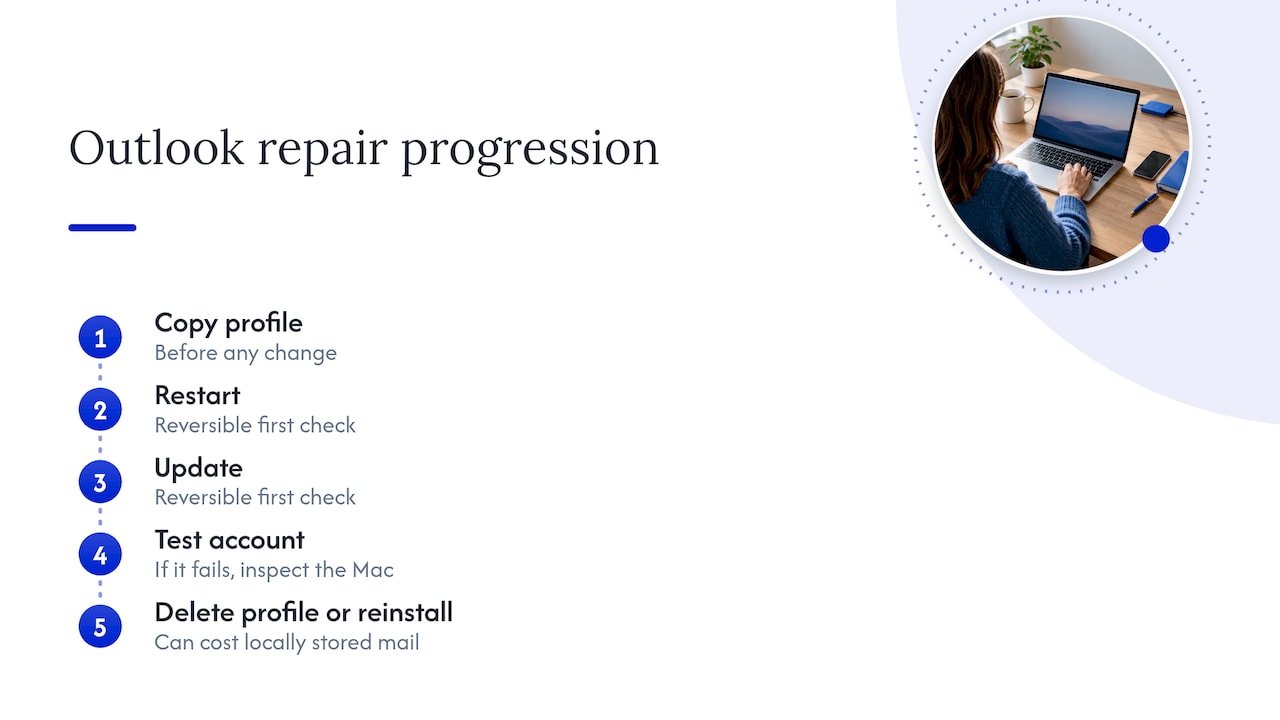
The second pattern is blaming the app for a Mac problem. When Outlook will not open, the Mac is often also slow to wake, low on storage, or throwing spinning wheels in other apps. Outlook is just the heaviest program on the machine, so it is the first to complain. If the new-account test fails, we stop touching Outlook and look at the Mac itself.
Third, we treat data as the priority, not the app. An app can be reinstalled in ten minutes. Years of mail stored only on one laptop cannot. Our technicians copy the profile before any change, and we tell you in advance what we are about to do and what it costs. That is how we run every job, with the quote given up front.
— Michael
When the problem is the Mac, not Outlook
Some signs mean you should stop troubleshooting the app:
- Spinning wheel across apps. If the pinwheel shows up in Finder, Safari, and Mail too, see our guide to stopping a Mac spinning wheel and when to call for same-day repair.
- Everything is slow. Low disk space and memory pressure can stop large apps from launching. Our guide to why a computer runs slow lists the usual causes.
- Storage is nearly full. Apple notes that starting in safe mode may temporarily free storage by clearing certain system caches. It can give you breathing room, but it is a stopgap, not a cleanup.
- Strange pop-ups, redirects, or unfamiliar apps. These can indicate malware, and Outlook crashes can be a side effect. Check the four urgent Mac malware signs and what to tell a technician.
- The Mac will not start at all. See what to do when a MacBook is not turning on.
One more risk deserves a mention: suspicious emails. If Outlook problems began after you opened an odd message or attachment, read our phishing email signs you can verify in 30 seconds before you sign in anywhere.
Get it fixed at your door in Orlando or Winter Park
If you have worked through the steps and Outlook still will not open, or you would rather not risk your mail, we can handle it where you are. Our technicians come to your home, office, or school in Orlando and Winter Park, diagnose whether the problem is the profile, the install, or the Mac, and give you a quote before any work starts. We back repairs with a warranty on parts and labor, and we protect your data throughout.
See our MacBook and iMac repair page to book.

For small offices where several machines share the problem, our on-site computer repair services include software troubleshooting and business support.
FAQ
How do I reset Outlook on a Mac?
The practical reset is to create a new profile with the Outlook Profile Manager and set it as the default. Copy or export your old profile first, because deleting the Main Profile also deletes mailbox data stored on your computer. Then reopen Outlook and add your account again.
Why does Outlook open on one Mac user account but not another?
That result means the app and macOS are working, and something in the first user’s folder is damaged, most often the profile or cached data. A new profile in the affected account usually solves it. If it does not, reinstalling Outlook is the next step.
Will reinstalling Outlook delete my emails?
For Exchange, Microsoft 365, and Outlook.com accounts, the mail is on the server and downloads again. For POP accounts and locally stored folders, it may not be. Export your mailbox with File > Export, or copy the profile folder, before you uninstall.
Is the problem Outlook or my Microsoft 365 account?
Open your mail in a web browser. If webmail works, your account is fine and the app needs fixing. If it fails too, the issue is likely your account or a service problem, and a work account administrator can check the service health page in the admin center.
Do I need to update Outlook for Mac?
Yes. Updating is among the first steps worth trying, using Help > Check for Updates. For work or school Microsoft 365 apps on macOS, Microsoft required an update by July 13, 2026, or the apps run in reduced functionality mode.
Sources
- Outlook Unresponsive on MacBook Pro, Microsoft Q&A
- How to force an app to quit on Mac, Apple Support
- Update Microsoft 365 on your work or school macOS or iOS device, Microsoft Support
- Errors CAA2000B, 4usqa, and 49dvs when signing in to Outlook for Mac, Microsoft Support
- Fixes or workarounds for recent Office issues, Microsoft Support
- Search in Outlook for Mac returns limited or no results, Microsoft Support
- My outlook won’t open in mac, Microsoft Q&A
- Go back to Office 2016 for Mac after upgrading to Office 2019, Microsoft Support
- How to revert back to Outlook 2016, Microsoft Support
- Free up storage space on Mac, Apple Support
Recommended
- 4 Urgent Mac Malware Signs and What to Tell a Technician
- Stop a Mac Spinning Wheel in 15 Seconds, When to Call Same Day Repair
- MacBook Not Turning On? Get Same Day Repair in Orlando










