
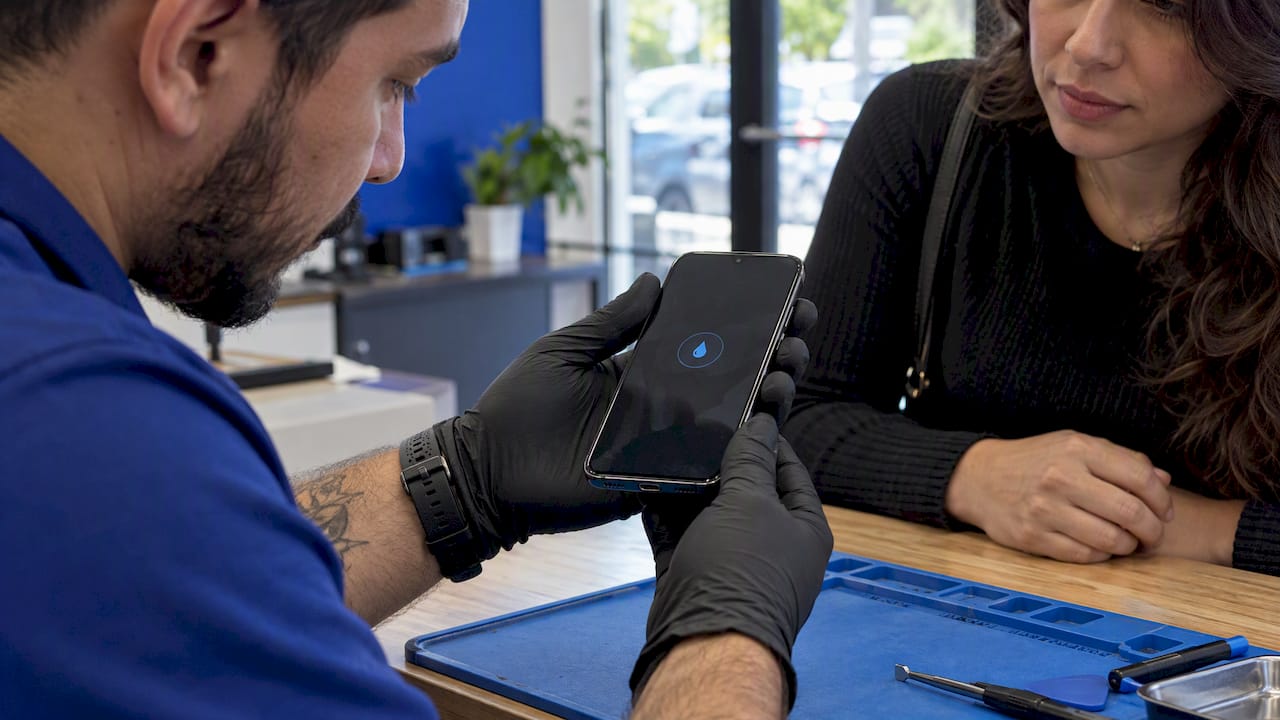
When your Galaxy says moisture or foreign material was detected in the USB port, it has locked wired charging on purpose. Unplug the cable, let the port dry in open air, and use wireless charging if your phone supports it. If the warning stays after the port is truly dry, the cause is usually a stuck software check, a dirty port or a damaged port, and each has a different fix. This guide covers all three, in the order you should try them.
TL;DR
- The warning is a safety lockout, not proof that your phone is ruined. Samsung says it is a preventative measure against corrosion.
- Unplug right away, shake gently with the port facing down, and air dry. Skip hair dryers, compressed air and rice.
- Expect drying to take anywhere from 1 to 24 hours. Wireless charging can bridge the gap on supported models.
- If the warning persists on a dry phone, try restarting, a different cable and charger, turning off fast charging, and clearing the USB Settings cache.
- Still stuck, or the port looks corroded? That is a hardware job. We repair Galaxy charging ports on site in Orlando and Winter Park.
Table of Contents
- What the warning actually means
- Why it shows up when your phone looks dry
- What to do in the first five minutes
- How long to dry a charging port
- Fixes when the port is dry but the warning stays
- Why a software fix may be only a bypass
- The same alert on other phones
- Our perspective: what we see in the field
- When it is time to call a repair tech
- Book an on-site Galaxy charging port repair
- Keeping the warning from coming back
- FAQ
- Sources
What the warning actually means
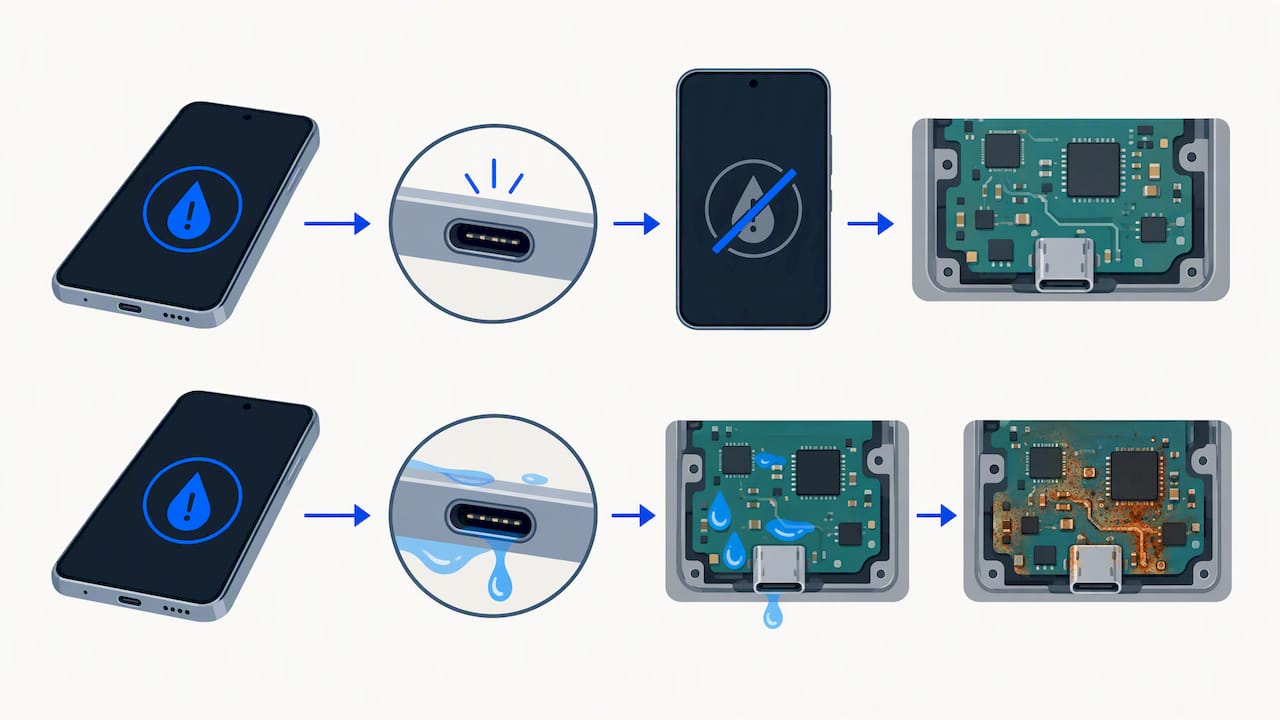
Galaxy phones with water resistance have a sensor in the USB-C port. When it reads moisture above a set point, the phone stops accepting charge from the cable and shows a water drop icon or a message about moisture or foreign material. Samsung’s UK support page describes it as a safety measure to protect the phone from damage and corrosion.
The reason is simple. Charging pushes current through tiny metal pins. Add water and those pins can short or corrode. Corroded pins are expensive to fix, so the phone refuses to charge until the port looks dry.
Two points people miss:
- The alert is a temporary lockout. It does not mean the whole phone is water damaged. Your screen, calls and apps keep working.
- The port is not as waterproof as the body. SamMobile notes that most Galaxy devices have no port cover, so the port itself is not technically water-resistant, even when the phone carries an IP rating.
The IP68 rating most recent flagships carry allows immersion in up to 1.5 meters of fresh water for up to 30 minutes, according to the research Samsung’s own pages are built on. That covers the sealed body. It says nothing about a wet charging contact, and it covers fresh water, not salt water, pool chemicals or soda.
Why it shows up when your phone looks dry
Most readers who search this have not dropped the phone in a sink. A few common triggers:
- Humidity. A hot shower, a sauna or a steamy bathroom can put enough moisture in the small, enclosed port to trip the sensor. Florida readers know the outdoor version: a humid summer afternoon, then walking into an air-conditioned car, can create condensation in tight spaces.
- Sweat or a damp pocket. Gym sessions and beach days leave residue in the port.
- Rain or a splash. Even a few drops that reach the contacts can do it.
- Lint and debris. Pocket fibers can hold moisture against the pins and keep the sensor reading wet.
- A stuck software check. The system can stay in a detected state after the port has dried, a known issue that Samsung’s UK page addresses with a cache reset.
- Real damage. Corrosion or a failing sensor can read wet permanently.
What to do in the first five minutes
If the alert appears while charging, act in this order.
- Unplug the cable and any accessory. Do not try to force a charge.
- Wipe the outside. Use a dry, lint-free cloth on the phone and the plug end of the cable.
- Shake gently. Samsung’s guidance is to hold the phone with the port facing down and tap or shake it softly, about 5 to 10 times, so droplets can leave.
- Let it air dry. Leave the phone somewhere ventilated and dry with the port facing down. Do not plug anything in.
- Charge wirelessly if you can. If your model supports wireless charging, use it while the port dries. Check your battery level first so you do not run out in the meantime.
An explanation of the same unplug, port-down and air-dry routine appears in this Samsung Super Fast Charging explainer, which also helps if you want to understand how your charging mode behaves once the phone is back on a cable.
How long to dry a charging port
Samsung’s own range is 1 to 24 hours of air drying in a well-ventilated area. The range is wide because it depends on how much moisture got in and how humid the room is.
| Situation | Realistic wait | What to do |
|---|---|---|
| Steamy bathroom or humid day | A few hours | Move to a cool, dry, airy room and leave it |
| Light splash or sweat | Several hours | Shake gently, air dry, avoid the cable |
| Rain or a drop in a puddle | Up to a full day | Air dry port-down, use wireless charging |
| Salt water, soda, coffee, pool water | Do not wait | Stop using the cable; see a technician, because residue stays after the water is gone |
These are planning ranges built from Samsung’s 1 to 24 hour guidance. They are not guarantees. If the phone has been dry for a full day and the warning remains, move on to the fixes below.
What not to use
Samsung says not to use heat sources like hair dryers, compressed air or rice to dry the device. Here is why people regret each one:
- Hair dryers can warm seals and adhesive, and heat is hard on the battery.
- Compressed air can push water deeper past the contacts.
- Rice dries very little and leaves starch dust in the port. We explain the better alternative, and when to stop the DIY approach altogether, in our guide on rice versus silica gel.
Do not poke the port with a pin, a paper clip or a cotton swab either. You can bend the contacts or leave fibers behind.
Fixes when the port is dry but the warning stays
Work through these from least to most involved. Most match the steps in guides from Android Police and How-To Geek, and they are safe to try on your own.
1. Restart the phone
A restart clears many one-off glitches in the sensor check. Power off, wait a minute, power on, and do not plug in until the phone is fully back.
2. Try a different cable and charger
A worn or damp cable can carry moisture into the port. Use a dry cable you trust and a different wall adapter, ideally in a different spot, since a damp bathroom or kitchen counter is a poor place to test.
3. Turn off fast charging
In Settings, go to Battery and device care, then Battery, then More battery settings, and switch off fast charging options. Samsung’s charging tip page shows where these toggles live. Disabling fast charging can make the warning go away on some Galaxy phones. You can switch it back on once things settle.
4. Clear the USB Settings cache
This is the fix most worth knowing. The system can get stuck in a detected state even after the port is dry, and clearing the cache resets that check.
- Open Settings, then Apps.
- Tap the filter icon and turn on Show system apps.
- Find USB Settings and open Storage.
- Tap Clear cache.
- Restart and test with a dry cable.
Menu names vary a little between One UI versions, but the path is similar.
5. Try Safe Mode
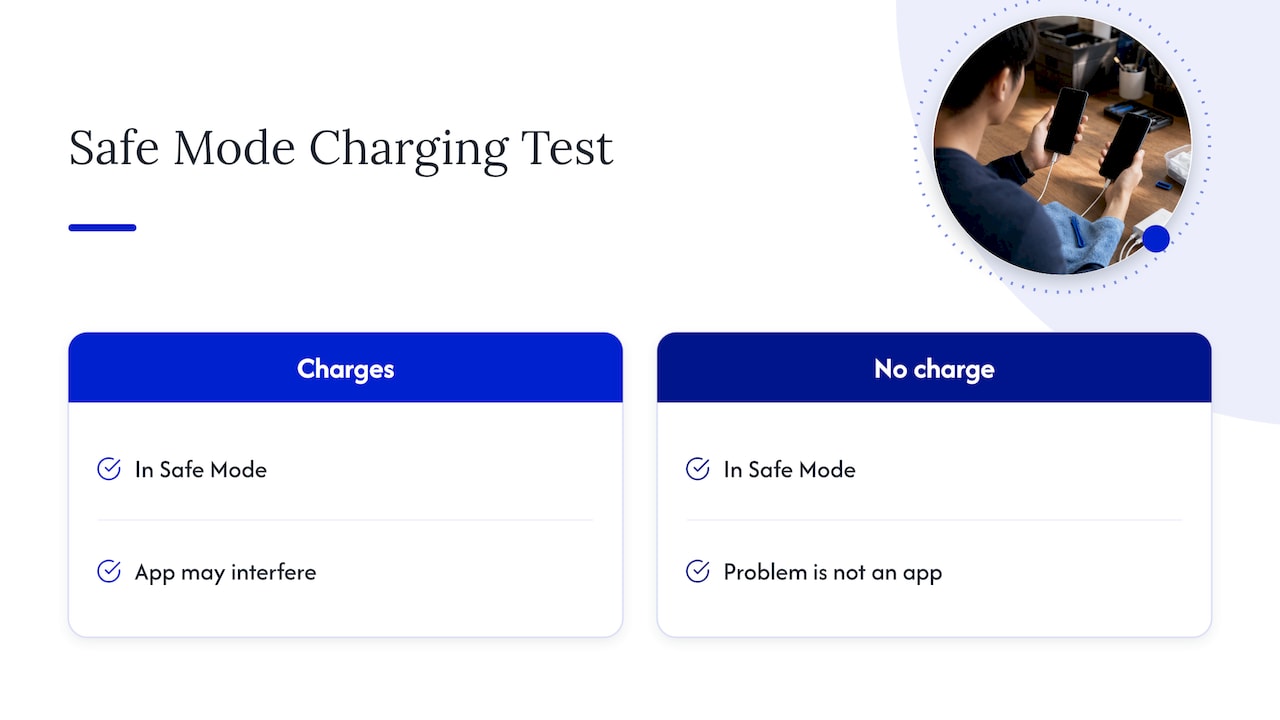
Boot into Safe Mode and plug in. If the phone charges there, a third-party app may be interfering. If it does not, the problem is not an app.
6. Clean the port gently, only if it is dry
With the phone off, shine a flashlight into the port. If you see lint, a technician can remove it with proper tools. A wooden or plastic pick is gentler than metal, but if you are not comfortable doing this, skip it.
Why a software fix may be only a bypass
If liquid really did get in, clearing the cache hides the symptom without touching the cause. Samsung advises visiting a service center when the warning remains after the port is completely dry. A corroded pin keeps eating the metal long after you stop paying attention to it.
Signs that point to hardware:
- The warning returns within hours or days of clearing it.
- You can see green, white or dark crusty buildup in the port.
- The cable fits loosely, or charging cuts in and out.
- The phone got wet in salt water, a drink or a pool.
- The phone also shows bad touch response, speaker crackle or a battery that drains oddly after a soak.
We cover the wider picture of what liquid does inside a phone in how to fix a water damaged phone, and our piece on Android phones that will not charge walks through liquid alerts before any quick fix.
The same alert on other phones
You will see similar wording elsewhere. A USB-C tablet or e-reader can show a liquid alert and block charging until the port is dry, as Amazon documents for Kindle. iPhones show a liquid detected message in the connector. The logic is the same everywhere: unplug, dry, wait, and escalate if it persists. For an iPhone with a stubborn alert, our iPhone repair page lists the services we offer.
Our perspective: what we see in the field
We repair phones at customers’ homes, offices and campuses around Orlando and Winter Park, so we see how this warning plays out in a humid climate. Our view comes from a decade of repair work and is not a list of tricks.
First, people wait too long to stop charging. The best thing you can do is unplug at the first alert. The phone is protecting itself, so help it.
Second, people reach for the fix that seems quickest. A cache clear is a legitimate step for a dry phone. It is the wrong step for a phone that went into a pool, because it only silences the check. If liquid reached the board, the clock on corrosion is already running.
Third, we would rather diagnose than guess. Our technicians do board-level work, which matters when the port is not the only thing that took on moisture. We quote the repair up front, tell you what we find, and do not add hidden fees. And because the work is on site, you do not have to hand your phone to a counter and wait without it. We also care about data. Your photos and messages stay with you throughout, which is why we recommend backing up as soon as the phone will let you.
Fourth, parts quality matters on tightly sealed phones. Samsung’s repair network stresses genuine parts and certified technicians, and the reasoning applies to any repairer: a poor-fitting port or a cheap replacement can bring the problem back quickly. Ask any shop what parts it uses and what warranty covers them. Ours is warranty-backed on parts and labor.
— Michael
When it is time to call a repair tech
Call a technician when any of these apply:
- You have waited a full day and tried the software steps without success.
- The phone met salt water, a sugary drink or pool water.
- You can see corrosion, or the port is loose or bent.
- The phone is your work tool and you cannot afford to wait on shipping or an in-store queue.
You have options by type: the manufacturer’s service network, a mail-in service, a walk-in shop, or a technician who comes to you. Each suits a different need. Manufacturer service gives you genuine parts, Samsung’s network lists certified technicians and runs a diagnostic test. Mail-in costs you days. Walk-in shops are quick but you leave the phone. Mobile repair fits the person who cannot leave work or class. If you carry Samsung Care+ coverage, check it before paying out of pocket.
Book an on-site Galaxy charging port repair
If your Galaxy still shows the moisture warning on a dry phone, we can come to your home, office or campus in Orlando or Winter Park, diagnose the port and quote the repair before we start. See our Samsung and Android repair page for what we fix and how to book, or start from our home page.
Keeping the warning from coming back
- Do not charge right after a shower, a swim or a workout. Give the phone a few minutes in a dry room.
- Dry the plug end of the cable too.
- Keep pockets and bags clear of lint, and check the port now and then with a flashlight.
- Do not trust IP68 for salt water, pool water or hot liquids.
- Turn off fast charging if a phone has a history of false alerts.
- Back up your phone regularly so a repair never puts your data at risk.
FAQ
How do I fix Moisture Detected on a Samsung phone?
Unplug the cable, shake the phone gently with the port facing down, and let it air dry for 1 to 24 hours. Then try a restart, a different cable and charger, and clearing the USB Settings cache. If the warning stays on a dry phone, have the port checked.
Can I charge my phone while it says moisture detected?
Not with the cable. The phone blocks wired charging until the port reads dry. On models that support wireless charging, you can use that as a workaround while the port dries.
Why does my phone say moisture is detected when it is dry?
Humidity, sweat, lint and a stuck software check can all trigger it. A damaged or corroded port can also read wet permanently. If a cache clear does not help, a hardware problem is likely.
Is it safe to use rice or a hair dryer?
No. Samsung warns against heat sources, compressed air and rice, since they can cause permanent damage. Air drying in a well-ventilated spot is the safe method.
Should I get a repair or a new phone?
A port repair usually costs far less than a replacement phone, and the phone is often otherwise fine. We quote the repair up front, so you can compare the figure with a new device before you decide.
Sources
- Samsung US: Moisture in your charging port
- Samsung UK: Water drop icon and will not charge
- Samsung US: Galaxy battery charging tip
- Samsung US: Find Mobile Care
- Android Police: Clear the Moisture Detected notification
- SamMobile: Fix moisture detection on Galaxy devices
- How-To Geek: Clear the Moisture Detected warning
- Amazon: Liquid detection on Kindle
Recommended
- Spot Phone Water Damage Signs in a Couple of Minutes
- How to Fix a Water Damaged Phone
- Rice vs Silica Gel: When to Stop DIY and Call a Repair Tech
- Spilled Water on Your Laptop? Cut Power Before You Blot










