

The most reliable phishing signs are unexpected links or attachments, urgent demands for credentials or money, sender addresses that don’t match the real domain, and requests to “verify” information outside your normal channels. CISA and the FTC both flag these as the core patterns behind nearly every phishing campaign. Spot two or more together, and treat the message as hostile until proven otherwise.
TL;DR:
- The most common red flags include mismatched sender domains, urgent language, and links that do not lead to official websites, which require careful verification.
- Hovering over links and examining email headers can reveal discrepancies, such as domain mismatches or authentication failures, indicating potential spoofing.
- Updating passwords, enabling two-factor authentication, and reporting suspicious emails promptly are critical steps after clicking or entering information on a phishing site.
- Signatures and contact details that are inconsistent or mismatched with official branding are often overlooked clues of phishing attempts.
- Cybercriminals are producing more polished, error-free emails with AI tools, making grammar or spelling mistakes less reliable as red flags.
Table of Contents
- 7 Phishing Email Warning Signs You Can Check in 30 Seconds
- How to Check a Suspicious Email Without Clicking Anything
- You Clicked or Entered Info. Here’s What to Do Right Now
- Check the Signature, Not Just the Greeting
- What Email Headers Reveal Beyond the Sender’s Name
- Where to Report Phishing and Learn More
- Why Fast Containment Matters More Than People Think
- Sources
- FAQ
7 Phishing Email Warning Signs You Can Check in 30 Seconds
Phishing has become harder to spot at a glance, but the underlying patterns haven’t changed much. Here’s what actually gives a fake email away, ranked by how often each one shows up.
-
The sender address doesn’t match the real domain. Look past the display name, which anyone can type in as “Bank of America” or “Apple Support.” Read everything after the @ symbol. A message from “security@apple-support-verify.com” is not from Apple. Scammers often nest a real brand name inside a longer, fake domain, like amazon.com.example.net, banking on people reading only the first few characters. The domain that actually owns the address is the one right before the final “.com,” “.net,” or country code, not whatever appears first.
-
The message pressures you to act immediately. “Your account will be suspended in 24 hours.” “Unusual sign-in detected, verify now.” Urgency and fear are the oldest tricks in the book because they short-circuit the part of your brain that would normally pause and think.
-
It asks for a password, Social Security number, or bank details. Legitimate companies almost never ask you to confirm sensitive information by replying to an email or clicking a link, which is a key email marketing best practice that helps maintain trust and security. When in doubt, assume they won’t.
-
The links go somewhere they shouldn’t. Shortened URLs, redirect chains, and links where the visible text says one thing but the destination is another are classic red flags. This is the single most common mechanical trick in phishing email red flags across every major campaign type.
-
There’s an attachment you didn’t ask for. Files ending in .exe, .scr, or even .zip are especially risky because they can execute code the moment you open them, rather than just displaying a document.
-
The greeting is oddly generic, or oddly specific. “Dear Customer” instead of your name can be a sign of a mass phishing blast. But don’t relax if an email does use your name. Scammers now pull names and details from data breaches and social media, so personalization alone proves nothing.
-
It wears a familiar face. Real logos, real color schemes, even a spoofed version of a coworker’s actual email signature. The FTC warns that phishing messages routinely impersonate trusted companies and familiar contacts, and a convincing look tells you nothing about who actually sent the message.
One caveat worth remembering: grammar and spelling used to be a dead giveaway. That’s fading fast. CISA notes that AI tools now let scammers produce polished, error-free phishing emails, so a clean-sounding message is no longer proof of anything.
Why this matters at scale: the FBI’s Internet Crime Complaint Center logged 191,561 phishing and spoofing complaints in 2025, tied to over $215 million in reported losses. That’s not a niche problem. It’s a volume business for criminals, which is exactly why checking these signals needs to become a habit rather than an occasional gut check.
How to Check a Suspicious Email Without Clicking Anything
You can verify almost everything about a suspicious email before you ever touch a link or open a file. Here’s the safe sequence.
- Reveal the full sender address. On most email clients, tapping or clicking the display name expands it into the actual address. Check the domain after the @ character carefully.
- Hover, don’t click. On a desktop, hovering your mouse over a link shows the real destination URL in the bottom corner of the browser or a small tooltip. If it doesn’t match the text or the supposed sender, stop there.
- Use the mobile preview trick. On phones, press and hold a link (don’t tap) to see the destination pop up without opening it.
- Watch for built-in warnings. Gmail and other mail clients flag suspicious messages with banners about unverified senders or possible spoofing. Don’t dismiss these automatically.
- View the headers if you’re comfortable. Most webmail clients let you open the full message headers, which show the real routing information behind the friendly display.
- Verify independently. If the email claims to be your bank or employer, don’t call the number or click the link it provides. Type the organization’s website address yourself or use a phone number you already had saved.
Pro Tip: Keep a note in your phone with the real customer service numbers for your bank, your phone carrier, and any service you use often. When a “security alert” email lands, you’ll have a verified number one tap away instead of trusting whatever the email gives you.
If something still feels off after all that, or the message involves your employer’s systems, loop in your IT department or a professional technician before doing anything else. Save the original email and don’t delete it. It’s evidence if things go further.
You Clicked or Entered Info. Here’s What to Do Right Now
Acting fast limits the damage. Work through this in order.
- Disconnect the device from Wi-Fi or cellular data if it starts behaving strangely, running slowly, or showing pop-ups you didn’t trigger.
- Run a full scan with updated antivirus or anti-malware software. Don’t skip the update step. Outdated virus definitions miss newer threats.
- Switch to a different, clean device and change any password you entered on the suspicious site. Start with email and banking, since those unlock everything else.
- Turn on two-factor authentication everywhere it’s offered. It’s the single fastest way to lock out someone who already has your password.
- Call your bank or credit card company directly if you entered financial information, and if your Social Security number was exposed, open a recovery plan at IdentityTheft.gov.
- Report the email. Forward it to reportfraud.ftc.gov and to reportphishing@apwg.org, and tell your employer’s IT team if it touched a work account.
A device that keeps misbehaving after a scan, freezing, draining battery fast, or generating data you didn’t create, may need a closer look than a home antivirus tool can give. That’s a sign the infection went deeper than a browser pop-up, and a malware infection follows a fairly predictable pattern worth knowing if you want to understand what you’re dealing with before deciding your next move.
Check the Signature, Not Just the Greeting
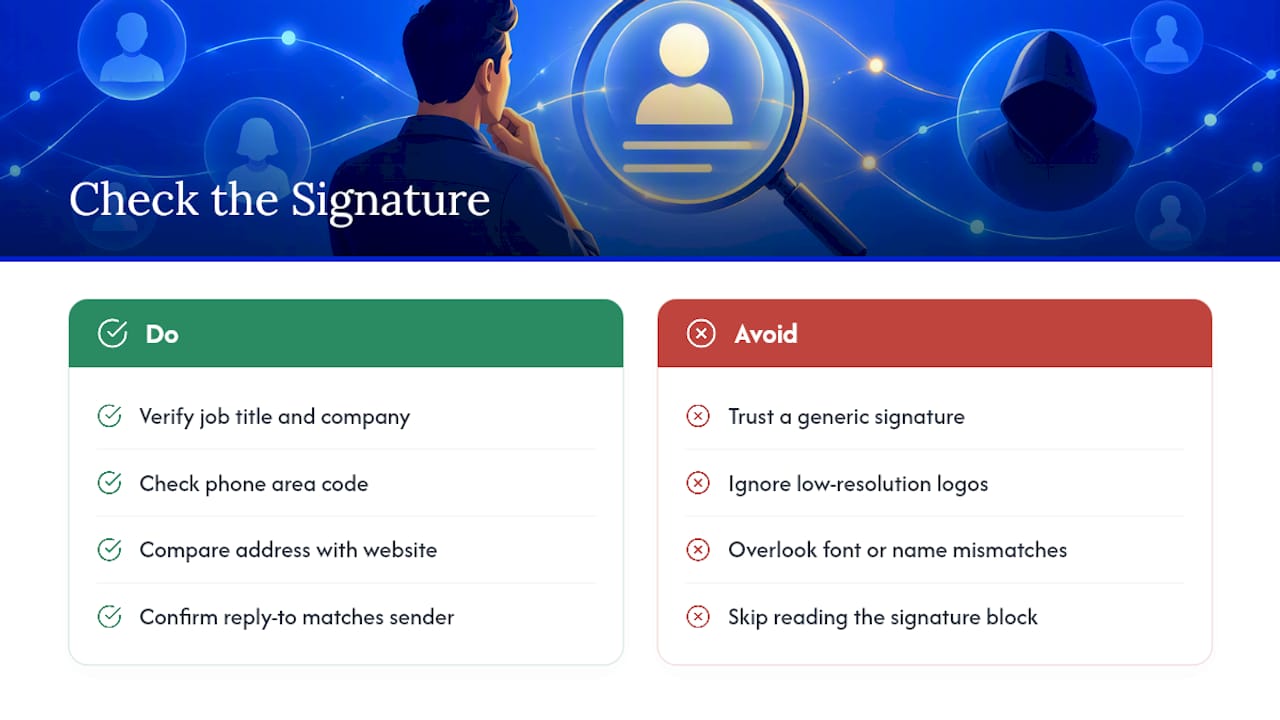
A mismatched or oddly generic signature block is one of the more overlooked phishing email red flags. Real companies keep their signatures consistent. If an email claims to be from your bank but the signature lists a job title that doesn’t exist there, a phone number in the wrong area code, or a company address that doesn’t match the one on file, that inconsistency is worth more than it looks.
Watch for signatures that are missing entirely, replaced with a generic “Customer Support Team” instead of a named contact, or that use a logo pasted in as a low-resolution image rather than the crisp branding a real company would use. Scammers often reuse a template across dozens of impersonated brands, so small details like font mismatches between the body text and the signature block, or a signature that lists a different company name than the one in the subject line, are common slip-ups.
One more thing to check: does the signature’s contact information match what shows up on the company’s actual website? A phishing email impersonating a delivery service, for example, might list a support number that’s one digit off from the real one, or a “reply-to” address that differs from the sender address entirely. That mismatch between reply-to and sender is subtle, but it’s exactly the kind of detail that separates a real message from a forged one.
None of these checks require special tools. They just require slowing down long enough to actually read the block of text most people skim past.
What Email Headers Reveal Beyond the Sender’s Name
Every email carries hidden routing information called headers, and they tell a more honest story than the display name ever will. Three fields matter most: the return path, and the results of SPF and DKIM checks, which together roll up into a DMARC verdict.
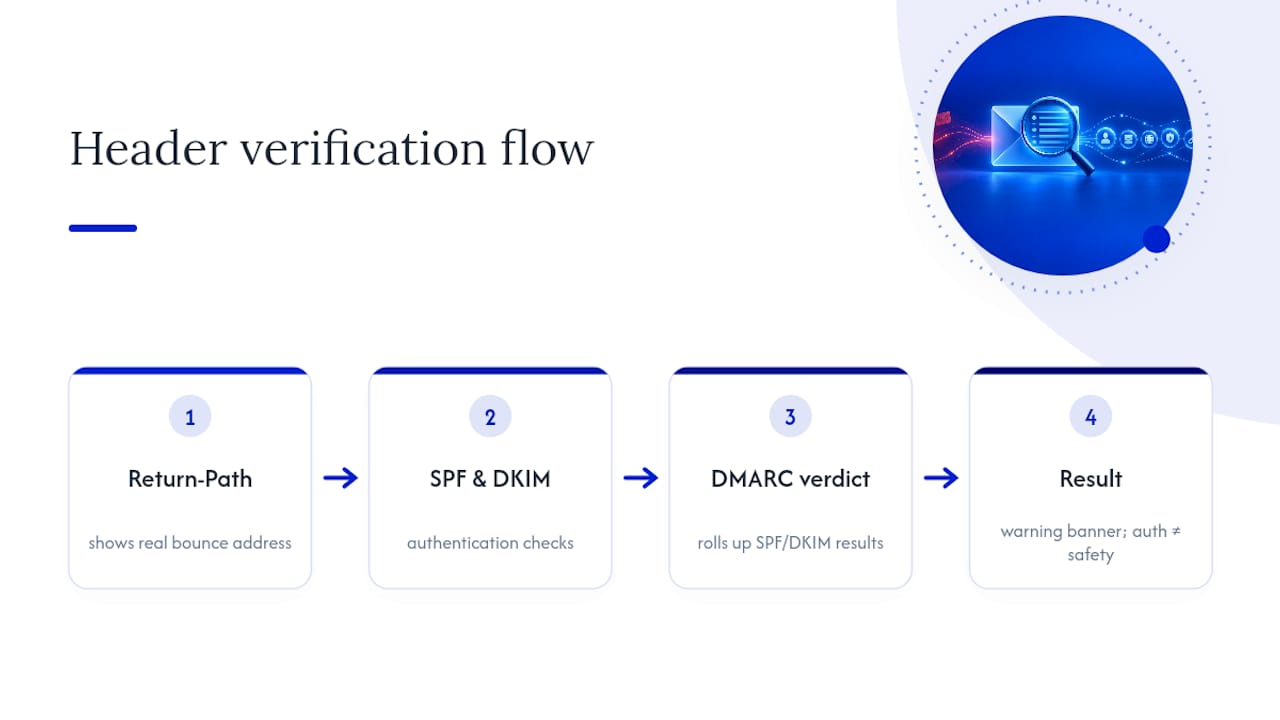
The return-path shows where bounce messages and replies actually go, and it sometimes differs from the visible “From” address. A mismatch here is a common sign someone’s spoofing a domain.
SPF, DKIM, and DMARC are authentication standards that let a receiving mail server confirm whether a message really came from the domain it claims to. NIST’s technical guidance describes these as tools for identifying forged senders, and when a message fails all three, that’s a strong signal of spoofing. Most webmail clients surface this as a plain warning banner rather than making you dig through raw headers, which is the practical way most people will ever encounter it.
Here’s the catch: passing authentication doesn’t guarantee safety. A hacked legitimate account, one that genuinely owns its domain and passes every check, can still send a real phishing email. Authentication proves who technically sent the message. It doesn’t prove that person or system wasn’t compromised. Treat header checks as one more data point, not a final verdict.
Where to Report Phishing and Learn More
- CISA: the government’s plain-language framework for recognizing, resisting, and reporting phishing attempts.
- FTC: consumer guidance plus a direct reporting pathway at ReportFraud.ftc.gov.
- Gmail Help: step-by-step instructions for previewing links and reporting phishing inside Gmail specifically.
- IC3/FBI Annual Report: the latest scale and financial-loss statistics on internet crime, including phishing.
- APWG (reportphishing@apwg.org): forward suspicious emails here to help researchers track new scam patterns.
- IdentityTheft.gov: your recovery plan if a Social Security number or other sensitive personal data was exposed.
Save the original email and its headers before forwarding or deleting anything. That evidence helps both the reporting agencies and, if it comes to it, whoever helps you clean up the aftermath.
Why Fast Containment Matters More Than People Think
Phishing rarely stops at a stolen password. Click the wrong link on a phone or laptop, and you can end up with malware quietly running in the background, siphoning data or opening a door for something worse. The device slows down or drains its battery, and by the time that’s obvious, the exposure window has already been open for a while.
Data safety is a priority in on-site repairs, which is why containment steps matter before a device ever reaches a technician’s hands. Not every compromise is a quick fix. When a phone or laptop keeps misbehaving after a scan, that’s the point to bring in a professional rather than keep troubleshooting alone.
— Michael
Sources
- Recognize and Report Phishing | CISA
- How To Recognize and Avoid Phishing Scams | FTC
- Avoid & report phishing emails – Gmail Help
- IC3 Annual Report 2025
FAQ
What are the clearest signs of a phishing email?
The strongest phishing email signs are a sender address that doesn’t match the real domain, urgent or threatening language, requests for passwords or financial details, and links that lead somewhere different than they claim. CISA groups these under its “Recognize, Resist, Report” framework as the core patterns to watch for.
What is the single biggest red flag in a phishing email?
A mismatched sender domain is usually the most reliable single signal, since it’s hard for scammers to fake convincingly and easy for you to check by reading the full address after the @ symbol. Urgent pressure to act immediately runs a close second, because it’s designed to stop you from checking anything at all.
How can I tell if an email is really phishing before I click anything?
Reveal the full sender address, hover over any links to preview the destination without clicking, and check for authentication warnings your mail client displays. If anything still feels uncertain, verify the request by calling a number you already had on file, not one listed in the email itself.
Does bad grammar always mean an email is phishing?
Not anymore. Poor spelling used to be a strong signal, but AI tools now let scammers produce polished, error-free messages, so a clean-sounding email proves nothing on its own. Focus instead on the sender address, the links, and whether you’re being pressured to act fast.
What should I do immediately if I clicked a phishing link?
Disconnect the device from the internet if it’s acting unusual, run a full malware scan, and change any exposed passwords from a separate, clean device. Report the email to ReportFraud.ftc.gov and forward it to reportphishing@apwg.org, and if a device keeps misbehaving, Repair Genius’s on-site computer repair service can run a deeper diagnostic than a home antivirus scan typically catches.
Recommended
- 4 Urgent Mac Malware Signs and What to Tell a Technician
- 3 Windows Virus Symptoms That Need Immediate Action, Diagnose & Fix
- 7 Steps to Stop an Infection Now for Home Users: Malware vs Virus





