
Most POS network issues get fixed in under ten minutes with a power cycle and an Ethernet fallback. If the terminal drops offline repeatedly during your busiest hours, the real problem is usually further upstream: broadcast storms, VLAN conflicts, or a DHCP pool running out of addresses. Try the basics first, then escalate to network diagnostics if the outage keeps coming back.
TL;DR:
- Most POS network issues during busy hours are caused by upstream problems like broadcast storms or VLAN conflicts, not terminal hardware.
- Physical cable faults or improper port connections are common causes of persistent outages and can often be diagnosed quickly on-site.
- Ensuring terminals are on a separate VLAN, with strong passwords and updated firmware, prevents unauthorized access and improves stability.
- Peak-hour failures frequently result from broadcast storms or DHCP pool exhaustion, which are resolved by network segmentation and managing device load.
- Regular monitoring and testing of connection stability, along with backup cellular connections, are essential to minimize revenue loss during outages.
Table of Contents
- Quick POS Network Troubleshooting Checklist for Mid-Shift Outages
- Step-by-Step Troubleshooting from Cables to Configuration
- Running Terminal Diagnostics: What the Results Actually Mean
- Why POS Terminals Go Offline Specifically During Peak Hours
- How to Verify the Fix Actually Worked
- Locking Down Your POS Network Against Unauthorized Access
- Setting Up Monitoring So You Catch Problems Before Customers Do
- Do You Need a Backup Connection for Your POS System?
- Why Recurring Outages Point to Bigger Problems Than the POS
- Get Your POS Network Fixed On-Site, Same Day
- Where to Point Your IT Team for Deeper Fixes
- Sources
Quick POS Network Troubleshooting Checklist for Mid-Shift Outages
When a terminal freezes mid-transaction during a lunch rush, you don’t have time for a network audit. Work through this list in order, and stop as soon as the terminal reconnects.
- Power cycle the modem, router, and switch, then the POS terminal. Unplug each device, wait 30 to 60 seconds, and power them back on starting with the modem. Rezku’s troubleshooting guide recommends this exact sequence because restarting out of order just reconnects devices to a router that hasn’t finished booting.
- Check the lights. A dead power LED means a cable or outlet problem. A blinking amber activity light on the switch port usually means the connection is unstable, not dead.
- Reseat or swap the Ethernet cable. Cables get pinched under counters and chewed by rolling carts more often than people admit.
- Switch from Wi-Fi to wired Ethernet if the terminal supports both, then test with a second device on the same network to confirm the issue isn’t terminal-specific.
- Run the terminal’s built-in connection test and check the signal bars or confirm it received a valid IP address.
- If it’s still down, log the exact error message before you call anyone. “Not connected” and “gateway timeout” point support in very different directions.
Pro Tip: Keep a spare Ethernet cable and a cheap USB power strip in the back office. Half of all “network outages” during a shift turn out to be a cable that finally gave up after two years of getting kicked.
Step-by-Step Troubleshooting from Cables to Configuration
If the quick checklist didn’t fix it, work through the problem in layers: physical first, then network, then app state. Skipping ahead to reboot everything at once often masks which layer actually failed.
Start physical. Inspect every cable running to the POS terminal, the switch, and the router for cracks, kinks, or a connector that doesn’t click in firmly anymore. Check the LED on each switch port; a port that’s dark when others are lit usually means a dead port or a bad cable, not a software problem.
Reboot in the correct sequence: modem first, then router, then any managed switch, then finally the POS terminal itself. Rezku’s guide notes that rebooting the terminal without fully power-cycling the network hardware upstream just reproduces the same failure a few minutes later, because the terminal reconnects to the same broken session.
Once the hardware layer checks out, look at software state:
- Force a full device reboot on the terminal, not a soft restart, since some POS operating systems cache a stale network profile.
- Check for a pending POS app update. A partially applied update can leave the payment module unable to open a socket even though the rest of the terminal works fine.
- Clear the app cache if your POS software has that option in settings.
- Confirm the terminal and your router are on the same SSID and subnet. Lightspeed’s support documentation flags mismatched SSIDs and subnets as one of the most common causes of a terminal that shows “connected” to Wi-Fi but can’t reach the payment gateway.
- Test with wired Ethernet, then confirm with a second device that general internet access works, not just the POS terminal.
If the terminal is reaching the internet but transactions still fail with certificate or “secure connection” errors, check the time and date settings. A terminal with a clock that’s drifted by more than a few minutes will fail TLS negotiation with the payment processor even though everything else looks fine. Setting DNS manually to 8.8.8.8 (Google’s public DNS) is also worth trying if lookups seem to hang, since a misbehaving ISP-provided DNS server is a surprisingly common culprit behind intermittent POS connection troubleshooting calls.
Running Terminal Diagnostics: What the Results Actually Mean
Most modern POS terminals, including those from Adyen and Square, have a built-in diagnostic mode that tests the connection in stages rather than just reporting “online” or “offline.” Understanding those stages tells you whether the fault is local to the terminal or somewhere in the network.
Adyen’s terminal diagnostic documentation breaks the test into steps that each map to a different failure point:
- Looking up host fails: this is a DNS problem, not a connectivity problem. The terminal can’t translate the payment processor’s domain into an IP address.
- Connecting fails after DNS succeeds: something, usually a firewall, is blocking the outbound port before the connection even opens.
- Negotiating fails: this points to a TLS or certificate issue, often caused by a firewall doing deep packet inspection or a terminal clock that’s out of sync.
- Writing or receiving fails after negotiation succeeds: the connection opened but timed out, which usually means congestion or an unstable link rather than a blocked port.
On the network side, check the IP address, gateway, and DNS values the terminal actually received. A terminal stuck on a self-assigned address in the 169.254.x.x range never got a response from the DHCP server at all, which points at DHCP or IP conflict issues rather than a firewall problem.
Signal strength matters more than most operators realize. For any wireless POS connection, aim to keep the signal at −65 dBm or stronger measured at the terminal’s actual counter position, not near the router. Anywhere weaker than that and you’ll see intermittent drops that look random but aren’t.
Run a basic ping test from the terminal or a laptop on the same network. Write down whatever the diagnostic screen shows before calling support. “DNS lookup failed” gets a technician working the right problem in thirty seconds instead of five minutes.
Why POS Terminals Go Offline Specifically During Peak Hours
If your POS network issues cluster around lunch rush or Saturday afternoons and clear up the moment things slow down, the network architecture is the suspect, not the terminal.
The most common culprit is a broadcast storm, where a network loop or a misbehaving device floods the switch with repeated broadcast traffic until it can’t process anything else. According to the Pronto Networks Help Center, this shows up as port activity LEDs blinking rapidly and constantly, rising packet counters on the switch, and payment terminals dropping offline specifically when guest Wi-Fi usage spikes.
A close relative of that problem is putting POS terminals on the same VLAN as guest Wi-Fi or IoT devices like smart menu boards and security cameras. Every broadcast a guest’s phone or a cheap smart device sends competes for the same switch resources your terminal needs for a payment authorization. Isolating that traffic with proper VLAN segmentation is one of the more reliable long-term fixes, since it keeps real-time payment traffic off the same broadcast domain as everything else in the building.
DHCP pool exhaustion causes a related but distinct symptom: new devices simply can’t get an IP address once the pool fills up with guest phones and tablets. A TapTouch POS analysis points to cheap modems with undersized DHCP pools and high CPU load as a frequent cause of intermittent disconnects in busy retail and restaurant environments.
Short-term fixes you can apply without new hardware:
- Turn off the guest Wi-Fi SSID during your busiest hours if you’re not equipped to isolate it properly.
- Move the POS terminal to a dedicated VLAN if your router or switch supports it.
- Enable storm control and BPDU guard on a managed switch to stop runaway broadcast traffic before it saturates the link.
- Reserve static DHCP addresses for POS terminals and printers so they never compete with guest devices for a lease.
Pro Tip: If outages always hit at the same time of day, check what else turns on then, like a kitchen display system or a new batch of guest devices connecting at open. Correlation with a specific event is a stronger clue than the error message itself.
The long-term fix is a managed switch with quality of service (QoS) rules that prioritize payment traffic over everything else on the network. That single change resolves more recurring outages than any amount of rebooting.
How to Verify the Fix Actually Worked
A terminal that shows “connected” isn’t proof the payment gateway is actually reachable. Confirm the fix with a short, repeatable sequence before you call it resolved.
- Ping the router’s gateway address. You want consistent replies with no timeouts.
- Ping the payment endpoint if your processor publishes one, or run the terminal’s own connectivity test, which checks the specific host it needs rather than general internet access.
- Check packet loss and latency. For payment traffic, latency under 100 milliseconds and packet loss under 1% is the rough threshold for a reliable connection; anything worse tends to produce timeouts during authorization.
- Confirm outbound port 443 is open, along with any specific ports your acquirer lists, since a working browser connection doesn’t guarantee the payment port is unblocked.
- Run one small test transaction and watch for it to complete without a retry or timeout.
A mobile app like Fing or Ping & Net makes steps one through three fast if you do not want to dig through terminal menus. Rezku frames this same sequence, ping the gateway, ping the payment endpoint, run a test transaction, as the most reliable way to confirm a real recovery rather than a temporary reconnect. Keep a one-line log of what you tested and what happened; it saves the next person, whether that’s you next week or a technician, from repeating diagnostics you already ran.
Locking Down Your POS Network Against Unauthorized Access
A network that’s stable but unsecured just trades one problem for a worse one. Payment data moving across an open network is a compliance and liability issue, not just an IT inconvenience.
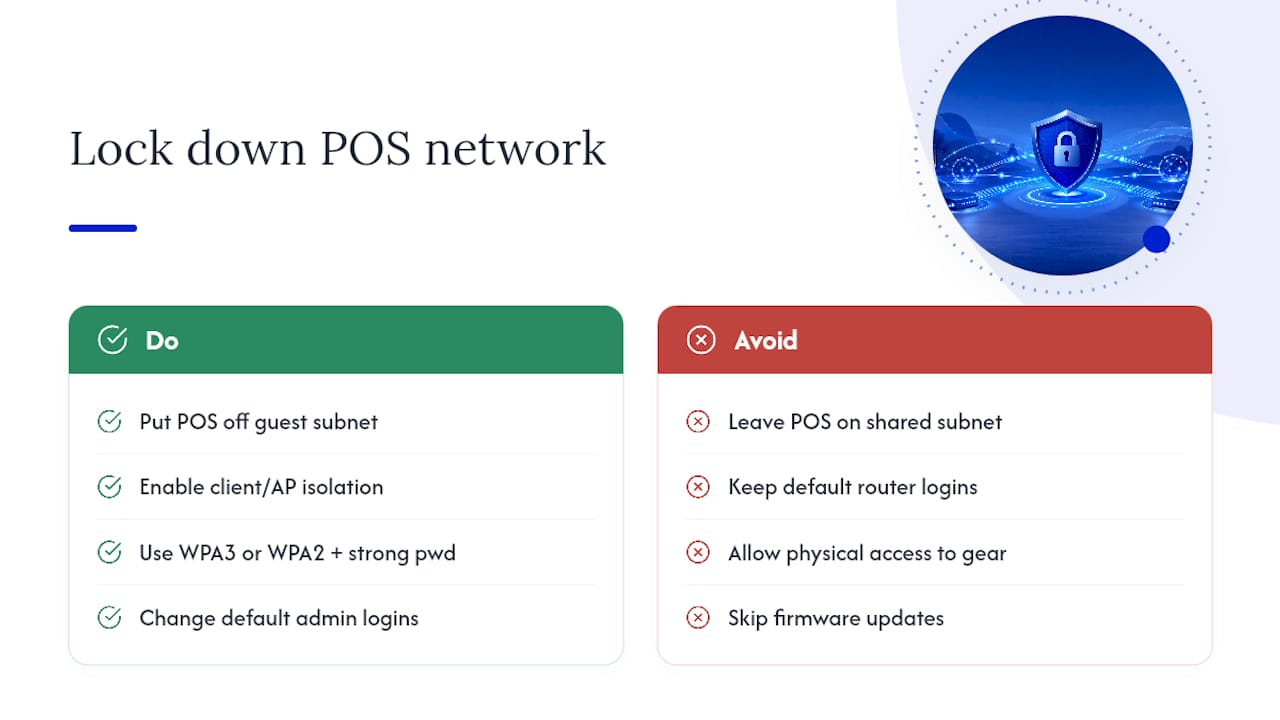
Start by keeping the POS terminal off the same network segment as guest Wi-Fi entirely, not just on a different SSID. A shared subnet with client isolation disabled lets any device on the guest network potentially see POS traffic. Lightspeed’s support team specifically recommends confirming that AP or client isolation is enabled on guest networks so devices can’t communicate with each other, including with your terminal.
Use WPA3 or, at minimum, WPA2 with a strong, unique password on any network segment carrying POS traffic, and change default router and switch admin credentials the day you install them. Default logins on networking hardware are one of the most common entry points for unauthorized access, and they’re often left untouched for years.
If your setup allows it, restrict which MAC addresses can connect to the POS VLAN. It’s not unbreakable security, but it stops casual access attempts cold. Keep firmware updated on your router, switch, and terminal, since vendors frequently patch known vulnerabilities that older firmware versions leave open. Finally, review who has physical access to your networking closet or equipment. A lot of unauthorized access starts with someone plugging a device directly into an open switch port, not with anything happening over the air.
Setting Up Monitoring So You Catch Problems Before Customers Do
The best POS network issues are the ones nobody notices because you caught them overnight. Reactive troubleshooting during a rush is expensive; proactive monitoring is not.
Most managed routers and switches include basic health dashboards that show bandwidth usage, connected device counts, and error rates. Check that dashboard weekly at minimum, and look specifically for climbing packet loss or a device count that’s crept up without you adding hardware. That’s often the first sign of DHCP pool exhaustion before it causes an actual outage.
Set up simple alerts if your equipment supports them: an email or text when the POS terminal disconnects, when a switch port flaps repeatedly, or when bandwidth usage crosses a threshold you set. Even a basic uptime monitor pinging your gateway every few minutes will flag a degrading connection hours before it fully fails.
If your business runs multiple locations or several terminals per location, this manual checking gets unwieldy fast, and that’s where a dedicated network monitoring tool earns its cost. The goal isn’t to eliminate every blip. It’s to know about a developing problem at 6 a.m. instead of finding out from a frustrated cashier at noon.
Do You Need a Backup Connection for Your POS System?
If your business processes even a modest volume of in-person transactions, a single point of failure on your internet connection is a real revenue risk, not a hypothetical one.
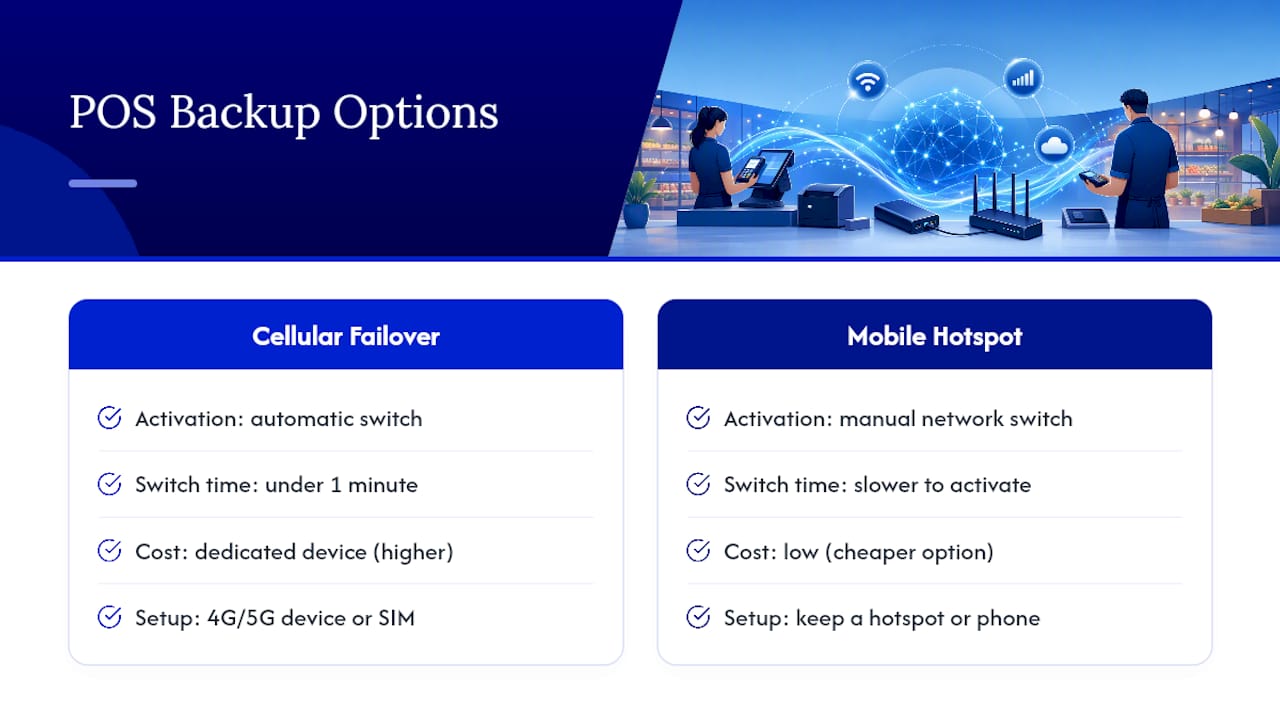
Cellular failover is the most practical backup for most small businesses. A dedicated 4G or 5G failover device, or a POS terminal with a built-in SIM card, automatically switches to cellular data the moment it detects your primary connection dropped. Most modern POS hardware and dedicated failover routers handle this switch in under a minute, often without staff noticing anything beyond a brief pause.
A second, cheaper option is keeping a mobile hotspot on hand as a manual fallback. It’s slower to activate since someone has to physically switch the terminal’s network, but it costs far less than a dedicated failover device and works fine as a stopgap for a business with lower transaction volume.
Whichever option you choose, test it. A failover connection you’ve never actually triggered is a guess, not a plan. Run a controlled test during a slow period: unplug the primary connection, time how long it takes to fail over, and confirm a test transaction goes through on the backup link before you need it during a real outage.
Why Recurring Outages Point to Bigger Problems Than the POS
A POS terminal that drops offline once a month is an inconvenience. One that drops every Friday at 7 p.m. is telling you something about the network itself, not the terminal. Network analysis from Meraki makes the point directly: when POS failures cluster around peak load, the network architecture usually isn’t prioritizing payment traffic at all, and no amount of rebooting fixes that.
What surprises most operators is how little of this an on-site technician needs to actually diagnose. Switch logs, DHCP lease counters, and MAC flapping events usually tell the story within twenty minutes, often faster than a remote support call that starts with “have you tried restarting it?” A physical cable fault, in particular, almost never shows up clearly over a remote session.
That’s the real argument for on-site support: a technician physically present can trace a cable, reseat a port, and reconfigure a switch in one visit instead of a multi-day remote ticket. Repair Genius handles this kind of on-site diagnostic work in Orlando and Winter Park, and the value isn’t convenience alone. Every hour a POS system is down during business hours is revenue that doesn’t come back.
— Michael
Get Your POS Network Fixed On-Site, Same Day
If you’ve worked through the checklist above and the terminal still won’t hold a connection, the fastest path forward is someone physically on-site who can trace cables, check switch ports, and reconfigure your network without a multi-day support ticket. Repair Genius sends certified technicians directly to your Orlando or Winter Park location, often the same day you call, to run the exact diagnostics covered here, cable and port checks, switch reboots, VLAN and DHCP review, and fix what’s actually broken instead of guessing over the phone.

Every visit comes with transparent, upfront pricing and no hidden fees, and technicians handle your equipment with the same data-security standards they apply to phone and laptop repairs. If your setup calls for broader network diagnostics beyond the POS terminal itself, Repair Genius also handles on-site repair for office electronics, so a single visit can cover more than one problem.
Ready to stop losing sales to a flaky connection? Book a same-day diagnostic visit and get a technician looking at your actual hardware instead of another remote troubleshooting script.
Where to Point Your IT Team for Deeper Fixes
- Square’s connection troubleshooting guide: covers IP conflict and DHCP diagnosis in plain terms.
- Adyen’s terminal connection tests: the clearest breakdown of what each diagnostic stage means.
- Lightspeed’s network troubleshooting article: practical SSID, subnet, and isolation checks.
- Pronto’s broadcast storm guidance: the reference for storm control and VLAN fixes.
Sources
- Troubleshoot your connection — Square
- POS System Troubleshooting for 2025 — Rezku
- Run connection tests from the terminal — Adyen Docs
- Payment terminals offline during peak hours due to broadcast storm saturation — Pronto Networks Help Center
- Troubleshooting network issues — Lightspeed Support
Recommended
- Why Employee Devices Need Quick Repair: 2026 Guide
- Minimize Device Repair Disruption: A Pro’s Guide
- Device Repair Technician Checklist: 2026 Best Practices










